Introduction
This manual provides instructions for the Matias Wired USB-C Keyboard for Mac with Numeric Keypad, Model FK316CS. It covers setup, operation, maintenance, troubleshooting, and product specifications to ensure optimal use of your keyboard.
Contenu du colis
- Matias Wired USB-C Keyboard
Installation
The Matias Wired USB-C Keyboard is designed for simple plug-and-play functionality with compatible Mac devices. No additional drivers or software installation is required.
- Locate an available USB-C port on your Mac computer (e.g., MacBook Pro, MacBook Air, iMac).
- Insert the USB-C connector of the keyboard into the USB-C port on your Mac.
- Le clavier devrait être automatiquement reconnu par votre système d'exploitation.
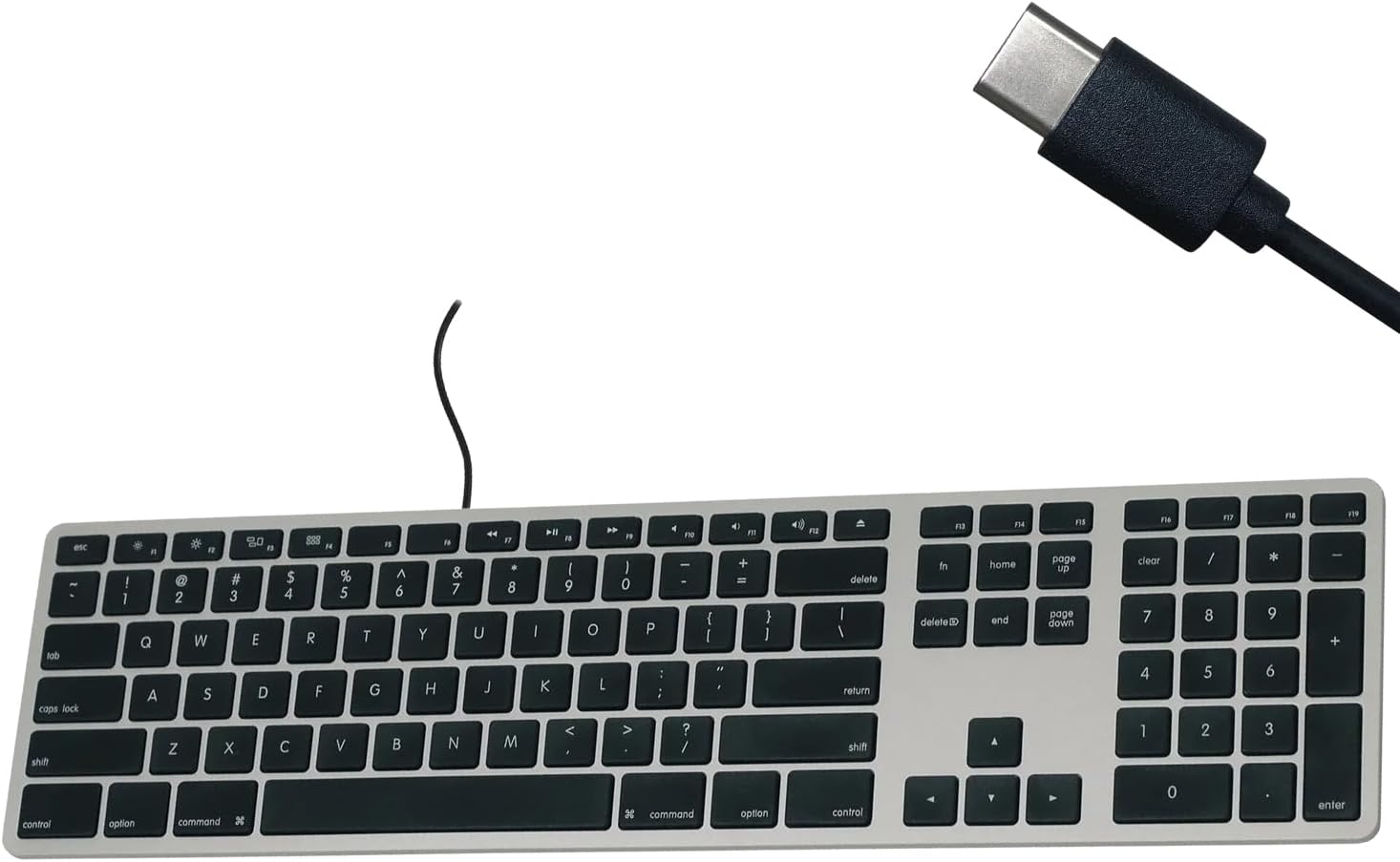
Figure 1: Matias USB-C Keyboard with its USB-C connector, ready for connection.

Figure 2: The keyboard connected to a Mac computer, demonstrating a typical setup.
Mode d'emploi
Dactylographie de base
The keyboard features a standard QWERTY layout with a full numeric keypad. Simply begin typing after connecting the keyboard to your Mac.
Clavier numérique
The integrated numeric keypad allows for efficient data entry and calculations. Ensure the 'Num Lock' function is active if numbers are not registering (though typically not required on Mac keyboards for the numeric pad).
Touches de fonction Mac
The top row of keys (F1-F12) provides dedicated Mac-specific functions. These keys allow for quick access to controls such as screen brightness, volume adjustment, media playback, and Mission Control.

Figure 3 : Gros plan view of the Mac-specific function keys (F1-F12) on the keyboard.
Entretien
To maintain the performance and appearance of your Matias keyboard, follow these guidelines:
- Nettoyage: Utilisez un chiffon doux et non pelucheux légèrement dampened with water or a mild, non-abrasive cleaner to wipe the surface of the keyboard. Avoid spraying liquids directly onto the keyboard.
- Élimination de la poussière : Utilisez de l'air comprimé pour enlever la poussière et les débris entre les touches.
- Stockage: Rangez le clavier dans un endroit propre et sec lorsqu'il n'est pas utilisé.
Dépannage
If you encounter issues with your Matias Wired USB-C Keyboard, consider the following steps:
- Le clavier ne répond pas :
- Ensure the USB-C cable is securely connected to both the keyboard and your Mac.
- Try connecting the keyboard to a different USB-C port on your Mac.
- Redémarrez votre ordinateur Mac.
- Test the keyboard on another compatible Mac computer, if available, to determine if the issue is with the keyboard or the computer.
- Les touches ne fonctionnent pas correctement :
- Vérifiez la présence d'obstructions physiques ou de débris sous les touches concernées.
- Assurez-vous que le système d'exploitation de votre Mac est à jour.
Si ces étapes ne résolvent pas le problème, veuillez consulter la section Assistance pour obtenir de l'aide supplémentaire.
Caractéristiques
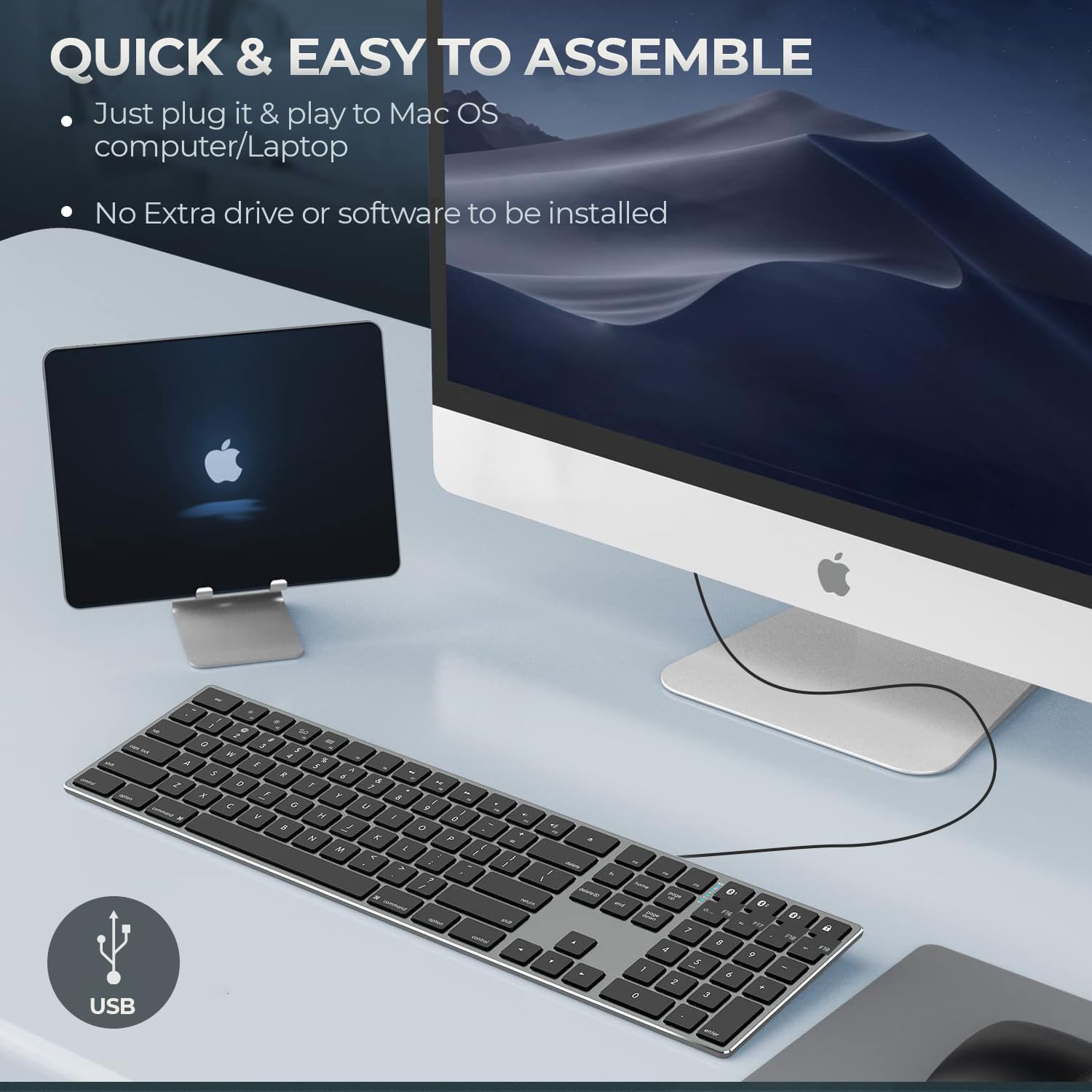
Figure 4: Key specifications of the Matias USB-C Keyboard.
| Fonctionnalité | Détail |
|---|---|
| Numéro de modèle | FK316CS |
| Technologie de connectivité | USB-C (filaire) |
| Appareils compatibles | MacBook Pro, MacBook Air, iMac, Mac OS X v.10.6.8 and later |
| Dimensions du produit | 17.35 x 4.58 x 0.75 pouces (44.07 x 11.63 x 1.91 cm) |
| Poids de l'article | 1.35 livres (612 grammes) |
| Longueur du câble | 5 pieds (1.5 mètres) |
| Matériel | Plastic keyframe |
| Couleur | Gris sidéral |

Figure 5: Keyboard dimensions and ergonomic tilt angle.
Informations sur la garantie
Matias products are covered by a manufacturer's warranty. For specific details regarding the warranty period and terms, please refer to the warranty card included with your product or visit the official Matias website.
Soutien
For further assistance, technical support, or to inquire about replacement parts, please contact Matias customer service through their official website:
- Matias Official Website: www.matias.ca
Please have your product model number (FK316CS) and purchase information ready when contacting support.


