Introduction
This manual provides detailed instructions for the setup, operation, maintenance, and troubleshooting of your TECWARE Phantom+ 87 Key Mechanical Gaming Keyboard. Designed for a premium typing experience, this keyboard features customizable RGB lighting, durable PBT keycaps, and hot-swappable switches.

Ce qui est inclus
Vérifiez que tous les éléments suivants sont présents dans votre colis :
- TECWARE Phantom+ 87 Key Mechanical Gaming Keyboard
- Detachable 1.8m Braided USB-C Cable
- Outil d'extraction de commutateur
- Outil d'extraction de touches
- 4 interrupteurs de rechange

Installation
Follow these steps to set up your TECWARE Phantom+ keyboard:
- Connectez le câble USB-C : Insert the USB-C end of the braided cable into the port located on the back of the keyboard.
- Connectez-vous à l'ordinateur : Branchez l'extrémité USB-A du câble sur un port USB disponible de votre ordinateur.
- Ajuster les pieds du clavier : Dépliez les pieds réglables situés sous le clavier pour obtenir l'angle de frappe souhaité.
- Installation du pilote : The keyboard is plug-and-play. Your operating system (Windows 10 or later recommended) will automatically detect and install the necessary drivers.

Mode d'emploi
Fonctionnement de base
The TECWARE Phantom+ functions as a standard 87-key keyboard for typing and gaming. It features N-Key Rollover, ensuring all keystrokes are registered accurately, even during rapid input.
Contrôle d'éclairage RVB
The keyboard features 16.8 million color RGB lighting with 18 pre-set lighting modes. These modes can be cycled through directly on the keyboard using function key combinations (refer to the keyboard's printed legends for specific shortcuts). You can also adjust brightness and speed.

Fonctionnalités du logiciel
For advanced customization, the Phantom+ supports dedicated software. This software allows for:
- Macro Recording and Assignment
- Up to 3 User Profiles
- Customizable Per-Key RGB Lighting
- Adjustable USB Report Rate (up to 1000Hz)

Fonctionnalités clésview
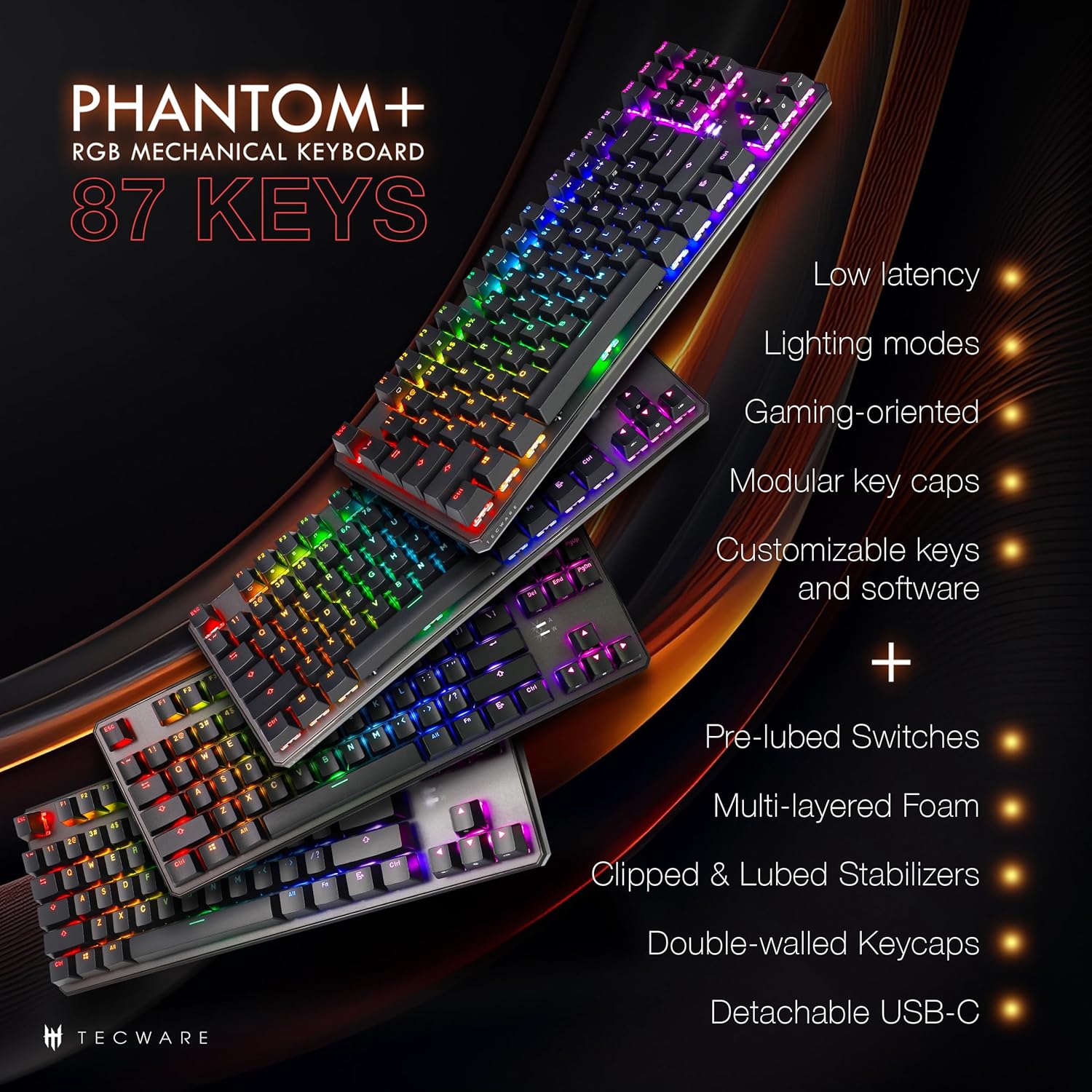
The Phantom+ keyboard incorporates several design and engineering features for enhanced performance and durability:
- Touches PBT à double injection : Resistant to wear and fading, providing long-lasting legends.
- Stabilisateurs V3 : Clipped and lubed for enhanced stability and smoother keystrokes on larger keys.
- Son DampTechnologie de pointe : Reduces keyboard noise for a more pleasant typing experience.
- Fréquence d'interrogation de 1000 Hz : Ensures rapid response times for gaming.
- Windows Lock Feature: Prevents accidental presses of the Windows key during gaming.

Entretien
Nettoyage
To clean your keyboard, disconnect it from your computer. Use a soft, dry cloth to wipe down the keycaps and chassis. For deeper cleaning, you may carefully remove keycaps using the provided keycap puller and use compressed air to clear debris from underneath.
Interrupteur de remplacement (remplaçable à chaud)
The TECWARE Phantom+ features hot-swappable switches, allowing you to replace individual switches without soldering. This is useful for customizing your typing feel or replacing a faulty switch.
- Retirer la touche : Utilisez l'extracteur de touches pour retirer délicatement la touche de l'interrupteur que vous souhaitez remplacer.
- Retirer l'interrupteur : Use the switch puller tool to grasp the top and bottom clips of the switch. Apply gentle pressure and pull the switch straight up to remove it from the PCB.
- Insérer un nouvel interrupteur : Alignez les broches du nouvel interrupteur avec les trous du circuit imprimé. Appuyez délicatement sur l'interrupteur jusqu'à ce qu'il s'enclenche. Vérifiez que les broches ne sont pas tordues.
- Remplacer la touche : Press the keycap onto the new switch until it is firmly seated.

Dépannage
If you encounter issues with your TECWARE Phantom+ keyboard, refer to the table below for common problems and solutions:
| Problème | Cause possible | Solution |
|---|---|---|
| Le clavier ne répond pas | Connexion USB défectueuse, câble défectueux, problème de pilote. | Ensure USB cable is securely connected. Try a different USB port or cable. Restart your computer. |
| L'éclairage RGB ne fonctionne pas ou est incohérent. | Mode éclairage désactivé, conflit logiciel, problème d'alimentation. | Check keyboard lighting controls (Fn + keys). Ensure software is running correctly. Try reconnecting the keyboard. |
| Certaines touches ne fonctionnent pas | Interrupteur défectueux, débris sous la touche. | Remove keycap and check for debris. If hot-swappable, try replacing the switch with a spare. |
| Le logiciel ne détecte pas le clavier | Software not installed correctly, USB connection issue. | Reinstall the TECWARE software. Ensure the keyboard is directly connected to a USB port (avoiding hubs if possible). Run software as administrator. |
Caractéristiques
| Fonctionnalité | Détail |
|---|---|
| Modèle | TWKB-P87PZT-WBR |
| Clés | Clavier 87 touches (sans pavé numérique) |
| Type de commutateur | Wraith Brown (Tactile) - Hot-swappable |
| Keycaps | Double-Shot PBT |
| Éclairage | RGB (16.8 Million Colors, 18 Pre-set Modes) |
| Connectivité | USB-C détachable |
| Taux de sondage | Jusqu'à 1000 Hz |
| Roulement N-Key | Soutenu |
| Stabilisateurs | V3 (Clipped & Lubed) |
| Dimensions (L x l x H) | 14.21 x 5.2 x 1.65 pouces |
| Poids | 2.71 livres |
| Systèmes d'exploitation compatibles | Windows 10 (PC, Laptop, Tablet) |
Wraith Switch Specifications
The Phantom+ keyboard comes pre-installed with TECWARE Wraith switches. The specifications for various Wraith switch types are detailed below:

Garantie et assistance
For warranty information, technical support, or to access the latest software and drivers for your TECWARE Phantom+ keyboard, please visit the official TECWARE website ou contactez leur service client.
Vous trouverez plus d'informations et de ressources d'assistance en visitant le site web. Official TECWARE Store on Amazon.


