1. Introduction
Thank you for choosing the Cherry KW 9100 Slim Wireless Rechargeable Keyboard. This extra-slim, low-profile keyboard is designed for Mac computers, offering versatile connectivity options and a comfortable typing experience. This manual provides essential information for setting up, operating, maintaining, and troubleshooting your new keyboard.
The keyboard features dual wireless connectivity (Bluetooth and 2.4 GHz wireless USB receiver), allowing you to easily switch between devices. It incorporates high-quality CHERRY SC scissor technology for quiet and precise keystrokes, and includes AES-128 encryption for secure data transmission. The integrated rechargeable battery provides weeks of use on a single charge, and the keyboard can be charged while in use via the included USB-A to USB-C cable.

Image 1.1: The Cherry KW 9100 Slim Wireless Rechargeable Keyboard, showcasing son agencement complet et son profil mincefile.
2. Consignes de sécurité
- Do not expose the keyboard to liquids, excessive moisture, or extreme temperatures.
- Évitez de faire tomber le clavier ou de le soumettre à des chocs violents.
- Tenez le clavier éloigné des champs magnétiques puissants.
- Ne tentez pas de démonter ou de modifier le clavier. Cela annulera la garantie.
- Utilisez uniquement le câble USB-A vers USB-C fourni pour la charge.
3. Contenu du colis
Vérifiez que tous les éléments sont présents dans votre colis :
- Cherry KW 9100 Slim Wireless Rechargeable Keyboard
- Câble USB-A vers USB-C
- Récepteur USB sans fil 2.4 GHz
- Magnetic Strip (for angle adjustment)
- Manuel de l'utilisateur (ce document)
4. Installation
4.1. Charger le clavier
Before first use, or when the battery indicator shows low power, connect the keyboard to a USB power source (e.g., computer USB port, USB wall adapter) using the provided USB-A to USB-C cable. The keyboard can be used while charging.
4.2. Connecting via 2.4 GHz Wireless USB Receiver
- Locate the 2.4 GHz wireless USB receiver.
- Insert the USB receiver into an available USB-A port on your Mac computer.
- On the keyboard, slide the connectivity switch (located on the side) to the 'RF' position.
- Le clavier devrait se connecter automatiquement à votre ordinateur.
4.3. Connexion via Bluetooth
Ensure your Mac computer has Bluetooth 4.0 or higher.
- On the keyboard, slide the connectivity switch (located on the side) to the 'BT' position.
- Sur votre Mac, allez à Paramètres du système (ou Préférences système) > Bluetooth.
- Assurez-vous que Bluetooth est activé.
- The keyboard should appear in the list of discoverable devices (e.g., "CHERRY KW 9100"). Select it to pair.
- Suivez les instructions à l’écran pour terminer le processus de couplage.

Image 4.1 : Côté view of the keyboard, highlighting the RF/BT connectivity switch and the USB-C charging port.
4.4. Réglage de l'angle du clavier
The keyboard includes a removable magnetic strip that can be attached to the underside to adjust the typing angle for improved ergonomics. Simply attach the strip to the designated area on the bottom of the keyboard.
5. Utilisation du clavier
5.1. Basculer entre les modes de connectivité
Use the slide switch on the side of the keyboard to toggle between 'RF' (2.4 GHz wireless) and 'BT' (Bluetooth) modes. This allows you to seamlessly switch between two connected devices, for example, a laptop via Bluetooth and a desktop PC via the USB receiver.
5.2. Key Functions and Mac Layout
The keyboard features a Mac-specific layout, including Command, Option, and Control keys. The function keys (F1-F15) provide quick access to various system functions such as brightness, media control, and volume. Some function keys may require pressing the 'Fn' key simultaneously depending on your Mac's system settings.
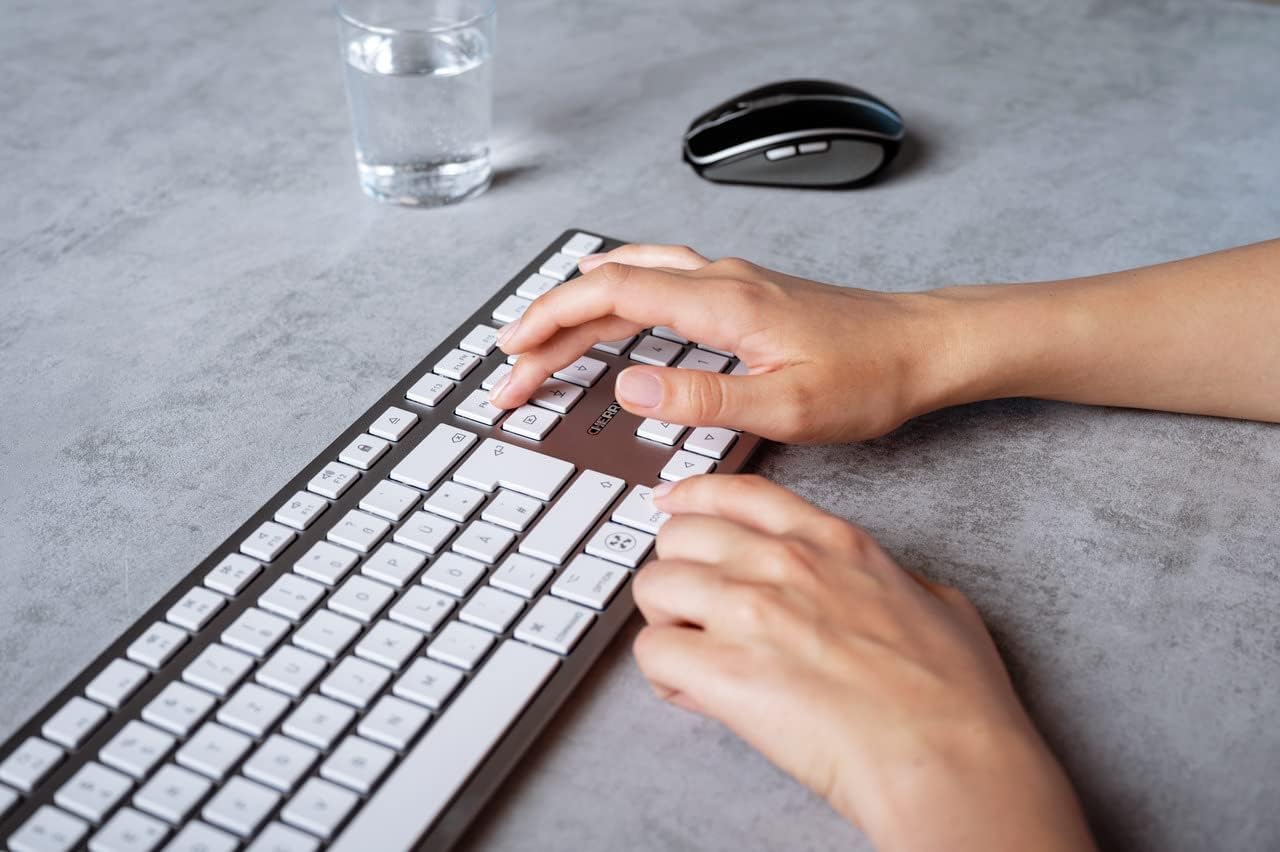
Image 5.1: A user typing on the Cherry KW 9100 keyboard, demonstrating its ergonomic design and key spacing.
5.3. Gestion de l'alimentation
To conserve battery life, the keyboard will enter a sleep mode after a period of inactivity. To wake it up, simply press any key. The keyboard will reconnect automatically to the last active device.
6. Entretien
6.1. Nettoyage
Pour nettoyer le clavier, essuyez délicatement sa surface avec un chiffon doux non pelucheux. Pour les saletés tenaces, frottez légèrement avec un chiffon doux.ampNettoyez le chiffon avec de l'eau ou une solution nettoyante douce et non abrasive. Veillez à ce qu'aucun liquide ne pénètre dans le clavier. N'utilisez pas de produits chimiques agressifs ni de matériaux abrasifs.
6.2. Stockage
When not in use for extended periods, store the keyboard in a dry, cool place. It is recommended to fully charge the battery before long-term storage.
7. Dépannage
| Problème | Cause possible | Solution |
|---|---|---|
| Keyboard not connecting via 2.4 GHz. | USB receiver not properly inserted; keyboard switch in 'BT' mode; low battery. | Ensure receiver is fully inserted. Slide keyboard switch to 'RF'. Charge the keyboard. Try a different USB port. |
| Le clavier ne se connecte pas via Bluetooth. | Keyboard switch in 'RF' mode; Bluetooth off on Mac; low battery; pairing issue. | Slide keyboard switch to 'BT'. Ensure Bluetooth is enabled on your Mac. Charge the keyboard. Remove and re-pair the keyboard in Mac's Bluetooth settings. |
| Keys are unresponsive or delayed. | Batterie faible ; interférences ; clavier en mode veille. | Charge the keyboard. Move closer to the receiver/Mac. Press any key to wake the keyboard. |
| Function keys (F1-F15) not working as expected. | System settings; 'Fn' key usage. | Check your Mac's Keyboard settings (System Settings > Keyboard) for function key behavior. Try pressing the 'Fn' key simultaneously with the desired function key. |
| La batterie se décharge rapidement. | Frequent use; keyboard not entering sleep mode. | Ensure the keyboard is allowed to enter sleep mode when idle. Fully charge the keyboard. |
8. Spécifications
| Fonctionnalité | Détail |
|---|---|
| Numéro de modèle | JK-9110US-1 |
| Marque | Cerise |
| Technologie de connectivité | Bluetooth, USB-A (for receiver), USB-C (for charging) |
| Appareils compatibles | Mac computers with Bluetooth 4.0 or higher and USB-A connections |
| Description du clavier | Bas-profile, extra-slim, wireless, scissor-switch keyboard with adjustable angle and rechargeable battery |
| Dossier spécial | Magnetic (for angle adjustment), Travel |
| Couleur | Argent |
| Matériel | Métal, plastique |
| Dimensions du produit | 17.32 x 5.12 x 0.59 pouces (44 x 13 x 1.5 cm) |
| Poids de l'article | 1.94 livres (0.88 kg) |
| Fabricant | CERISE |
9. Garantie et assistance
Your Cherry KW 9100 Slim Wireless Rechargeable Keyboard is covered by a manufacturer's warranty. For detailed warranty information, technical support, or service inquiries, please visit the official Cherry webConsultez leur site web ou contactez directement leur service client. Conservez votre preuve d'achat pour toute réclamation au titre de la garantie.
Support en ligne: www.cherry.de


