1. Introduction
Thank you for choosing the PeriPage A6 Mini Portable Thermal Printer. This compact and versatile device allows you to print photos, labels, notes, lists, and more directly from your smartphone or PC. With its high-resolution thermal printing technology, you can enjoy clear and crisp prints without the need for ink cartridges. This manual provides essential information on setting up, operating, maintaining, and troubleshooting your new printer.
3. Contenu du colis
Vérifiez que tous les éléments sont présents dans votre colis :
- PeriPage A6 Mini Printer
- Rouleau de papier thermique
- Câble USB
- Manuel d'utilisation

Image: Contents of the PeriPage A6 Mini Printer package, showing the printer, a roll of thermal paper, a USB charging cable, and the user manual.
4. Produit terminéview
4.1 Principales caractéristiques
- Ultra HD Printing: 304 DPI resolution for clear and detailed prints.
- Impression thermique sans encre : No ink cartridges required, reducing operating costs.
- Multifonctionnel: Supports printing of photos, labels, notes, lists, QR codes, web pages, et plus encore.
- Connectivité Bluetooth : Seamless wireless connection to iOS and Android smartphones.
- Conception portable : Compact and lightweight with a built-in 1000mAh rechargeable battery.
- Support papier polyvalent : Compatible with various thermal paper types including standard, sticky, transparent, and colorful options.
4.2 Composants de l'imprimante
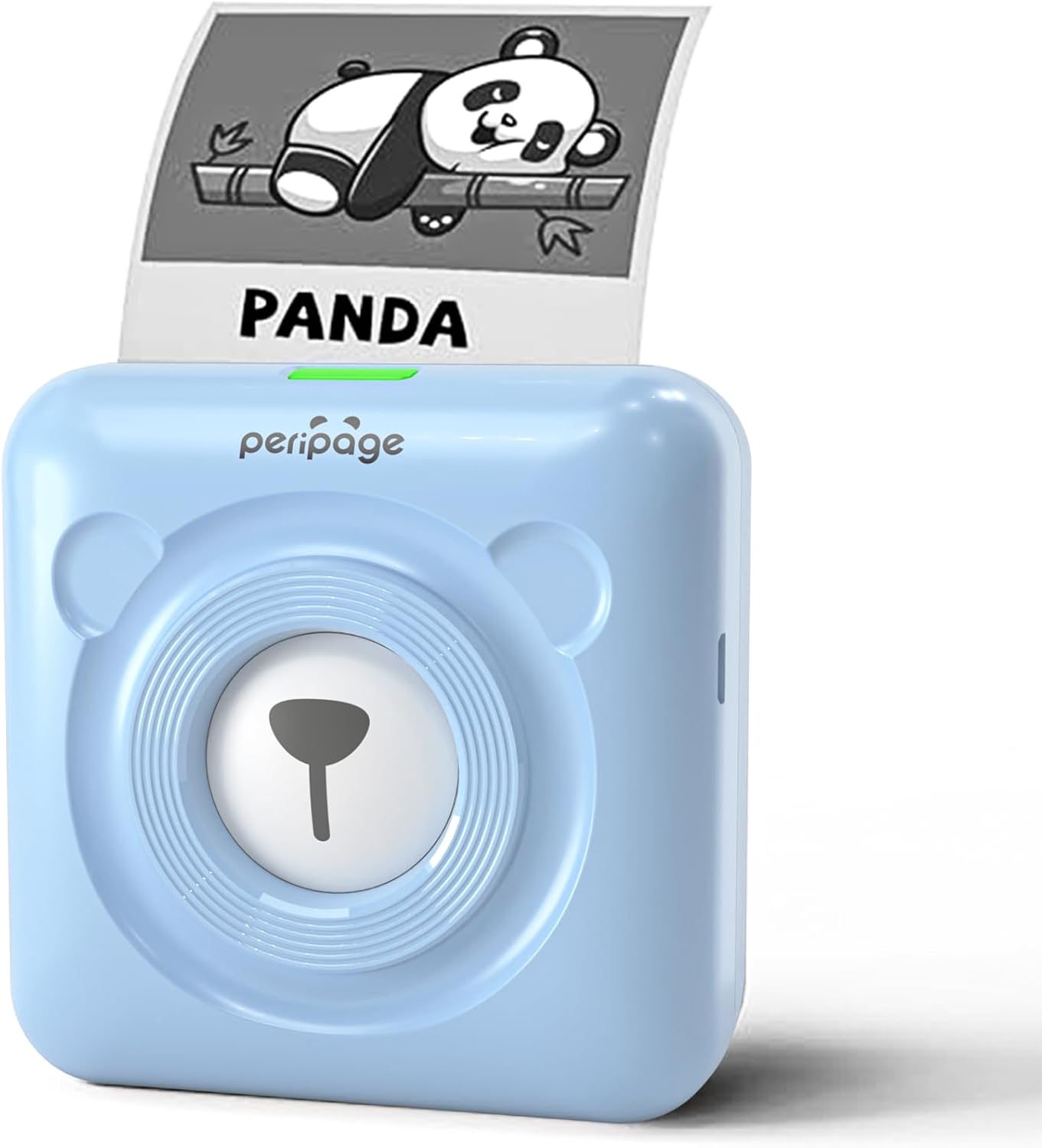
Image: The PeriPage A6 Mini Printer in blue, demonstrating a printed output. The printer features a bear-like design on its front.

Image: A visual comparison highlighting the superior print resolution of the PeriPage A6 Mini Printer (304 DPI) compared to a standard definition printer, showing finer details in the printed image.
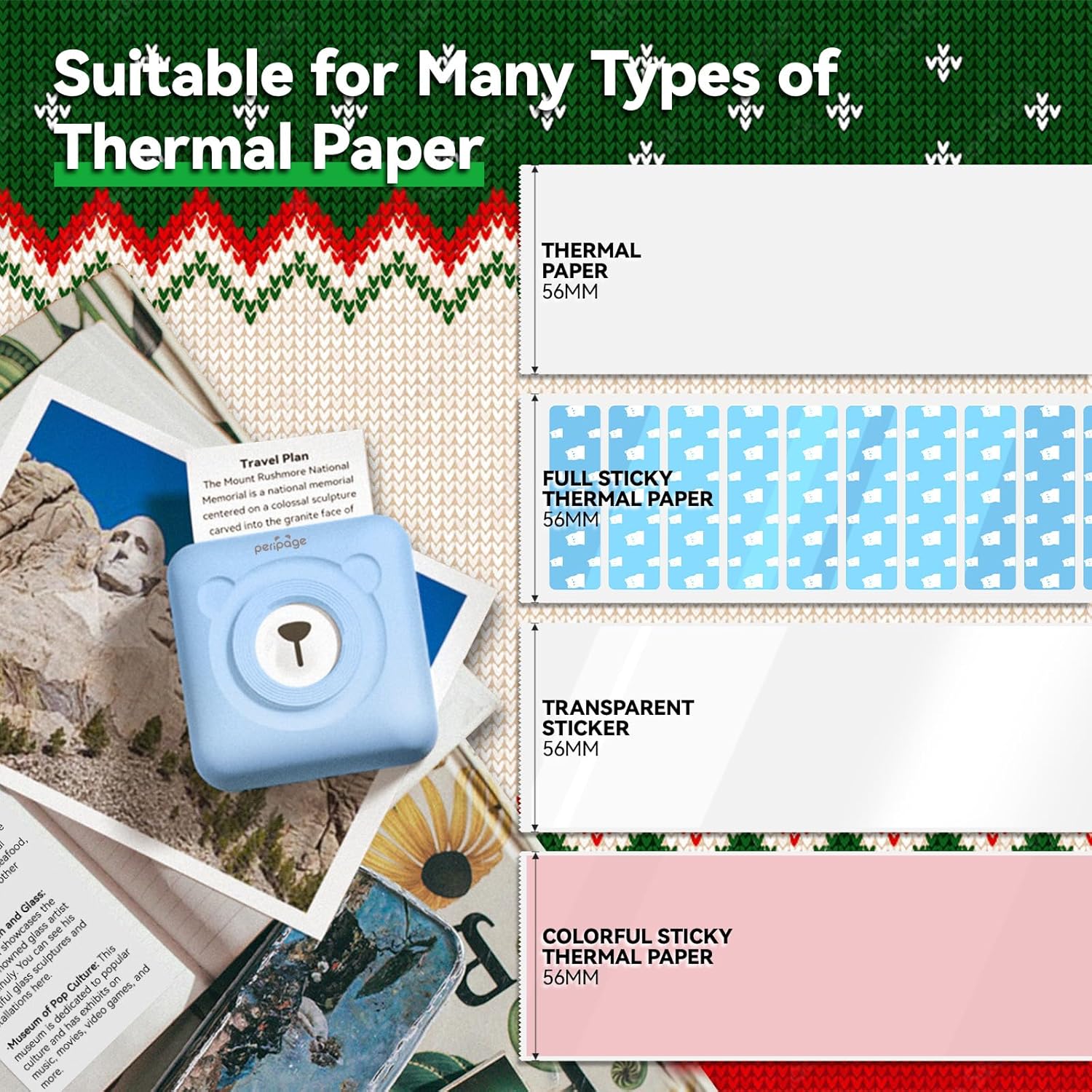
Image: An illustration showing the different types of thermal paper that can be used with the PeriPage A6 Mini Printer, such as standard thermal paper, full sticky thermal paper, transparent stickers, and colorful sticky thermal paper, all 56mm wide.
5. Guide de configuration
5.1 Chargement de l'imprimante
Avant la première utilisation, chargez complètement l'imprimante à l'aide du câble USB fourni. Branchez le câble USB au port de charge de l'imprimante et l'autre extrémité à un adaptateur secteur USB (non fourni) ou à un port USB d'ordinateur. Le voyant lumineux indiquera l'état de la charge.
5.2 Installation du papier thermique
- Open the printer cover by gently sliding the release button or pressing the designated area.
- Insérez le rouleau de papier thermique dans le compartiment à papier, en veillant à ce que la face imprimable soit orientée vers la tête d'impression.
- Déplacez une petite quantité de papier au-delà de la tête d'impression.
- Fermez fermement le couvercle de l'imprimante jusqu'à ce qu'il s'enclenche.
5.3 Downloading the PeriPage App
The PeriPage A6 Mini Printer requires the official PeriPage APP for full functionality. You can download it via:
- Searching for "PeriPage" in your device's APP store (Apple App Store for iOS, Google Play Store for Android).
- Scanning the QR code provided in the instruction manual or on the product packaging.
- Visiting the official download page: https://www.ileadtek.com/download/app/peripage.html

Image: A guide illustrating two methods to download the PeriPage App: searching on Google Play or Apple App Store, or scanning a QR code.
5.4 Connecting to Your Device (Bluetooth)
- Ensure your PeriPage A6 printer is turned on.
- Activez le Bluetooth sur votre smartphone.
- Open the PeriPage App. The app will guide you to connect to the printer.
- Select your printer from the list of available Bluetooth devices within the app. The printer's name usually starts with "PeriPage".
- Une fois la connexion établie, l'application indiquera que la connexion a réussi.

Image: A visual representation of connecting the PeriPage A6 Mini Printer to a smartphone via the PeriPage App, showing the app interface and Bluetooth icon.
6. Mode d'emploi
The PeriPage App offers a wide range of functions to maximize your printer's utility.
6.1 Étapes d'impression de base (via l'application)
- Allumez l'imprimante : Appuyez sur le bouton d'alimentation de l'imprimante.
- Open the PeriPage App: Ensure your printer is connected via Bluetooth.
- Select Printing Type: On the app's homepage, choose the type of content you wish to print (e.g., Photo Print, Label Print, Notes, Web Page Printing, OCR Text Recognition).
- Import/Create Content: Select the image, text, or template you want to print. The app provides various fonts and themes.
- Ajuster les paramètres (facultatif) : Modify print density, size, or other parameters as needed.
- Imprimer: Tap the print button in the app. The printer will begin printing.

Image: A five-step visual guide demonstrating the printing process using the PeriPage App: 1. Press button to boot, 2. Enter PeriPage app, 3. Import file, 4. Connect via Bluetooth, 5. Get printed document.
6.2 Scénarios d'utilisation
The PeriPage A6 is suitable for a variety of applications:
- Cuisine: Print labels for jars and containers.
- Étude: Print study notes, lists, or quick references.
- Photos: Print black and white photos for journaling or scrapbooking.
- Autocollants DIY : Create custom stickers for various purposes.
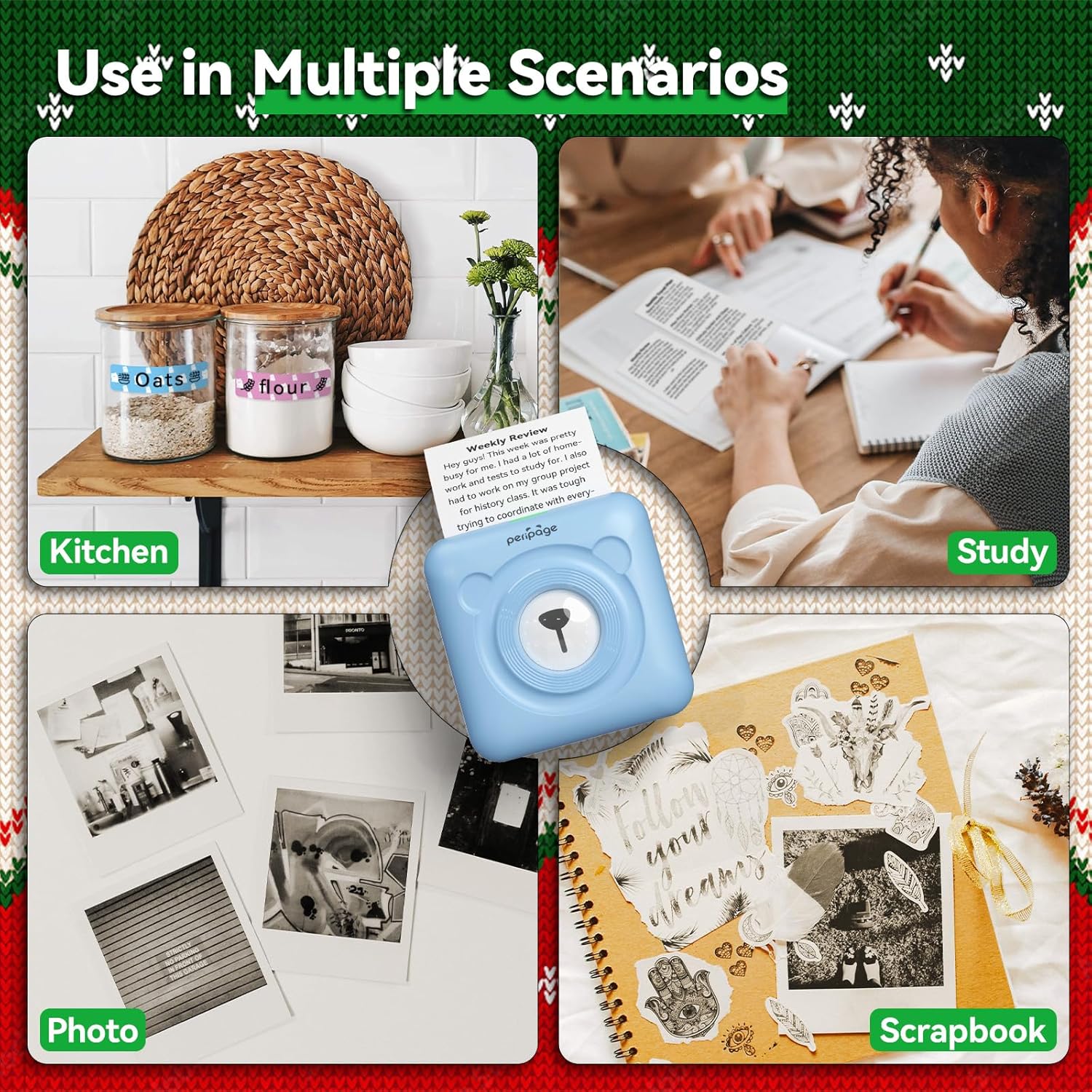
Image : Examples of the PeriPage A6 Mini Printer's use in multiple scenarios, including creating kitchen labels, printing study notes, printing photos, and enhancing scrapbooks.
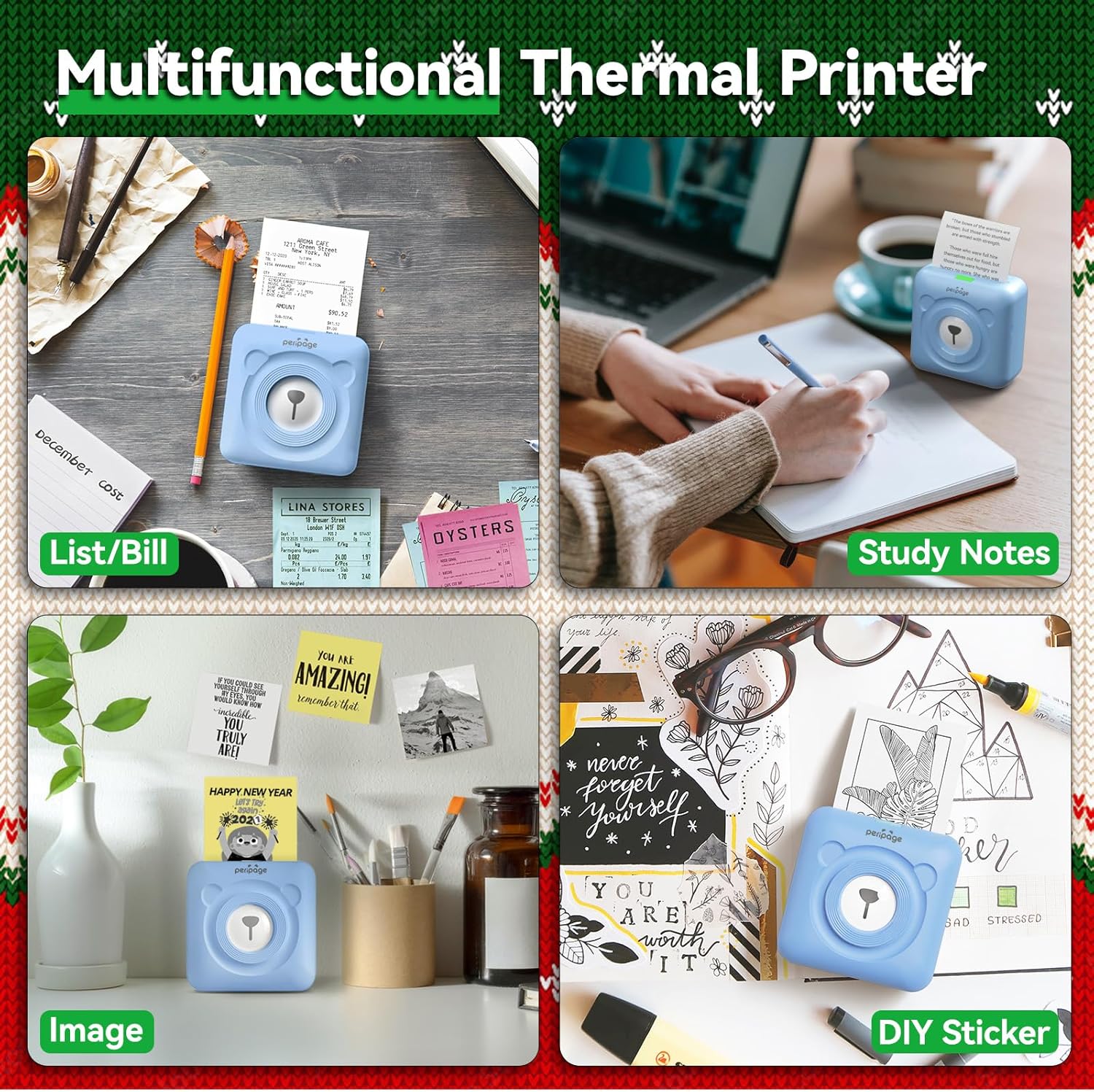
Image: A display of the PeriPage A6 Mini Printer's multifunctional thermal printing capabilities, showing its use for lists/bills, study notes, images, and DIY stickers.
7. Entretien
7.1 Nettoyage de l'imprimante
Pour garantir une qualité d'impression optimale et prolonger la durée de vie de votre imprimante, un nettoyage régulier est recommandé.
- Éteignez l'imprimante et débranchez le câble d'alimentation avant de la nettoyer.
- Utilisez un chiffon doux, sec et non pelucheux pour essuyer l'extérieur de l'imprimante.
- For the print head, gently wipe it with a cotton swab lightly dampTerminé avec de l'alcool isopropylique. Laisser sécher complètement avant utilisation.
- N'utilisez pas de nettoyants abrasifs ni de solvants.
7.2 Entretien de la batterie
- Rechargez régulièrement l'imprimante, même si elle n'est pas utilisée, afin de préserver la durée de vie de la batterie.
- Évitez de décharger complètement la batterie fréquemment.
- Rangez l'imprimante dans un endroit frais et sec lorsqu'elle n'est pas utilisée pendant une période prolongée.
8. Dépannage
If you encounter issues with your PeriPage A6 Mini Printer, refer to the following common problems and solutions:
| Problème | Cause possible | Solution |
|---|
| L'imprimante ne s'allume pas | Batterie faible ; bouton d'alimentation mal enfoncé | Chargez l'imprimante ; appuyez sur le bouton d'alimentation et maintenez-le enfoncé pendant quelques secondes. |
| Impossible de se connecter via Bluetooth | Bluetooth désactivé ; imprimante non détectable ; problème d’application | Ensure Bluetooth is enabled on your phone; Restart printer and phone; Reinstall PeriPage App. |
| Qualité d'impression médiocre / Impressions pâles | Paper installed incorrectly; Low battery; Dirty print head; Expired thermal paper | Reinstall paper with printing side facing up; Charge printer; Clean print head; Use new thermal paper. |
| Bourrage de papier | Paper not inserted straight; Too much paper pulled out | Open cover and carefully remove jammed paper; Reinsert paper correctly. |
| App is buggy or freezes | Bug logiciel ; version de l’application obsolète | Close and reopen the app; Check for app updates; Reinstall the app. |
9. Spécifications
| Fonctionnalité | Détail |
|---|
| Marque | PériPage |
| Nom du modèle | PeriPage A6 |
| Technologie d'impression | Thermique |
| Résolution | 304 DPI |
| Connectivité | Bluetooth, USB |
| Appareils compatibles | Smartphones (iOS & Android), PC, Laptops |
| Taille maximale du support | 57mm (width) x 30mm (roll diameter) |
| Batterie | Batterie lithium-ion 1000 mAh (incluse) |
| Poids de l'article | 5.6 once (160 grammes) |
| Dimensions du produit | 2.95"P x 2.95"L x 1.57"H |
| Composants inclus | Papier |
10. Garantie et assistance
10.1 Informations sur la garantie
Please note that this product is listed with Aucune garantie. For specific details regarding returns or defects, please refer to the retailer's policy where the product was purchased.
10.2 Assistance clientèle
For further assistance, technical support, or inquiries not covered in this manual, please contact PeriPage customer service through their official website or the contact information provided by your retailer. Ensure you have your product model number (A6) and purchase details ready when contacting support.


