1. Introduction
This manual provides detailed instructions for the safe and efficient use of your PeriPage A40 Portable Thermal Printer. The PeriPage A40 is an inkless, portable printer designed for various printing needs, including documents, web pages, photos, and specialized papers like tattoo transfer paper. It offers wireless connectivity via Bluetooth and is compatible with Android, iOS, Windows, and Mac OS devices.
Veuillez lire attentivement ce manuel avant d'utiliser l'appareil afin d'assurer son bon fonctionnement et d'éviter tout dommage.
2. Consignes de sécurité
- N’exposez pas l’imprimante à l’eau ou à une humidité excessive.
- Évitez les températures extrêmes, la lumière directe du soleil ou les environnements poussiéreux.
- Use only the specified thermal paper for optimal performance and to prevent damage to the print head.
- Gardez l'appareil hors de portée des enfants.
- N’essayez pas de démonter ou de réparer l’imprimante vous-même. Contactez le service client pour obtenir de l’aide.
- Ensure the printer is charged using a compatible power adapter.
3. Contenu du colis
Lors du déballage, veuillez vérifier que tous les éléments énumérés ci-dessous sont présents :
- PeriPage A40 Portable Thermal Printer
- Câble de charge USB Type-C
- Manuel de l'utilisateur (ce document)
- Thermal Paper Roll (1 additional roll included)
- Paper Width Adjustment Clips (2 clips)

Image: The PeriPage A40 printer shown with a sample document being printed. This illustrates the compact design and printing capability of the device.
4. Produit terminéview
The PeriPage A40 is a versatile, inkless thermal printer designed for portability and convenience. It utilizes thermal transfer technology to produce crisp, monochrome prints without the need for ink cartridges, toner, or ribbons.
Caractéristiques principales :
- Impression thermique sans encre : Environmentally friendly and cost-effective, requiring only thermal paper.
- Haute résolution: Delivers clear black and white prints at 300 x 300 dpi.
- Support papier multi-formats : Accommodates thermal paper widths of 210mm (A4/US Letter), 107mm, 77mm, and 56mm, supporting both roll and folded paper.
- Connectivité sans fil: Connects via Bluetooth to Android and iOS smartphones/tablets.
- Large compatibilité: Supports printing from Windows and Mac OS computers via USB.
- Conception portable : Compact and lightweight (1.45 pounds) for easy travel.
- Longue durée de vie de la batterie : Equipped with two 2600mAh lithium batteries, capable of printing up to 360 A4 sheets on a full charge.
- Fonctionnalité supplémentaire : Includes basic scanning capabilities.
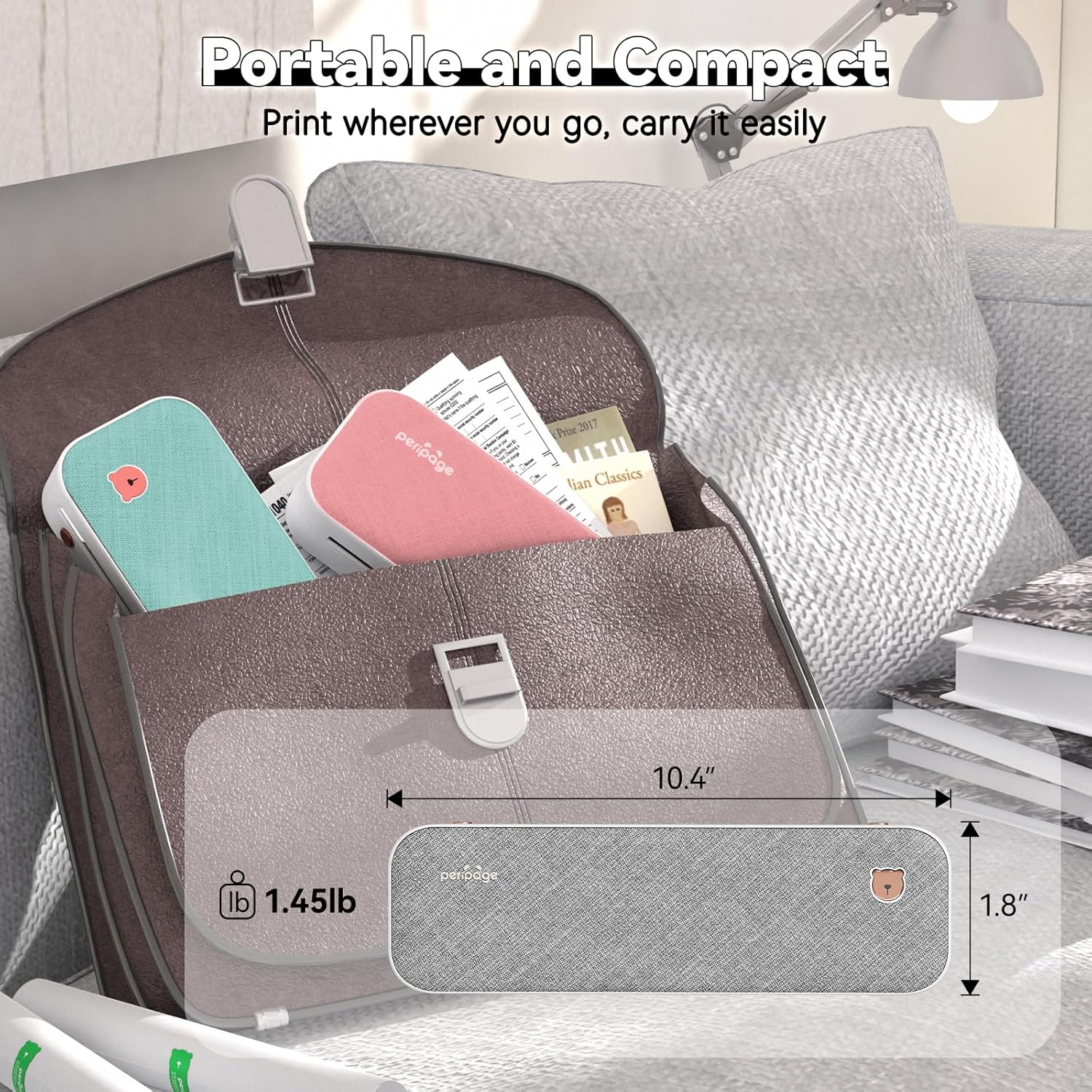
Image: The PeriPage A40 printer shown inside a bag, demonstrating its compact size and portability for travel or mobile use.
5. Installation
5.1 Chargement de l'imprimante
Before first use, fully charge the printer. Connect the included USB Type-C cable to the printer's charging port and the other end to a compatible USB power adapter (not included) or a computer's USB port. The indicator light will show charging status.
5.2 Mise sous/hors tension
To power on the printer, press and hold the power button for approximately 2 seconds until the indicator light illuminates. To power off, press and hold the power button again until the indicator light turns off.

Image : Un gros plan view of the PeriPage A40 printer's power button, indicating the action required to turn the device on.
5.3 App Download (for Mobile Devices)
For mobile printing, you must download the official "PeriPage" application. Rechercher "PeriPage" in your device's app store (Google Play Store for Android or Apple App Store for iOS) or scan the QR code provided in the physical instruction manual.

Image: A smartphone displaying the PeriPage application download page, illustrating where to find the app for mobile printing.
5.4 Connexion aux appareils mobiles (Bluetooth)
- Ensure the PeriPage A40 printer is powered on.
- Open the "PeriPage" app on your smartphone or tablet.
- Within the app, navigate to the device connection section (usually indicated by a Bluetooth icon or "Connect Device").
- The app will search for available PeriPage printers. Select "PeriPage A40" from the list to establish a Bluetooth connection.
- Une fois la connexion établie, un message s'affichera dans l'application.

Image: A smartphone screen displaying the Bluetooth connection process to the PeriPage A40 printer within the application.
5.5 Connecting to Computers (Windows/Mac OS)
- Ensure the PeriPage A40 printer is powered on.
- Connectez l'imprimante à votre ordinateur à l'aide du câble USB Type-C fourni.
- For Windows and Mac OS, you may need to install the printer driver. Visit the official PeriPage website (www.ileadtek.com) to download the appropriate driver for your operating system.
- Suivez les instructions à l’écran pour terminer l’installation du pilote.
- Once the driver is installed, the printer will be recognized by your computer and ready for use.

Image: The PeriPage A40 printer connected to a laptop using a USB-C cable, demonstrating the wired connection method for computer printing.
6. Mode d'emploi
6.1 Chargement du papier
The PeriPage A40 supports both thermal roll paper and folded thermal paper. It can accommodate various widths (210mm, 107mm, 77mm, 56mm).
- Ouvrez le capot de l'imprimante.
- If using roll paper, place the roll into the paper compartment. Ensure the paper feeds smoothly from the bottom and extends slightly out of the printer's paper exit slot.
- If using folded paper, stack the sheets neatly and insert them into the paper compartment. Ensure the leading edge is straight and aligned.
- Use the two included paper width adjustment clips to secure the paper in place, matching the width of your thermal paper.
- Close the printer cover firmly.

Image: An illustration demonstrating the two methods of loading thermal paper into the PeriPage A40: using a roll of paper or folded sheets, with clips for width adjustment.
6.2 Impression depuis des appareils mobiles
- Ensure your PeriPage A40 is powered on and connected via Bluetooth to the PeriPage app.
- Open the PeriPage app.
- Select the document, image, web page, or other content you wish to print from within the app. The app supports various formats including PDF, JPG, PNG, Word, Excel, and PowerPoint.
- Adjust print settings such as density, size, and orientation as needed.
- Tap the "Print" button in the app to initiate printing.

Image: A smartphone screen showing a document open in the PeriPage app, ready to be sent to the printer for mobile printing.
6.3 Impression à partir d'ordinateurs
- Ensure your PeriPage A40 is powered on and connected to your computer via USB, with the necessary drivers installed.
- Ouvrez le document ou l'image que vous souhaitez imprimer sur votre ordinateur.
- Allez à "File" > "Print" (or use the print shortcut, e.g., Ctrl+P on Windows, Command+P on Mac).
- Select "PeriPage A40" as your printer.
- Adjust print settings as required (e.g., paper size, orientation).
- Cliquez sur « Imprimer » pour envoyer la tâche à l'imprimante.

Image: A laptop displaying an image being printed, with the PeriPage A40 printer actively producing the output, illustrating computer printing functionality.
6.4 Formats de papier pris en charge
The PeriPage A40 is designed to be versatile with paper sizes. It supports the following thermal paper widths:
- 210 mm : Equivalent to A4 or US Letter/Legal length.
- 107 mm
- 77 mm
- 56 mm
Ensure you use thermal paper specifically designed for thermal printers. The maximum diameter for thermal roll paper is 30mm.

Image: Two PeriPage A40 printers illustrating the use of different thermal paper sizes (A4, 4-inch, 3-inch, 2-inch) and types (folding paper and thermal roll paper).
7. Entretien
7.1 Nettoyage de l'imprimante
- Avant de nettoyer l'imprimante, assurez-vous qu'elle est éteinte et débranchée de toute source d'alimentation.
- Essuyez l'extérieur de l'imprimante avec un chiffon doux et sec.
- To clean the thermal print head, gently wipe it with a cotton swab lightly dampTerminé avec de l'alcool isopropylique. Laisser sécher complètement avant utilisation.
- N'utilisez pas de nettoyants abrasifs ni de solvants.
7.2 Stockage du papier
Conservez le papier thermique dans un endroit frais et sec, à l'abri de la lumière directe du soleil et de la chaleur, afin de préserver sa qualité et la durée de ses impressions.
7.3 Entretien de la batterie
- Évitez de décharger complètement la batterie fréquemment.
- If storing the printer for an extended period, charge it to about 50% and recharge every few months to maintain battery health.
8. Dépannage
8.1 L'imprimante ne s'allume pas
- Ensure the battery is charged. Connect the printer to a power source and allow it to charge for at least 30 minutes before attempting to power on again.
- Verify that the power button is pressed and held for the required duration (approx. 2 seconds).
8.2 Connexion Bluetooth impossible
- Make sure the printer is powered on and within range of your mobile device.
- Assurez-vous que Bluetooth est activé sur votre appareil mobile.
- Close and reopen the PeriPage app.
- Redémarrez l'imprimante et votre appareil mobile.
- Check if the PeriPage app has Bluetooth permissions enabled in your device settings.
8.3 No Print Output or Blank Pages
- Verify that thermal paper is loaded correctly and not upside down. Thermal paper has a specific side that reacts to heat.
- Check if the paper compartment cover is fully closed.
- Ensure the printer is connected and selected as the active printer in your app or computer settings.
- The print head might be dirty. Refer to the "Cleaning the Printer" section.
8.4 Mauvaise qualité d'impression
- Veillez à utiliser du papier thermique de haute qualité.
- Clean the print head as described in the "Maintenance" section.
- Adjust the print density settings within the PeriPage app or printer driver.
- Check if the thermal paper is old or has been exposed to heat/light, which can degrade its printing capability.

Image: A visual comparison demonstrating the clear and crisp print quality achievable with the PeriPage A40 printer, highlighting its "Excellent Printing Ability".
9. Spécifications
| Fonctionnalité | Spécification |
|---|---|
| Modèle | A40 |
| Technologie d'impression | Thermique |
| Résolution d'impression | 300 x 300 dpi (Monochrome) |
| Connectivité | Bluetooth, USB Type-C |
| Appareils compatibles | Androïd, iOS, Windows, Mac OS |
| Largeurs de papier prises en charge | 210mm (A4/US Letter), 107mm, 77mm, 56mm |
| Capacité maximale d'entrée de feuilles | 360 sheets (A4 equivalent, with full battery) |
| Batterie | 2 batteries au lithium de 2600 mAh |
| Dimensions du produit | 2.5"P x 10.9"L x 4.09"H |
| Poids de l'article | 1.45 livres (658 XNUMX grammes) |
| Sortie de l'imprimante | Monochrome |
| Fonctions supplémentaires | Scan (basic) |
10. Garantie et assistance
The PeriPage A40 Portable Thermal Printer comes with a limited warranty. For specific warranty terms and conditions, please refer to the warranty card included in your package or visit the official PeriPage website.
For technical support, troubleshooting assistance, or inquiries regarding your product, please contact PeriPage customer service through their official website or the contact information provided in your product documentation. When contacting support, please have your model number (A40) and purchase details ready.
Officiel Website: www.ileadtek.com


