1. Introduction
This manual provides essential information for setting up, operating, maintaining, and troubleshooting your Alienware X17 R2 Gaming Laptop. Please read this guide thoroughly to ensure optimal performance and longevity of your device.
The Alienware X17 R2 is designed for high-performance gaming and demanding tasks, featuring advanced cooling technologies, powerful processors, and dedicated graphics.
2. Produit terminéview
The Alienware X17 R2 is engineered to deliver an immersive gaming experience in a thin 17-inch form factor. Key features include:
- Powerful Intel CPUs: Experience high-performance action across all your favorite games with 12th Gen Intel Core processors.
- Next-Gen GPUs: Game unrestrained with NVIDIA GeForce RTX 3070Ti graphics, Dynamic Boost 2.0, and Deep Learning Super Samptechnologie linguistique.
- Patented Quad Cooling: An industry-first design uses four intelligently controlled and programmable fans to dissipate heat.
- Durée de lecture prolongée : Improve battery life with Advanced Optimus technology from NVIDIA—now available on all display options.
- Legend 2.0 Industrial Design: A fresh evolution in design with a high-endurance finish and customizable AlienFX lighting.

Figure 2.1 : Face avant view of the Alienware X17 R2 Gaming Laptop displaying a game.
3. Installation
3.1 Déballage et inspection initiale
- Retirez soigneusement l'ordinateur portable et tous ses accessoires de leur emballage.
- Vérifiez que tous les éléments énumérés dans la section « Contenu de la boîte » sont présents.
- Vérifiez que l'ordinateur portable ne présente aucun dommage physique. Si vous constatez des dommages, contactez immédiatement votre revendeur.
3.2 Connexion de l'alimentation
- Connect the power adapter to the charging port located at the rear of the laptop.
- Branchez le cordon d’alimentation sur une prise murale.
- The power indicator light will illuminate, indicating the laptop is receiving power.
3.3 Premier démarrage et configuration du système d'exploitation
- Press the Alienware head power button to turn on the laptop.
- Suivez les instructions à l'écran pour terminer l'installation de Windows 11 Famille. Cela comprend la sélection de votre région, la connexion à un réseau Wi-Fi et la création d'un compte utilisateur.
- Autorisez le système à télécharger et à installer les mises à jour nécessaires.
4. Utilisation de votre ordinateur portable
4.1 Clavier et pavé tactile
The Alienware X17 R2 features a backlit keyboard and a responsive touchpad. The AlienFX lighting allows for customizable colors and effects across the keyboard and other zones.

Figure 4.1 : Détaillé view du clavier rétroéclairé et du pavé tactile.
4.2 Affichage et graphiques
Enjoy stunning visuals on the 17.3-inch FHD display with a 480Hz refresh rate and 3ms response time. The NVIDIA GeForce RTX 3070Ti graphics card ensures smooth gameplay and high-fidelity rendering. The laptop supports Dolby Vision for optimized color profiles.
4.3 Audio
Experience immersive 3D sound via Dolby Atmos, designed to deliver audio as studios intended.
4.4 Ports et connectivité
The laptop offers a variety of ports for peripherals and external displays:

Figure 4.2 : Arrière view illustrant les différents ports de connectivité.
- Ports USB 3.0: 3 ports for connecting various USB devices.
- Ports USB-C : For versatile connectivity, including Thunderbolt 4.
- HDMI 2.1: Supports up to 4K/120Hz output for external displays.
- Ethernet : Killer E3100 RJ45 Ethernet for stable wired network connections.
- Sans fil: Killer Wi-Fi 6 (802.11ax) and Bluetooth for wireless connectivity.
5. Entretien
5.1 Nettoyage
- Utilisez un chiffon doux non pelucheux pour nettoyer l'écran et les surfaces extérieures.
- Évitez d’utiliser des produits chimiques agressifs ou des matériaux abrasifs.
- Regularly clean the cooling vents to prevent dust buildup, which can affect performance.
5.2 Mises à jour logicielles
Ensure your operating system and drivers are kept up-to-date. Windows Update will handle OS updates, and Alienware Command Center can assist with driver and firmware updates.
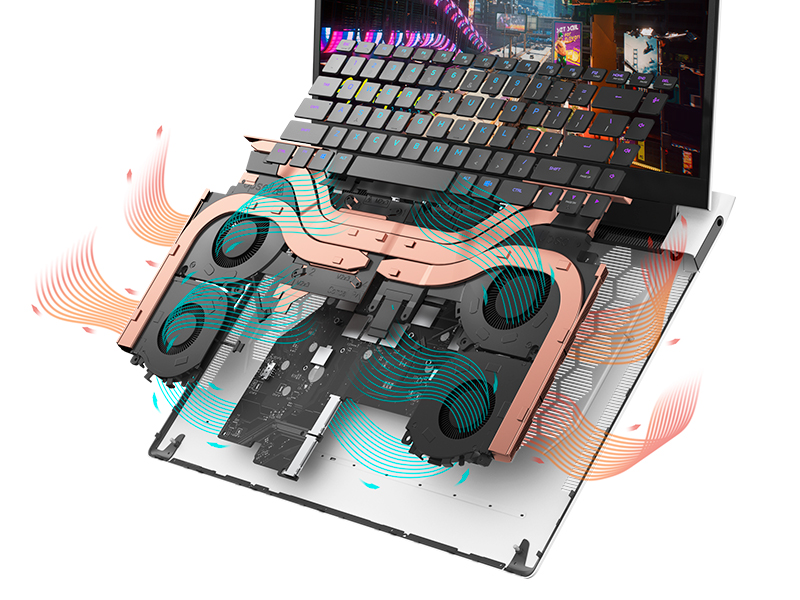
Figure 5.1: Alienware Command Center for system management.
6. Dépannage
If you encounter issues with your Alienware X17 R2, consider the following basic troubleshooting steps:
- Pas d'alimentation : Assurez-vous que l'adaptateur secteur est correctement branché à la fois à l'ordinateur portable et à une prise de courant fonctionnelle. Vérifiez le voyant d'alimentation.
- Problèmes d'affichage : If the screen is black, try connecting an external monitor to verify if the issue is with the laptop's display or the graphics card. Update graphics drivers.
- Surchauffe: Ensure cooling vents are clear of obstructions. Use Alienware Command Center to monitor temperatures and adjust fan profiles.
- Ralentissement des performances : Fermez les applications inutiles. Vérifiez les processus en arrière-plan qui consomment beaucoup de ressources processeur ou mémoire vive. Assurez-vous d'avoir suffisamment d'espace libre sur votre disque SSD.
- Problèmes logiciels : Restart the laptop. If issues persist, consider performing a system restore or reinstalling the problematic software.
7. Spécifications
| Fonctionnalité | Spécification |
|---|---|
| Taille de l'écran | 17.3 pouces |
| Résolution de l'écran | 1920 x 1080 pixels (FHD) |
| Processeur | Intel Core i9-12900H (3.8 GHz, 14 cœurs) |
| BÉLIER | 16 Go DDR5 (4800 MHz) |
| Disque dur | SSD de 1 To (Solid State) |
| Coprocesseur graphique | NVIDIA GeForce RTX 3070 Ti (8 Go GDDR6) |
| Système opérateur | Windows 11 Famille |
| Type sans fil | 802.11ax (Killer Wi-Fi 6), Bluetooth |
| Ports USB 3.0 | 3 |
| Poids de l'article | 6.82 livres |
| Dimensions du produit | 11.79 x 15.72 x 0.58 pouces |
8. Contenu de la boîte
- Ordinateur portable de jeu Alienware X17 R2
- Adaptateur secteur
- Cordon d'alimentation
- Documentation
9. Vidéos officielles du produit
Alienware X17 R2 Gaming Laptop Overview
Vidéo 9.1 : Un officiel surview of the Alienware X17 R2 Gaming Laptop, highlighting its design, cooling, and performance features.
About Alienware X17 R2 Gaming Laptop
Video 9.2: A detailed look at the Alienware X17 R2 Gaming Laptop, showcasing its features and design elements.
10. Garantie et assistance
Your Alienware X17 R2 Gaming Laptop comes with a standard manufacturer's warranty. For detailed warranty information, please refer to the documentation included with your product or visit the official Alienware support website.
For technical support, driver downloads, and service requests, please visit the Alienware support portal. You can also find FAQs and community forums for additional assistance.


