Introduction
This manual provides comprehensive instructions for the setup, operation, and maintenance of your Wings Crosshair 100 Wired Optical Gaming Mouse. Designed for optimal gaming performance, this mouse offers comfort, precision, and customizable features to enhance your computing and gaming experience.
Caractéristiques principales
- Léger et confortable : The Wings Crosshair 100 features an ambidextrous, comfortable design for ultra-smooth movement during extended use.
- Jusqu'à 3400 DPI : Experience precise control with adjustable DPI settings up to 3400 and a 125 Hz polling rate.
- 6 Button Functionality: Customize your gaming experience with 6 programmable buttons, offering default configurations straight out of the box.
- Large compatibilité : Compatible with Windows XP/Vista/7/8/8.1/10/11 and Mac OS.
- Version Premium : Features multicolor LED lights, an ergonomic design, a golden-plated USB connector, and a durable braided cable.
Produit terminéview

Image: The Wings Crosshair 100 Wired Optical Gaming Mouse, showcasing son design ergonomique et son éclairage LED.

Image: The ergonomic design of the Wings Crosshair 100 mouse, providing a comfortable grip for extended use.

Image: Illustration of the 6 multi-programmable buttons on the Wings Crosshair 100 mouse.
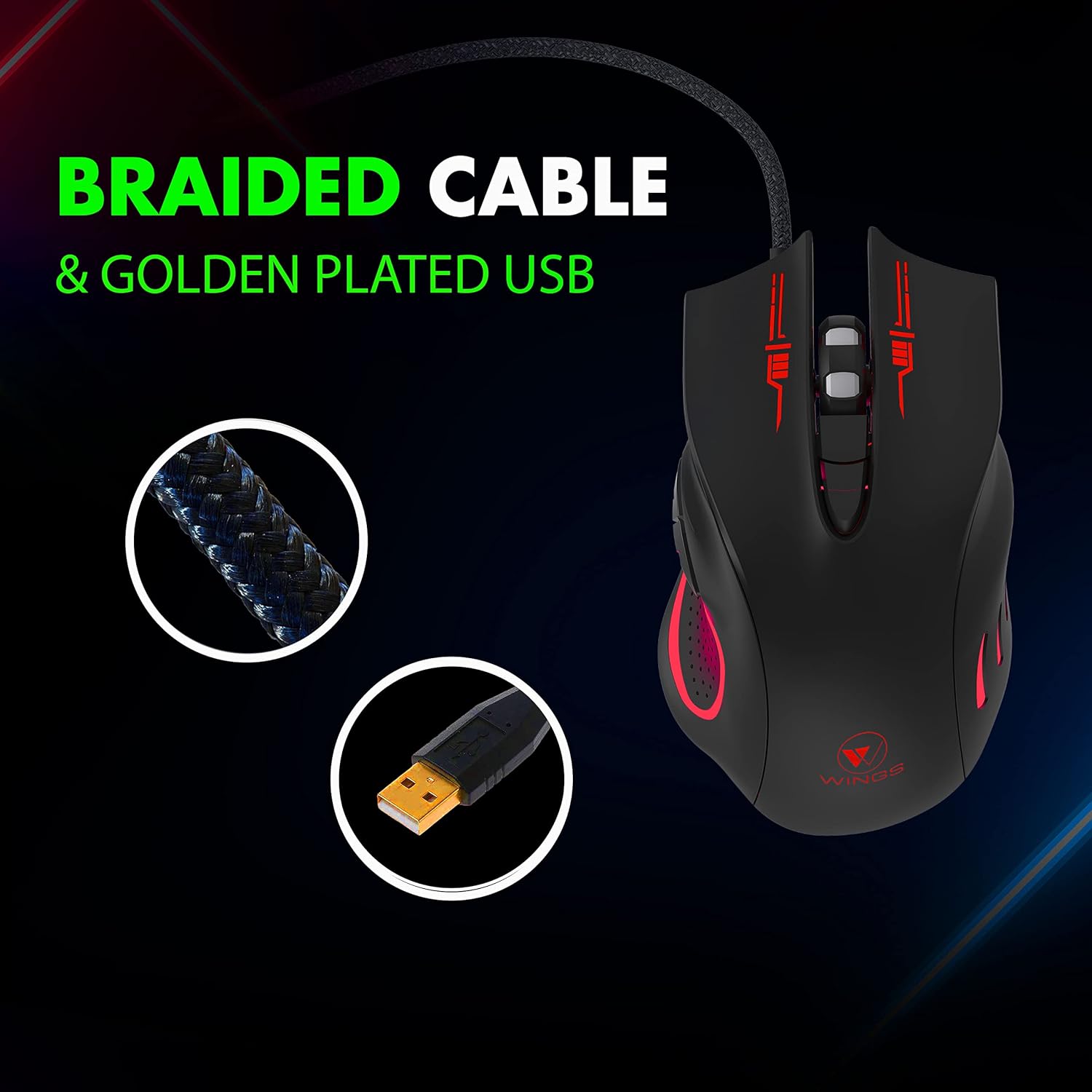
Image: Close-up of the durable braided cable and golden-plated USB connector of the Wings Crosshair 100 mouse.

Image: Demonstrating the adjustable DPI feature of the Wings Crosshair 100 mouse, with DPI levels of 1000, 1600, 2400, and 3200.

Image: The vibrant RGB LED lighting of the Wings Crosshair 100 mouse.

Image: A collage highlighting key features: compatibility with various OS, hyperfast scroll wheel, light and comfortable design, and ultra-smooth movement.
Installation
- Connecter la souris : Insert the USB connector of the Wings Crosshair 100 mouse into an available USB 3.0 port on your computer.
- Installation du pilote : The mouse is plug-and-play. Your operating system (Windows XP/Vista/7/8/8.1/10/11, Mac OS) will automatically detect and install the necessary drivers. No additional software installation is typically required for basic functionality.
- Utilisation initiale : Une fois les pilotes installés, la souris est prête à l'emploi.
Mode d'emploi
Réglage DPI
The Wings Crosshair 100 features an adjustable DPI (Dots Per Inch) setting, allowing you to change cursor sensitivity on the fly.
To adjust DPI, press the dedicated DPI button located on the top of the mouse, usually behind the scroll wheel. Each press cycles through predefined DPI levels: 1000, 1600, 2400, and 3200.
6 Fonctionnalité des boutons
This mouse is equipped with 6 buttons for enhanced control:
- Bouton clic gauche : Clic principal standard.
- Bouton clic droit : Clic secondaire standard.
- Bouton de la molette de défilement : Molette de défilement cliquable pour les fonctions du clic central.
- Bouton PPP : Permet de faire défiler les paramètres DPI.
- Bouton avant : (Side button) Default function for navigating forward in web navigateurs ou file explorateurs.
- Bouton de retour : (Side button) Default function for navigating backward in web navigateurs ou file explorateurs.
While default configurations are set, some operating systems or third-party software may allow for customization of these buttons.
Entretien
- Nettoyage: Utilisez un chiffon doux et sec pour essuyer la surface de la souris. Pour les saletés tenaces, frottez légèrement.ampNettoyez le chiffon avec de l'eau. Évitez les produits chimiques agressifs et les matériaux abrasifs.
- Entretien du capteur : Veillez à ce que le capteur optique situé sous la souris reste propre et exempt de poussière ou de débris afin de garantir un suivi précis.
- Gestion des câbles: Évitez les coudes brusques ou les tractions excessives sur le câble tressé afin de prévenir tout dommage.
Dépannage
| Problème | Solution |
|---|---|
| La souris ne répond pas. | Ensure the USB cable is securely plugged into the computer. Try a different USB port. Restart your computer. |
| Le mouvement du curseur est erratique ou saccadé. | Clean the optical sensor on the bottom of the mouse. Ensure you are using the mouse on a clean, non-reflective surface. |
| Les lumières LED ne fonctionnent pas. | Check the USB connection. If the mouse is otherwise functional, this might indicate a minor LED issue that does not affect performance. |
| Le bouton DPI ne modifie pas la sensibilité. | Ensure the mouse is properly connected. Some applications or games may override mouse sensitivity settings. |
Caractéristiques
| Fonctionnalité | Détail |
|---|---|
| Marque | Ailes |
| Modèle | WL-CROSSHAIR100-BLK |
| Connectivité | Filaire (USB) |
| Technologie de détection de mouvement | Optique |
| Niveaux de PPP | Up to 3400 (1000, 1600, 2400, 3200) |
| Taux de sondage | 125 Hz |
| Boutons | 6 (Programmable) |
| Type de câble | Tressé |
| Connecteur USB | Golden plated |
| Éclairage | Multicolor LED (RGB) |
| Conception | Ambidextre, ergonomique |
| Compatibilité | Windows XP/Vista/7/8/8.1/10/11, Mac OS, Linux |
| Dimensions du produit | 12 x 7 x 0.1 cm |
| Poids de l'article | 150 g |
Vidéos officielles des produits
Vidéo : Une vidéo de présentation officielle du produitasing the features and design of the Wings Crosshair 100 Wired Optical Gaming Mouse.
Video: A brand film from Wings, featuring their products and brand ambassador.
Garantie et assistance
The Wings Crosshair 100 Wired Optical Gaming Mouse comes with a 1-year warranty. For warranty claims, technical support, or further assistance, please refer to the contact information provided on the product packaging or the official Wings website.
For more information, you can visit the official Wings website ou contactez leur support client.


