1. Introduction
This manual provides instructions for the Gamrombo 2.4GHz Wireless Controller, designed for use with Xbox 360, Xbox 360 Slim consoles, and Windows 7/8/10/11 personal computers. Please read this manual thoroughly before using the product to ensure proper operation and to prevent damage.

Image 1.1: Gamrombo Wireless Controller for Xbox 360 and PC. This image displays the front view of the black wireless controller, highlighting its buttons and ergonomic shape.
2. Contenu du colis
Veuillez vérifier le contenu du colis à l'ouverture :
- 1 x Manette sans fil Gambrombo
- 1 récepteur USB 2.4 GHz
- 1 x Manuel d'instructions
- Note: AA batteries are required for controller operation and are not included.
3. caractéristiques du produit
- Compatibilité multi-plateforme : Compatible with Xbox 360, Xbox 360 Slim consoles, and Windows 7/8/10/11 PCs. (Note: Not compatible with Xbox One, Xbox One X, Xbox One S, or Xbox Series X consoles.)
- Technologie sans fil 2.4 GHz : Provides a stable connection up to 32 feet (approximately 10 meters). Supports up to four controllers simultaneously on one console.
- Retour de vibrations: Built-in dual motors offer a realistic gaming experience through vibration effects.
- Conception ergonomique : Streamlined and compact design for comfortable extended gameplay sessions.
- Haute sensibilité : Enhanced responsiveness to minimize input lag, providing accurate and sensitive control.
- Contrôles précis : Features an 8-way D-pad, precise thumbsticks, and pressure-point triggers for accurate input.

Image 3.1: Controller with internal dual motors. This image illustrates the controller with a transparent overlay highlighting the location of the dual vibration motors inside the grips.

Image 3.2 : Côté view of the controller demonstrating its ergonomic shape. The image shows the contoured grips designed for comfortable handling.
4. Configuration et connexion
Follow these steps to connect your Gamrombo Wireless Controller to your Xbox 360 console or PC:
- Insérez les piles : Open the battery compartment on the back of the controller and insert two (2) AA batteries, ensuring correct polarity.
- Connectez le récepteur USB : Insert the 2.4GHz USB receiver into an available USB port on your Xbox 360 console or PC.
- Receiver Identification: After the USB receiver is inserted, its indicator light will turn on, signifying successful identification. Short press the button on the USB receiver; the indicator light will flash, entering pairing mode.
- Couplage du contrôleur : With the controller powered off, long press the "Home" button (the central Xbox Guide button) on the wireless controller for 3 seconds. The four LED lights around the Guide button will flash rapidly, indicating the controller is in pairing mode.
- Confirmation de connexion : Once the connection is successful, the corresponding channel light on the controller will remain solid, and the receiver's indicator light will also remain solid.

Image 4.1: Connection steps for the wireless controller. This image illustrates the process of inserting the USB dongle into an Xbox 360 or PC and then pairing the controller by pressing the Home button.
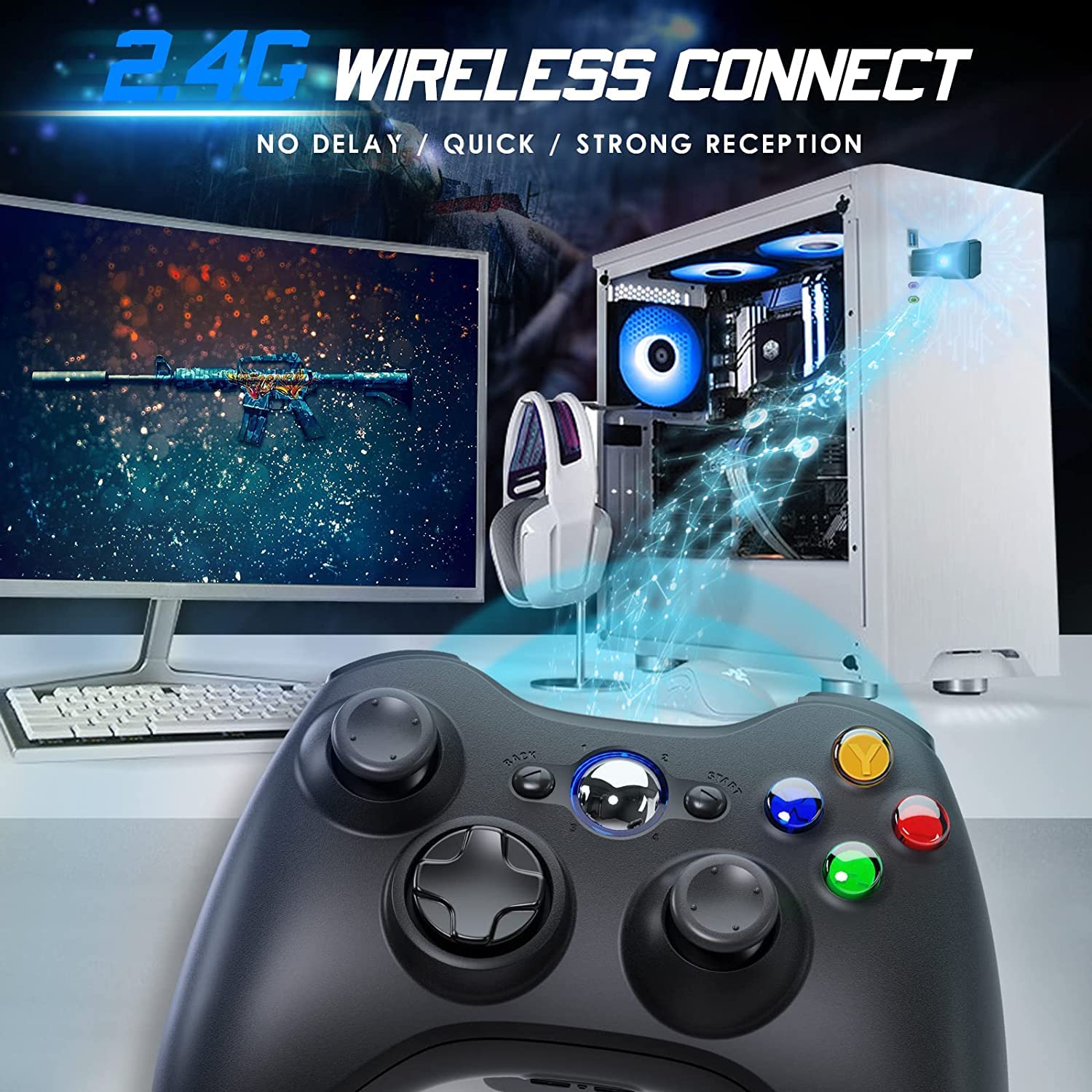
Image 4.2: Wireless controller in use with a PC. This image shows the controller on a desk in front of a computer monitor, with a visual representation of the 2.4GHz wireless connection.
5. Mode d'emploi
- Marche/Arrêt : Press and hold the "Home" button for 3 seconds to power on or power off the controller.
- Bouton Guide : The central "Home" button (Guide button) allows access to the Xbox Guide on Xbox 360, or specific game menus on PC, depending on the game and system configuration. It can also be used to power on or off the console.
- Plusieurs manettes : Up to four wireless controllers can be connected to a single console or PC simultaneously. Each controller will be assigned a quadrant light around the Guide button (1, 2, 3, or 4) to indicate its player number.
- Indicateur de batterie : The controller's LED lights may flash to indicate low battery power. Replace batteries when this occurs.
6. Entretien
- Nettoyage: Utilisez un chiffon doux et sec pour nettoyer la manette. N'utilisez pas de nettoyants liquides ni de solvants.
- Stockage: Store the controller in a dry place away from extreme temperatures and direct sunlight. If storing for an extended period, remove the batteries to prevent leakage.
- Évitez les chutes : Protégez la manette des chutes et des chocs, qui peuvent endommager ses composants internes.
7. Dépannage
- Le contrôleur ne se connecte pas :
- Ensure the USB receiver is securely plugged into the console or PC.
- Verify that the controller has fresh AA batteries installed correctly.
- Repeat the pairing process (Section 4, steps 3 and 4).
- Essayez de brancher le récepteur USB sur un autre port USB.
- If using with PC, ensure necessary drivers are installed (Windows typically installs these automatically).
- Boutons ou joysticks non réactifs :
- Vérifiez le niveau de la batterie et remplacez-la si elle est faible.
- Ensure the controller is within the 32-foot wireless range of the receiver.
- Restart the console/PC and re-pair the controller.
- Vibration ne fonctionne pas :
- Assurez-vous que le jeu prenne en charge le retour de vibration.
- Vérifiez les paramètres du jeu pour vous assurer que les vibrations sont activées.
- Vérifiez le niveau de la batterie.
8. Spécifications
| Numéro de modèle | XBOX 360 |
| Marque | Gambrombo |
| Connectivité | 2.4GHz sans fil |
| Portée sans fil | Jusqu'à 32 pieds (environ 10 mètres) |
| Compatibilité | Xbox 360, Xbox 360 Slim, Windows 7/8/10/11 |
| Source d'énergie | 2 piles AA (non incluses) |
| Dimensions du produit | 6.1 x 4.4 x 2.4 pouces |
| Poids de l'article | 9.6 onces |
9. Consignes de sécurité
- N'essayez pas de démonter ou de modifier le contrôleur.
- Tenez la manette éloignée de l'eau et des autres liquides.
- Avoid exposing the controller to extreme heat or cold.
- Jetez les piles conformément aux réglementations locales.
- Si le produit est endommagé, cessez immédiatement de l'utiliser.
10. Garantie et assistance
For warranty information or technical support, please refer to the documentation included with your purchase or contact Gamrombo customer service directly. Contact details are typically available on the manufacturer's official website.


