1. Introduction
This manual provides essential information for setting up, operating, and maintaining your TECLAST X11 2-in-1 Laptop/Tablet. The TECLAST X11 is a versatile device designed to function as both a portable tablet and a compact laptop, running on Windows 10 Home. It features a 10.1-inch Full HD display, an Intel N4020 processor, 6GB RAM, and 128GB of internal storage.
2. Contenu de la boîte
- TECLAST X11 Tablet
- Adaptateur secteur
- Câble USB
- Manuel de l'utilisateur (ce document)
Note: The keyboard and stylus pen are sold separately and are not included in the standard package.
3. Produit terminéview
3.1 Principales caractéristiques
- Conception 2 en 1 : Seamlessly switch between tablet and laptop modes.
- Afficher: 10.1-inch IPS Full HD (1920x1200) touchscreen.
- Processeur: Intel Gemini Lake Reflash N4020 CPU (up to 2.8GHz).
- Stockage de mémoire: 6GB RAM, 128GB eMMC ROM (expandable up to 256GB via TF card).
- Système opérateur: Windows 10 Famille préinstallé.
- Connectivité : Dual-band 2.4G/5G WiFi, Bluetooth 4.2.
- Caméras : Caméra arrière 5 MP, caméra frontale 2 MP.
- Ports: USB 3.0, Mini-HDMI, Headphone Jack, DC Port.
- Béquille : Adjustable U-shaped kickstand (0° to 145°).
3.2 Disposition de l'appareil
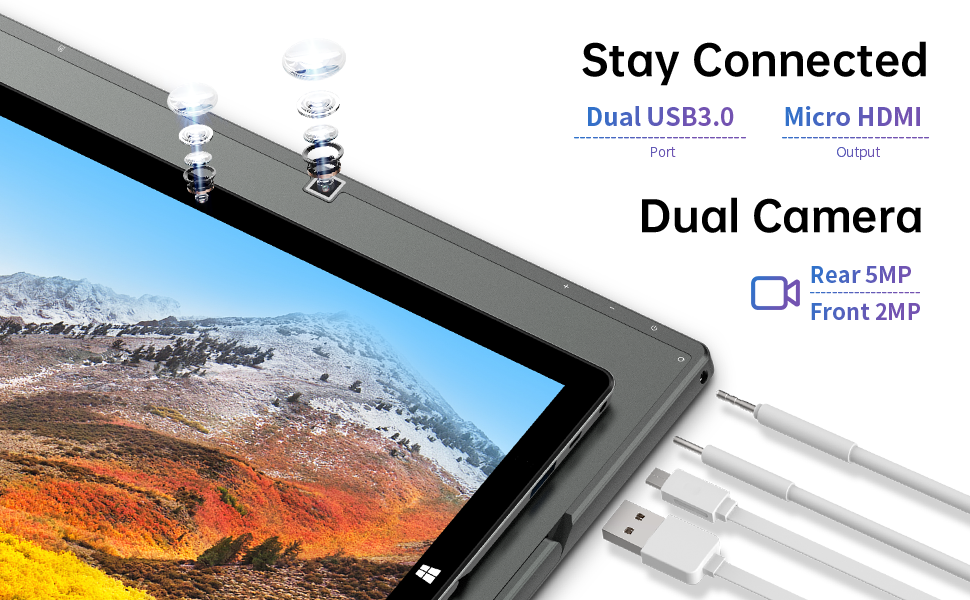
Image : Côté view of the TECLAST X11 tablet highlighting the USB 3.0 port, Micro HDMI output, and front/rear cameras.

Image : détaillée view of the TECLAST X11's side ports, including USB 3.0, Mini-HDMI, DC power input, and headphone jack.
4. Installation
4.1 Charge initiale
Before first use, fully charge your TECLAST X11 tablet. Connect the provided power adapter to the DC port on the device and plug it into a power outlet. The charging indicator will illuminate.
4.2 Mise sous/hors tension
- Pour allumer : Appuyez sur le bouton d'alimentation et maintenez-le enfoncé jusqu'à ce que l'écran s'allume.
- Pour éteindre : Press and hold the Power button, then select "Shut down" from the on-screen options. Alternatively, go to Start Menu > Power > Shut down.
- Mode veille: Appuyez brièvement sur le bouton Marche/Arrêt pour mettre l'appareil en veille ou le réveiller.
4.3 Configuration initiale de Windows
Upon first power-on, follow the on-screen instructions to complete the Windows 10 setup process. This includes selecting your region, language, connecting to a Wi-Fi network, and creating a user account.
5. Mode d'emploi
5.1 Changement de mode
The TECLAST X11 is designed for flexibility, allowing you to switch between tablet and laptop modes.
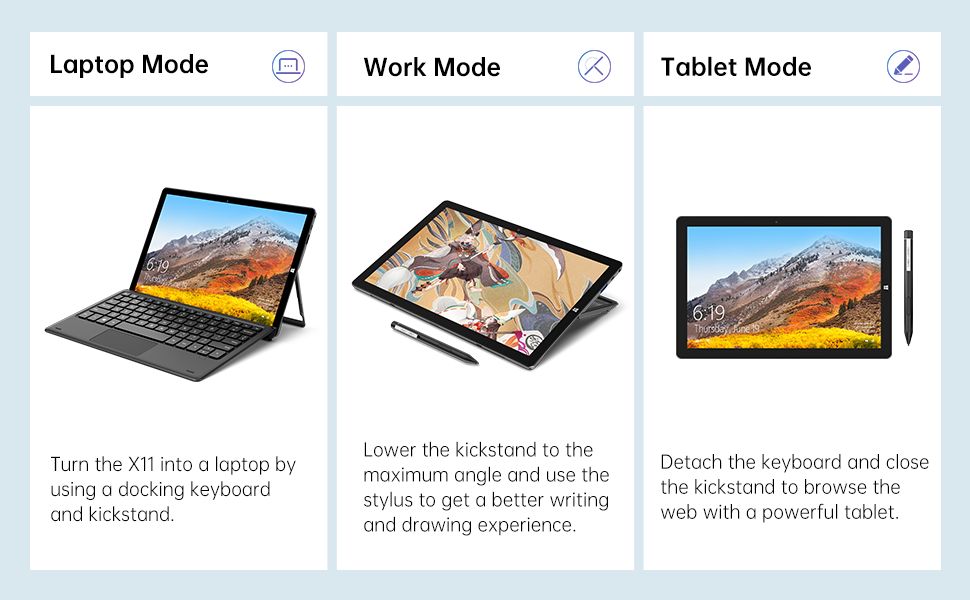
Image: The TECLAST X11 in laptop mode with the keyboard attached and kickstand deployed.
Mode ordinateur portable : Attach the magnetic docking keyboard and deploy the integrated kickstand. The device will automatically detect the keyboard and switch to laptop interface.

Image: A user holding the TECLAST X11 in tablet mode, interacting with the touchscreen.
Mode tablette : Detach the keyboard. The device will automatically switch to tablet mode, optimizing the interface for touch input.

Image : Arrière view of the TECLAST X11 showing the adjustable kickstand extended.
Utilisation de la béquille : The integrated U-shaped kickstand can be adjusted from 0° to 145° for comfortable viewangles de frappe ou de dactylographie.
5.2 Utilisation de l'écran tactile
The 10.1-inch IPS display supports 10-point multi-touch. Use standard touch gestures for navigation, zooming, and interaction with applications.
5.3 Connectivité externe
- USB 3.0 : Connect external devices such as USB drives, mice, or printers.
- Mini-HDMI : Connectez-vous à un moniteur externe ou à un téléviseur pour un affichage plus grand.
- Bluetooth 4.2: Pair with Bluetooth-enabled accessories like headphones or speakers.
- Wifi: Connect to wireless networks for internet access. Supports 2.4G and 5G bands.
5.4 Démonstration vidéo
Video: An official TECLAST video demonstrating the features and versatility of the X11 Windows tablet with its detachable keyboard and various usage scenarios.
6. Entretien
6.1 Nettoyage de l'appareil
- Utilisez un chiffon doux non pelucheux pour nettoyer l'écran et les surfaces extérieures.
- Pour les marques tenaces, légèrement dampNettoyez le chiffon avec de l'eau ou une solution nettoyante adaptée aux écrans.
- Évitez d'utiliser des produits chimiques agressifs, des matériaux abrasifs ou une humidité excessive.
6.2 Entretien de la batterie
- Pour prolonger la durée de vie de la batterie, évitez les températures extrêmes.
- Ne laissez pas l'appareil complètement chargé ou complètement déchargé pendant des périodes prolongées.
- Utilisez uniquement le chargeur d'origine ou un chargeur compatible certifié.
6.3 Mises à jour logicielles
Regularly check for and install Windows updates to ensure optimal performance, security, and access to the latest features. Go to Start Menu > Settings > Update & Security > Windows Update.
7. Dépannage
| Problème | Solution possible |
|---|---|
| L'appareil ne s'allume pas | Ensure the device is charged. Connect the power adapter and try again. If unresponsive, press and hold the Power button for 10-15 seconds to perform a hard reset. |
| Problèmes de connexion Wi-Fi | Vérifiez si le Wi-Fi est activé dans les paramètres Windows. Redémarrez votre routeur et votre tablette. Assurez-vous d'être à portée du signal Wi-Fi. |
| Le clavier ne répond pas | Ensure the keyboard is securely attached to the magnetic docking port. Restart the tablet. Verify that the keyboard was purchased separately and is compatible. |
| Performances lentes | Close unnecessary applications. Check for Windows updates. Ensure sufficient free storage space. Run a disk cleanup. |
| La rotation de l'écran ne fonctionne pas | Check if auto-rotate is enabled in Windows Action Center (swipe in from the right edge of the screen or click the icon in the taskbar). |
8. Spécifications
| Fonctionnalité | Détail |
|---|---|
| Nom du modèle | X11 2-in-1 Tablet |
| Taille de l'écran | 10.1 pouces |
| Résolution de l'écran | 1920 x 1200 pixels (FHD IPS) |
| Processeur | Intel Gemini Lake Reflash N4020 (1.1GHz - 2.8GHz) |
| BÉLIER | Mémoire SDRAM DDR6 de 4 Go |
| Disque dur | 128 GB eMMC (expandable up to 256GB via TF card) |
| Carte graphique | Carte graphique Intel UHD 600 intégrée |
| Système opérateur | Windows 10 Famille |
| Type sans fil | Bluetooth 4.2, Dual-band WiFi (2.4G + 5G) |
| Arrière WebRésolution de came | 5 MP |
| Devant WebRésolution de came | 2 MP |
| Ports | USB 3.0, Mini-HDMI, Headphone Jack, DC Port |
| Poids de l'article | 2.31 livres (environ 1.05 kg) |
| Piles | 1 batterie Lithium Polymère (incluse) |
9. Garantie et assistance
TECLAST fournit un Service de garantie de 12 mois for the X11 2-in-1 Laptop/Tablet. If you encounter any issues or have questions regarding your device, please contact TECLAST customer support. Refer to the contact information provided with your product packaging or visit the official TECLAST website pour les détails de l'assistance.


