1. Introduction
The DIGITNOW 35mm Film Scanner & Slide Viewer (Model C189) is designed to convert your cherished analog film and slide memories into high-resolution 22MP JPEG digital photos. Featuring a large 5-inch LCD screen, this device offers strong compatibility with various film types including Color and B&W Negatives (135, 110, 126) and 50mm Slides (135, 110, 126, Super 8). Its user-friendly interface allows for easy editing, playback, and storage without requiring a computer for basic operations. This manual provides detailed instructions to help you get the most out of your film scanner.

Image: The DIGITNOW 35mm Film Scanner & Slide Viewer (Model C189) shown with various film types and slides, highlighting its versatility.
2. Contenu de la boîte
Veuillez vous assurer que tous les éléments sont présents avant de procéder à l'installation :
- DIGITNOW 35mm Film Scanner & Slide Viewer (Model C189)
- 50x50 Hinged Slide Holder
- 135 Porte-film
- 110 Positive Film Holder
- 110 Support de film négatif
- 126 Porte-film
- Super 8 Clip
- Câble USB (Type-C)
- Câble HDMI
- Brosse de nettoyage
- Manuel de l'utilisateur (ce document)

Image: A visual representation of all components included in the DIGITNOW Film Scanner package.
3. Installation
- Connexion électrique : Connect the provided USB Type-C cable to the scanner's 5V1A USB port and plug the other end into a suitable power source (e.g., USB wall adapter, computer USB port).
- Insertion de la carte mémoire : Insert an SD card (not included) into the SD card slot on the scanner. This is where your scanned images will be saved.
- Mise sous tension initiale : Press the power button on the top of the scanner to turn it on. The 5-inch LCD screen will illuminate.
- Language and Date/Time Settings: Navigate through the on-screen menu using the control buttons to set your preferred language, date, and time. This helps organize your digital files.
- Film Holder Selection: Choose the appropriate film holder for the type of film or slide you intend to scan (e.g., 135 film holder for 35mm negatives, 50x50 hinged slide holder for mounted slides).
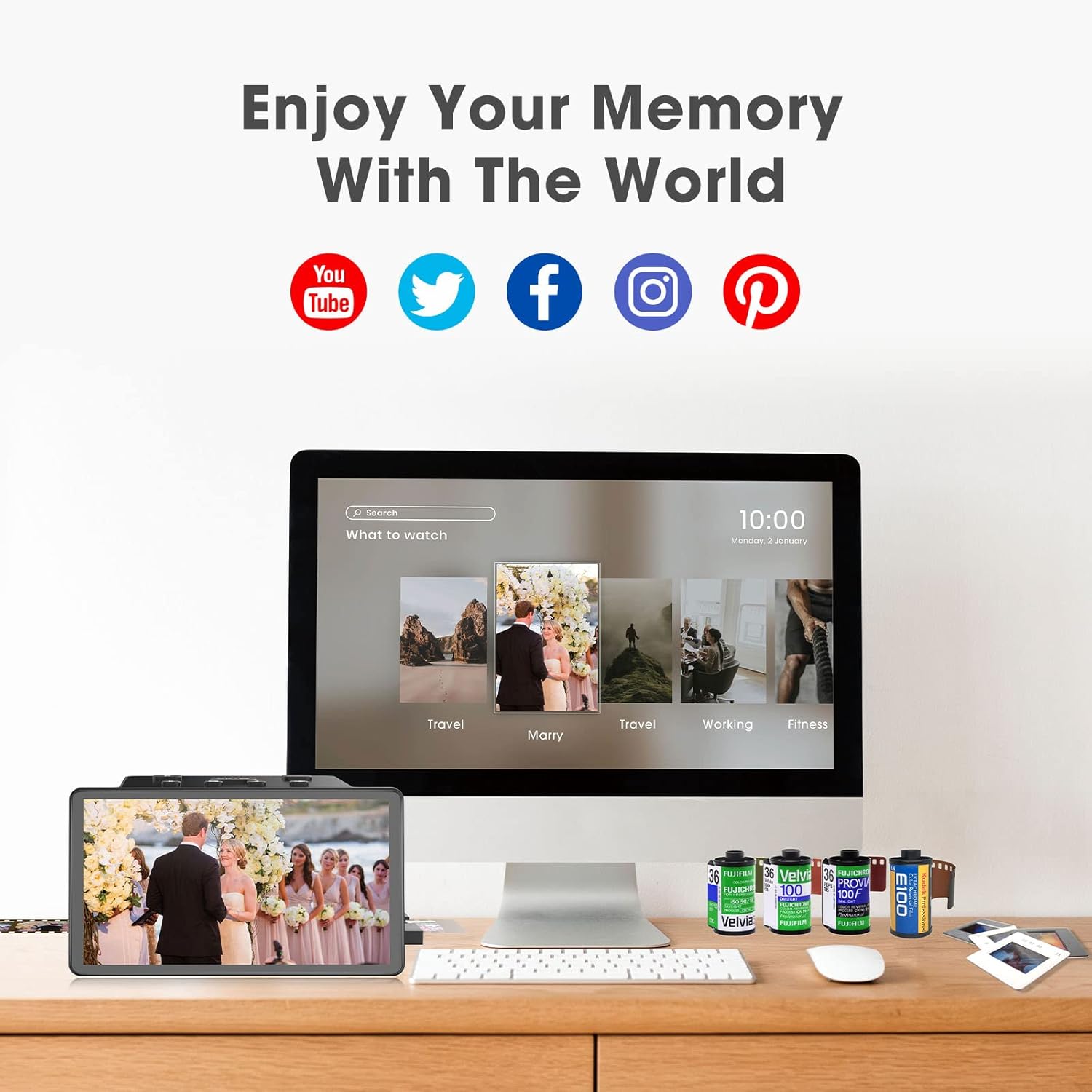
Image: The top panel of the scanner showing the control buttons and various ports for connectivity.
4. Mode d'emploi
4.1. Loading Film/Slides
- Open Film Holder: Gently open the selected film holder.
- Insérer le film/la diapositive : Carefully place your film strip or mounted slide into the designated slots within the holder. Ensure it is flat and correctly aligned.
- Close Film Holder: Close the film holder securely.
- Insérer le support dans le scanner : Slide the loaded film holder into the scanner's side slot, following the arrow indicator.

Image: A user demonstrating the process of sliding a film strip into the scanner for digitization.
4.2. Processus de numérisation
- Sélectionnez le type de film : On the scanner's main menu, select "Film Type" and then choose the specific type of film you are scanning (e.g., 135 Film, 110 Film, 126 Film, Super 8 Slide, Color Negative, B&W Negative).
- Préview Image: The image from your film/slide will appear on the 5-inch LCD screen.
- Ajuster l'image (facultatif) : Use the control buttons to adjust brightness, color balance (RGB), or rotate the image as needed.
- Capture d'image : Press the "OK/Capture" button to take a digital photo of the displayed image. The scanned image will be saved to your SD card.
- Poursuivre l'analyse : Slide the film holder to the next frame or replace it with a new film/slide and repeat the process.

Image: The scanner's screen showing a scanned image and the intuitive interface for editing and capturing.
4.3. Viewtransférer et transférer des images
- On-Screen Gallery: Access the "Gallery" option from the main menu to view your saved images directly on the scanner's LCD screen.
- Transfert USB : Connect the scanner to your computer using the USB Type-C cable. The scanner will appear as a removable disk, allowing you to drag and drop files.
- SD Card Transfer: Remove the SD card from the scanner and insert it into a computer's SD card reader to transfer files.
- Sortie HDMI : Connect the scanner to a TV or monitor using an HDMI cable (not included) to view your images on a larger screen.
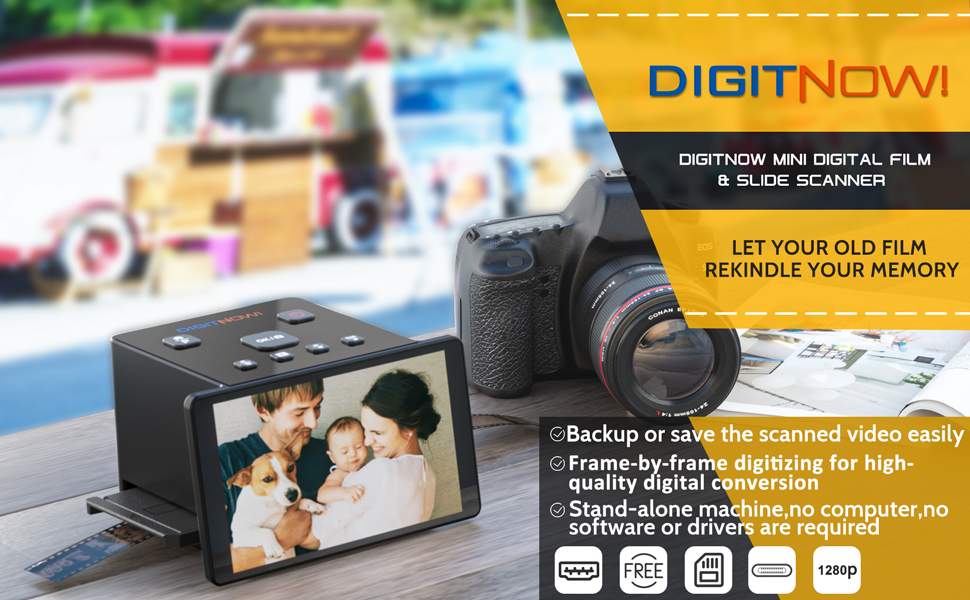
Image: The DIGITNOW Film Scanner connected to a laptop, illustrating the process of transferring and viewing digitized images.
4.4. Vidéos officielles du produit
Video: This video demonstrates the DIGITNOW Slide Scanner in action, showing how to insert slides and view eux sur l'appareil.
Video: A demonstration of the Digital Film Slide Scanner, showcasing its features and ease of use for digitizing old film and slides.
Vidéo : Cette vidéo offre un aperçuview of the Koda Film Scanners Lineup, including features relevant to the DIGITNOW scanner.
Video: A demonstration of the scanner for old Photo Slide and Film Negative Scanning, highlighting its functionality.
Video: This video showcases a Slide Viewer Light Box, which is useful for preparing slides and film for scanning.
Vidéo : Un bref aperçuview of the DIGITNOW slide viewer, demonstrating its basic functions.
5. Entretien
- Nettoyage du scanner : Use the provided cleaning brush to gently remove dust and debris from the film slot and the scanner's internal components. Ensure the scanner is powered off before cleaning.
- Nettoyage de l'écran : Use a soft, lint-free cloth to clean the LCD screen. Do not use abrasive cleaners or solvents.
- Manipulation des films : Always handle film and slides by the edges to avoid fingerprints and scratches.
- Stockage: Rangez le scanner et ses accessoires dans un endroit sec et exempt de poussière lorsqu'ils ne sont pas utilisés.
6. Dépannage
- Pas d'alimentation :
- Ensure the USB cable is securely connected to both the scanner and a working power source.
- Essayez un autre port USB ou un autre adaptateur secteur.
- Image Quality Issues (Blurry/Poor Color):
- Clean the scanner's internal lens and film slot using the cleaning brush.
- Ensure the film/slide is inserted correctly and lies flat in the holder.
- Adjust the brightness and RGB color settings using the scanner's controls.
- Verify the film type selected matches the film being scanned.
- Carte SD non détectée :
- Assurez-vous que la carte SD est complètement insérée dans son emplacement.
- Essayez de réinsérer la carte SD.
- Essayez avec une autre carte SD compatible.
- Ensure the SD card is not locked (check the small switch on the side of the card).
- Transfert impossible Filevers l'ordinateur :
- Assurez-vous que le câble USB est correctement connecté.
- Verify the scanner is in "USB Upload" mode (if applicable, check scanner menu).
- Essayez un autre port USB sur votre ordinateur.
7. Spécifications
| Fonctionnalité | Détail |
|---|---|
| Dimensions du produit | 4.06 x 5.39 x 3.05 pouces |
| Poids de l'article | 1.32 livres |
| Numéro de modèle de l'article | C189 |
| Type de scanner | Film |
| Marque | DIGITNOW |
| Technologie de connectivité | USB |
| Résolution | 14 MP / 22 MP (Interpolé) |
| Technologie de capteur optique | CMOS |
| Configuration minimale requise | Windows XP (also supports Win7/10/Vista/Mac) |
| Code UPC | 727376566106 |
| Afficher | Écran ACL de 5 pouces |
| Compatibilité des films | Color & B&W Negatives (135, 110, 126), 50mm Slides (135, 110, 126, Super 8) |
8. Garantie et assistance
DIGITNOW provides 24-hour technical support and a quality warranty for this product. For any inquiries, troubleshooting assistance, or warranty claims, please contact DIGITNOW customer service directly. Refer to the contact information provided in your product packaging or on the official DIGITNOW website.
Remarque : Des plans de protection peuvent être achetés séparément. Veuillez vous renseigner auprès de votre détaillant pour plus de détails.