StarTech.com 2 Port Dual Monitor HDMI KVM Switch
Model: SV231DHU34K6
1. Introduction
This instruction manual provides detailed information on the installation, operation, and maintenance of your StarTech.com 2 Port Dual Monitor HDMI KVM Switch. This device allows you to control two computers from a single set of peripherals, including two HDMI monitors, a keyboard, a mouse, and other USB devices, supporting resolutions up to 4K at 60Hz.
2. Consignes de sécurité
Veuillez lire et comprendre toutes les instructions avant d'utiliser ce produit. Le non-respect de ces instructions peut entraîner un choc électrique, un incendie ou des blessures graves.
- Risques électriques : Do not use damaged or frayed cables. Exposed wires can lead to electric shocks. Ensure all cables are properly connected and secured to prevent accidental disconnection.
- Accumulation de chaleur : Overloaded or tightly bundled cables can overheat and pose a fire hazard. Ensure adequate ventilation and avoid bundling power cables.
- Dommage: Débranchez toujours les adaptateurs en tenant la fiche et non le câble. Tirer sur le câble peut exposer des fils sous tension et provoquer des chocs électriques ou des brûlures.
3. Produit terminéview
The StarTech.com SV231DHU34K6 KVM switch is designed to streamline your workspace by enabling control of two computers with dual 4K HDMI displays and shared USB peripherals. Its robust steel housing ensures durability.
3.1. Principales caractéristiques
- Supports dual 4K (3840 x 2160) resolution at 60Hz per monitor.
- HDMI 2.0, HDCP 2.2, and HDR10 support.
- Integrated 2-port USB 3.0 Hub (5Gbps) for sharing peripherals.
- Four USB 2.0 HID ports for keyboard and mouse.
- Hotkey and front-panel push-button switching.
- EDID and HDCP signal emulation for fast, seamless switching.
- Supports stereo analog and 7.1 digital audio.
- OS Independent compatibility (Windows, Mac, Linux).
3.2. Panneau avant

Figure 1 : disposition du panneau avant
- HID USB Port: Pour connecter un clavier ou une souris.
- 5G USB Port: Pour connecter des périphériques USB 3.0 haute vitesse.
- Computer Selection Buttons (1, 2): Press to switch to the corresponding computer.
- Bouton SÉLECTIONNER : Used for various functions, including auto-scan activation.
3.3. Panneau arrière
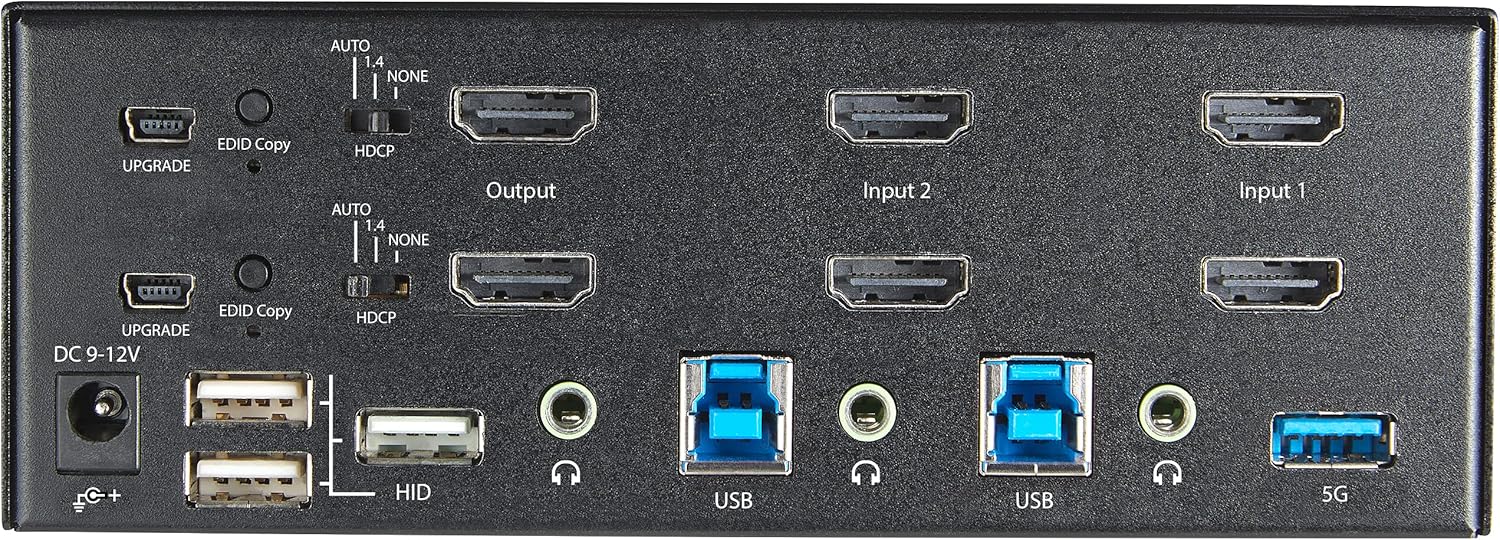
Figure 2 : Disposition du panneau arrière
- Alimentation CC 9-12 V : Connectez l'adaptateur secteur inclus.
- Port de mise à niveau : Pour les mises à jour du micrologiciel.
- EDID Copy Button/Switch: Manages Extended Display Identification Data.
- Commutateur HDCP : Manages High-bandwidth Digital Content Protection.
- Sortie (HDMI) : Connect to your monitors.
- Input 1/Input 2 (HDMI): Connect to the HDMI outputs of your computers.
- USB (type B) : Connect to the USB 3.0 ports of your computers.
- HID USB Ports (Type-A): For additional keyboard/mouse connections or other low-power USB devices.
- Audio Jacks (3.5mm): For connecting speakers/headphones and microphones.
- 5G USB Port (Type-A): Pour connecter des périphériques USB 3.0 haute vitesse.
4. Installation
4.1. Contenu de la boîte
- 1 x KVM Switch (SV231DHU34K6)
- 1 x adaptateur secteur universel (NA/JP, EU, UK, ANZ)
- 4 x Pieds en caoutchouc
- 1 x guide de démarrage rapide
Note: HDMI cables, USB 3.0 Type-A to Type-B cables, and audio cables are not included and must be purchased separately.
4.2. Instructions de connexion
Suivez ces étapes pour connecter votre commutateur KVM :
- Connecter les moniteurs : Connect your two HDMI monitors to the 'Output' HDMI ports on the rear panel of the KVM switch.
- Connexion des ordinateurs (HDMI) : Connect the HDMI outputs from Computer 1 to the 'Input 1' HDMI ports on the KVM switch. Repeat for Computer 2 and 'Input 2'. Ensure both HDMI outputs from each computer are connected for dual monitor support.
- Connexion des ordinateurs (USB) : Connect the USB 3.0 Type-B ports on the KVM switch to the USB 3.0 Type-A ports on Computer 1 and Computer 2 using appropriate USB 3.0 cables. These connections enable keyboard, mouse, and USB hub functionality.
- Connectez les périphériques :
- Connect your keyboard and mouse to the 'HID' USB ports on the front or rear panel.
- Connect other USB devices (e.g., printer, scanner, webcam) to the '5G' USB 3.0 ports on the front or rear panel.
- Connecter l'audio (facultatif) : If desired, connect your speakers/headphones and microphone to the 3.5mm audio jacks on the rear panel.
- Connecter l'alimentation : Connect the included universal power adapter to the 'DC 9-12V' power input on the rear panel, then plug it into a power outlet. The KVM switch will power on automatically.

Figure 3: KVM Switch with Ports for Connection
5. Utilisation du commutateur KVM
5.1. Basculement entre les ordinateurs
You can switch between connected computers using either the front-panel push buttons or hotkey commands.
- Front-Panel Buttons: Press the '1' or '2' button on the front panel to directly switch to Computer 1 or Computer 2, respectively.
- Changement de raccourci clavier : Use keyboard hotkey combinations to switch computers. The default hotkey sequence is typically Scroll Lock, Scroll Lock, [1 or 2]. Refer to the Quick-Start Guide for a complete list of hotkey commands and customization options. A buzzer sound confirms the switch.
5.2. EDID and HDCP Emulation
The KVM switch includes EDID (Extended Display Identification Data) and HDCP (High-bandwidth Digital Content Protection) signal emulation. This feature ensures that your monitors remain synced and desktop settings are maintained when switching between computers, preventing display resolution changes or window rearrangement.
5.3. Fonctionnalités du hub USB
The integrated USB 3.0 hub allows you to share two USB 3.0 peripherals (connected to the 5G ports) and four USB 2.0 HID peripherals (connected to the HID ports) between the connected computers. Devices connected to these ports will function as if directly connected to the currently selected host computer.
5.4. Prise en charge audio
The KVM switch supports both digital audio (via HDMI, 7.1 Channel Audio) and separate 3.5mm stereo analog audio (2 Channel Audio). Ensure your displays and sources support the desired audio format for full compatibility.
6. Entretien
Pour garantir la longévité et les performances optimales de votre commutateur KVM, suivez ces consignes de maintenance :
- Nettoyage: Utilisez un chiffon doux et sec pour nettoyer l'extérieur de l'appareil. N'utilisez pas de nettoyants liquides ni en aérosol.
- Ventilation: Ensure the KVM switch is placed in a well-ventilated area. Do not block any ventilation openings.
- Gestion des câbles: Keep cables organized and untangled to prevent damage and ensure proper airflow. Avoid excessive bending or crimping of cables.
- Stockage: En cas de non-utilisation prolongée de l'appareil, rangez-le dans un endroit frais et sec, à l'abri de la lumière directe du soleil et des températures extrêmes.
7. Dépannage
Si vous rencontrez des problèmes avec votre commutateur KVM, consultez les problèmes et solutions courants suivants :
- Aucun affichage ou résolution incorrecte :
- Ensure all HDMI cables are securely connected to both the KVM switch and your computers/monitors.
- Verify that your HDMI cables are rated for 4K 60Hz if you are using 4K displays. Longer cables (e.g., over 3m/10ft) may require higher quality or active cables.
- Check the display settings on your computers to ensure they are configured for the correct resolution and refresh rate.
- Try power cycling the KVM switch and monitors.
- Clavier/souris ne répondent pas :
- Ensure the USB Type-B cables are securely connected from the KVM switch to your computers.
- Verify that your keyboard and mouse are connected to the designated HID USB ports.
- Essayez de connecter le clavier et la souris directement à l'ordinateur pour vérifier leur bon fonctionnement.
- Some specialized keyboards/mice with advanced features may require direct connection or specific drivers.
- Périphériques USB non détectés :
- Ensure the USB Type-B cables are connected from the KVM switch to your computers.
- Verify that the USB device is connected to the appropriate 5G USB 3.0 port.
- Some high-power USB devices may require an external power source or a powered USB hub connected to the KVM's 5G port.
- Problèmes audio :
- Vérifiez toutes les connexions des câbles audio 3.5 mm.
- Verify audio output settings on your computers.
- Ensure your monitors or audio devices support the HDMI audio format being sent.
- Temps de commutation lent :
- The KVM switch is designed for fast switching. If experiencing delays, ensure EDID and HDCP emulation are functioning correctly.
- Assurez-vous que tous les câbles sont de bonne qualité et correctement branchés.
If the problem persists after attempting these solutions, please contact StarTech.com technical support.
8. Spécifications
| Catégorie | Spécification |
|---|---|
| Numéro de modèle | SV231DHU34K6 |
| Ports KVM | 2 |
| Monitors Supported | 2 |
| Type de vidéo | HDMI 2.0 |
| Résolutions prises en charge | Jusqu'à 3840 x 2160 à 60 Hz |
| Prise en charge HDCP | HDCP 2.2 |
| Prise en charge HDR | HDR10 |
| Concentrateur USB | 2 ports USB 3.0 (5 Gbit/s) |
| Ports USB HID | 4x USB 2.0 |
| Prise en charge audio | HDMI (7.1 Channel), Analog Stereo (3.5mm) |
| Sélection de port | Push Button, Hotkeys |
| Matériel | Acier |
| Couleur | Noir |
| Dimensions du produit (L x l x H) | 6.3 x 3.9 x 2.3 pouces (16.0 x 10.0 x 5.8 cm) |
| Poids du produit | 1.8 lb (0.8 kg) |
| Source d'énergie | Adaptateur secteur (inclus) |
| Vol d'entréetage | 100 - 240 AC |
| Consommation d'énergie | 36 W |
| Température de fonctionnement | 0℃ à 40℃ (32℉ à 104℉) |
| Température de stockage | -10 ℃ à 60 ℃ (14 ℉ à 140 ℉) |
| Humidité | 0% à 80% HR (sans condensation) |
9. Garantie et assistance
This StarTech.com KVM Switch (Model: SV231DHU34K6) is backed by a Garantie de 2 ansStarTech.com propose également assistance technique gratuite à viePour obtenir une assistance technique ou faire valoir votre garantie, veuillez consulter le site officiel StarTech.com. website ou contactez leur équipe de support client.
Pour plus d'informations, visitez : www.startech.com


