1. Introduction
This manual provides essential information for the safe and efficient operation of your GIGABYTE AORUS FO48U 48" 4K OLED Gaming Monitor. Please read this manual thoroughly before using the product and retain it for future reference. The AORUS FO48U is designed to deliver a high-performance visual experience with its 4K OLED display, fast refresh rate, and advanced features.
2. Consignes de sécurité
Respectez les consignes de sécurité suivantes afin d'éviter d'endommager le moniteur et d'assurer la sécurité de l'utilisateur :
- N’exposez pas le moniteur à la pluie ou à l’humidité afin d’éviter les risques d’incendie ou d’électrocution.
- N'ouvrez pas le moniteur casing. L'appareil ne contient aucune pièce réparable par l'utilisateur. Toute réparation doit être effectuée par un personnel qualifié.
- Placez le moniteur sur une surface stable et plane pour éviter qu'il ne tombe.
- Assurez une ventilation adéquate autour du moniteur. Ne bloquez pas les ouvertures de ventilation.
- Utilisez uniquement l'adaptateur secteur et les câbles fournis ou spécifiés par le fabricant.
- Débranchez le moniteur de la prise de courant en cas d'orage ou lorsqu'il n'est pas utilisé pendant une période prolongée.
- Évitez de toucher l'écran avec des objets pointus pour éviter tout dommage.
3. Contenu du colis
Vérifiez que tous les éléments énumérés ci-dessous sont inclus dans votre colis :
- GIGABYTE AORUS FO48U 48" 4K OLED Gaming Monitor
- Câble d'alimentation
- Câble HDMI 2.1
- câble DP 1.4
- USB 3.0 B to A cable
- Guide de démarrage rapide (QSG)
- Carte de garantie
- AORUS Remote Control
4. Installation
4.1 Configuration physique
The monitor can be set up using its included stand or a VESA-compatible wall mount.
Assemblage du support :
Follow the instructions in the Quick Start Guide to securely attach the stand to the monitor base. Ensure all screws are tightened.
Installation du support mural VESA :
The AORUS FO48U supports VESA wall mounts with a 300 x 300mm pattern. Remove the stand if already attached. Use appropriate screws and a VESA-compatible bracket (not included) to mount the monitor. Refer to your wall mount's instructions for specific installation steps.

Image : Arrière view of the AORUS FO48U monitor, highlighting the VESA 300x300mm mounting points for wall installation.
4.2 Câbles de connexion
Connect the necessary cables to the monitor's I/O ports. Ensure the monitor is powered off before connecting or disconnecting cables.

Image : Détail latéral view of the monitor's I/O ports, including USB 3.0, USB Upstream, USB Type-C (KVM), DisplayPort 1.4, HDMI 2.1, Headphone Jack, and Audio Line-Out.
- Connexion électrique : Branchez le câble d'alimentation à l'entrée d'alimentation du moniteur, puis à une prise de courant.
- Entrée vidéo: Connect your PC or gaming console using either the provided HDMI 2.1 cable or DisplayPort 1.4 cable. The monitor features two HDMI 2.1 ports and one DisplayPort 1.4.
- Connexions USB : Connect the USB 3.0 B to A cable from your PC to the monitor's USB Upstream port to enable the monitor's USB 3.0 ports and KVM functionality.
- USB Type-C (KVM): For KVM functionality, connect a USB Type-C cable (10Gbps Type-C cable required, not always included) from your device to the monitor's USB Type-C port. This allows control of multiple devices with a single keyboard and mouse connected to the monitor.
- Sortie audio : Use the Headphone Jack or Audio Line-Out for external audio devices.
4.3 Mise sous tension initiale
After connecting all necessary cables, press the power button on the monitor to turn it on. The monitor will automatically detect the active input source. If no signal is detected, ensure your source device is powered on and correctly connected.
5. Mode d'emploi
5.1 Navigation à l'écran (OSD)
The monitor's settings can be adjusted using the OSD menu, typically accessed via a joystick or buttons on the monitor's rear or bottom edge, or with the included AORUS Remote Control.
- Use the joystick/buttons or remote to navigate through menu options.
- Press to select an option or enter a sub-menu.
- Move left/right or up/down to adjust values or select different settings.
- Press the back button or move the joystick in a specific direction (as indicated on-screen) to exit menus.
5.2 Principales caractéristiques
The AORUS FO48U offers several features for an enhanced viewexpérience de jeu et de divertissement :
- Résolution 4K UHD (3840x2160) : Provides crisp, detailed visuals.
- Taux de rafraîchissement de 120 Hz: Ensures smooth motion for gaming and fast-paced content.
- Temps de réponse : 1 ms (GTG) Réduit les effets de rémanence et le flou de mouvement.
- FreeSync Premium Support: Synchronise le taux de rafraîchissement du moniteur avec votre carte graphique pour des jeux sans déchirure d'image.
- 10-bit Color / 98% DCI-P3 / 130% sRGB: Delivers accurate and vibrant color reproduction.

Image: Visual comparison demonstrating the difference between 1ms response time at 120Hz refresh rate and 5ms response time at 60Hz, illustrating smoother motion with higher specifications.
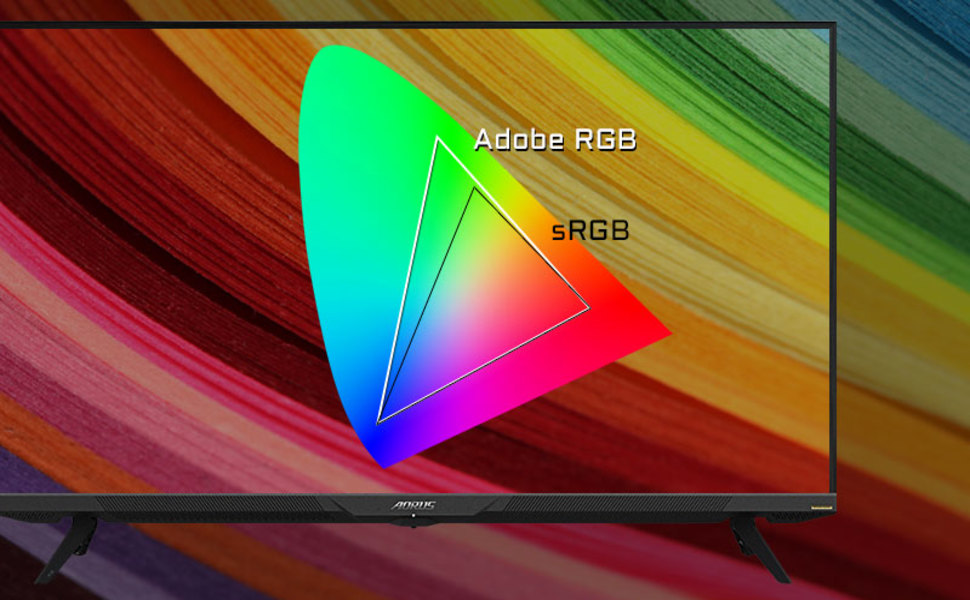
Image: A visual representation of color gamut, comparing Adobe RGB and sRGB color spaces, indicating the monitor's wide color coverage.
5.3 Caractéristiques spéciales
The monitor includes several advanced features accessible via the OSD or OSD Sidekick software:
- OSD Sidekick: A software utility that allows you to control OSD settings directly from your desktop.
- Image dans l'image (PiP) / Image par image (PbP) : Display content from multiple sources simultaneously on the screen.
- Tableau de bord: Real-time hardware information display (e.g., CPU/GPU temperature, fan speed).
- Égaliseur noir : Enhances visibility in dark areas without overexposing bright areas.
- Assistant de jeu: Provides in-game enhancements like crosshairs, timers, and refresh rate counters.
- Space Audio: Offers 5 modes of audio experiences for immersive sound.
- KVM Feature: Allows you to control multiple devices (e.g., two PCs) connected to the monitor using a single keyboard and mouse. Connect devices via USB Type-C and USB 3.0 Upstream ports.

Image: A diagram showing how the Type-C KVM feature allows switching between a desktop PC and a laptop connected to the monitor using one keyboard and mouse.
6. Entretien
6.1 Nettoyage du moniteur
To clean the monitor, first unplug the power cord. Use a soft, lint-free cloth lightly dampened with water or a mild, non-abrasive screen cleaner. Do not spray cleaner directly onto the screen. Avoid using alcohol, ammonia, or abrasive cleaners, as they can damage the screen surface.
6.2 Entretien des écrans OLED et prévention du marquage
OLED displays are susceptible to image retention (burn-in) if static images are displayed for extended periods. To prolong the life of your OLED panel:
- Avoid displaying static images (e.g., desktop icons, taskbars, logos) for long durations.
- Utilisez des économiseurs d'écran ou des fonds d'écran dynamiques.
- Enable the monitor's built-in OLED care features (e.g., pixel shift, pixel refresh, logo luminance adjustment) through the OSD menu.
- Réduisez la luminosité de l'écran lorsque cela n'est pas nécessaire.
- Éteignez le moniteur lorsqu'il n'est pas utilisé.
7. Dépannage
Si vous rencontrez des problèmes avec votre moniteur, consultez les problèmes et solutions courants suivants :
| Problème | Cause possible | Solution |
|---|---|---|
| Aucune image à l'écran | Power cable disconnected; Video cable disconnected or loose; Incorrect input source selected; Source device off. | Check power and video cable connections; Ensure source device is on; Select correct input source via OSD. |
| L'image est floue ou déformée. | Incorrect resolution; Video cable quality; Graphics card driver issues. | Set display resolution to 3840x2160; Use high-quality HDMI 2.1 or DP 1.4 cables; Update graphics drivers. |
| Screen randomly turns off/on | Loose video cable; Power supply issue; Monitor firmware issue; Source device instability. | Ensure video cables are securely connected; Try a different power outlet; Check for and install the latest monitor firmware updates from GIGABYTE's website; Test with a different source device. |
| Pas de son | Volume too low or muted; Incorrect audio output selected; Audio cable disconnected. | Adjust monitor volume; Select correct audio output in PC settings; Ensure external speakers/headphones are connected. |
| KVM feature not working | Incorrect USB cable; USB Upstream cable not connected; Devices not properly configured. | Ensure a 10Gbps USB Type-C cable is used for Type-C connection; Connect the USB 3.0 B to A cable to your primary PC; Refer to the OSD Sidekick software for KVM setup. |
8. Spécifications
Key technical specifications for the GIGABYTE AORUS FO48U monitor:
| Fonctionnalité | Détail |
|---|---|
| Taille de l'écran | 48 pouces |
| Type de panneau | OLED |
| Résolution | 3840 x 2160 (4K UHD) |
| Taux de rafraîchissement | 120 Hz |
| Temps de réponse | 1ms (GTG) |
| Gamme de couleurs | 98 % DCI-P3 / 130 % sRGB |
| Profondeur de couleur | 10 bits |
| ViewAngle d'attaque | 178° (H)/178° (V) |
| Connectivité | 2x HDMI 2.1, 1x DisplayPort 1.4, 1x USB Type-C (KVM), 2x USB 3.0, 1x USB 3.0 Upstream, Earphone Jack, Audio Line-Out |
| Intervenants | 2x 15W, 1x 20W (Space Audio) |
| VESA Mount | 300 x 300 mm |
| Dimensions (L x H x P) | 26.58 x 42.07 x 9.89 pouces (avec support) |
| Poids | 39.8 livres (avec support) |
9. Garantie et assistance
For detailed warranty information, please refer to the warranty card included in your product package or visit the official GIGABYTE website. For technical support, driver downloads, and further assistance, please visit the GIGABYTE support page or contact their customer service.
Officiel GIGABYTE Website: www.gigabyte.com