Introduction
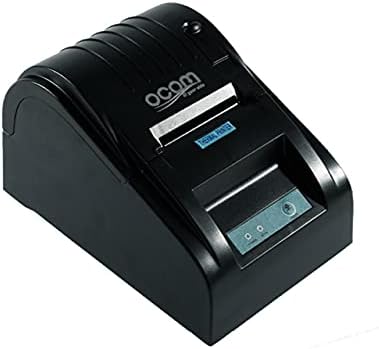
This image shows the OCOM OCPP-585A-U-B Thermal Receipt Printer from a slightly elevated front-right angle. The printer is black with a sleek, compact design. The paper output slot is visible at the top, and the control panel with 'POWER' and 'MODE' indicators is located on the front.
This manual provides detailed instructions for the OCOM OCPP-585A-U-B Thermal Receipt Printer. Please read this manual carefully before using the printer to ensure proper operation and longevity.
Guide d'installation
1. Déballage
Carefully remove the printer and all accessories from the packaging. Verify that all components are present: printer unit, power adapter, USB cable, and a roll of thermal paper.
2. Chargement du papier thermique
- Open the paper cover by pushing the cover open button (usually located on the side or front).
- Insert the thermal paper roll into the paper compartment, ensuring the printing side of the paper faces the print head. The paper should feed smoothly from the bottom of the roll.
- Pull out a small length of paper beyond the paper exit slot.
- Refermez fermement le couvercle en papier jusqu'à ce qu'il s'enclenche.
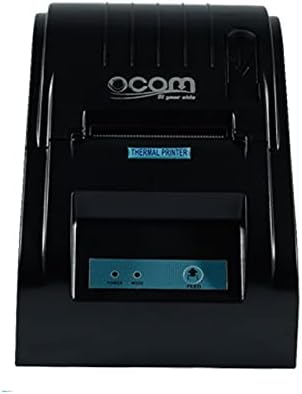
This image displays the OCOM OCPP-585A-U-B Thermal Receipt Printer from a direct top-down perspective. The paper compartment is visible, showing a thermal paper roll correctly inserted. The 'THERMAL PRINTER' label and the control panel with 'POWER' and 'MODE' indicators are clearly visible.
3. Connexion de l'imprimante
- Branchez l'adaptateur secteur au port d'entrée d'alimentation de l'imprimante, puis branchez-le à une prise de courant.
- Connect the USB cable to the printer's USB port and the other end to your computer or POS system.
- Appuyez sur le bouton marche/arrêt pour allumer l'imprimante. Le voyant d'alimentation devrait s'allumer.
Mode d'emploi
Impression de base
Once connected and powered on, the printer is ready to receive print commands from your connected device. Ensure the correct printer driver is installed on your computer/POS system.
- Ouvrez le document ou l'application à partir duquel vous souhaitez imprimer.
- Select 'Print' from the file menu.
- Choose 'OCOM OCPP-585A-U-B' as your printer.
- Adjust print settings if necessary (e.g., paper size, print quality).
- Cliquez sur « Imprimer ».
Self-Test Print
To perform a self-test print, ensure the printer is off. Hold down the 'FEED' button (if available, or a combination of buttons as per specific model) while turning on the printer. Release the button once printing begins. This will print a configuration page, confirming basic printer functionality.
Entretien
Nettoyage de la tête d'impression
Regular cleaning of the print head ensures optimal print quality and extends printer life.
- Mettez l'imprimante hors tension et débranchez le cordon d'alimentation.
- Ouvrez le couvercle du papier.
- Utilisez un coton-tige légèrement dampened with isopropyl alcohol to gently wipe the thermal print head (the dark strip inside the printer).
- Laissez la tête d'impression sécher complètement avant de fermer le capot et de mettre l'imprimante sous tension.
Cleaning the Paper Path
Enlevez toute poussière ou débris de papier du chemin du papier à l'aide d'une brosse douce ou d'air comprimé.
Dépannage
| Problème | Cause possible | Solution |
|---|---|---|
| L'imprimante ne s'allume pas | Câble d'alimentation desserré ; prise de courant défectueuse | Vérifiez les branchements électriques ; essayez une autre prise. |
| Aucune sortie d'impression | Paper loaded incorrectly; Out of paper; Driver not installed/selected | Reload paper correctly; Replace paper roll; Install/select correct printer driver |
| Faint or blank print | Thermal paper loaded upside down; Print head dirty; Paper quality issue | Flip paper roll; Clean print head; Try new thermal paper |
| Imprimante hors ligne | USB cable disconnected; Printer driver issue | Reconnect USB cable; Reinstall printer driver |
Caractéristiques
| Fonctionnalité | Détail |
|---|---|
| Première date disponible | 2021 juin 20 |
| Fabricant | OCOM |
| ASIN | B097LSGP62 |
| Numéro de modèle de l'article | OCPP-585-U-B |
| Nom de marque | OCOM |
| Technologie de connectivité | USB |
| Technologie d'impression | Thermique |
| Couleur | Noir |
| Nom du modèle | OCPP 585 U B |
| Presse écrite | Étiquettes |
| Type de scanner | Reçu |
Garantie et assistance
This OCOM printer typically comes with a standard manufacturer's warranty. Please refer to the warranty card included with your product for specific terms and conditions, or visit the official OCOM website pour des informations détaillées sur la garantie.
For technical support, driver downloads, or further assistance, please visit the OCOM official support website or contact their customer service. Keep your model number (OCPP-585A-U-B) and purchase details ready when seeking support.


