1. Produit terminéview
The Makeid L1-A Label Maker is a portable and rechargeable wireless label printer designed for creating custom labels at home, school, or work. It connects wirelessly via Bluetooth to compatible Android and iOS devices, allowing users to design personalized labels using a dedicated mobile application. This device utilizes thermal printing technology to produce clear and lasting prints on waterproof, fade-resistant, and residue-free label tapes. It features a built-in cutter for easy label separation.
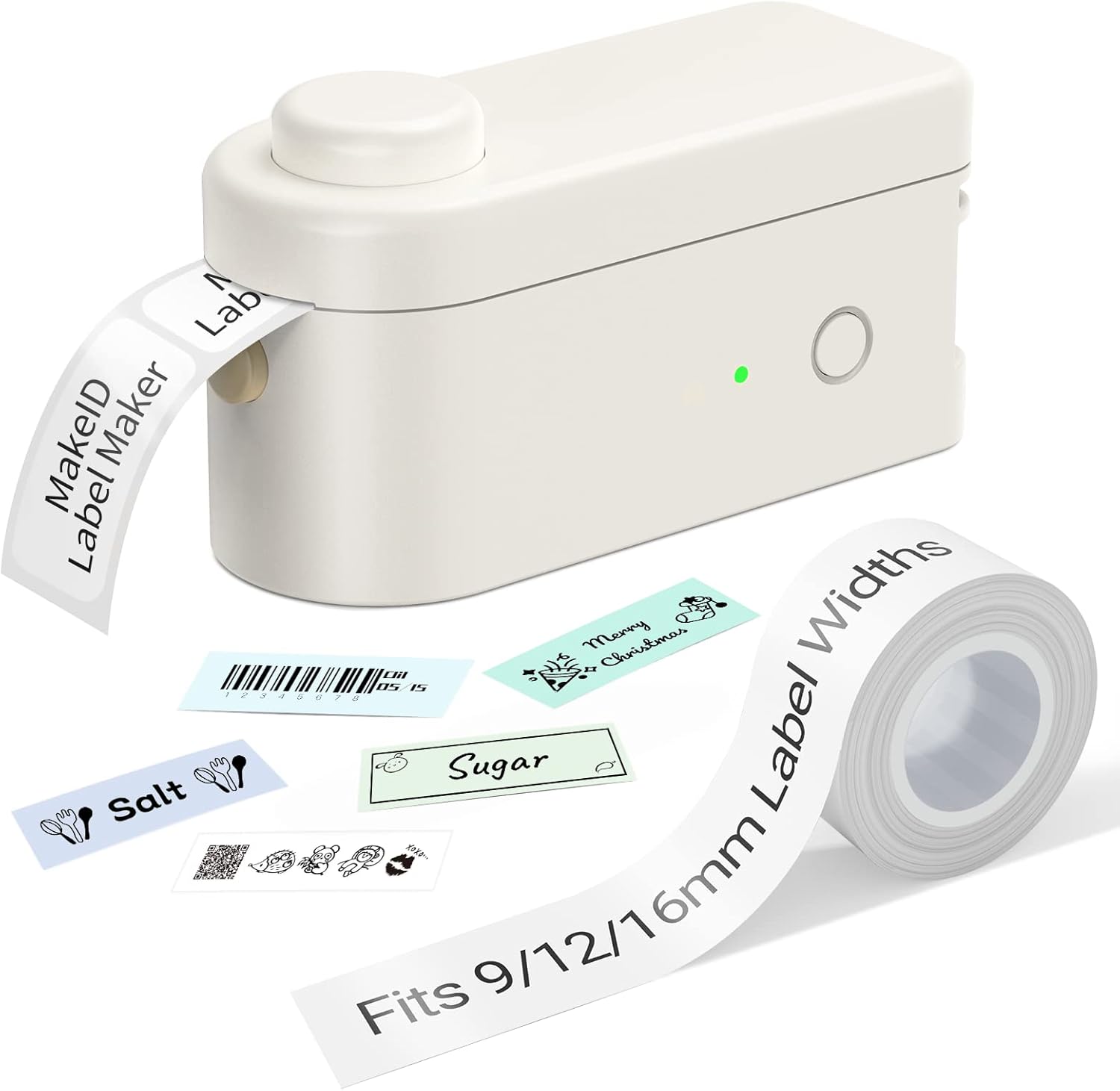
Figure 1: Makeid L1-A Label Maker with a roll of label tape and examples of printed labels, demonstrating its compact size and output capabilities.
2. Consignes de sécurité
- N’exposez pas l’appareil à des températures extrêmes, à la lumière directe du soleil ou à une forte humidité.
- Gardez l’appareil à l’écart de l’eau et d’autres liquides.
- N’essayez pas de démonter ou de réparer l’appareil vous-même. Veuillez faire appel à un technicien qualifié.
- Use only Makeid approved label tapes and accessories.
- Tenir hors de portée des enfants.
- Assurez une ventilation adéquate pendant la charge.
3. Guide de configuration
3.1 Déballage et charge initiale
Carefully remove the label maker and any accessories from the packaging. Before first use, fully charge the device using the provided USB cable. The charging indicator light will typically change color or turn off when charging is complete.
3.2 Installation du ruban d'étiquettes
- Open the tape compartment cover on the label maker.
- Insert the label tape cartridge, ensuring it clicks into place securely.
- Gently pull a small length of tape out of the cartridge, extending it slightly past the cutter.
- Fermez le couvercle du compartiment à ruban adhésif.

Figure 2: The Makeid label maker with its tape compartment open, illustrating the process of inserting a label tape cartridge.
3.3 Téléchargement de l'application et connexion Bluetooth
The Makeid label maker operates via a dedicated mobile application. Download the "MakeID-Life" app from your device's app store (Google Play for Android, App Store for iOS).

Figure 3: Step-by-step guide within the Makeid app demonstrating how to turn on Bluetooth, select the L1 model, and confirm the connection for printing.
- Assurez-vous que le Bluetooth est activé sur votre smartphone ou votre tablette.
- Open the MakeID-Life app.
- Turn on the Makeid label maker by pressing the power button.
- Within the app, navigate to the device connection section (often indicated by a Bluetooth icon or "Connect Device").
- Select the "L1" model from the list of available devices.
- Confirm the connection. The app will indicate when the device is successfully paired.
4. Mode d'emploi
4.1 Conception des étiquettes
The MakeID-Life app provides a versatile interface for label design. You can:
- Enter text and choose from multiple font styles.
- Add numbers, symbols, emojis, and icons.
- Create continuous labels or die-cut labels (depending on tape type).
- Adjust label length and other parameters.

Figure 4: The Makeid-Life app displaying various font choices and customization features, including the ability to add images, QR codes, and barcodes to labels.
4.2 Impression des étiquettes
Une fois la conception de votre étiquette terminée dans l'application :
- Appuyez sur le bouton « Imprimer » dans l'application.
- The label maker will begin printing the label.
- After printing, wait for the label to fully emerge from the printer.
- Press the built-in cutter button to cleanly cut the label.

Figure 5 : Examples of labels created with the Makeid label maker, demonstrating its versatility for continuous labels (9mm, 12mm, 16mm widths) and die-cut labels, suitable for various classification needs.

Figure 6: Demonstrations of the Makeid label maker's practical applications, including personal item identification, business product labeling, kitchen organization, and cautionary reminders.
5. Entretien
5.1 Nettoyage de la tête d'impression
Pour garantir une qualité d'impression optimale, nettoyez régulièrement la tête d'impression thermique. Utilisez un chiffon doux non pelucheux et essuyez-la délicatement.ampened with isopropyl alcohol. Gently wipe the print head surface. Ensure the device is turned off and unplugged before cleaning.
5.2 Stockage
Store the label maker in a cool, dry place away from direct sunlight and extreme temperatures. Remove the label tape cartridge if the device will not be used for an extended period.
6. Dépannage
| Problème | Cause possible | Solution |
|---|---|---|
| L'appareil ne s'allume pas. | Batterie faible ; bouton d'alimentation mal enfoncé | Charge the device; Press and hold the power button for a few seconds. |
| Impossible de se connecter via Bluetooth | Bluetooth off on phone/tablet; Device not in pairing mode; App issue | Ensure Bluetooth is on; Restart the label maker; Restart the app; Forget device in phone's Bluetooth settings and re-pair. |
| Mauvaise qualité d'impression / Impression délavée | Print head dirty; Incorrect tape installed; Low battery | Clean the print head; Ensure correct Makeid tape is used; Charge the device. |
| Tape jam / Label not feeding | Tape not installed correctly; Obstruction in tape path | Re-install tape cartridge; Check for any debris and carefully remove. |
7. Spécifications
- Marque: Makeid
- Nom du modèle : L1-A
- Technologie de connectivité: Bluetooth
- Technologie d'impression : Thermique
- Caractéristiques spéciales : Portable, Wireless, Built-in Cutter
- Compatible Tape Widths: 9 mm, 12 mm, 16 mm
- Sortie imprimante : Monochrome
- Vitesse d'impression maximale : 25 XNUMX ppm
- Poids de l'article : 0.28 livres (environ 127 g)
- DPI Resolutions: 203DPI, 300DPI (model dependent)
8. Garantie et assistance
Les informations spécifiques relatives à la garantie sont généralement fournies avec l'emballage de votre produit ou sur le site officiel du fabricant. website. Veuillez consulter ces ressources pour obtenir des détails concernant la couverture et les conditions de la garantie.
For technical support, troubleshooting assistance beyond this manual, or inquiries about replacement parts and accessories, please visit the official Makeid website or contact their customer service department. Contact information can usually be found on the product packaging or the Makeid brand store page.
Note: As per the provided product data, specific warranty duration or direct support contact details are not available in this document.


