1. Produit terminéview
The Cisco Catalyst 9300 C9300-24S-E is a 24-port Gigabit Ethernet SFP modular uplink network switch designed for enterprise-level network deployments. It provides high-performance switching capabilities, advanced security features, and network automation for modern business environments. This manual provides essential information for the safe and efficient installation, operation, and maintenance of your switch.
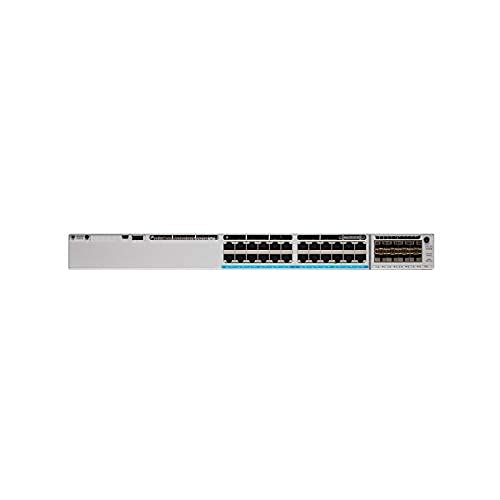
Figure 1 : Face avant view of the Cisco Catalyst 9300 C9300-24S-E Switch. This image displays the 24 SFP ports and modular uplink slots.
2. Consignes de sécurité
Read all safety warnings and instructions before installing, operating, or servicing this equipment. Failure to follow these instructions can result in serious injury or equipment damage.
- Sécurité électrique : Ensure the power source matches the switch's voltage requirements. Always connect the power cord to a grounded outlet. Do not operate the switch with damaged power cords or plugs.
- Ventilation: Maintain adequate airflow around the switch to prevent overheating. Do not block ventilation openings.
- Manutention: This device is heavy. Use proper lifting techniques or assistance when moving or installing.
- Environnement: Operate the switch within the specified temperature and humidity ranges. Avoid exposure to moisture or extreme temperatures.
- Entretien: Confiez toute intervention à un technicien qualifié. N'essayez pas d'ouvrir ou de réparer l'interrupteur vous-même.
3. Contenu du colis
Verify that your package contains the following items. If any item is missing or damaged, contact your vendor immediately.
- Cisco Catalyst 9300 C9300-24S-E Switch
- Cordon d'alimentation secteur
- Rack-mount Kit (brackets, screws)
- Câble de console (RJ-45 vers DB-9)
- Documentation (Guide de démarrage rapide, Informations de sécurité)
4. Description physique et composants
The C9300-24S-E switch features a robust design with various ports and indicators for network connectivity and status monitoring.
4.1 Panneau avant
Figure 2 : Détaillé view of the switch's front panel, highlighting SFP ports and status LEDs.
- 24 x SFP Ports: For Gigabit Ethernet fiber or copper connectivity using SFP transceivers.
- Modular Uplink Slots: Located on the right side, these slots accommodate optional uplink modules for higher bandwidth connections (e.g., 10G, 25G, 40G, 100G).
- Voyants d'état : Indicate system status (SYS), redundant power supply (RPS), port status (STAT), and stack status (STACK).
- Port USB de type A : For external storage or software upgrades.
- USB Type-C Console Port: For console access and initial configuration.
- Port de console RJ-45 : For traditional console access.
4.2 Panneau arrière
Figure 3 : Arrière view of the switch, showing power supply bays and fan modules.
- Power Supply Bays: Two bays for redundant power supplies.
- Modules de ventilateur : Field-replaceable fan modules for cooling.
- StackWise-1T Ports: (If applicable to the specific model variant) For stacking multiple switches.
5. Configuration et installation
Follow these steps to properly install your Cisco Catalyst 9300 switch.
5.1 Montage en rack
- Fixez les supports de montage en rack fournis sur les côtés du commutateur à l'aide des vis incluses.
- Align the switch with the desired rack unit (RU) space in your equipment rack.
- Secure the switch to the rack using the rack screws.
Figure 4: Illustration of the switch being mounted into a standard equipment rack.
5.2 Connexion d'alimentation
- Insert the AC power cord into the power supply module on the rear of the switch.
- Connect the other end of the power cord to a grounded AC power outlet.
- If using redundant power supplies, repeat for the second power supply.
5.3 Connexions réseau
- Insert appropriate SFP transceivers into the 24 SFP ports as needed.
- Connect fiber optic or copper cables from your network devices (servers, workstations, other switches) to the SFP transceivers.
- Install any optional uplink modules into the modular uplink slots and connect them to your core network infrastructure.
6. Mode d'emploi
6.1 Mise sous tension
Once power is connected, the switch will automatically power on. Observe the system status LEDs on the front panel. The SYS LED should turn green after the boot sequence completes.
6.2 Configuration initiale
For initial configuration, connect a console cable from your computer to the switch's console port (either USB-C or RJ-45). Use a terminal emulation program (e.g., PuTTY, Tera Term) with the following settings:
- Taux de bauds: 9600
- Bits de données : 8
- Parité: Aucun
- Bits d'arrêt: 1
- Contrôle de flux : Aucun
Follow the on-screen prompts to complete the initial setup wizard. For advanced configurations, refer to the Cisco IOS XE documentation for Catalyst 9300 Series switches.
6.3 Indicateurs LED
| DIRIGÉ | Couleur/État | Description |
|---|---|---|
| Système (Système) | Vert (solide) | Le système fonctionne normalement. |
| Ambre (solide) | System fault or error. | |
| STAT (Port Status) | Vert (solide) | Lien établi. |
| Vert (Clignotant) | Activity on port. | |
| Désactivé | No link or port disabled. |
7. Entretien
Un entretien régulier garantit des performances optimales et une longue durée de vie à votre commutateur.
- Nettoyage: Periodically clean the exterior of the switch with a soft, dry cloth. Ensure ventilation openings are free from dust and debris. Do not use liquid cleaners directly on the switch.
- Mises à jour du micrologiciel : Consultez régulièrement le support Cisco website for the latest firmware updates. Applying updates can improve performance, add features, and address security vulnerabilities. Follow Cisco's recommended procedures for firmware upgrades.
- Surveillance environnementale : Ensure the operating environment remains within specified temperature and humidity ranges to prevent hardware stress.
8. Dépannage
Cette section propose des solutions aux problèmes courants que vous pourriez rencontrer.
8.1 Pas d'alimentation
- Vérifiez le cordon d'alimentation : Assurez-vous que le cordon d'alimentation est bien branché à la fois à l'interrupteur et à la prise de courant.
- Vérifier le point de vente : Testez la prise de courant avec un autre appareil pour confirmer son bon fonctionnement.
- État de l'alimentation : Check the power supply LEDs on the rear of the switch. If off or amber, the power supply may be faulty or not receiving power.
8.2 Aucun lien sur le port
- Câble de connexion: Ensure the network cable is securely connected to both the switch port and the connected device.
- Intégrité du câble : Test the cable with another device or replace it to rule out a faulty cable.
- Transceiver: If using SFP transceivers, ensure they are properly seated and compatible with both the switch and the connected device.
- Configuration du port : Verify that the switch port is enabled and correctly configured (e.g., speed, duplex settings).
8.3 Problèmes de connectivité réseau
- Configuration IP : Verify IP addresses, subnet masks, and gateway settings on connected devices and the switch.
- VLAN : If using VLANs, ensure ports are assigned to the correct VLANs and trunk links are properly configured.
- Firewall/ACLs: Check for any Access Control Lists (ACLs) or firewall rules on the switch that might be blocking traffic.
- Problèmes logiciels : Consider restarting the switch or checking the system logs for error messages.
9. Spécifications
Key technical specifications for the Cisco Catalyst 9300 C9300-24S-E switch:
| Fonctionnalité | Détail |
|---|---|
| Numéro de modèle | C9300-24S-E |
| Marque | Cisco |
| Type d'interface | SFP |
| Nombre de ports | 24 |
| Appareils compatibles | Ordinateur de bureau, ordinateur portable, imprimante |
| Dimensions du produit | 21.65 x 22.44 x 9.45 pouces |
| Matériau du boîtier | Plastique |
| Indice de température supérieur | 40 degrés Celsius |
| Fabricant | CISCO SYSTEMS - ENTREPRISE |
| Code UPC | 656942062790 |
10. Garantie et assistance
This Cisco product is typically covered by a limited hardware warranty provided by Cisco Systems. The exact terms and duration of the warranty may vary based on your region and purchase agreement. For detailed warranty information, please refer to the official Cisco warranty statements available on their webConsultez ce site ou contactez votre revendeur Cisco agréé.
For technical support, documentation, and software downloads, visit the official Cisco Support website. You will need your product serial number to register and access certain support resources.
- Assistance Cisco Website: www.cisco.com/go/support
- Contacter le support : Reportez-vous au Cisco website contenant les informations de contact régionales.


