Introduction
This user manual provides comprehensive instructions for the installation, operation, and maintenance of your wansview W9 Outdoor Security Camera. Please read this manual carefully before using the product to ensure proper functionality and safety. Keep this manual for future reference.
Qu'y a-t-il dans la boîte
Vérifiez que tous les composants sont présents dans le package :
- veutview Caméra de sécurité extérieure W9
- 5dBi WiFi Antenna
- Alimentation USB
- Ensemble de supports de montage
Produit terminéview
Familiarize yourself with the key components of your wansview W9 camera.

Figure 1: wansview W9 Outdoor Security Camera and Live View Sur smartphone.
This image shows the wansview W9 outdoor security camera mounted on a wall, alongside a smartphone displaying a live feed from the camera. The camera is white with a black lens area, and the phone screen shows a dog in a grassy yard, illustrating the live monitoring capability.
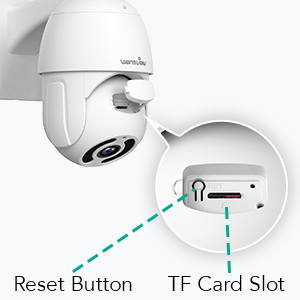
Figure 2: Reset Button and TF Card Slot Location.
This diagram highlights the location of the reset button and the TF (microSD) card slot on the wansview W9 camera, essential for initial setup and local storage.
Guide d'installation
1. Allumer la caméra
Connect the USB power supply to the camera and plug it into a power outlet. The camera will power on and initiate its self-test sequence.
2. Installation de l'application
Téléchargez le « Wans »view Cloud" app from your smartphone's app store (available on iOS and Android). Register for a new account or log in if you already have one.
3. Connexion réseau
Les wansview W9 camera supports both Wi-Fi (2.4GHz only) and Ethernet connections.
Connexion Wi-Fi :
- Ouvrir les Wansview Dans l'application Cloud, appuyez sur l'icône « + » pour ajouter un nouvel appareil.
- Select your camera model (W9) and follow the on-screen instructions.
- Assurez-vous que votre téléphone est connecté à un réseau Wi-Fi 2.4 GHz. L'appareil photo n'est pas compatible avec le Wi-Fi 5 GHz.
- Scannez le code QR affiché sur votre téléphone avec l'objectif de l'appareil photo.
- Wait for the camera to connect to your Wi-Fi network.

Figure 3: Wi-Fi Compatibility (2.4GHz only).
This image illustrates the wansview W9 camera with its upgraded 5dBi antenna, emphasizing its compatibility with 2.4GHz Wi-Fi networks for extended signal range and faster connection speeds. It explicitly shows that 5GHz Wi-Fi is not supported.
Connexion Ethernet :
- Connect an Ethernet cable from your router to the RJ45 port on the camera.
- La caméra se connectera automatiquement au réseau.
- Suivez les instructions de l'application pour ajouter la caméra à votre compte.
4. Montage de la caméra
Les wansview W9 camera is designed for wall mounting and outdoor use (IP65 waterproof).
- Choisissez un emplacement approprié pour l'installation, en veillant à ce qu'il soit dégagé. view et une surface de montage stable.
- Use the provided mounting bracket set to securely attach the camera to the wall.
- Ajustez l'angle de la caméra si nécessaire après l'installation.
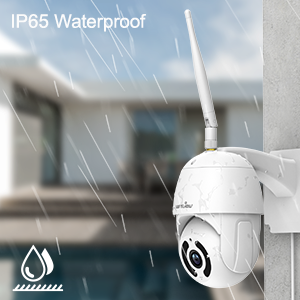
Figure 4 : Caractéristique d'étanchéité IP65.
This image depicts the wansview W9 camera outdoors with rain falling on it, visually confirming its IP65 waterproof rating, making it suitable for various weather conditions.
Mode d'emploi
1. Commande panoramique et d'inclinaison
The camera features a 350° horizontal pan and 90° vertical tilt range, allowing you to monitor a wide area.
- Dans les Wansview Cloud app, access the live view de votre appareil photo.
- Use the directional controls on the screen to remotely adjust the camera's pan and tilt angles.

Figure 5: 2K FHD PTZ Coverage.
This image demonstrates the wansview W9 camera's 2K FHD resolution and its Pan-Tilt-Zoom (PTZ) capabilities, showing a 350° pan and 95° tilt range for comprehensive area coverage, with a house in the background to illustrate its outdoor application.
2. Vision nocturne
The camera is equipped with 12pcs 850nm infrared LED lights, providing clear night vision up to 50 feet.
- La caméra passe automatiquement en mode vision nocturne dans des conditions de faible luminosité.
- Tu peux view the night vision feed in real-time through the Wansview Application cloud.

Figure 6: Excellent Night Vision Capability.
Cette image présente une division view comparing the daytime and night vision performance of the wansview W9 camera. The night vision segment clearly shows objects up to 50 feet away in darkness, highlighting the camera's effective infrared capabilities.
3. Audio bidirectionnel
Communiquez avec les visiteurs ou dissuadez les intrus grâce au microphone et au haut-parleur intégrés.
- Du direct view in the Wansview Cloud app, tap the microphone icon to speak.
- Appuyez sur l'icône du haut-parleur pour écouter le son provenant de l'emplacement de la caméra.

Figure 7 : Audio bidirectionnel en action.
This image illustrates the two-way audio feature of the wansview W9 camera, showing a person communicating with a delivery driver through the camera via a smartphone app. Speech bubbles indicate the conversation, demonstrating real-time interaction.

Figure 8: Deterring Intruders with Two-Way Audio.
This image shows the wansview W9 camera being used to deter an intruder. Speech bubbles indicate a command from the camera ("Move away from my house") and the intruder's response ("arrgg, no, I'm off"), demonstrating the camera's ability to act as a deterrent.
4. Détection de mouvement et alertes
The camera uses motion sensors to detect activity and sends instant alerts to your phone.
- Customize sensor sensitivity and detection areas within the Wansview Application cloud.
- Receive 10-second video alerts when motion is detected.

Figure 9: Instant Detection and Alerts.
This image shows a smartphone displaying a "Motion alarm" notification from the Wansview Cloud app, indicating that the wansview W9 camera has detected activity and sent an immediate alert to the user's phone.
5. Options de stockage (carte SD et cloud)
Les wansview W9 camera offers flexible storage solutions for recorded footage.
- Stockage sur carte SD : Supports up to 128GB microSD cards. Insert the card into the TF card slot (refer to Figure 2). Recorded video and images can be stored locally for preview.
- Stockage dans le cloud : Subscribe to the paid Cloud service via the Wansview Cloud app to save and upload videos securely to the cloud. This provides an additional layer of security against camera theft or damage.

Figure 10: Dual Storage Choices.
This image highlights the dual storage options for the wansview W9 camera: secure TF (microSD) card storage and encrypted cloud storage, providing users with flexible ways to back up recorded footage.
6. Intégration d'Alexa
Control your wansview W9 camera and view live feeds using Amazon Alexa.
- Activer les Wansview compétence dans l'application Alexa.
- Connectez vos Wansview Cloud account with Alexa.
- Use voice commands such as "Alexa, show me the [camera name]" to display the live video on compatible Alexa devices (e.g., Echo Show).
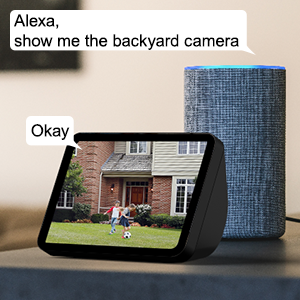
Figure 11 : Intégration d'Alexa.
This image shows an Amazon Echo Show displaying a live video feed from a wansview camera, with speech bubbles indicating a user's voice command ("Alexa, show me the backyard camera") and Alexa's response ("Okay"), demonstrating seamless integration with Alexa for voice control.
7. Multiple Family Members Sharing
Share access to your camera's live feed with up to 4 users simultaneously.
- Generate an invitation link within the Wansview Application cloud.
- Share the link with family members to grant them access.
Entretien
- Nettoyage: Essuyez délicatement l'objectif et le boîtier de l'appareil photo avec un chiffon doux et sec. N'utilisez pas de produits chimiques agressifs ni de nettoyants abrasifs.
- Mises à jour du micrologiciel : Regularly check for and install firmware updates via the Wansview Cloud app to ensure optimal performance and security.
- Alimentation: Vérifiez que l'alimentation électrique est correctement branchée et qu'elle n'est pas endommagée.
- Connexion réseau: Verify a stable Wi-Fi or Ethernet connection for uninterrupted monitoring.
Dépannage
| Problème | Cause possible | Solution |
|---|---|---|
| Caméra hors ligne | No power; Wi-Fi signal weak/disconnected; Router issue. | Check power connection; Move camera closer to router or use Ethernet; Restart router. |
| Impossible de se connecter au Wi-Fi | Incorrect Wi-Fi password; Connecting to 5GHz network; Too far from router. | Double-check password; Ensure connection to 2.4GHz Wi-Fi; Relocate camera or router. |
| Alertes de mouvement non reçues | Motion detection disabled; App notifications off; Sensitivity too low. | Enable motion detection in app; Check phone notification settings; Adjust sensitivity. |
| Mauvaise qualité de vision nocturne | Obstruction in front of lens; Infrared LEDs blocked. | Clear any obstructions; Ensure lens is clean. |
| Problèmes audio bidirectionnels | Microphone/haut-parleur bloqués ; autorisations de l’application. | Ensure clear path for audio; Check app permissions for microphone. |
Caractéristiques
| Numéro de modèle | W9-W |
| Résolution de capture vidéo | 1080p (2K HD) |
| Plage de panoramique/inclinaison | Panoramique 350°, inclinaison 90° |
| Technologie de connectivité | Sans fil (Wi-Fi 2.4 GHz), Ethernet |
| Technologie de communication sans fil | Wifi |
| Source d'énergie | Électrique avec fil |
| Gamme de vision nocturne | 50 pieds |
| Évaluation de la protection internationale | IP65 (étanche) |
| Options de stockage | Carte SD (jusqu'à 128 Go), stockage cloud |
| Audio | Audio bidirectionnel (microphone et haut-parleur intégrés) |
| Appareils compatibles | Smartphone (iOS, Android), Alexa Echo Show |
| Type de montage | Support mural |
| Dimensions (L x l x H) | 6.3 x 6.1 x 3.94 pouces |
| Poids de l'article | 1.6 livres |
Garantie et assistance
For warranty information and technical support, please refer to the wansview officiel website or contact their customer service directly. Details are typically available on the product packaging or the wansview brand store on Amazon.
Visitez le veutview Magasin pour plus d'informations.


