
1. Introduction
The uAttend DR2000 is a cloud-connected time clock system designed for employee time tracking. It features touch-free operation through voice control and facial recognition, promoting a hygienic and efficient workplace environment. This system integrates with a cloud-based service that provides real-time attendance management, detailed reporting, and payroll automation capabilities.
2. Contenu du colis
Vérifiez que tous les éléments sont présents dans le colis :
- DR2000 Time Clock Unit
- Adaptateur secteur
- Gabarit de montage
- Product Manual & Quick Start Guide (this document)
- How-To-Punch Card
3. Produit terminéview
The uAttend DR2000 time clock features several key components for its operation:

Figure 3.1 : Annotated diagram of the uAttend DR2000 Time Clock, highlighting its LED lights for enhanced capturing, high-resolution camera, 5-inch LCD touch screen, voice recognition microphone, and RFID card scanner.
- Lumières LED : Provide illumination for optimal facial recognition in various lighting conditions.
- Caméra haute résolution : Captures facial data for accurate employee identification.
- Écran tactile LCD 5 pouces : Displays time, punch options, and employee information.
- Voice Recognition Microphone: Enables touch-free punching via voice commands.
- RFID Card Scanner: Allows for employee identification using compatible RFID cards.
4. Guide de configuration
4.1. Installation physique
Use the provided mounting template to securely attach the DR2000 time clock to a wall at an appropriate height for all users. Ensure the mounting location is stable and allows for clear access to the device.
4.2. Connexion électrique
Connect the power adapter to the DR2000 unit and plug it into a standard electrical outlet. The device will power on automatically.
4.3. Configuration du réseau
Upon initial power-up, follow the on-screen prompts to connect the DR2000 to your Wi-Fi network. A stable internet connection is required for cloud synchronization and full functionality.
4.4. Initial System Configuration and Employee Enrollment
Access the uAttend cloud portal via a web browser to complete the initial system setup, including administrator accounts and company settings. For employee enrollment:
- Reconnaissance faciale : Employees will stand in front of the device, and the camera will capture their facial data for identification. Ensure adequate lighting for accurate capture.
- Contrôle vocal : Employees will record their voice for voice command recognition.
- Carte RFID : If using RFID, employees can register their assigned cards with the system.

Figure 4.1 : The uAttend DR2000 displaying an employee's face within a green recognition frame, indicating successful facial data capture.
5. Mode d'emploi
5.1. Employee Punching
Employees can punch in or out using facial recognition, voice commands, or an RFID card.
- Reconnaissance faciale : Stand directly in front of the time clock. The camera will detect and identify the employee's face. Once recognized, the system will display punch options.
- Contrôle vocal : Approach the time clock and clearly state your punch command, such as "Punch In" or "Punch Out." The system will confirm the action.
- Carte RFID : Tap your registered RFID card against the designated scanner area on the device.
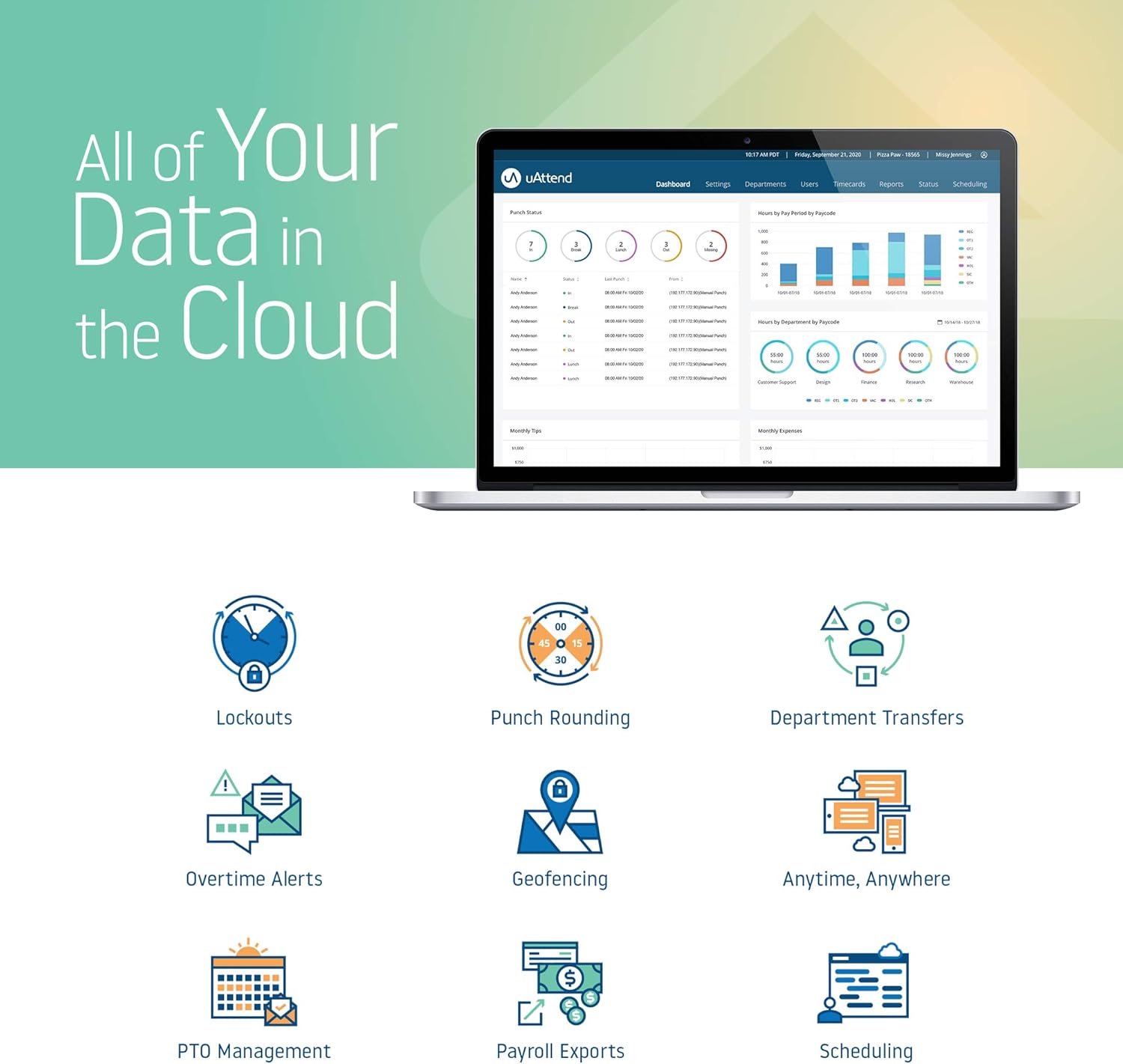
Figure 5.1 : An employee interacting with the uAttend DR2000 time clock, which is mounted on a wall, demonstrating the touch-free facial recognition feature.
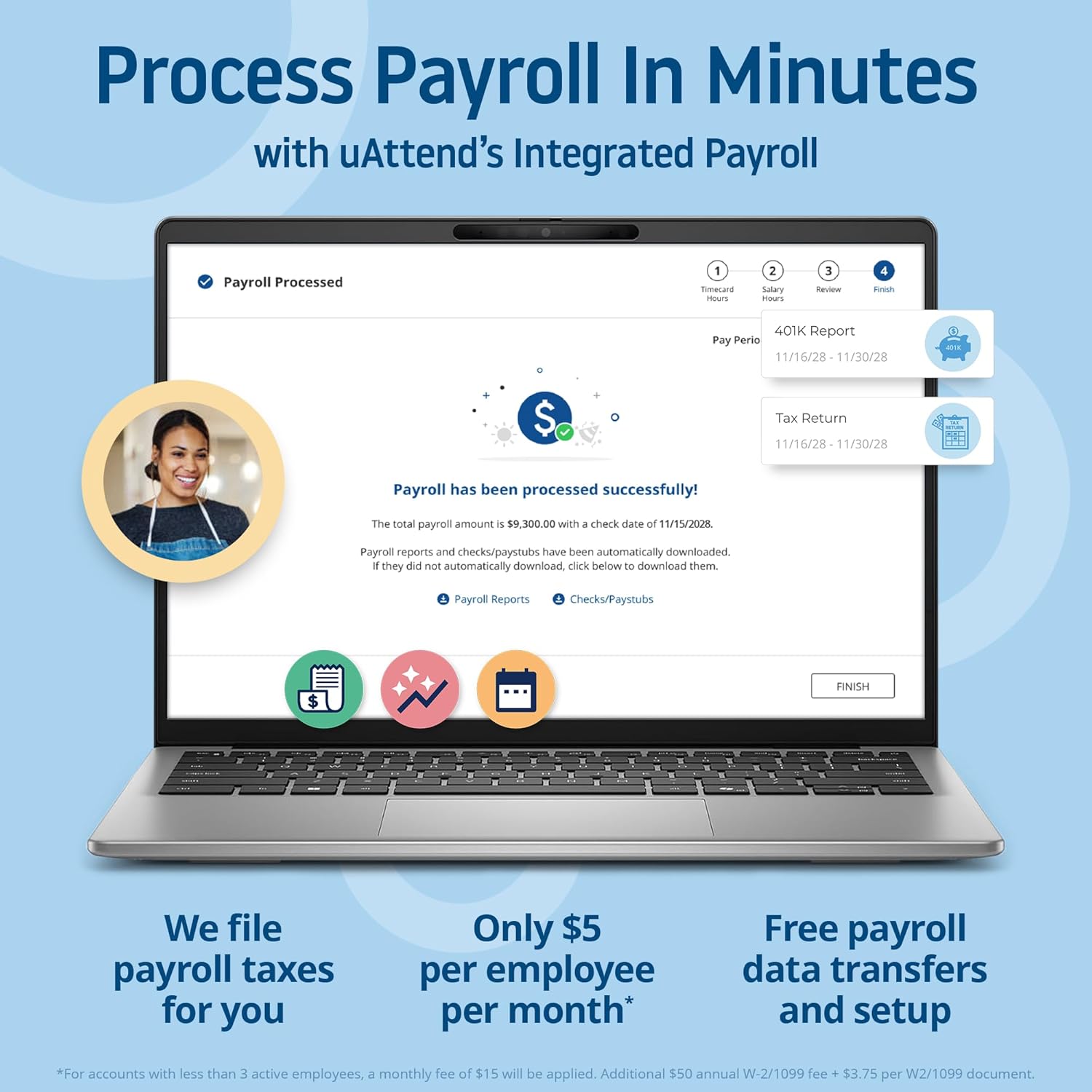
Figure 5.2 : An employee using voice commands to interact with the uAttend DR2000 time clock, indicated by a speech bubble icon and the phrase "Punch In!".
5.2. Punch Options
After successful identification, the touch screen will display various punch options:

Figure 5.3 : The uAttend DR2000 display showing a grid of punch options, including Punch In, Punch Out, Start Break, End Break, Start Meal, End Meal, Department Transfer, and Job Tracking.
- Punch In/Out: Records the start and end of a work shift.
- Start/End Break: Records the beginning and end of a break period.
- Start/End Meal: Records the beginning and end of a meal period.
- Dept Transfer: Allows employees to switch departments for tracking purposes.
- Job Tracking: Enables employees to clock in and out of specific jobs or projects.

Figure 5.4 : The uAttend DR2000 display showing the Job Tracking interface, with options to "Start New Job" and "End Job" for project-based time recording.
5.3. Utilisation de l'application mobile
The uAttend system also offers a mobile application for employees to manage their time on the go. This includes quick punching, submitting time off requests, and viewing time card data.

Figure 5.5 : Multiple mobile phone screens displaying the uAttend application, illustrating features such as quick punching, time off requests, and detailed time card information for employees.
6. Advanced Features (Cloud Platform)
The uAttend DR2000 integrates with a comprehensive cloud platform, offering advanced management capabilities:
- Real-Time Attendance Management: Monitor employee attendance and schedules from any device with internet access.
- Detailed Reporting: Generate various reports on employee hours, productivity, and labor costs to aid in informed decision-making.
- Intégration de la paie : Automate payroll processing by integrating time and attendance data, simplifying tax filings and payroll tasks.
- Reliable Data Security: Benefit from secure, automatic cloud backups, ensuring employee data protection and accessibility.
- Caractéristiques personnalisables: The cloud service provides enhanced capabilities like customizable reports and remote access, designed to support business growth.
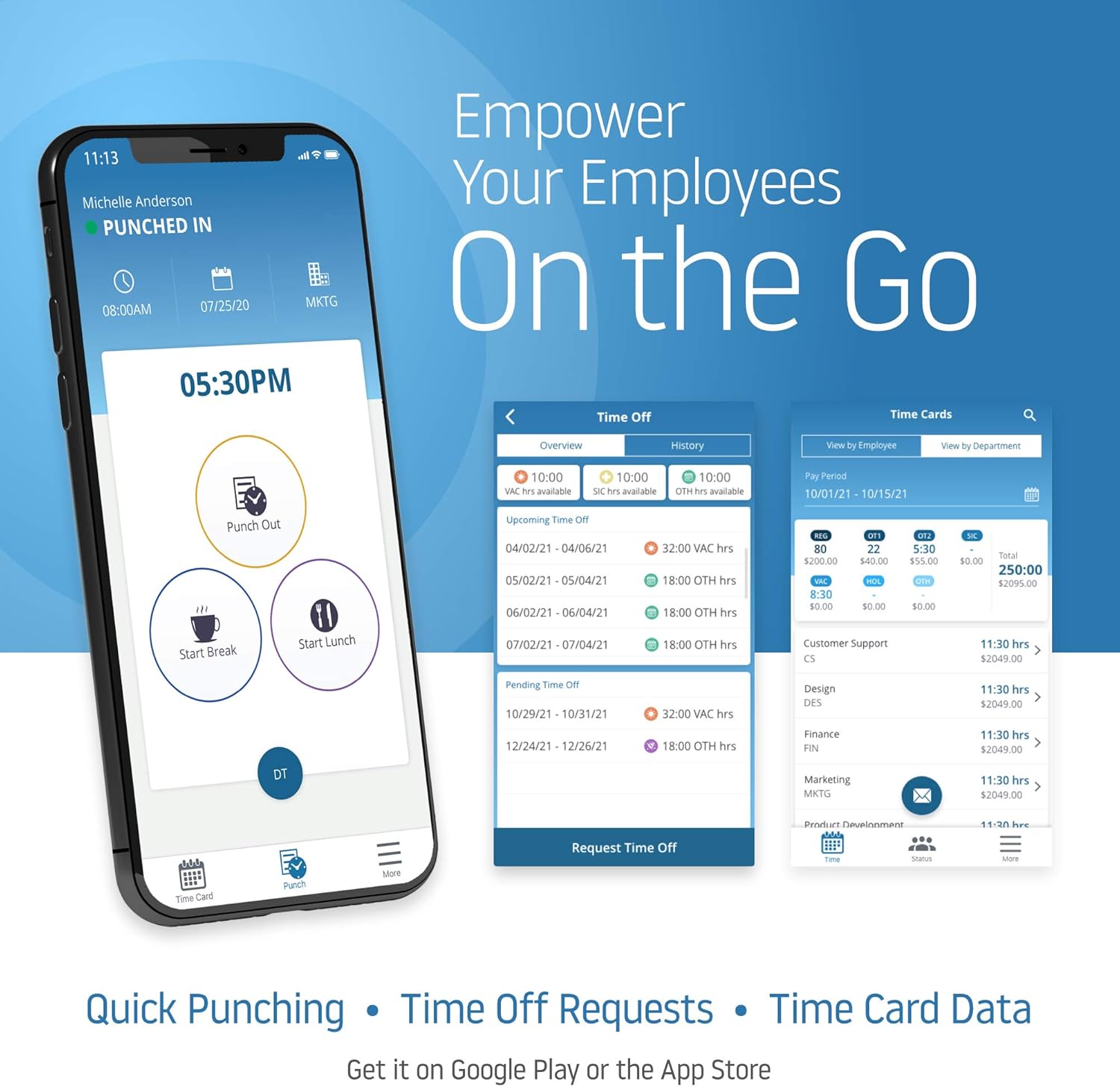
Figure 6.1 : A laptop screen displaying the uAttend payroll processing interface, showing steps for timecard hours, salary hours, 401K report, and tax return, indicating successful payroll processing.

Figure 6.2 : Un tableau comparatif illustrant les avantagestages of uAttend's cloud-connected time tracking, including features like easy setup, hardware warranty, support options, data storage, real-time punch data, data reports, time formats, OT alerts, lockout rules, and integrated payroll.
7. Entretien
7.1. Nettoyage
To maintain optimal performance, periodically clean the device. Use a soft, dry cloth to wipe the screen and exterior. Avoid abrasive cleaners or sprays directly on the unit.
7.2. Mises à jour logicielles
As a cloud-connected device, the DR2000 receives automatic software updates to ensure it operates with the latest features and security enhancements. Ensure the device remains connected to the internet for these updates.
7.3. Gestion des données
All time and attendance data is securely stored and backed up in the cloud. Regularly review reports and data through the uAttend portal to ensure accuracy and compliance.
8. Dépannage
This section addresses common issues you might encounter with your uAttend DR2000 time clock.
| Problème | Cause possible | Solution |
|---|---|---|
| Facial Recognition Failure | Poor lighting, incorrect distance, employee not enrolled, mask interference. | Ensure adequate lighting. Stand 1-2 feet from the device. Verify employee enrollment. Remove masks if possible, or use voice/RFID. |
| La commande vocale ne répond pas | Noisy environment, unclear speech, employee not enrolled for voice. | Reduce background noise. Speak clearly and at a normal volume. Verify employee voice enrollment. |
| L'appareil ne se connecte pas au Wi-Fi | Incorrect password, out of range, network issues. | Double-check Wi-Fi password. Move device closer to router. Restart router and device. |
| Screen Glitches or Goes Black | Software error, power issue, hardware malfunction. | Restart the device by unplugging and replugging the power. Ensure stable power supply. If persistent, contact uAttend support. |
| Incorrect Timekeeping | Synchronization issue, incorrect punch method, system settings. | Verify device is connected to the internet. Ensure employees are using correct punch procedures. Check time zone and other settings in the uAttend portal. |
9. Spécifications
| Fonctionnalité | Détail |
|---|---|
| Numéro de modèle | DR2000 |
| Marque | uParticiper |
| Couleur | Noir |
| Poids de l'article | 1 livre (environ 0.45 kg) |
| Dimensions du produit | 7.5 x 5.5 x 1.5 pouces (environ 19.05 x 13.97 x 3.81 cm) |
| Taille de l'écran | 10 pouces (environ 25.4 cm) |
| Source d'énergie | Adaptateur secteur (inclus) |
| Connectivité | Wi-Fi, Cloud-connected |
| Méthodes d'identification | Facial Recognition, Voice Control, RFID Card |
| Code UPC | 033255998051 |
10. Informations sur la garantie
The uAttend DR2000 Time Clock System includes a Free Lifetime Hardware Warranty. For specific terms and conditions, please refer to the official uAttend website ou contacter le support client.
11. Assistance et ressources
For additional assistance, frequently asked questions, or to access your cloud portal, please visit the official uAttend website or contact their customer support team. You can find more information and resources at the uAttend Store on Amazon.