Introduction
This manual provides comprehensive instructions for the setup, operation, and maintenance of your Plantronics Poly Studio P5 Webcam and Voyager 4220 UC Headset Kit. Please read this manual thoroughly before using the product to ensure optimal performance and longevity.
The kit includes a high-definition webcam designed for professional video conferencing and a stereo Bluetooth wireless headset for clear audio communication.
Contenu du colis
- Poly Studio P5 Webcame
- Casque sans fil Poly Voyager 4220 UC
- USB-A Adapter (for headset)
- USB Cable (for webcame)
- Guide de démarrage rapide
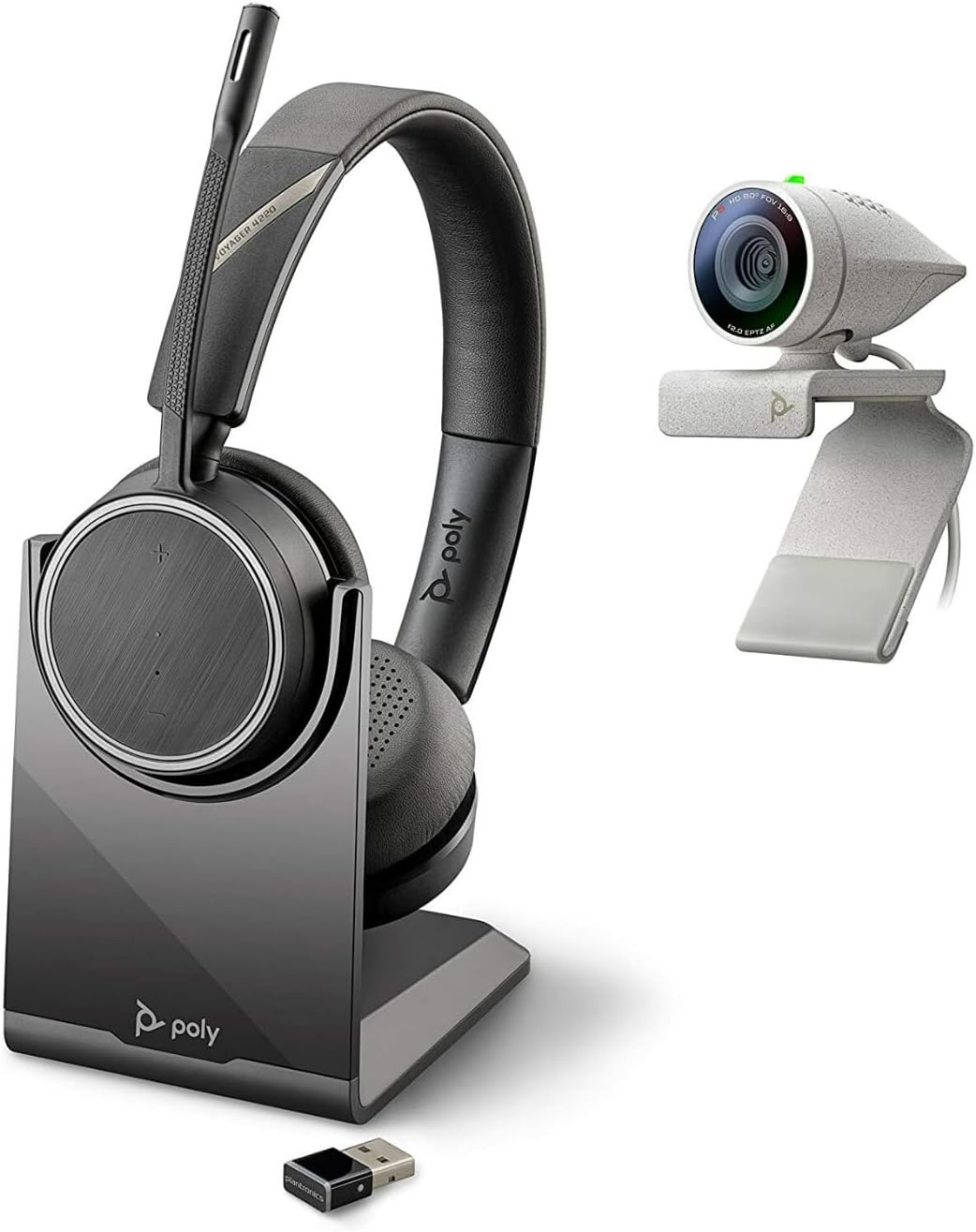
Image: Poly Studio P5 Webcam and Voyager 4220 UC Headset Kit, showing the webcam, headset, charging stand, and USB adapter.
Instructions d'installation
1. Poly Studio P5 WebConfiguration de la came
- Montage du Webcame:
Placez le webcam on top of your monitor or laptop screen. Adjust the clip to secure it firmly. The webcam can also be mounted on a tripod using the integrated tripod-ready design.

Image: Poly Studio P5 Webcam positioned on top of a laptop screen, showing its compact design and mounting clip.
- Connexion à votre ordinateur :
Connectez le câble USB intégré à partir du webcam to an available USB port on your PC or Mac. The device is plug-and-play; drivers will install automatically.
- Obturateur de confidentialité :
Le webcam features an integrated privacy shutter. Slide the shutter to cover the lens when not in use to enhance security and privacy.

Image : Avant view of the Poly Studio P5 Webcam, highlighting the lens and the integrated privacy shutter mechanism.
2. Voyager 4220 UC Headset Setup
- Chargement du casque :
Before first use, fully charge the headset. Connect the charging cable to the headset and a USB power source. A full charge provides approximately 12 hours of talk time or 15 hours of listening time.
- Connecting the USB-A Adapter:
Insert the USB-A adapter into an available USB port on your PC or Mac. The adapter will automatically pair with the Voyager 4220 UC headset.
- Porter le casque :
Adjust the headband for a comfortable fit. Position the microphone boom approximately two finger-widths from the corner of your mouth for optimal voice pickup.
Mode d'emploi
1. Using the Poly Studio P5 Webcame
- Vidéoconférence : Le webcam is compatible with Zoom, Microsoft Teams, and other video conferencing services. Select "Poly Studio P5" as your camera and microphone input within your chosen application's settings.
- Automatic Low-Light Compensation: Le webcam automatically adjusts to maintain proper light exposure, ensuring clear visibility even in darker environments.
- Zoom numérique : The camera supports up to 4x digital zoom. This feature can typically be controlled through your video conferencing software or the Poly Lens Desktop app.

Image: A person wearing the Voyager 4220 UC Headset and using the Poly Studio P5 Webcam with a laptop, demonstrating a typical video conferencing setup.
2. Using the Voyager 4220 UC Headset
- Marche/Arrêt : Slide the power switch to turn the headset on or off.
- Contrôle du volume : Use the volume up (+) and volume down (-) buttons on the earcup to adjust audio levels.
- Désactiver/activer le son : Press the mute button on the microphone boom or earcup to mute or unmute your microphone.
- Contrôle des appels : Press the call button to answer or end calls in supported applications.
- Noise-Cancelling Microphones: The headset features dual noise-cancelling microphones to reduce background noise for clear voice transmission.
3. Poly Lens Desktop App
The Poly Lens Desktop app allows you to customize settings, receive firmware updates, and access practical tips for your devices. Download the app from the official Poly website.
- Ajuster webcam settings (e.g., brightness, contrast, zoom).
- Configure headset audio preferences.
- Receive health and wellness reminders.
Entretien
- Nettoyage:
Essuyez le webcam lens and headset surfaces with a soft, dry, lint-free cloth. Do not use liquid cleaners or abrasive materials.
- Stockage:
Rangez les appareils dans un endroit frais et sec, à l'abri de la lumière directe du soleil et des températures extrêmes lorsqu'ils ne sont pas utilisés.
- Mises à jour du micrologiciel :
Regularly check for firmware updates via the Poly Lens Desktop app to ensure optimal performance and access to new features.
Dépannage
| Problème | Cause possible | Solution |
|---|---|---|
| Webcame non détectée | Loose USB connection, incorrect software settings, driver issue. |
|
| Aucun son du casque | Headset not powered on, not paired, volume too low, incorrect audio output selected. |
|
| Le microphone ne fonctionne pas | Microphone muted, incorrect audio input selected, boom not positioned correctly. |
|
| Mauvaise qualité vidéo | Low light conditions, dirty lens, internet bandwidth issues. |
|
Caractéristiques
Poly Studio P5 Webcame
- Résolution d'écran maximale : FHD (1080p)
- Résolution de capture vidéo : 1080p
- Technologie de capteur photo : CMOS
- Arrière WebRésolution de la caméra : 5 MP
- Distance focale maximale : 4
- Ouverture maximale: f/2.0
- Technologie de connectivité: USB
- Plate-forme matérielle: PC, Mac
- Caractéristiques spéciales : Integrated privacy shutter, automatic low-light compensation, tripod-ready design.
- Dimensions du produit : 14.1 x 8.3 x 4.5 inches (Kit dimensions)
- Poids de l'article : 2.09 pounds (Kit weight)
Casque Poly Voyager 4220 UC
- Type sans fil : Bluetooth
- Temps de conversation : Jusqu'à 12 XNUMX heures
- Temps d'écoute : Jusqu'à 15 XNUMX heures
- Micros : Dual noise-cancelling
- Connectivité : Adaptateur USB-A
- Formats audio pris en charge : CAA, MP3
- Piles : 1 batterie Lithium Polymère (incluse)
Informations sur la garantie
For detailed warranty information, please refer to the warranty card included with your product or visit the official Poly website. Les conditions de garantie standard couvrent généralement les défauts de fabrication pendant une période déterminée à compter de la date d'achat.
Assistance et contact
For technical support, product registration, or to download the latest software and drivers, please visit the official Poly support website:
Website: www.poly.com/support
Vous trouverez également une FAQ et des forums communautaires sur la page d'assistance.


