Introduction
Thank you for choosing the Macally Wireless Ergonomic Keyboard. This manual provides detailed instructions for setting up, operating, maintaining, and troubleshooting your new keyboard. Please read this manual thoroughly to ensure optimal performance and longevity of your device.

Figure 1: Macally Wireless Ergonomic Keyboard (Model BTERGOKEY)
Installation
Contenu du colis
- Macally Wireless Ergonomic Keyboard
- Micro USB to USB-A Charging Cable
- Guide de l'utilisateur (ce document)
Charger le clavier
The keyboard features a built-in 500mAh rechargeable battery. Before initial use, or when the battery is low, charge the keyboard using the included Micro USB to USB-A cable.
- Repérez le port micro USB sur le clavier.
- Connect the Micro USB end of the cable to the keyboard.
- Connectez l'extrémité USB-A du câble à une source d'alimentation USB compatible (par exemple, un port USB d'ordinateur, un adaptateur secteur USB).
- L'indicateur LED affichera l'état de charge.

Figure 2: Keyboard connected to charging cable.
Figure 3: Close-up of the charging port and On/Off switch.
Appariement Bluetooth
The Macally BTERGOKEY keyboard can pair with up to three Bluetooth devices simultaneously.
- Ensure the keyboard is charged and the On/Off switch is in the "On" position.
- Pour lancer l'appairage, appuyez et maintenez enfoncé le Fn key, and while holding it, press the Number 1, 2, or 3 key on the number row. Release both keys. This selects the Bluetooth channel.
- Ensuite, appuyez et maintenez Fn again, and while holding it, press the "P" key. Release both keys. The LED light for the selected channel (B1, B2, or B3) will flash rapidly, indicating it is in pairing mode.
- On your Mac, iPad, or iPhone, go to Préférences système (Mac) ou Paramètres (iOS), then navigate to Bluetooth.
- Select "Macally BTERGOKEY" from the list of available devices.
- Follow any on-screen prompts to complete the pairing process. The LED light will stop flashing rapidly once successfully paired.
Figure 4: Bluetooth connectivity with multiple Apple devices.
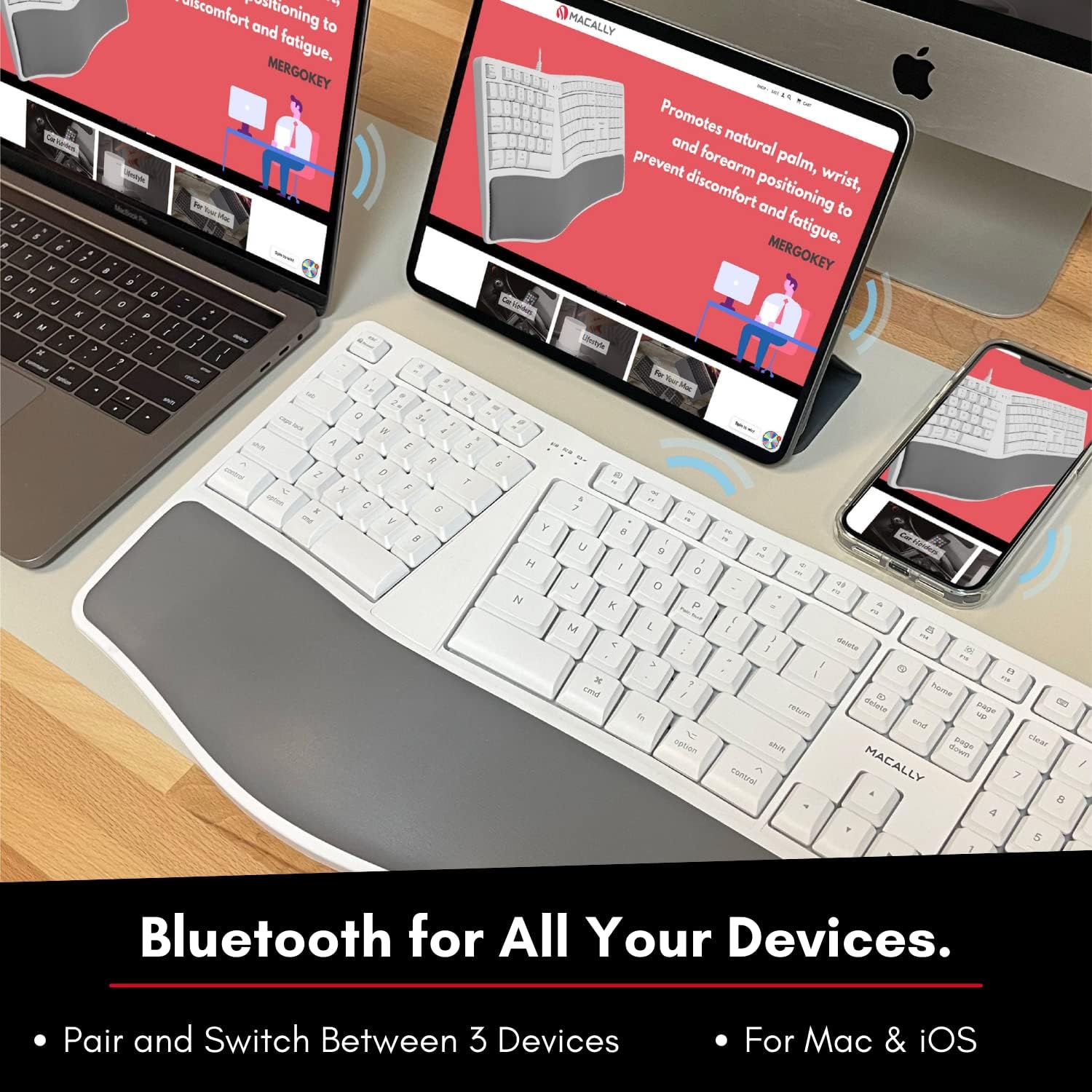
Figure 5: The keyboard supports Bluetooth connection to Mac, iPad, and iPhone.
Mode d'emploi
Basculer entre des appareils couplés
To quick-switch between your paired Bluetooth devices (B1, B2, or B3), simply press and hold the Fn key and then press the corresponding Number 1, 2, or 3 on the number row. Release both keys. The keyboard will connect to the selected device.
Ergonomic Design and Typing
The Macally BTERGOKEY features a split ergonomic design with keys in two zones and at an angle to promote natural arm and wrist posture. It includes a padded wrist cushion for enhanced comfort.

Figure 6: The keyboard's design promotes neutral arm resting position and sloped comfort.
The keyboard's layout includes two dedicated typing zones and a space bar for each hand, which can help improve typing speed and reduce strain.

Figure 7: The keyboard features two distinct typing zones for improved efficiency.
It may take a few days to adjust to the unique layout of this ergonomic keyboard. Consistent use will help you adapt and experience the full benefits.

Figure 8: Adjustment period for the ergonomic layout.
MacOS Shortcut Keys
The keyboard features a 110-key Mac-specific layout with 21 MacOSX shortcut keys to enhance your productivity. These keys provide quick access to common functions.

Figure 9 : Plusview of the 21 MacOS shortcut keys.
Entretien
Nettoyer votre clavier
Pour maintenir la propreté et le bon fonctionnement de votre clavier, suivez ces instructions :
- Always turn off the keyboard before cleaning.
- Utilisez un chiffon doux et non pelucheux légèrement dampse termine à l'eau ou avec une solution nettoyante douce et non abrasive.
- Évitez de vaporiser les produits nettoyants directement sur le clavier.
- N’utilisez pas de produits chimiques agressifs, de solvants ou de matériaux abrasifs.
- Regularly remove dust and debris from between the keys using compressed air.
Entretien de la batterie
To prolong the life of the rechargeable battery:
- Évitez de décharger complètement la batterie fréquemment.
- Rechargez régulièrement le clavier, surtout s'il n'est pas utilisé pendant une période prolongée.
- Rangez le clavier dans un endroit frais et sec lorsqu'il n'est pas utilisé.
Dépannage
Problèmes de jumelage
- LED light flashing rapidly: This indicates the keyboard is actively searching for a device to pair with. Ensure Bluetooth is enabled on your host device and it is discoverable.
- LED light flashing slowly: This means the keyboard is attempting to reconnect to a previously paired device. Ensure the paired device's Bluetooth is on and within range.
- Keyboard not appearing in Bluetooth list:
- Assurez-vous que le clavier est chargé et allumé.
- Make sure the keyboard is in pairing mode (LED flashing rapidly).
- Essayez de redémarrer à la fois le clavier et votre appareil hôte.
- Clear existing Bluetooth connections on your host device if you have too many.
Number Pad Not Working
If your number pad is not functioning, and there is no dedicated "Num Lock" key, you may need to adjust a setting in your macOS:
- Aller à Préférences système sur votre Mac.
- Cliquez sur Accessibilité.
- Faites défiler vers le bas et sélectionnez Contrôle du pointeur.
- Désactiver the "Enable Mouse Keys" option. This setting can sometimes interfere with the number pad's functionality.
Problèmes généraux de connectivité
- Ensure the keyboard is within the effective range of your Bluetooth device (typically up to 33 feet or 10 meters).
- Minimisez les interférences provenant d'autres appareils sans fil (par exemple, les routeurs Wi-Fi, les téléphones sans fil).
- If issues persist, try unpairing and re-pairing the keyboard with your device.
Caractéristiques
| Fonctionnalité | Détail |
|---|---|
| Dimensions du produit | 19 x 9.85 x 1.5 pouces |
| Poids de l'article | 2.89 livres |
| Numéro de modèle | BTERGOKEY |
| Technologie de connectivité | Bluetooth |
| Appareils compatibles | Apple Mac Pro/Mini, Macbook Pro/Air, iMac, iPad, iPhone |
| Nombre de clés | 110 |
| Batterie | Batterie rechargeable de 500 mAh |
| Caractéristiques spéciales | Split Ergonomic Design, Padded Wrist Cushion, Multi-sync Bluetooth, 21 MacOS Shortcut Keys, Adjustable Kickstand |
Garantie et assistance
Macally products are designed with quality and reliability in mind. For warranty information and technical support, please visit the official Macally website ou contactez leur service client.
Website: www.macally.com
Please have your product model number (BTERGOKEY) and purchase information ready when contacting support.


