1. Introduction
The WAVLINK USB 3.0 Universal Docking Station (Model: UG39DK101-BL) is designed to expand the connectivity of your laptop or desktop computer. It provides a comprehensive solution for connecting multiple peripherals, external displays, and network access through a single USB 3.0 connection to your host device. This manual provides detailed instructions for setup, operation, and troubleshooting to ensure optimal performance.

Image 1.1: WAVLINK USB 3.0 Universal Docking Station, front view.
2. caractéristiques du produit
- Large choix de ports : Features 13 ports including 2x USB 3.0, 4x USB 2.0, 1x USB 3.0 IN (for host connection), 1x HDMI, 1x DVI, 1x Gigabit Ethernet, 1x DC Power Jack, 1x Audio Input, and 1x Audio Output.
- High-Resolution Dual Display: Supports dual external monitors. HDMI output supports resolutions up to 2560x1440@50Hz. DVI or VGA (via included adapter) supports resolutions up to 2048x1152@60Hz / 1920x1080@60Hz. When using HDMI + DVI/VGA, resolutions up to 2048x1152@60Hz / 1920x1080@60Hz are supported for extended or mirrored displays.
- Gigabit Ethernet: Provides a stable and fast wired network connection with support for 10/100/1000Mbps Ethernet via the RJ-45 port.
- Transfert de données ultra-rapide : Les ports USB 3.0 offrent des vitesses de transfert de données allant jusqu'à 5 Gbit/s.
- Large compatibilité : Compatible with Windows Vista/7/8/8.1/10/11 and Mac OS 10.2 and later.
- Conception compacte et légère : Designed for portability and minimal desk space.
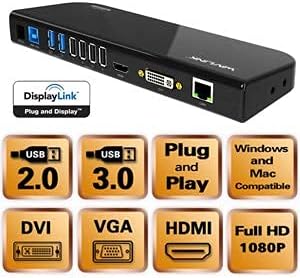
Image 2.1 : Terminéview of the docking station ports and key features.
3. Contenu du colis
Veuillez vérifier que tous les articles sont présents dans le colis :
- 1x WAVLINK USB 3.0 Universal Docking Station (UG39DK101-BL)
- 1x SuperSpeed USB 3.0 Cable
- 1x DVI-to-VGA Adapter
- 1x Adaptateur secteur
- 1x Manuel d'utilisation
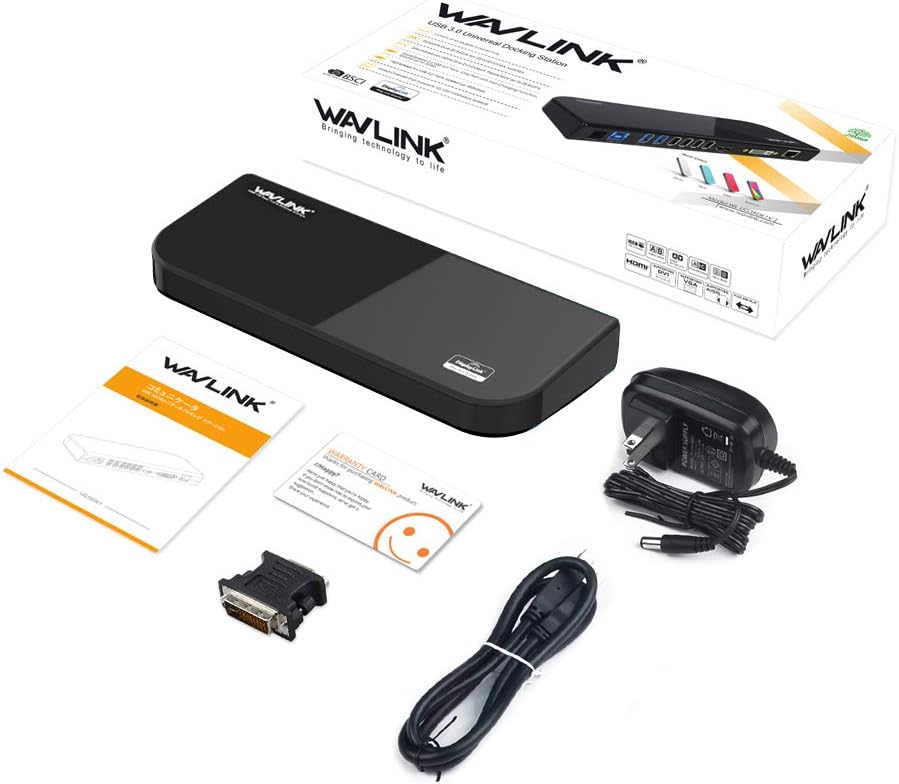
Image 3.1 : Tous les éléments inclus dans l'emballage du produit.
4. Instructions de configuration
- Installer les pilotes : Before connecting the docking station, ensure that the latest DisplayLink drivers are installed on your computer. These can typically be downloaded from the WAVLINK support website or DisplayLink's official website.
- Connecter l'alimentation : Connect the provided power adapter to the DC 12V port on the docking station and then plug it into a power outlet.
- Se connecter à l'ordinateur hôte : Use the SuperSpeed USB 3.0 cable to connect the USB 3.0 IN port on the docking station to an available USB 3.0 port on your laptop or desktop computer.
- Connectez les périphériques :
- Moniteurs : Connect your external monitors to the HDMI and/or DVI ports on the docking station. If using a VGA monitor, use the DVI-to-VGA adapter.
- Périphériques USB : Connect your USB devices (keyboard, mouse, printer, external drives, etc.) to the available USB 3.0 and USB 2.0 ports.
- Ethernet : Connect an Ethernet cable from your router or modem to the RJ-45 Gigabit Ethernet port on the docking station.
- Audio: Connect headphones, speakers, or a microphone to the audio input/output ports as needed.
- Vérifiez la connexion : Once all connections are made, your computer should detect the docking station and connected devices. You may need to adjust display settings in your operating system.

Image 4.1 : Détail view des ports de la station d'accueil et de leurs étiquettes.
5. Mode d'emploi
5.1 Modes d'affichage
The docking station supports various display modes for external monitors:
- Mode étendu: Each monitor displays a different part of your desktop, allowing for increased workspace.
- Mode miroir (mode duplication) : All monitors display the same content as your primary display.
- Primary Mode / Alternate Mode: Use this mode if you are using your laptop with the lid closed, displaying only on external monitors.
You can configure these display settings through your operating system's display settings (e.g., Windows Display Settings or macOS System Preferences > Displays).
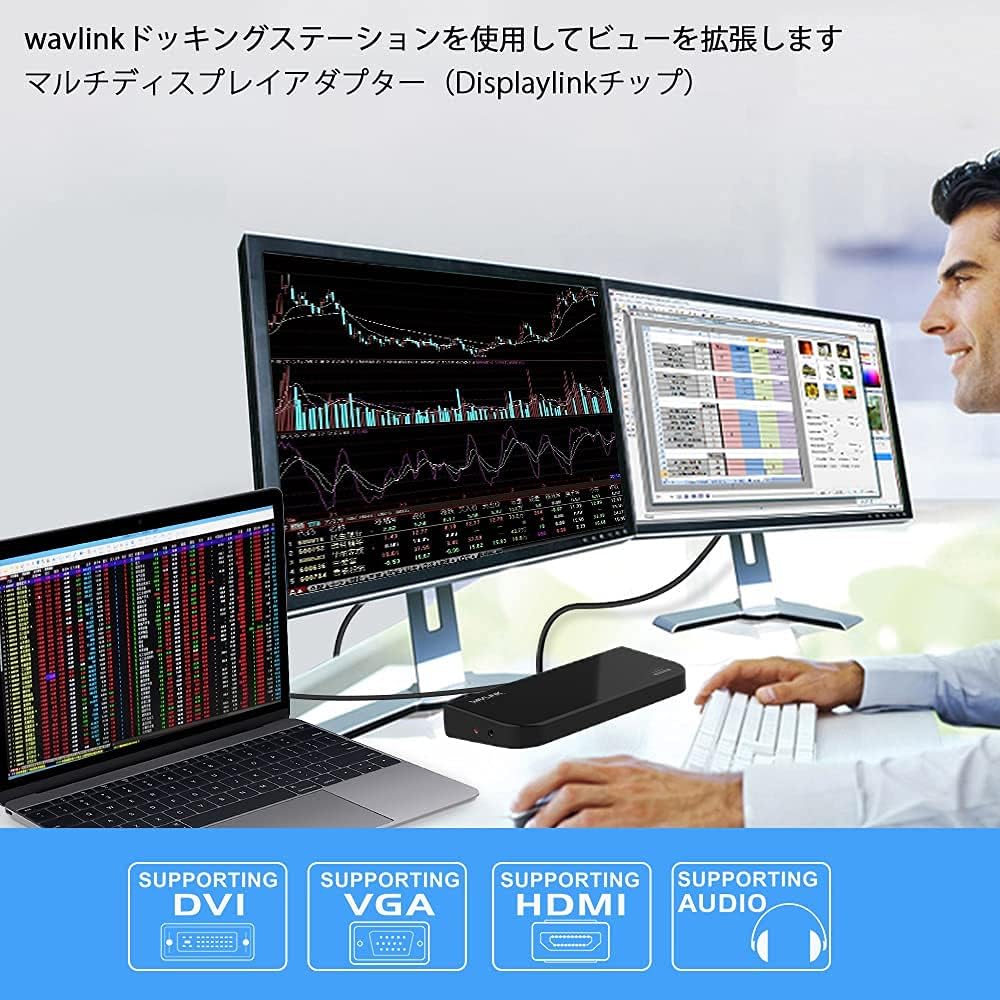
Image 5.1: Illustration of different display modes (Primary, Mirror, Extended).
5.2 Configuration audio
After connecting audio devices to the docking station, you may need to select the docking station as the default audio output/input device in your operating system's sound settings.
5.3 Connectivité réseau
The Gigabit Ethernet port provides a stable wired network connection. Ensure your network cable is securely connected to the docking station and your network source. Your operating system should automatically detect the network connection.
6. Entretien
- Keep the docking station in a dry, well-ventilated area, away from direct sunlight and heat sources.
- Évitez d'exposer l'appareil à l'eau ou à une humidité excessive.
- Nettoyez l'appareil avec un chiffon doux et sec. N'utilisez pas de nettoyants liquides ni en aérosol.
- Ensure cables are not bent or crimped excessively to prevent damage.
- Periodically check for and install updated DisplayLink drivers for optimal performance and compatibility.
7. Dépannage
- Aucun affichage sur le moniteur externe :
- Ensure the docking station is powered on and connected to your computer via USB 3.0.
- Verify that the monitor cables (HDMI, DVI, VGA) are securely connected to both the docking station and the monitors.
- Check your computer's display settings to ensure the external monitors are detected and configured correctly (e.g., extended or mirrored).
- Update or reinstall DisplayLink drivers.
- Test the monitors directly with your computer if possible to rule out monitor issues.
- Les périphériques USB ne fonctionnent pas :
- Ensure the docking station is powered and connected to the host computer.
- Essayez de connecter le périphérique USB à un autre port de la station d'accueil.
- Connectez le périphérique USB directement à votre ordinateur pour vérifier son bon fonctionnement.
- Aucune connexion réseau :
- Vérifiez que le câble Ethernet est correctement connecté à la station d'accueil et à votre source réseau.
- Vérifiez les paramètres réseau de votre ordinateur.
- Redémarrez votre routeur/modem et votre ordinateur.
- Problèmes audio :
- Vérifiez que les câbles audio sont correctement connectés.
- Check your computer's sound settings to ensure the docking station's audio output/input is selected as the default device.
8. Spécifications
| Fonctionnalité | Spécification |
|---|---|
| Numéro de modèle | UG39DK101-BL |
| Connexion hôte | USB 3.0 Type-A |
| Sortie vidéo | 1x HDMI, 1x DVI (with DVI-to-VGA adapter) |
| Résolution maximale (HDMI) | 2560x1440 à 50 Hz |
| Max Resolution (DVI/VGA) | 2048x1152@60Hz / 1920x1080@60Hz |
| Ports USB | 2x USB 3.0, 4x USB 2.0 |
| Taux de transfert de données | Jusqu'à 5 Gb/s (USB 3.0) |
| Ethernet | Ethernet Gigabit RJ-45 (10/100/1000 XNUMX Mbps) |
| Ports audio | 1x Audio Input, 1x Audio Output |
| Puissance d'entrée | 12 V CC |
| Compatibilité du système d'exploitation | Windows Vista/7/8/8.1/10/11, Mac OS 10.2 and later |
| Dimensions du produit | 34.5 x 15.8 x 6 cm |
| Poids du produit | 732 g |

Image 8.1: Product dimensions of the WAVLINK docking station.
9. Garantie et assistance
WAVLINK fournit un Garantie de 12 mois for this product, covering manufacturing defects and malfunctions under normal use. We are confident in the design and durability of our products.
If you encounter any issues or have questions regarding the product, please do not hesitate to contact WAVLINK customer support. For the latest drivers, FAQs, and support resources, please visit the official WAVLINK website.
Note: If you are unsure about device compatibility, please contact customer support for assistance.


