1. Introduction
This manual provides detailed instructions for the installation, operation, and maintenance of your EZoneTronics Android 10.1 2DIN Car Stereo. This unit features a 9-inch capacitive touchscreen, Android 10.1 operating system, GPS navigation, Bluetooth 4.0, Wi-Fi, AM/FM/RDS radio, and support for Mirror Link, Apple CarPlay, and Android Auto. Please read this manual thoroughly before using the product to ensure proper function and safety.
2. Compatibilité avec les véhicules
This car stereo is designed for specific Mercedes-Benz models:
- Mercedes-Benz ML-W164 / ML300 / ML350 / ML450 / ML500 / ML320 / ML63 AMG (2005-2012)
- Mercedes-Benz GL-X164 / GL320 / GL350 / GL420 / GL450 / GL500 (2005-2012)
Remarque importante : If your vehicle is equipped with a Harman, Kardon, or BOSE amplification system, an additional fiber optic decoder box (e.g., ASIN B08K49SQSM) may be required for proper audio functionality. Consult a professional installer if you are unsure.
3. Contenu du colis
Vérifiez que tous les éléments énumérés ci-dessous sont inclus dans votre colis :
- 1 x EZoneTronics Android Car Stereo Unit
- 1 x antenne GPS
- 1 x faisceaux d'alimentation
- 1 x RCA Output Cable
- 2 adaptateurs USB
- 1 x câble d'entrée caméra
- 1 x Manuel d'utilisation (ce document)
- 1 x Boîtier Canbus
4. Configuration et installation
Installation of this car stereo requires technical knowledge and experience with automotive electrical systems. Professional installation is highly recommended to prevent damage to the unit or your vehicle.
4.1 Vérification avant l'installation
- Avant de commencer l'installation, assurez-vous que le contact du véhicule est coupé et que la batterie est débranchée.
- Vérifiez que tout le contenu du colis est présent.
- Review your vehicle's wiring diagram for specific connections.
4.2 Étapes d'installation (Généralités)
- Carefully remove the original car stereo unit from your dashboard.
- Connect the provided power harness to the vehicle's wiring. Ensure all connections are secure.
- Connectez l'antenne GPS et dirigez-la vers un emplacement disposant d'un signal clair. view du ciel (par exemple, le coin du tableau de bord).
- Connect the USB adapters and route them to an accessible location (e.g., glove compartment).
- If installing a rear camera, connect the camera input cable and route it to the camera location.
- Connect the RCA output cable for external ampamplificateurs ou caissons de basses, le cas échéant.
- Connect the Canbus box as per the wiring diagram to enable steering wheel controls and other vehicle-specific functions.
- Carefully slide the new EZoneTronics unit into the dashboard opening.
- Fixez l’unité en place.
- Rebranchez la batterie du véhicule et testez le fonctionnement de l'appareil.

Figure 4.1 : Comparison of the car dashboard before and after the EZoneTronics car stereo installation. The top image shows the new unit installed, while the bottom images show the original radio (left) and the new unit (right) for direct comparison.
5. Mode d'emploi
5.1 Fonctionnement de base
- Marche/Arrêt : Maintenez le bouton d'alimentation (généralement situé sur le panneau avant) enfoncé pour allumer ou éteindre l'appareil. Une brève pression permet généralement de couper ou de rétablir le son.
- Écran tactile : The 9-inch capacitive touchscreen responds to touch gestures similar to a smartphone. Tap to select, swipe to scroll.
- Écran d'accueil : The main interface provides access to various functions like Radio, Music, Navigation, Bluetooth, and Apps.
5.2 Radio (AM/FM/RDS)
The unit features a built-in AM/FM/RDS radio tuner for clear signal reception.
- Accessing Radio: Appuyez sur l'icône « Radio » sur l'écran d'accueil.
- Balayage: Use the 'Scan' or 'Seek' buttons on the screen to automatically search for available stations.
- Sauvegarde des préréglages : Once a station is tuned, press and hold a preset number button on the screen to save it.
- Fonction RDS : Radio Data System (RDS) displays station information like song title or program type where available.

Figure 5.2 : The FM/AM/RDS Radio interface on the EZoneTronics car stereo, showing frequency display and preset buttons for easy station selection.
5.3Bluetooth 4.0
Connectez votre smartphone via Bluetooth pour passer des appels mains libres et écouter de la musique en streaming.
- Jumelage : Go to the 'Bluetooth' menu on the stereo. Enable Bluetooth on your phone and search for available devices. Select 'EZoneTronics' (or similar name) and confirm the pairing code.
- Appels mains libres : Once paired, you can make and receive calls directly from the stereo screen. Your phone's contact list may sync automatically.
- Diffusion audio (A2DP) : Play music from your phone through the car stereo speakers. Control playback (play/pause, skip) from the stereo.

Figure 5.3 : The Bluetooth 4.0 interface showing music playback controls and icons for phone video, dial-up, hang-up, and phone music functions.
5.4 Navigation GPS
The unit includes an integrated GPS receiver and comes with Google Maps pre-installed. Other navigation apps can be downloaded from the Google Play Store.
- Navigation en ligne : Connect to Wi-Fi to use online maps and real-time traffic information.
- Navigation hors ligne : Download offline map data for specific regions via Wi-Fi for navigation without an internet connection.
- Utilisation des applications de navigation : Tap the 'Navigation' icon to launch the default map application. Follow on-screen prompts to enter destinations and start routes.
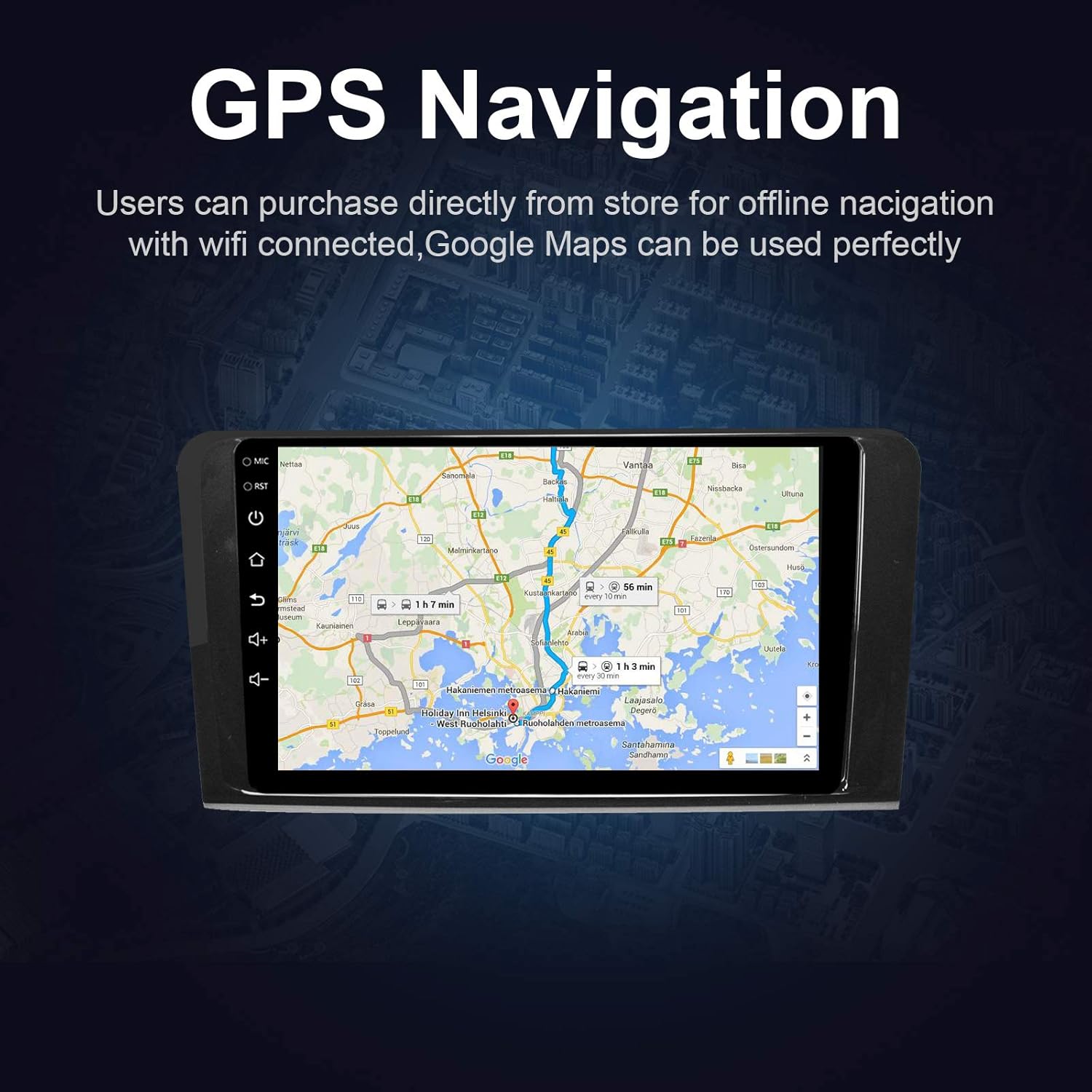
Figure 5.4 : The GPS Navigation screen showing a map with a highlighted route and estimated travel time.
5.5 Apple CarPlay et Android Auto
The unit supports both wireless Apple CarPlay and wired Android Auto, allowing seamless integration with your smartphone.
- Apple CarPlay (sans fil) : Connect your iPhone via Bluetooth and Wi-Fi. Follow the on-screen prompts to enable CarPlay.
- Android Auto (câblé) : Connectez votre téléphone Android à l'aide d'un câble USB. Assurez-vous qu'Android Auto est installé sur votre téléphone.
- Caractéristiques: Access phone calls, messages, music, and navigation apps directly from the car stereo interface, optimized for driving.
5.6 Lien miroir
Mirror Link vous permet d'afficher l'écran de votre smartphone directement sur l'autoradio.
- Pour les appareils iOS : Supports AirPlay mirroring wirelessly.
- Pour les appareils Android : Connect via a USB cable.
- Activation : Select the 'Mirror Link' app on the stereo and follow the instructions for your specific phone model.

Figure 5.6 : The Mirror Link function showing a smartphone screen mirrored onto the car stereo display.
5.7 Fonction d'écran partagé
The Android 10.1 system supports multitasking, allowing you to run two applications simultaneously on the screen.
- Activation : While one app is open, press and hold the recent apps button (or swipe up from the bottom and hold, depending on the Android version) and drag another compatible app to the other half of the screen.
- Usage: Par exempleample, you can use navigation on one side and play music or radio on the other.

Figure 5.7 : The Split Screen function in action, showing a navigation map on one side and a music player on the other, enabling multitasking.
5.8 Digital Sound Processor (DSP) / Equalizer
Customize your audio experience with the built-in 14-band equalizer and sound processor.
- Accéder à EQ : Tap the 'Equalizer' or 'Sound Settings' icon from the home screen or audio playback interface.
- Ajustements : Adjust individual frequency bands (bass, treble, mid-range) to your preference.
- Présélections: Select from various pre-defined sound modes (e.g., Pop, Rock, Classic, Jazz) or create custom profiles.
- Volume/Fader/Balance: Control overall volume, and adjust audio distribution between front/rear and left/right speakers.

Figure 5.8 : The Digital Sound Processor (DSP) system interface, showing a 14-band equalizer for precise audio adjustments.
5.9 Lecture multimédia (USB)
Lire l'audio et la vidéo files à partir de périphériques de stockage USB.
- Connexion USB : Insérez une clé USB dans l'un des ports USB prévus à cet effet.
- Accéder Files: The unit will automatically detect the USB device. Navigate to the 'Music' or 'Video' app to browse and play files.
- Formats pris en charge : The unit supports various audio and video formats, including high-definition 1080P video.

Figure 5.9 : The car stereo displaying high-definition 1080P video content, demonstrating its multimedia playback capabilities.
6. Entretien
Un entretien régulier garantit la longévité et les performances optimales de votre autoradio.
- Nettoyage de l'écran : Utilisez un chiffon doux et non pelucheux légèrement dampNettoyez à l'eau ou avec un produit nettoyant pour écrans spécialement conçu pour les appareils électroniques. N'utilisez pas de nettoyants abrasifs ni de solvants.
- Nettoyage général : Wipe the unit's exterior with a soft, dry cloth. Avoid getting liquids into openings.
- Mises à jour logicielles : Periodically check for available software updates through the unit's settings menu (requires Wi-Fi connection) to ensure optimal performance and access to new features.
- Évitez les températures extrêmes : N’exposez pas l’appareil à des températures extrêmes (chaud ou froid) pendant des périodes prolongées, car cela peut affecter ses performances et sa durée de vie.
7. Dépannage
If you encounter issues with your EZoneTronics car stereo, refer to the following common problems and solutions:
| Problème | Cause possible | Solution |
|---|---|---|
| L'unité ne s'allume pas. | Câblage incorrect, fusible grillé, batterie du véhicule débranchée. | Check power connections and fuses. Ensure battery is connected. Consult a professional installer. |
| Pas de son. | Volume too low, mute activated, incorrect speaker wiring, fiber optic box needed. | Increase volume, check mute status. Verify speaker connections. If your car has a premium sound system, ensure a fiber optic decoder box is installed. |
| Signal GPS faible ou introuvable. | Antenne GPS mal installée ou obstruée. | Assurez-vous que l'antenne GPS est placée dans un endroit dégagé. view du ciel et est connecté en toute sécurité. |
| Problèmes de connexion Bluetooth. | Téléphone non en mode appariement, code d'appairage incorrect, interférences. | Ensure Bluetooth is enabled on both devices and in pairing mode. Re-pair the devices. Restart both the stereo and phone. |
| Les commandes au volant ne fonctionnent pas. | Boîtier Canbus non connecté ou mal configuré. | Verify the Canbus box connection and ensure it is properly configured in the unit's settings. Refer to installation instructions. |
| Écran tactile non réactif ou lent. | Temporary software glitch, excessive background apps. | Restart the unit. Close unnecessary background applications. If the issue persists, perform a factory reset (note: this will erase all user data). |
8. Spécifications
Key technical specifications of the EZoneTronics Android Car Stereo:
| Fonctionnalité | Spécification |
|---|---|
| Numéro de modèle | RMCT-BENZ-ML05-2G16-IP |
| Système opérateur | Android 10.1 |
| Taille de l'écran | Écran LCD 9 pouces |
| Type d'écran | Écran tactile capacitif |
| Résolution | 1024 x 600 pixels |
| Processeur | Quad Core 1.3G |
| BÉLIER | 2 Go DDR3 |
| Stockage interne | Mémoire flash de 32 Go |
| Connectivité | Bluetooth 4.0 (A2DP, Hands-free), Wi-Fi, USB (2 rear inputs) |
| Récepteur GPS | Built-in, compatible with Waze, Google Maps, etc. |
| Tuner radio | AM/FM/RDS |
| Sortie audio | 4 x 45W Power Output, 2.1 Channel RCA/Sub Output |
| Entrée vidéo | 1 Channel (for rear camera) |
| Entrée audio | Canal 2 |
| Caractéristiques spéciales | Steering Wheel Control, Mirror Link, CarPlay, Android Auto, Multi-EQ Presets, Spotify, Digital Sound Processor |
| Dimensions du produit (L x l x H) | 32 x 26 x 13 cm |
| Poids | 1.38 kg |
9. Garantie et assistance
9.1 Garantie du produit
This EZoneTronics car stereo comes with a Garantie constructeur d'un an Cette garantie est valable à compter de la date d'achat. Elle couvre les défauts de matériaux et de fabrication dans des conditions normales d'utilisation. Elle ne couvre pas les dommages causés par une installation incorrecte, une mauvaise utilisation, un accident ou des modifications non autorisées.
9.2 Assistance technique
For technical assistance, troubleshooting beyond this manual, or warranty claims, please contact our support team:
- E-mail: sales2@rhythmhk.com
When contacting support, please provide your product model number (RMCT-BENZ-ML05-2G16-IP) and a detailed description of the issue.


