Introduction
This manual provides essential instructions for the proper use, setup, and maintenance of your BYTECH Lightning Cable (Model: CLMFCBLASST). This cable is designed for charging and data transfer with compatible Apple iOS devices, including iPhones, iPads, and iPods, as well as connecting to laptops and personal computers.
Produit terminéview
The BYTECH Lightning Cable is a durable accessory for your Apple devices. It features a Lightning connector on one end and a USB-A connector on the other, facilitating both power delivery for charging and data exchange. The cable supports fast charging capabilities for compatible devices.
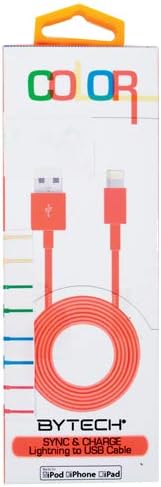
This image displays the retail packaging for the BYTECH Lightning to USB Cable. The packaging is white with 'COLOR' printed at the top in multi-colored letters. An orange Lightning to USB cable is visible through a clear window, coiled neatly. The bottom of the package indicates 'BYTECH SYNC & CHARGE Lightning to USB Cable' and compatibility with iPod, iPhone, and iPad.
Composants:
- Connecteur Lightning : Connects to your Apple iOS device (iPhone, iPad, iPod).
- Connecteur USB-A : Connects to a USB power adapter, computer USB port, or other USB charging source.
- Câble: The flexible cord connecting the two connectors, designed for durability and efficient power/data transfer.
Installation
To begin using your BYTECH Lightning Cable, follow these steps:
- Identifier les connecteurs : Locate the Lightning connector (smaller, 8-pin) and the USB-A connector (larger, rectangular).
- Se connecter à une source d'alimentation ou à un ordinateur :
- For charging, insert the USB-A connector into a compatible USB wall adapter or car charger.
- For charging and data transfer, insert the USB-A connector into an available USB port on your laptop or personal computer.
- Connectez-vous à un appareil iOS : Insert the Lightning connector into the charging port of your iPhone, iPad, or iPod. Ensure it is fully seated.
- Vérifiez la connexion : Your device should indicate that it is charging or connected to a computer.
Mode d'emploi
Chargement de votre appareil :
Once connected as described in the "Setup" section, your iOS device will begin charging automatically. The cable supports fast charging when paired with a compatible power adapter and device.
Transfert de données :
When connected to a computer, the cable enables data transfer between your iOS device and the computer. This allows for syncing media, documents, and other files using iTunes or Finder (macOS Catalina and later).
- Connect your iOS device to your computer using the BYTECH Lightning Cable.
- Unlock your iOS device and respond to any "Trust This Computer?" prompts by tapping "Trust" and entering your passcode if required.
- Open iTunes (Windows/older macOS) or Finder (macOS Catalina and later) on your computer.
- Select your device within the application to manage and transfer data.
Entretien
Proper care extends the life of your cable:
- Stockage: When not in use, coil the cable loosely. Avoid tight coiling or sharp bends, especially near the connectors, as this can damage the internal wires.
- Nettoyage: Utilisez un chiffon doux et sec pour essuyer délicatement le câble et les connecteurs. N'utilisez pas de nettoyants liquides ni de produits abrasifs.
- Manutention: Always grasp the connector head when plugging or unplugging the cable. Avoid pulling directly on the cable itself.
- Environnement: Tenez le câble à l'écart des températures extrêmes, de la lumière directe du soleil et de l'humidité.
Dépannage
If you encounter issues with your BYTECH Lightning Cable, consider the following:
- L'appareil ne se charge pas :
- Assurez-vous que les deux extrémités du câble sont bien connectées.
- Essayez un autre adaptateur secteur USB ou un autre port USB de votre ordinateur.
- Check the charging port on your iOS device for debris or lint.
- Test the cable with a different compatible iOS device, if available.
- Problèmes de transfert de données :
- Ensure your iOS device is unlocked and you have tapped "Trust This Computer" when prompted.
- Restart both your iOS device and your computer.
- Update iTunes or Finder to the latest version.
- Essayez un autre port USB sur votre ordinateur.
- Dommages au câble : Inspect the cable for any visible signs of damage, such as fraying, cuts, or bent connectors. Discontinue use if damage is found.
Caractéristiques
| Attribut | Détail |
|---|---|
| Marque | Bytech |
| Numéro de modèle | CLMFCBLASST |
| Code UPC | 805112016938 |
| Type de connecteur | Lightning (Male) to USB-A (Male) |
| Type de câble | Foudre |
| Appareils compatibles | iPhone, iPad, iPod, Laptop, Personal Computer |
| Dossier spécial | Chargement rapide |
| Utilisations recommandées | Charging, data transfer for iOS devices |
| Nombre de broches | 8 (Lightning) |
| Poids de l'article | 1.76 onces |
| Dimensions du produit | 1 x 1 x 1 pouces (Emballage) |
Garantie et assistance
For warranty information or technical support regarding your BYTECH Lightning Cable, please refer to the official Bytech webou contactez directement leur service client. Conservez votre reçu d'achat pour toute réclamation sous garantie.
Pour toute question d'ordre général, vous pouvez consulter le Bytech brand page on Amazon.