1. Introduction
This user manual provides detailed instructions for the Waveshare Raspberry Pi 4 Model B Display Kit. It covers the assembly, setup, operation, and maintenance of your 7-inch capacitive touch LCD display kit designed for the Raspberry Pi 4. Please read this manual thoroughly before use to ensure proper functionality and to maximize your experience with the product.
2. Contenu du colis
Veuillez vérifier que tous les éléments listés ci-dessous sont inclus dans votre colis. Si des composants sont manquants ou endommagés, veuillez contacter le service client.

Image: All components included in the Waveshare Raspberry Pi 4 Display Kit.
- 7-inch Capacitive Touch LCD
- Acrylic Case (Black/White)
- Câble HDMI
- USB-A to Micro-USB Cable (for touch and power)
- Adaptateur secteur
- Carte Micro SD (16 Go)
- Lecteur de carte Micro SD
- Screws and Standoffs for assembly
3. Produit terminéview
The Waveshare Raspberry Pi 4 Model B Display Kit combines a high-resolution 7-inch capacitive touch screen with essential accessories, allowing you to build a compact, all-in-one computer solution with your Raspberry Pi 4.
3.1 Raspberry Pi 4 Model B Features (Raspberry Pi board sold separately)
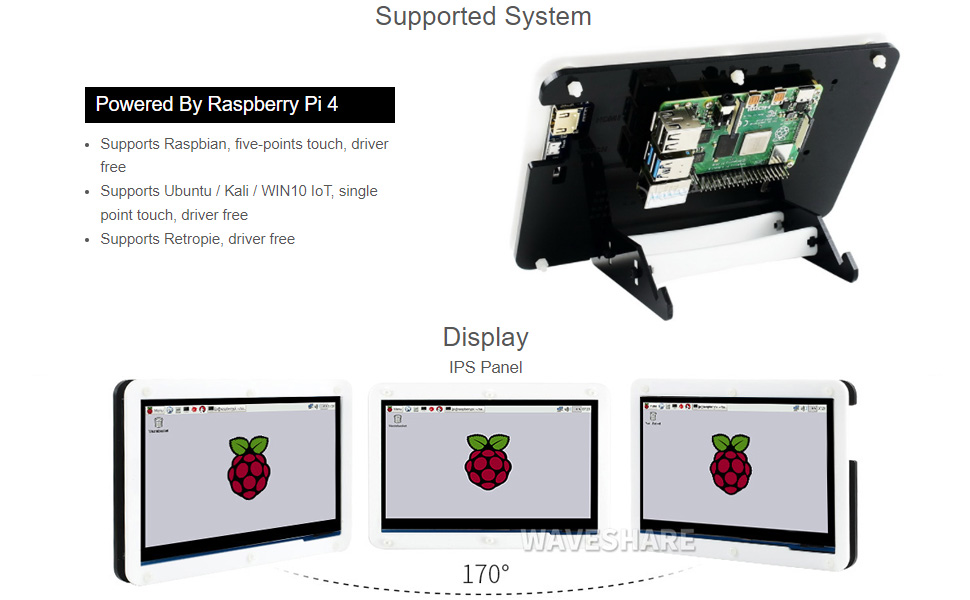
Image: Raspberry Pi 4 Model B board layout with key components labeled.
- Processeur: Broadcom BCM2711, Cœur à quatre cœurs Cortex-A72 (ARM v8) SoC 64-bit @ 1.5GHz
- Mémoire: LPDDR4-2400 SDRAM (available in 1GB, 2GB, 4GB, or 8GB options)
- Connectivité : 2.4 GHz and 5.0 GHz IEEE 802.11ac wireless, Bluetooth 5.0, Gigabit Ethernet
- Ports USB : 2 ports USB 3.0, 2 ports USB 2.0
- Vidéo et son : 2 × micro-HDMI ports (up to 4Kp60 supported), 2-lane MIPI DSI display port, 2-lane MIPI CSI camera port, 4-pole stereo audio and composite video port
- GPIO : Connecteur GPIO à 40 broches
- Pouvoir: 5V DC via USB-C connector (minimum 3A recommended)
4. Guide de configuration
Follow these steps to assemble and set up your Waveshare Raspberry Pi 4 Display Kit.
4.1 Assemblage matériel

Image: Fully assembled Waveshare Raspberry Pi 4 Display Kit.
- Prepare the Raspberry Pi: Ensure your Raspberry Pi 4 Model B board is ready.
- Mount the Raspberry Pi: Attach the Raspberry Pi 4 board to the designated mounting points on the back panel of the acrylic case using the provided screws and standoffs.
- Connect the Display: Connect the 7-inch LCD to the Raspberry Pi 4. Typically, this involves connecting the HDMI cable from the display to one of the micro-HDMI ports on the Raspberry Pi, and the USB-A to Micro-USB cable for touch functionality and power.
- Assembler le boîtier : Secure the front panel of the acrylic case around the display and then attach it to the back panel, enclosing the Raspberry Pi and display. Ensure all cables are properly routed and not pinched.
- Support de fixation : Assemble and attach the included stand to the bottom of the case for stable positioning. The stand often allows for adjustable viewangles d'inclinaison (par exemple, 45° ou 60°).
4.2 Configuration du logiciel
The Waveshare 7-inch capacitive touch LCD is designed for driver-free operation with several popular operating systems.
- Installation du système d'exploitation : Install your preferred operating system (e.g., Raspbian, Ubuntu, Kali, WIN10 IoT, Retropie) onto the provided 16GB Micro SD card using a suitable imaging tool (e.g., Raspberry Pi Imager).
- Insérez la carte SD : Insert the prepared Micro SD card into the Raspberry Pi's Micro SD card slot.
- Mise sous tension : Connect the power adapter to the display kit. The Raspberry Pi and display should power on automatically.
- Fonctionnement sans conducteur : For most supported systems, the display and touch functionality will work automatically without additional driver installation.
5. Mode d'emploi
5.1 Fonctionnalité tactile

Image: User interacting with the capacitive touch screen.
- The 7-inch display features a capacitive touch panel, supporting up to five-point touch input.
- Ensure the USB touch cable is securely connected between the display and the Raspberry Pi for touch input to function.
- Touch gestures and multi-touch capabilities will depend on the operating system and applications running on your Raspberry Pi.
5.2 Systèmes d'exploitation pris en charge
The display kit offers broad compatibility with various Raspberry Pi operating systems:
- Raspbian : Supports five-point touch, driver-free.
- Ubuntu / Kali / WIN10 IoT: Supports single-point touch, driver-free.
- Retropie: Supports driver-free operation.
6. Spécifications
| Fonctionnalité | Spécification |
|---|---|
| Taille de l'écran | 7 pouces |
| Type tactile | Capacitive, up to 5-points |
| Interface | HDMI for display, USB for touch |
| Compatibilité | Raspberry Pi 4 Modèle B |
| Prise en charge du système d'exploitation | Raspbian, Ubuntu, Kali, WIN10 IoT, Retropie |
| Memory Storage Capacity (SD Card) | 16 Go |
| Poids de l'article | 1.28 livres |
| Numéro de modèle | PI4B Display Acce |
| Fabricant | Waveshare |
7. Entretien
- Nettoyage: Utilisez un chiffon doux non pelucheux pour essuyer délicatement l'écran. Pour les traces tenaces, frottez légèrement.ampNettoyez le chiffon avec de l'eau ou un nettoyant pour écran. Évitez les produits chimiques agressifs ou abrasifs.
- Stockage: Lorsqu'il n'est pas utilisé, rangez le kit dans un endroit frais et sec, à l'abri de la lumière directe du soleil et des températures extrêmes.
- Manutention: Handle the display and Raspberry Pi board with care to avoid physical damage. Avoid applying excessive pressure to the screen.
8. Dépannage
8.1 Aucun affichage
- Vérifiez l'alimentation : Ensure the power adapter is securely connected to the display kit and plugged into a working power outlet.
- Connexion HDMI : Verify that the HDMI cable is firmly connected between the display and the Raspberry Pi's micro-HDMI port. Try a different micro-HDMI port if available.
- Carte SD: Confirm that the Micro SD card with a properly installed operating system is inserted correctly into the Raspberry Pi.
- Alimentation: Ensure your Raspberry Pi is receiving adequate power (a 5V/3A USB-C power supply is recommended for Raspberry Pi 4).
8.2 Fonctionnalité tactile non fonctionnelle
- Connexion USB : Check that the USB-A to Micro-USB cable is securely connected from the display to a USB port on the Raspberry Pi.
- Support du système d'exploitation: Confirm that your operating system supports the touch functionality of this display. While most are driver-free, some configurations might require specific settings.
- Redémarrer: Try rebooting the Raspberry Pi.
8.3 Screen Flickering or Instability
- Alimentation: Ensure a stable and sufficient power supply is used for both the display and the Raspberry Pi.
- Intégrité du câble : Check the HDMI and USB cables for any damage or loose connections.
9. Garantie et assistance
Pour obtenir des informations sur la garantie, une assistance technique ou toute autre aide, veuillez consulter le site officiel de Waveshare. webConsultez le site web ou contactez votre revendeur. Conservez votre reçu d'achat comme preuve d'achat pour toute réclamation au titre de la garantie.


