Introduction
Thank you for choosing the Macally Wireless Bluetooth Keyboard. This multi-device keyboard is designed to enhance your productivity across various platforms, including Mac, iOS, Windows, and Android devices. Featuring 110 keys, 20 Mac OS shortcuts, and a numeric keypad, it offers a comfortable and efficient typing experience. Its ultra-slim design and rechargeable battery make it an ideal companion for both work and leisure.

Image: The Macally Wireless Bluetooth Keyboard, showcasing its full layout and sleek silver design.
Contenu du colis
- Macally Wireless Bluetooth Keyboard
- Câble de chargement
- Guide de l'utilisateur
Installation
1. Charger le clavier
Before initial use, fully charge the keyboard using the included charging cable. Connect the cable to the keyboard's charging port and a USB power source. The LED indicator will show charging status.

Image: Illustration showing the keyboard connected to a charging cable, emphasizing its rechargeable nature.
2. Couplage avec des appareils
The Macally Wireless Bluetooth Keyboard supports connecting up to three Bluetooth-enabled devices simultaneously. Follow these steps to pair your devices:
- Allumez le clavier à l'aide de l'interrupteur d'alimentation.
- Press and hold one of the Bluetooth keys (BT1, BT2, or BT3) for a few seconds until the corresponding LED indicator starts blinking rapidly. This indicates pairing mode.
- On your device (computer, tablet, or smartphone), go to Bluetooth settings and search for available devices.
- Select "Macally Keyboard" (or similar name) from the list.
- If prompted, enter the pairing code displayed on your screen using the Macally keyboard and press Enter.
- Une fois l'appairage effectué, le voyant LED cessera de clignoter et restera allumé fixe pendant quelques secondes avant de s'éteindre.
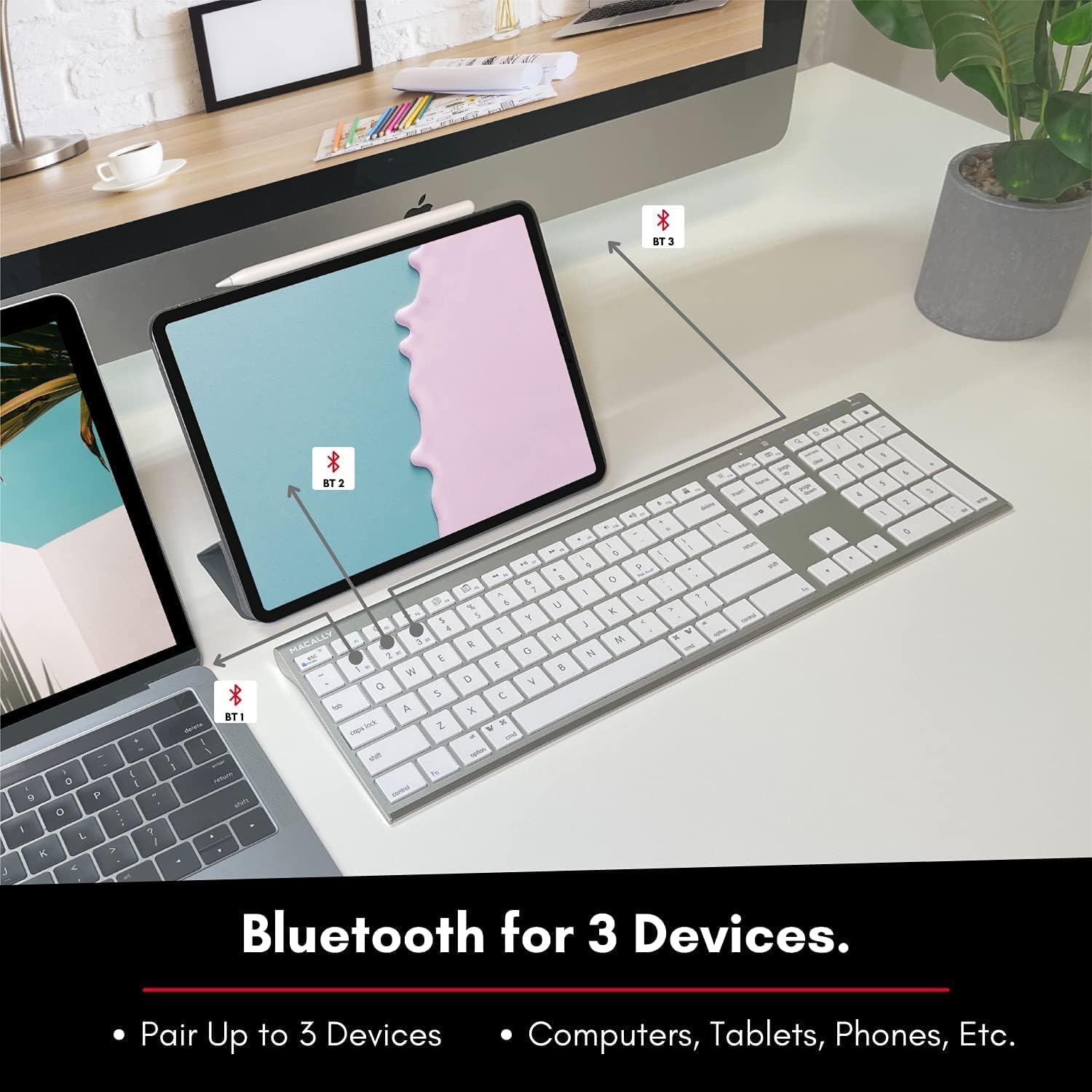
Image: The keyboard connected to a laptop and a tablet, illustrating its multi-device pairing capability.
Mode d'emploi
Basculer entre les appareils
To switch between paired devices, simply press the corresponding Bluetooth key (BT1, BT2, or BT3) once. The keyboard will automatically connect to the selected device within a few seconds.

Image: Visual representation of the keyboard seamlessly switching between a smartphone, iMac, and laptop, highlighting the multi-sync feature.
Touches de fonction et raccourcis
The keyboard features a full set of 110 keys, including a numeric keypad and 20 dedicated Mac OS shortcut keys. These shortcuts provide quick access to various functions such as brightness control, volume adjustment, media playback, and more. Refer to your device's operating system documentation for specific shortcut functionalities.
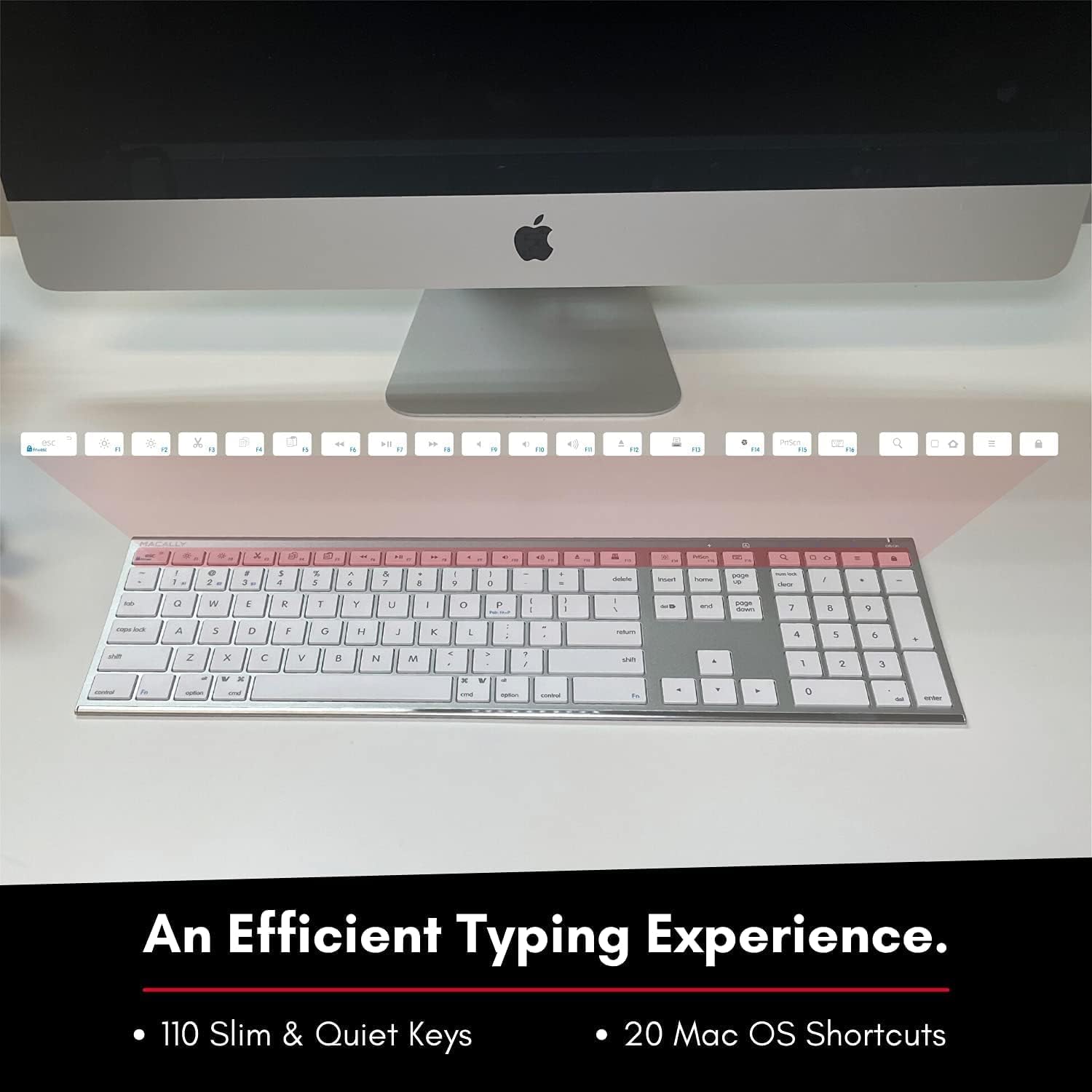
Image: Close-up of the keyboard's top row, highlighting the dedicated function and shortcut keys.
Compatibilité
This keyboard is broadly compatible with a range of operating systems and devices, including:
- macOS
- Fenêtres
- iOS (iPhone, iPad)
- Androïde

Image: The keyboard positioned in front of an iMac, indicating its compatibility with Mac systems.
Entretien
To ensure the longevity and optimal performance of your Macally Wireless Bluetooth Keyboard, follow these maintenance guidelines:
- Nettoyage: Use a soft, lint-free cloth to wipe the surface of the keyboard. For stubborn dirt, slightly dampNettoyez le chiffon avec de l'eau ou une solution nettoyante douce. Évitez l'excès d'humidité.
- Entretien de la batterie: The keyboard features a built-in rechargeable battery. To maximize battery life, avoid fully discharging the battery frequently. Charge the keyboard when the low battery indicator appears.
- Stockage: Lorsque vous n'utilisez pas le clavier pendant une période prolongée, éteignez-le afin de préserver la batterie. Rangez-le dans un endroit frais et sec, à l'abri de la lumière directe du soleil et des températures extrêmes.
- Évitez les déversements : Tenez les liquides éloignés du clavier afin d'éviter d'endommager les composants internes.
Dépannage
Keyboard Not Responding or Typing Incorrectly
- Assurez-vous que le clavier est chargé.
- Verify that the keyboard is powered on and the correct Bluetooth channel (BT1, BT2, or BT3) is selected for your device.
- Essayez de réappairer le clavier avec votre appareil.
- Check if the Fn lock is active. On the top right, there should be a lock symbol with an FN in the lock. If there is a Blue LED light on the panel which is on the top right, then press and hold Fn et appuyez sur ÉCHAP to shut off the Fn lock.

Image: A troubleshooting tip for the Fn lock feature, showing the relevant keys.
Mouse Keys Issue (macOS)
- If your keyboard inputs are behaving like mouse movements, you may have "Mouse Keys" enabled.
- Go to System Preferences (or System Settings on newer macOS versions), then click on Accessibilité. After that, scroll to Contrôle du pointeur et désactiver Enable Mouse Keys.

Image: A troubleshooting tip for disabling Mouse Keys in system settings.
Problèmes de connexion Bluetooth
- Assurez-vous que le Bluetooth de votre appareil est activé et détectable.
- Move the keyboard closer to your device to ensure a strong signal.
- Éliminez toute source potentielle d'interférences (par exemple, d'autres appareils sans fil, de gros objets métalliques).
- Redémarrez à la fois le clavier et votre appareil.
Caractéristiques
| Marque | Macally |
| Numéro de modèle | ACEBTKEY-US |
| Dimensions du produit | 18.11 x 6.3 x 0.91 pouces |
| Poids de l'article | 14.9 onces |
| Technologie de connectivité | Bluetooth |
| Nombre de clés | 110 |
| Appareils compatibles | MacOS, Windows, iOS, Android |
| Batterie | 3 Lithium Polymer batteries (included, rechargeable) |
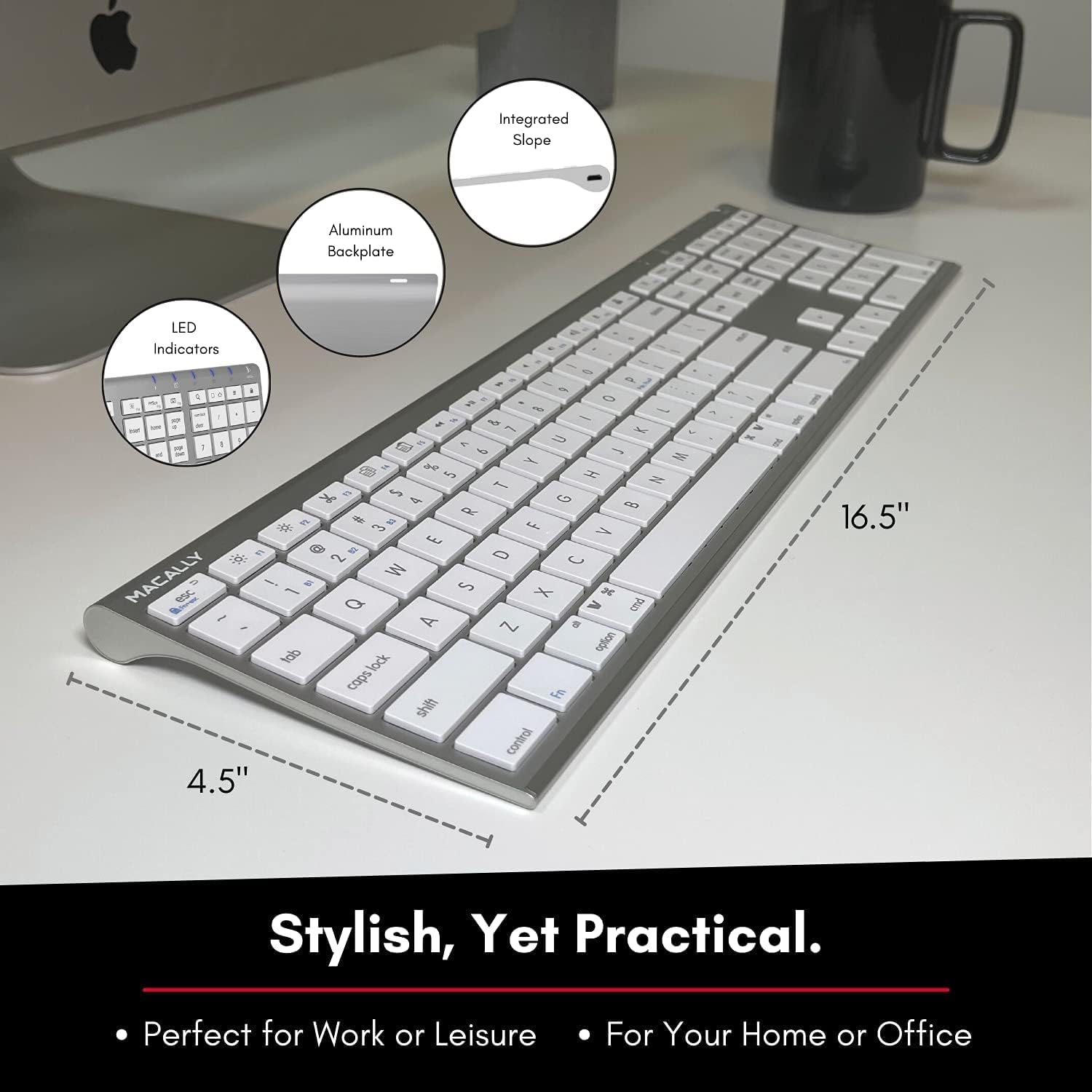
Image: Diagram illustrating the physical dimensions of the Macally Wireless Bluetooth Keyboard.
Garantie et assistance
Macally is committed to delivering high-quality, user-friendly workflow solutions. For any product inquiries, technical support, or warranty information, please visit the official Macally webVous pouvez également consulter leur site web ou contacter leur service client. Vous trouverez plus d'informations et de ressources d'assistance sur le site web. Macally Store on Amazon.


