1. Introduction
This manual provides detailed instructions for the setup, operation, and maintenance of your Tera Wireless Barcode Scanner, Model 8541733886. Please read this manual thoroughly before using the device to ensure proper functionality and to prevent damage.
The Tera Wireless Barcode Scanner offers versatile connectivity and efficient scanning capabilities for various barcode types, both printed and digital.
2. Produit terminéview
2.1 Composants
Le forfait comprend généralement :
- Tera Wireless Barcode Scanner
- Hands-Free Stand
- Clé USB sans fil 2.4 GHz
- Câble de chargement/données USB
- Manuel d'instructions (ce document)

Image: Tera Wireless Barcode Scanner, showing the scanner unit, flexible stand, 2.4GHz USB dongle, and USB cable.
2.2 Principales caractéristiques
- 3 modes de connexion : Supports Bluetooth, 2.4GHz wireless, and USB 2.0 wired connections.
- Large compatibilité: Works with POS systems, iOS, Android, Windows, Mac OS, and Linux. Supports Bluetooth HID, SPP, and BLE protocols.
- Numérisation rapide et précise : Equipped with an ARM32Bit Cortex CPU and a Japan-manufactured scanner head, achieving decoding speeds up to 500 scans per second.
- Deux modes de téléchargement :
- Mode de téléchargement instantané : Barcodes are transmitted to your device immediately upon scanning.
- Mode de stockage hors ligne : Stores up to 50,000 barcodes internally when out of range, allowing for later upload.
- Multi-Language Barcode Support: Capable of scanning barcodes in English, Spanish, German, French, Italian, and Japanese. Ensure your keyboard language matches the selected language for correct input.
- Versatile Barcode Symbologies:
- 1D: UPC-A, UPC-E, EAN-8, EAN-13, Code 128, Code 39, Code 93, Code 11, Interleaved 2 of 5, Matrix 2 of 5, Standard 2 of 5, Coda bar, MSI Plessey, RSS, etc.
- 2D: QR Code, Data Matrix, PDF417, code aztèque, Maxicode, etc.
- Durabilité: Designed to withstand impacts from drops of up to 1.5 meters (5 feet) onto concrete.
- Longue durée de vie de la batterie : Built-in 2200mAh battery supports approximately 57,000 scans on a full charge, with up to 15 days of standby time.
3. Installation
3.1 Chargement du scanner
Avant la première utilisation, chargez complètement le scanner. Branchez le câble de chargement USB au port de chargement du scanner et à une source d'alimentation USB (par exemple, un port USB d'ordinateur ou un adaptateur secteur USB). Le voyant lumineux indiquera l'état de la charge.

Image: Illustration showing the scanner's 2200mAh battery capacity and its ability to withstand a 1.5-meter drop.
3.2 Modes de connexion
Le scanner prend en charge trois méthodes de connexion :

Image: Visual representation of the three connection modes: Bluetooth, 2.4G Wireless via USB dongle, and USB Wired connection.
3.2.1 USB Wired Mode (Plug & Play)
- Connectez le scanner directement à votre ordinateur à l'aide du câble USB fourni.
- The computer will typically recognize the device automatically without requiring driver installation.
- Le scanner est prêt à l'emploi.

Image: The scanner connected to a laptop, illustrating its plug-and-play functionality and compatibility with various operating systems including Windows, Mac OS, Linux, and Android.
Mode sans fil 3.2.2 2.4 GHz
- Insert the 2.4GHz USB dongle into an available USB port on your computer or device.
- Allumez le lecteur de codes-barres. Il devrait se connecter automatiquement au dongle.
- A successful connection is usually indicated by a specific sound or light on the scanner.
3.2.3 Mode Bluetooth
- Assurez-vous que votre appareil (smartphone, tablette, ordinateur) dispose du Bluetooth activé.
- Put the scanner into Bluetooth pairing mode (refer to the scanner's quick start guide for specific instructions, usually by scanning a special barcode).
- On your device, search for available Bluetooth devices and select "Tera Barcode Scanner" (or similar name).
- Confirmez l'appairage si vous y êtes invité.
Note: Wireless range varies. Indoors with obstacles, Bluetooth range is approximately 33ft, and 2.4GHz wireless is approximately 98ft. Outdoors in barrier-free environments, Bluetooth range is approximately 65ft, and 2.4GHz wireless is approximately 328ft.
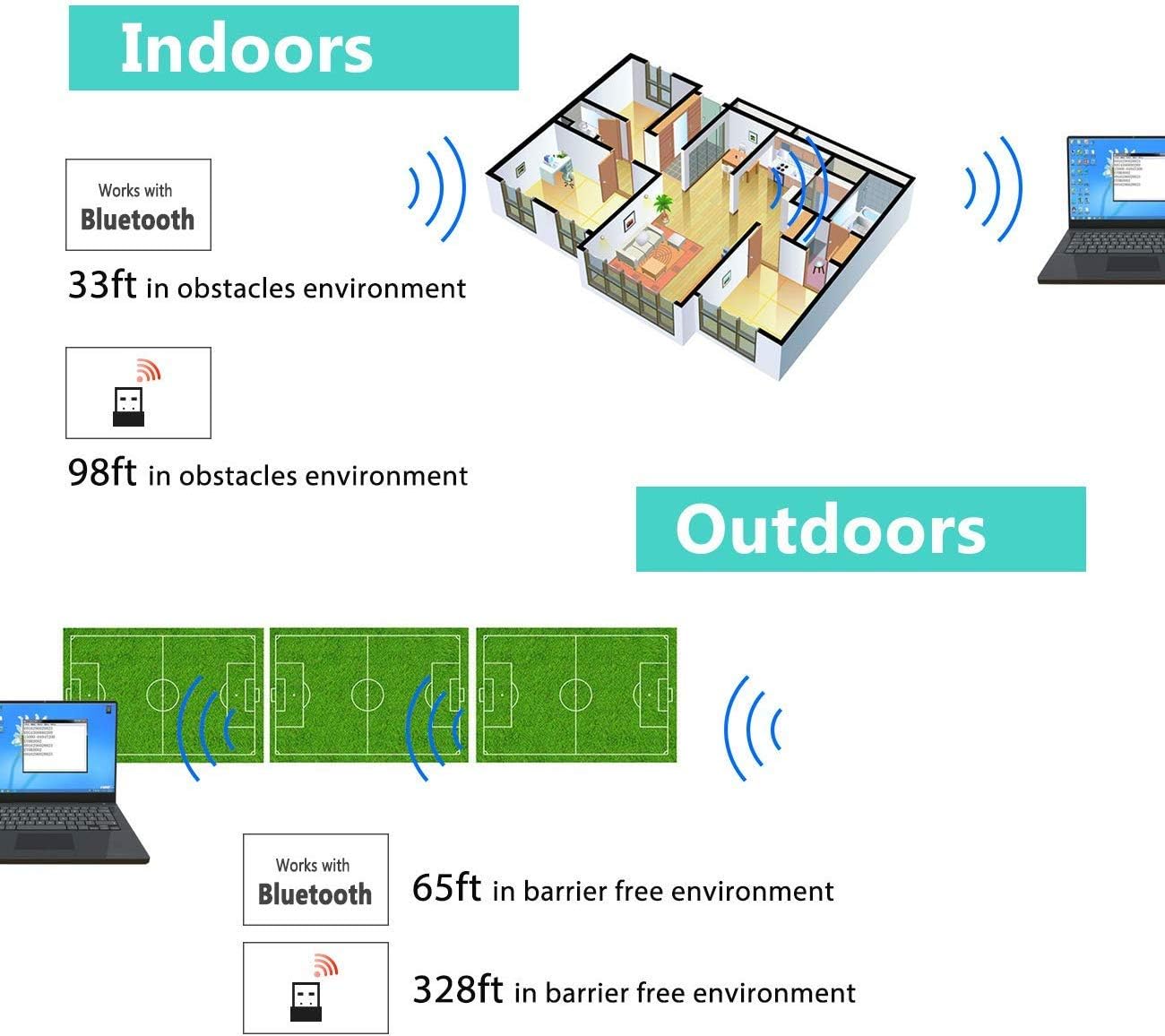
Image: Diagram illustrating the effective wireless range of the scanner in both indoor (with obstacles) and outdoor (barrier-free) environments for Bluetooth and 2.4GHz connections.
4. Mode d'emploi
4.1 Lecture des codes-barres
The scanner can read both 1D and 2D barcodes, including QR codes, from printed materials and digital screens.
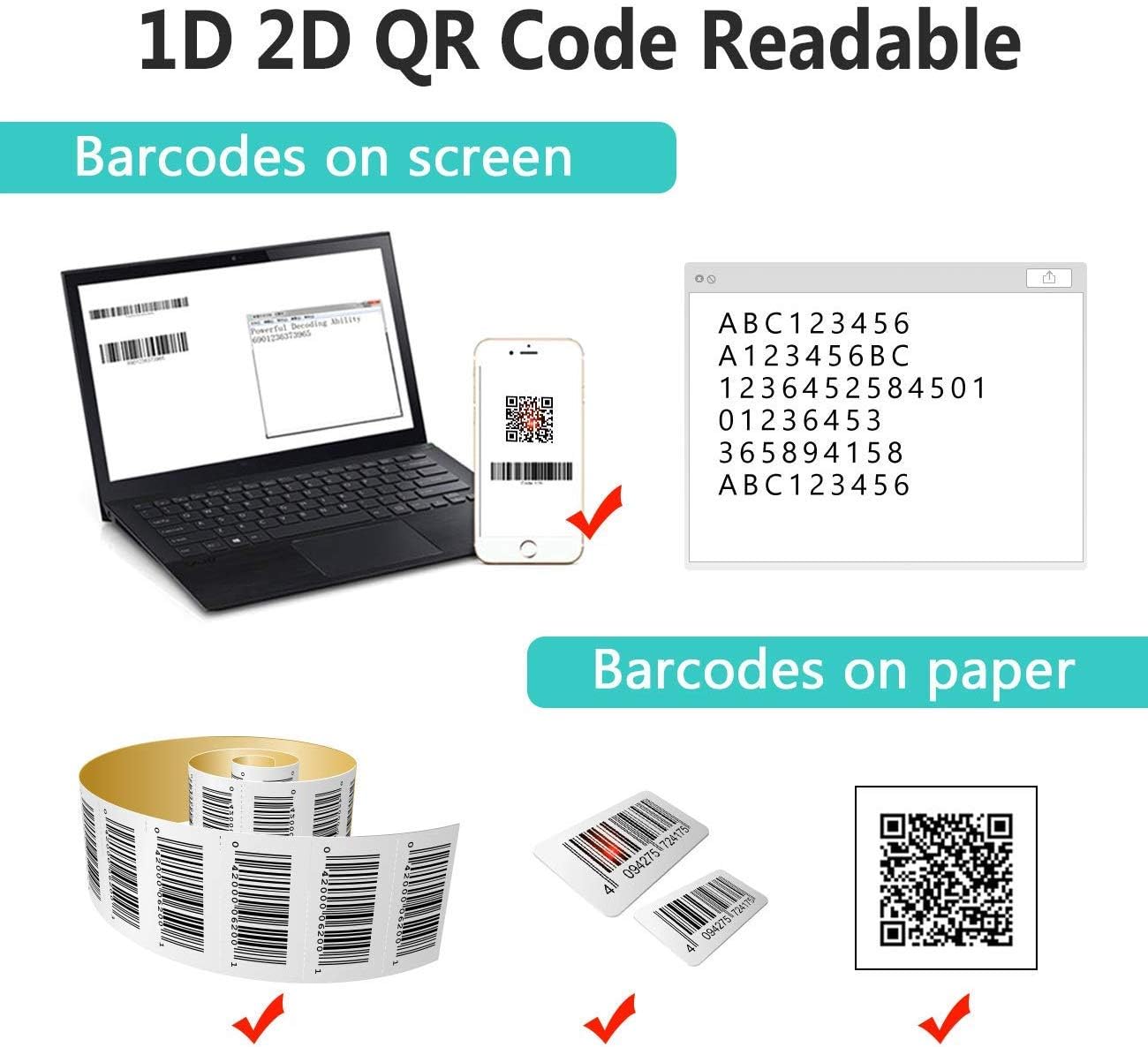
Image: The scanner demonstrating its ability to read 1D and 2D barcodes from both digital screens (laptop, smartphone) and physical printed labels.
Pour scanner un code-barres :
- Point the scanner's window at the barcode.
- Press the trigger button (or allow the sensor to activate in automatic modes).
- A successful scan is indicated by a beep and/or a green light.
4.2 Modes de numérisation
Le scanner prend en charge trois modes de numérisation principaux :

Image: The barcode scanner mounted on its stand, highlighting its 360-degree rotation capability and the three available scanning modes: Key Trigger Mode, Sensor Activated Mode, and Continuous Scan Mode.
- Mode de déclenchement des touches : Scan by manually pressing the trigger button for each barcode.
- Sensor Activated Mode: Le scanner s'active automatiquement lorsqu'un code-barres est détecté dans son champ de vision. view.
- Mode de numérisation continue : The scanner continuously emits a scan beam, reading any barcode that passes through it.
Refer to the quick start guide or programming barcodes for instructions on how to switch between these modes.
4.3 Modes de chargement de données
Le scanner propose deux méthodes pour télécharger les données numérisées :
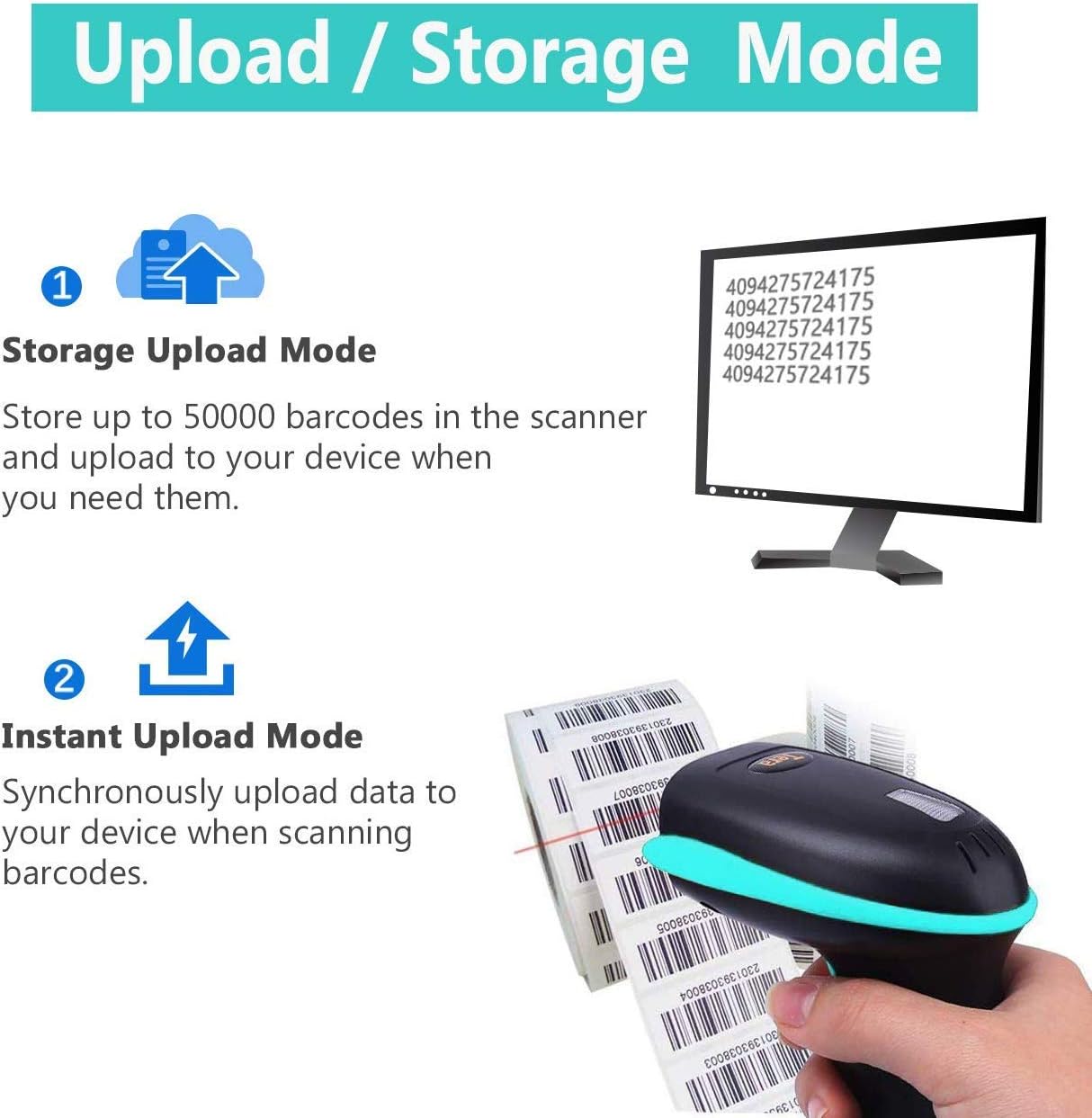
Image: Illustration of the two data upload modes: Storage Upload Mode, where barcodes are stored internally and uploaded later, and Instant Upload Mode, where data is transmitted immediately.
- Mode de téléchargement instantané : Barcodes are sent to your connected device immediately after scanning. This is suitable for real-time data entry.
- Mode de stockage hors ligne : If the scanner is out of range or not connected, it will store scanned barcodes internally. Up to 50,000 barcodes can be stored. Once reconnected, you can upload the stored data to your device.
To switch between upload modes, scan the appropriate programming barcode found in the quick start guide.
5. Entretien
5.1 Nettoyage
- Utilisez un chiffon doux et propre légèrement dépoli.ampened with water or a mild cleaning solution to wipe the scanner's exterior.
- Do not use abrasive cleaners, solvents, or excessive liquid, as these can damage the device.
- Keep the scanning window clean and free of dust or smudges to ensure optimal reading performance.
5.2 Entretien de la batterie
- Rechargez régulièrement le scanner, surtout s'il doit être stocké pendant une période prolongée.
- Évitez de décharger complètement la batterie fréquemment, car cela peut réduire sa durée de vie.
- Rangez le scanner dans un endroit frais et sec lorsqu'il n'est pas utilisé.
5.3 Stockage
When not in use, store the scanner in a safe place to prevent physical damage. The included stand can be used for convenient storage and hands-free operation.
6. Dépannage
| Problème | Cause possible | Solution |
|---|---|---|
| Le scanner ne s'allume pas. | Batterie faible. | Chargez le scanner pendant au moins 2 à 3 heures. |
| Le scanner ne lit pas les codes-barres. |
|
|
| No data transmitted to device. |
|
|
| Le scanner émet un bip continu ou fonctionne de manière erratique. | Configuration error or internal issue. | Perform a factory reset (refer to the quick start guide for the reset barcode). If the issue persists, contact support. |
7. Spécifications
- Numéro de modèle : 8541733886
- Dimensions du produit : 6.1 x 2.55 x 3.54 pouces
- Poids de l'article : 1.05 livres
- Batterie: 1 batterie lithium-ion (2200 mAh)
- Connectivité : Bluetooth, 2.4GHz Wireless, USB 2.0 Wired
- Appareils compatibles : Desktop, Laptop, Smartphone (POS, iOS, Android, Windows, Mac OS, Linux)
- Source d'alimentation : Électrique filaire (pour la recharge)
- Fabricant: Téra
- Première disponibilité : 7 mai 2019
8. Garantie et assistance
8.1 Informations sur la garantie
For specific warranty details, please refer to the warranty card included with your product or visit the official Tera webConsultez le site. Conservez votre reçu d'achat comme preuve d'achat pour toute réclamation au titre de la garantie.
8.2 Assistance clientèle
If you encounter any issues not covered in this manual or require further assistance, please contact Tera customer support. Contact information can typically be found on the product packaging, the official Tera websur le site, ou auprès de votre détaillant.
Lorsque vous contactez le support, veuillez avoir à portée de main le numéro de modèle de votre produit (8541733886) et les détails de votre achat.


Image: Illustrations representing customer service and technical support teams available to assist users.


