Introduction
The Tera D5100 Barcode Scanner is a versatile and robust device designed for efficient barcode scanning. It supports both 1D and 2D (QR) codes, offering flexible connectivity options including 2.4 GHz wireless and USB wired connections. Featuring a patented battery level indicator and an ergonomic design, this scanner is built for extended use and durability in various environments.

Figure 1: Tera D5100 Barcode Scanner with included accessories.
Caractéristiques principales
- Battery Level Indicator and 2200mAh Capacity: Provides longer continuous usage and extended standby time. Unique indicator lights show remaining battery level.
- Conception ergonomique : Features a curved and extended handle, specifically tailored for comfortable grip during prolonged use.
- Anti-Shock Silicone (IP54): Equipped with an orange anti-shock silicone protective cover to prevent scratches and friction from falls up to 6.56 feet. IP54 technology offers dust protection.
- 2.4 GHz Wireless plus USB 2.0 Wired Connection: Offers plug-and-play functionality with either a USB receiver for wireless operation (up to 328 ft range in barrier-free environments) or a direct USB cable connection. No driver installation is required.
- Digital and Printed 1D 2D QR Bar Code Symbologies: Supports a wide range of barcode types including 1D (Codabar, Code 11, Code93, MSI, Code 128, UCC/EAN-128, Code 39, EAN-8, EAN-13, UPC-A, ISBN, Industrial 25, Interleaved 25, Standard25, Matrix) and 2D (QR, DataMatrix, PDF417, Aztec, Hanxin, Micro PDF417).

Figure 2: The ergonomic handle provides a comfortable and secure grip.
Installation
The Tera D5100 barcode scanner offers two primary connection methods for seamless integration with your system.
Connexion sans fil 2.4 GHz
- Locate the USB wireless dongle. It is typically stored in the base of the scanner for convenience.
- Plug the USB wireless dongle into an available USB port on your computer (PC, laptop, etc.).
- The scanner is plug-and-play and should automatically connect to the dongle. The battery indicator lights on the scanner will illuminate, indicating it is ready for use.
Connexion filaire USB
- Connect one end of the provided USB cable to the charging/data port at the bottom of the scanner.
- Connectez l’autre extrémité du câble USB à un port USB disponible sur votre ordinateur.
- The scanner will power on and function as a wired device. No additional drivers are typically needed.

Figure 3: The scanner supports both USB wired and 2.4G wireless connections.
Mode d'emploi
Modes de numérisation
The D5100 scanner offers three distinct scanning modes to suit various operational needs:
- Mode de déclenchement manuel : Appuyez sur le bouton de déclenchement pour activer le faisceau de balayage et lire un code-barres.
- Mode de numérisation continue : The scan beam remains continuously active, allowing for rapid scanning without repeatedly pressing the trigger.
- Auto-Sense Scan Mode: Le scanner détecte automatiquement un code-barres dans son champ de vision. view et active le faisceau de balayage pour le lire.

Figure 4: Choose from Manual, Continuous, or Auto-Sense scanning modes.
Indicateur de niveau de batterie
The scanner features a patented battery level indicator on its top surface. This indicator uses a series of blue lights to show the remaining battery charge:
- Four lights: 100% charge
- Three lights: 75% charge
- Two lights: 50% charge
- One light: 25% charge

Figure 5: The battery indicator provides real-time charge status.
Modes de téléchargement
Le scanner prend en charge deux modes de téléchargement de données :
- Mode de téléchargement instantané : Les données scannées sont immédiatement transmises à votre appareil connecté.
- Mode de stockage: Les données numérisées sont stockées dans la mémoire interne du scanner et peuvent être téléchargées ultérieurement par lots. Cette fonctionnalité est utile pour les inventaires, notamment lorsque la connexion en temps réel n'est pas toujours disponible.
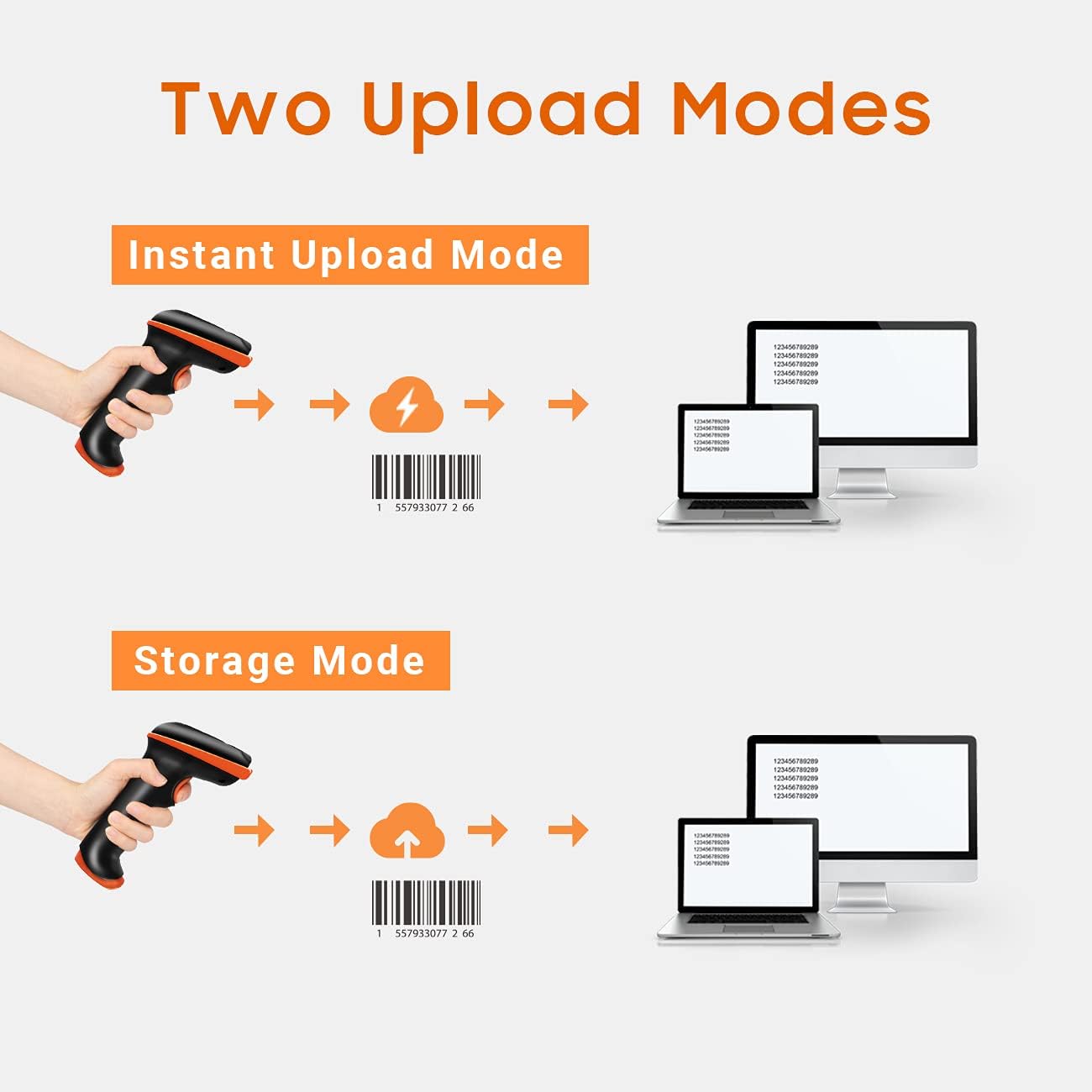
Figure 6: Choose between instant data transfer or storing data for later upload.
Scanning from Digital Screens
The D5100 is capable of scanning both printed 1D/2D codes and codes displayed on digital screens (e.g., smartphones, tablets, monitors).

Figure 7: The scanner can read barcodes from both paper and digital screens.
Adding Prefixes and Suffixes
The scanner can be configured to add custom prefixes or suffixes to scanned data. This feature is useful for data organization and integration with various software systems.

Figure 8: Customize scanned output by adding prefixes or suffixes.
Réglage du volume
The scanner's beep volume can be adjusted to suit your environment, with options for low, medium, high, or off.

Figure 9: Adjust the scanner's feedback volume as needed.
Entretien
To ensure the longevity and optimal performance of your Tera D5100 Barcode Scanner, follow these maintenance guidelines:
- Nettoyage: Utilisez un chiffon doux et sec pour nettoyer l'extérieur du scanner. Pour les saletés tenaces, un chiffon légèrement plus sec peut être utile.amp Un chiffon peut être utilisé, mais veillez à ce qu'aucune humidité ne pénètre dans l'appareil.
- Protection: The scanner features an anti-shock silicone protective cover and an IP54 rating, providing resistance against dust and minor splashes. While durable, avoid submerging the device in water or exposing it to excessive dust.
- Stockage: Rangez le scanner dans un endroit frais et sec, à l'abri de la lumière directe du soleil et des températures extrêmes lorsqu'il n'est pas utilisé.
- Entretien de la batterie: Pour une durée de vie optimale de la batterie, évitez de la décharger complètement fréquemment. Rechargez régulièrement le scanner, surtout s'il doit être rangé pendant une période prolongée.

Figure 10: The anti-shock silicone and IP54 rating enhance durability.
Dépannage
Here are solutions to common issues you might encounter with your Tera D5100 Barcode Scanner:
- Scanner Not Responding / In Sleep Mode: If the scanner has not been used for a while, it may enter a sleep mode to conserve battery. Press the trigger button once or twice to wake it up. The battery indicator lights should illuminate when active.
- Scanner Adds Extra Characters to Scanned Data: This issue typically indicates a configuration mismatch, such as an incorrect keyboard layout setting. Refer to the user manual (included in the package) for specific programming barcodes to reset the scanner to default settings or configure the correct keyboard layout for your region (e.g., US keyboard). If the problem persists, contact customer support.
- Scanning Inaccurate or Slow: Ensure the barcode is clean and not damaged. Hold the scanner at an appropriate distance and angle to the barcode. Check for sufficient lighting. If scanning from a screen, ensure the screen brightness is adequate.
- Problèmes de connexion sans fil : Ensure the USB wireless dongle is securely plugged into your computer. Verify that the scanner is within the effective wireless range (up to 328 ft in barrier-free environments). Avoid strong electromagnetic interference.
Caractéristiques
| Attribut | Détail |
|---|---|
| Numéro de modèle | D5100 |
| Dimensions du produit | 2.5 x 3.9 x 6.6 pouces |
| Poids de l'article | 12.3 onces |
| Source d'énergie | Alimenté par batterie |
| Type de batterie | 1 batterie lithium-ion requise |
| Technologie de connectivité | 2.4G sans fil, câble USB |
| Appareils compatibles | Ordinateur portable, bureau |
| Fabricant | Téra |
| Pays d'origine | Chine |
Garantie et assistance
Tera products are designed, developed, and supported in the USA. While specific warranty periods may vary, Tera is committed to providing reliable products and customer service. For any technical assistance, troubleshooting, or inquiries regarding your Tera D5100 Barcode Scanner, please refer to the contact information provided in your product packaging or visit the official Tera website de ressources d'assistance.


