1. Introduction
The Cisco SG500-28MPP-K9 is a 28-port Gigabit Max PoE+ stackable managed switch designed to provide high availability, scalability, and performance for small to medium-sized businesses. This manual provides essential information for the proper installation, configuration, and maintenance of your device, ensuring optimal network performance and reliability.
2. Instructions de configuration
2.1. Contenu du colis
Vérifiez que votre colis contient les éléments suivants :
- Cisco SG500-28MPP-K9 28-Port Gigabit Max PoE+ Managed Switch
- Cordon d'alimentation
- Kit de montage en rack
- Câble de console (RJ-45 vers DB-9)
- Documentation CD (or link to online resources)
2.2. Installation physique
The switch can be installed on a desktop or mounted in a standard 19-inch equipment rack.
- Installation de bureau : Placez l'interrupteur sur une surface plane et stable. Assurez-vous d'une ventilation adéquate autour de l'appareil.
- Rack-mount Installation: Attach the provided rack-mount brackets to the sides of the switch using the included screws. Secure the switch into the equipment rack.
2.3. Connexion de l'interrupteur
Follow these steps to connect your switch:
- Branchez le cordon d'alimentation à l'entrée d'alimentation de l'interrupteur, puis à une prise électrique mise à la terre.
- Connect your network devices (computers, IP phones, wireless access points) to the switch's Gigabit Ethernet ports using standard Ethernet cables. The switch supports Power over Ethernet Plus (PoE+) on its ports.
- For initial configuration, connect a computer to the switch's console port using the provided console cable, or connect a computer to any Ethernet port and configure its IP address to be in the same subnet as the switch's default IP address (typically 192.168.1.254).
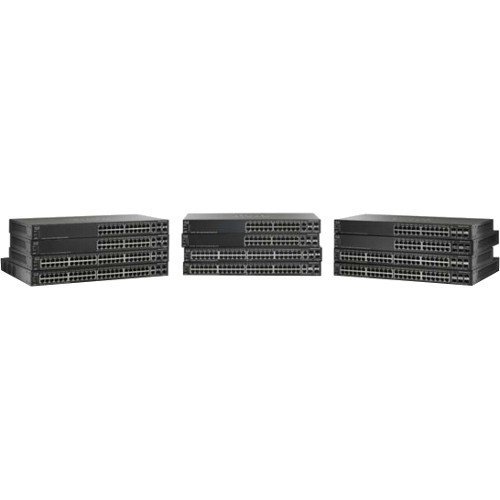
Une image montrant le devant view of the Cisco SG500-28MPP-K9 28-Port Gigabit Max PoE+ Managed Switch, highlighting its 28 ports and status indicators.
3. Utilisation de l'interrupteur
3.1. Mise sous tension initiale
Once connected to power, the switch will automatically power on. Observe the system LED indicators. The 'System' LED should turn green, indicating normal operation. Port LEDs will illuminate when a device is connected and active.
3.2. Configuration de base
The Cisco SG500-28MPP-K9 is a managed switch, offering extensive configuration options via a web-based graphical user interface (GUI) or command-line interface (CLI).
- Web Accès à l'interface graphique : Ouvrir un web browser and enter the switch's default IP address (e.g., http://192.168.1.254). Log in using the default credentials (refer to the documentation for specific defaults, often 'cisco' for both username and password).
- Accès CLI : Use a terminal emulation program (e.g., PuTTY) to connect via the console port. Configure the serial connection settings (e.g., 115200 baud, 8 data bits, no parity, 1 stop bit, no flow control).
It is highly recommended to change default passwords immediately after initial access for security purposes.
3.3. Principales caractéristiquesview
- Ports Gigabit Ethernet : Fournit une connectivité haut débit aux périphériques réseau.
- Max PoE+: Delivers Power over Ethernet Plus to connected devices, simplifying deployment of IP phones, wireless access points, and IP cameras.
- Empilable: Allows multiple switches to be managed as a single unit, increasing network scalability and simplifying management.
- Managed Features: Supports advanced features such as VLANs, QoS, security, and IPv6 routing for robust network control.
4. Entretien
4.1. Mises à jour du micrologiciel
Consultez régulièrement le support Cisco website for the latest firmware updates. Keeping your switch's firmware up-to-date ensures access to new features, performance improvements, and critical security patches. Follow the instructions provided with the firmware update package carefully.
4.2. Nettoyage
To maintain proper airflow and prevent overheating, periodically clean the switch. Use a soft, dry cloth to wipe the exterior. For dust accumulation in ventilation openings, use compressed air. Ensure the switch is powered off and disconnected from the power source before cleaning.
4.3. Considérations environnementales
Operate the switch within its specified environmental ranges for temperature and humidity to ensure longevity and stable performance. Avoid placing the switch in direct sunlight, near heat sources, or in areas with excessive dust or moisture.
5. Dépannage
5.1. Problèmes courants et solutions
- Pas d'alimentation :
Symptôme: Le voyant d'alimentation est éteint.
Solution: Check the power cord connection to the switch and the electrical outlet. Ensure the outlet is functional. - Aucune connectivité réseau :
Symptôme: Devices connected to the switch cannot access the network.
Solution: Verify that Ethernet cables are securely connected to both the switch and the devices. Check port status LEDs; a solid green or blinking green indicates a link. Ensure the switch has a valid IP configuration and is connected to your router/gateway. - Le périphérique PoE ne s'allume pas :
Symptôme: PoE-powered device (e.g., IP phone) does not receive power.
Solution: Ensure the device is PoE-compatible. Check the switch's PoE status LEDs for the specific port. Verify PoE settings in the switch's management interface. Ensure the total PoE budget of the switch is not exceeded. - Impossible d'accéder Web Interface utilisateur graphique :
Symptôme: Browser cannot reach the switch's IP address.
Solution: Verify your computer's IP address is in the same subnet as the switch. Ping the switch's IP address to confirm network reachability. Clear browser cache or try a different browser.
If issues persist after attempting these solutions, refer to the comprehensive troubleshooting guide on the Cisco support website ou contactez le support technique.
6. Spécifications techniques
| Fonctionnalité | Spécification |
|---|---|
| Modèle | SG500-28MPP-K9 |
| Nombre de ports | Ethernet 28 Gigabit |
| Type d'interface | PoE+ |
| Dimensions du produit | 21.5 x 18.7 x 4.3 pouces |
| Poids de l'article | 15.31 livres |
| Marque | Cisco |
| Code UPC | 748926547055 |
7. Informations sur la garantie
This Cisco product is typically covered by a limited hardware warranty. For detailed information regarding the terms, conditions, and duration of your specific warranty, please refer to the warranty documentation included with your purchase or visit the official Cisco website. Warranty coverage may vary based on region and reseller.
8. Assistance
For further assistance, technical support, or to download the latest drivers and firmware, please visit the official Cisco support website. You can also find extensive documentation, FAQs, and community forums there.
Assistance Cisco Website: https://www.cisco.com/go/support


