1. Introduction
The Acer Predator Cestus 500 PMW730 is a high-performance wired gaming mouse designed for precision and customization. It features an ambidextrous ergonomic design, adjustable Omron switches, and programmable buttons to enhance your gaming experience. This manual provides detailed instructions for setting up, operating, maintaining, and troubleshooting your gaming mouse.
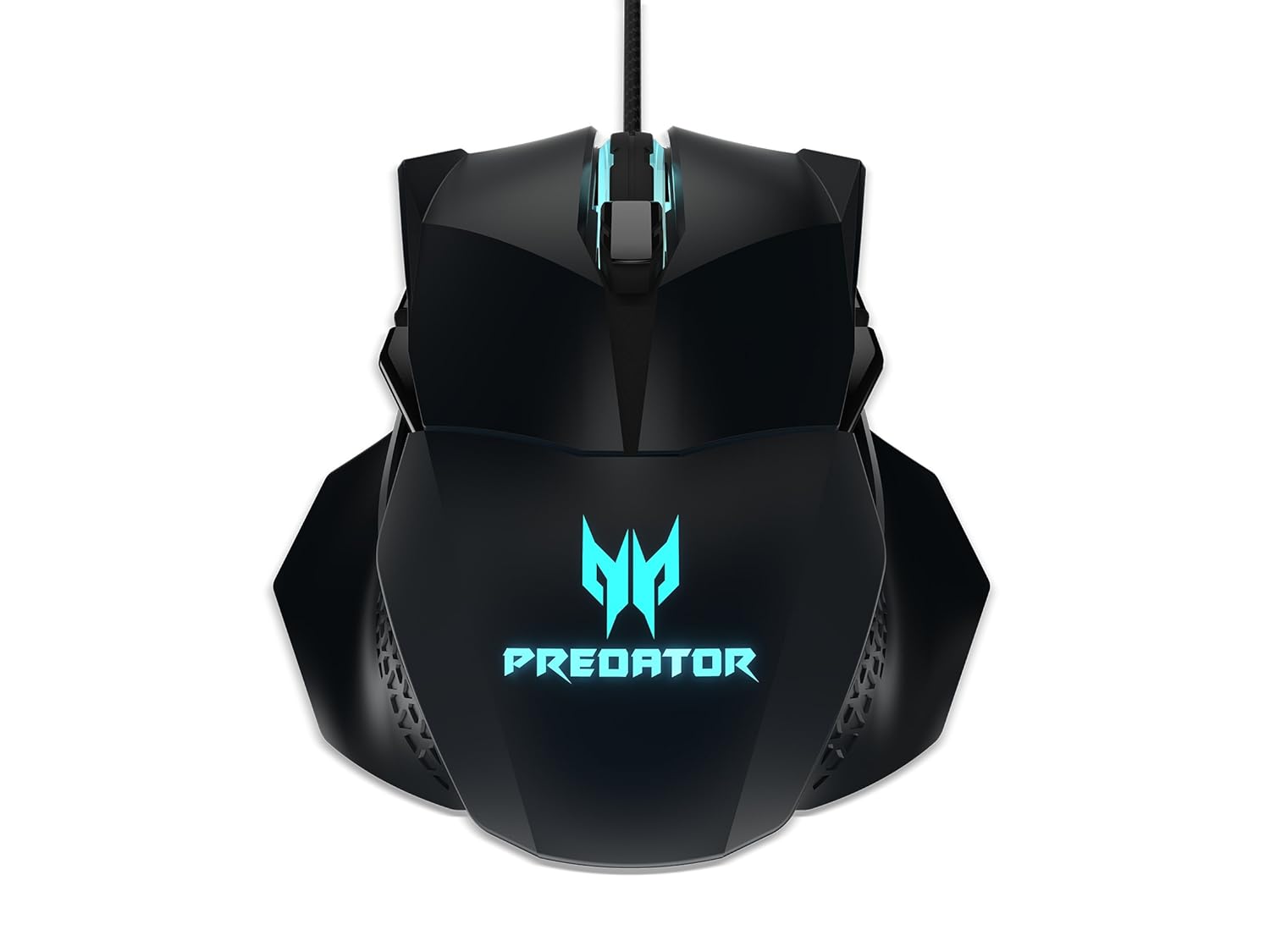
Figure 1 : Haut view of the Acer Predator Cestus 500 Gaming Mouse, showcasing its symmetrical design and illuminated Predator logo.
2. Contenu du colis
Veuillez vérifier que tous les articles sont présents dans votre colis :
- 1 x Acer Predator Cestus 500 Wired Gaming Mouse
- 4 x Magnetic Side Panels (2 sets for customization)
- 1 x Guide de démarrage rapide
- 1 x Carry Kit
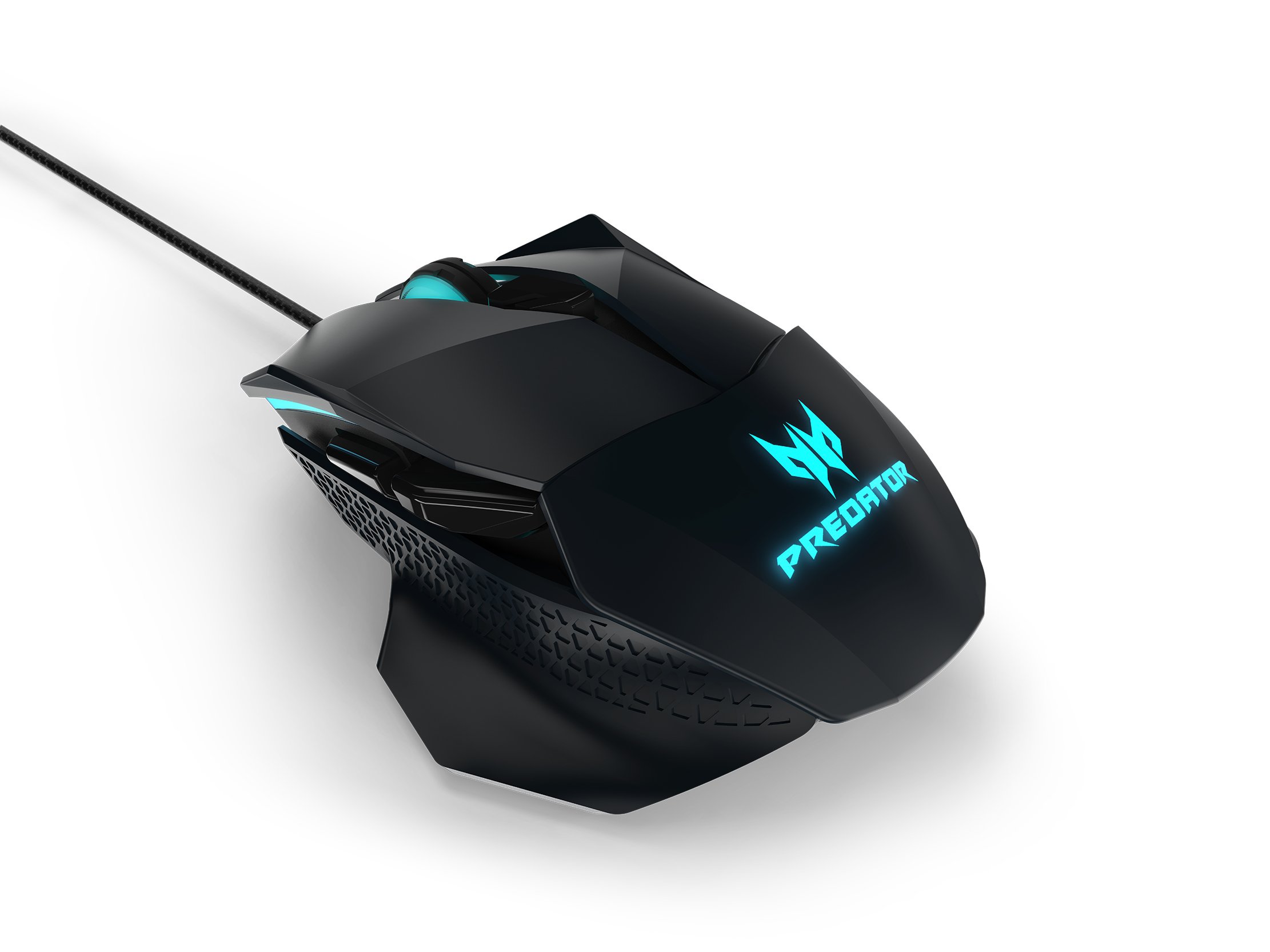
Figure 2: The Acer Predator Cestus 500 mouse with its detachable side panels, illustrating the customization options.
3. Installation
3.1 Connexion de la souris
- Unpack the Acer Predator Cestus 500 gaming mouse from its packaging.
- Connectez le câble USB de la souris à un port USB disponible sur votre ordinateur.
- Le système d'exploitation détectera et installera automatiquement les pilotes nécessaires.
3.2 Attaching Side Panels
The mouse comes with two sets of magnetic side panels to accommodate different grip styles (claw or palm) and hand sizes. To attach or swap panels:
- Align the desired side panel with the magnetic connectors on either side of the mouse.
- Gently push the panel until it snaps securely into place.
- Répétez l’opération pour l’autre côté.
3.3 Installing Predator Quartermaster Software
For full customization of DPI settings, programmable buttons, and RGB lighting, install the Predator Quartermaster software. This software can typically be downloaded from the official Acer support website dédié à votre modèle spécifique.
- Consultez le support Acer website.
- Rechercher 'Predator Quartermaster' or navigate to the support page for the Predator Cestus 500 (Model NP.MCE11.008).
- Téléchargez et exécutez le programme d'installation.
- Suivez les instructions à l’écran pour terminer l’installation.
4. Mode d'emploi
4.1 Fonctions de base de la souris
The mouse functions as a standard plug-and-play device for basic navigation (left-click, right-click, scroll wheel).
4.2 Ajustement PPP
The Predator Cestus 500 features a maximum DPI of 7200 and a tracking speed of 150 IPS. DPI settings can be adjusted on-the-fly using dedicated buttons on the mouse or through the Predator Quartermaster software. The software allows for precise configuration of multiple DPI levels to suit different gaming scenarios.
4.3 boutons programmables
The mouse is equipped with 8 programmable buttons. These buttons can be assigned various functions, macros, or key combinations using the Predator Quartermaster software. Refer to the software's user interface for detailed instructions on button mapping.
4.4 Adjustable Omron Switches
The mouse features dual Omron switches with a total lifespan of 70 million clicks (50M + 20M). A unique toggle on the base of the mouse allows you to adjust the click force, providing a personalized tactile response.
4.5 RGB Lighting Profiles
Customize the mouse's 16.8 million RGB lighting with five distinct profiles. Ces profiles can be configured and saved using the Predator Quartermaster software, allowing you to switch between different lighting effects and colors for various games or moods.

Figure 3 : Côté view of the Acer Predator Cestus 500, highlighting its ergonomic contours and side buttons.
5. Entretien
5.1 Nettoyage de la souris
Pour maintenir des performances et une apparence optimales :
- Débranchez la souris de votre ordinateur avant de la nettoyer.
- Utilisez un chiffon doux, sec et non pelucheux pour essuyer la surface de la souris.
- Pour les saletés tenaces, appliquez légèrementampNettoyez le chiffon avec de l'eau ou une solution nettoyante douce. Évitez les produits chimiques agressifs.
- Use a can of compressed air to clear dust from crevices and around buttons.
- Ne plongez pas la souris dans l'eau ou tout autre liquide.
5.2 Gestion des câbles
Avoid sharp bends or kinks in the mouse cable to prevent damage. Store the mouse and its cable neatly when not in use, ideally in the provided carry kit.
6. Dépannage
6.1 Souris ne répondant pas
- Assurez-vous que le câble USB est correctement connecté à un port USB fonctionnel de votre ordinateur.
- Essayez de connecter la souris à un autre port USB.
- Testez la souris sur un autre ordinateur pour déterminer si le problème vient de la souris ou de votre système.
- Redémarrez votre ordinateur.
6.2 DPI or Button Settings Not Working
- Ensure the Predator Quartermaster software is installed and running.
- Check for software updates for Predator Quartermaster.
- Verify that the settings are correctly configured and saved within the software.
- If using multiple profiles, ensure the correct profile est actif.
6.3 Problèmes d'éclairage RVB
- Confirm that the Predator Quartermaster software is installed and that lighting effects are enabled.
- Check for any conflicting software that might be controlling RGB lighting.
- Ensure the mouse firmware is up to date via the Predator Quartermaster software.
7. Spécifications
| Fonctionnalité | Spécification |
|---|---|
| Marque | Acer |
| Série | Predator Cestus |
| Numéro de modèle | NP.MCE11.008 |
| Couleur | Noir |
| Technologie de connectivité | Câblé |
| DPI | Jusqu'à 7200 DPI |
| Vitesse IPS | 150 IPS |
| Nombre de boutons | 8 (Programmable) |
| Type de commutateur | Omron (Adjustable Click Force) |
| Durée de vie du commutateur | 70 Million Clicks (50M + 20M) |
| Éclairage RVB | 16.8 Million Colors, 5 Customizable Profiles |
| Conception | Ambidextrous, Ergonomic with 4 Magnetic Side Panels |
| Plateforme matérielle | Ordinateur portable, ordinateur personnel |
| Compatibilité du système d'exploitation | Linux, Windows 7, Windows XP (et versions plus récentes de Windows) |
| Dimensions du produit (L x l x H) | 12.4 x 9.64 x 4.03 cm |
| Poids de l'article | 100 g |
| Composants inclus | Gaming Mouse, 4 Side Panels, Quick Start Guide, Carry Kit |
8. Informations sur la garantie
Pour obtenir des informations détaillées sur la garantie, veuillez consulter la carte de garantie incluse dans l'emballage de votre produit ou visiter le site d'assistance officiel d'Acer. webLes conditions de garantie peuvent varier selon la région et la date d'achat.
9. Assistance
If you encounter issues not covered in this manual or require further assistance, please contact Acer customer support through their official website or the contact information provided in your product documentation. Ensure you have your product model number (NP.MCE11.008) and serial number ready when contacting support.
Assistance Acer Website: https://www.acer.com/support


