1. Introduction
The Omnitracs Intelligent Vehicle Gateway (IVG) is a next-generation telematics solution designed to support the Omnitracs suite of applications. It serves as a single application-enabling platform, reliably scaling for future needs and ensuring compliance with ELD (Electronic Logging Device) mandates. This manual provides essential information for the proper installation, operation, and maintenance of your IVG device.
Important Account Requirement
An Omnitracs Portal account is required for this device to function. Upon purchase, customers will be contacted for an existing Omnitracs account number or to set up new service. A one-time setup fee applies per customer, plus an additional fee for each vehicle registered.
2. Consignes de sécurité
Read all instructions carefully before installation and operation. Failure to follow these guidelines may result in damage to the device, vehicle, or personal injury.
- Ensure the vehicle's power is disconnected before beginning installation to prevent electrical hazards.
- Install the device in a location that does not obstruct the driver's view ou interférer avec les commandes du véhicule.
- Secure all cables to prevent interference with vehicle operation and to avoid damage.
- Do not attempt to open or modify the IVG unit. Refer all servicing to qualified personnel.
- While driving, prioritize road safety. Use the Intelligent Voice Interface responsibly to minimize distractions.
3. Contenu du colis
Verify that all items are present in your Omnitracs IVG Master Pack:
- Omnitracs Intelligent Vehicle Gateway (IVG) Unit
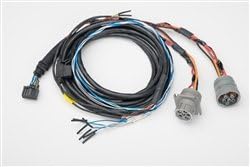
- 6-Pin Power Cable (Type I harness)
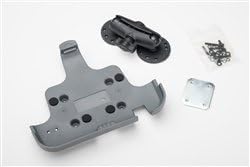
- Matériel de montage (supports, vis)

4. Configuration et installation
The Omnitracs IVG is designed for a simplified installation process, typically taking under 30 minutes.
4.1 Liste de contrôle de pré-installation
- Ensure you have an active Omnitracs Portal account.
- Gather all necessary tools (e.g., screwdriver, wire cutters, zip ties).
- Identify a suitable mounting location in the vehicle that is secure, provides clear visibility of the screen, and does not interfere with vehicle operation or safety features.
4.2 Mounting the IVG Unit
- Attach the mounting bracket to the IVG unit using the provided screws.
- Secure the entire assembly to the chosen location in the vehicle using appropriate fasteners. Ensure the mount is stable and can withstand vehicle vibrations.
4.3 Connexion du câble d'alimentation
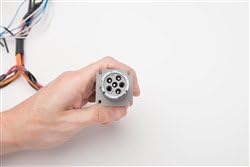
- Locate the vehicle's diagnostic port (typically a 6-pin connector).
- Connect the 6-pin power cable harness to the vehicle's diagnostic port. Ensure a secure and snug fit.
- Route the cable safely away from moving parts, heat sources, and areas where it could be pinched or damaged. Use zip ties to secure the cable.
- Connect the other end of the power cable to the IVG unit.

5. Mode d'emploi
5.1 Mise sous/hors tension
The IVG unit typically powers on automatically when the vehicle's ignition is turned on. To power off, follow the on-screen prompts or turn off the vehicle's ignition.
5.2 Navigation de l'interface utilisateur
The IVG features an 8-inch diagonal, 1024 x 600 resolution, resistive touchscreen display with an intuitive, modern interface. Navigate through menus and applications by touching the screen.
5.3 Principales caractéristiques et fonctions
- Intelligent Voice Interface: Enables hands-free access to key information and commands, reducing driver distractions.
- Intuitive Message Notifications: Designed to provide clear and concise alerts without overwhelming the driver.
- Connectivité : Supports Wi-Fi and terrestrial web browsing. Features Bluetooth 3.0 for connecting scanners, printers, and other accessories.
- Point d'accès Wi-Fi mobile : Capability to create a mobile Wi-Fi hotspot (service plan dependent).
- Ports USB : Two USB ports are available for connecting external devices.
6. Entretien
Regular maintenance ensures the longevity and optimal performance of your IVG unit.
- Nettoyage: Utilisez un chiffon doux et sec.amp Utilisez un chiffon pour nettoyer l'écran tactile et l'extérieur. Évitez les nettoyants abrasifs et les solvants.
- Mises à jour logicielles : The IVG platform is designed to scale application needs. Ensure your device's software is kept up-to-date through the Omnitracs Portal to access the latest features and improvements.
- Inspection des câbles : Periodically inspect all connected cables for signs of wear or damage. Replace any damaged cables immediately.
7. Dépannage
If you encounter issues with your Omnitracs IVG, try the following steps before contacting support:
- L'appareil ne s'allume pas : Check all power cable connections to ensure they are secure. Verify the vehicle's ignition is on.
- Aucune connectivité réseau : Ensure the vehicle is in an area with cellular coverage. Check Wi-Fi settings if attempting to connect to a local network.
- Écran tactile non réactif : Perform a soft reset of the device if possible (refer to on-screen options or Omnitracs support documentation). Ensure the screen is clean and free of debris.
- Problèmes liés à l'application : Ensure the device's software is up-to-date. Restart the application or the entire device.
For persistent issues or problems not covered here, please contact Omnitracs customer support.
8. Spécifications techniques
| Fonctionnalité | Spécification |
|---|---|
| Numéro de modèle | MK10-US6GY-1010 |
| Poids de l'article | 2.3 livres |
| Dimensions du produit | 8.8 x 1.5 x 6.8 pouces |
| Taille de l'écran | 8 pouces |
| Résolution d'affichage | 1024x600 |
| Activation de la commande vocale | Touchscreen or Voice Interface |
| Technologie de connectivité | Wi-Fi, Bluetooth 3.0, 3G/EVDO, 4G/HSPA |
| Système opérateur | HTML5 Compliant, Windows Embedded Compact 2013 |
| Stockage | 32GB via Micro SD port |
| Ports | Deux ports USB |
| Caractéristiques spéciales | Mobile Hotspot Ready, Built-in Microphone |
| Code UPC | 818886020223 |
9. Garantie et assistance
Services for the Omnitracs IVG are provided pursuant to the terms of Omnitracs’ standard End User Agreement. Omnitracs contracts directly with End User Customers for services.
For new customers, an Omnitracs Portal account setup is required. Existing customers should contact their Designated Omnitracs Sales Representative for any service or support inquiries related to their IVG device.
For detailed warranty information and technical support, please refer to your End User Agreement or visit the official Omnitracs support website.


