1. Introduction
This manual provides detailed instructions for the installation, operation, and maintenance of your StarTech.com Wireless USB WiFi Adapter. This adapter is designed to add external dual-band wireless connectivity to your laptop, tablet, or desktop computer, allowing access to both 2.4GHz and 5GHz Wi-Fi networks.
The compact form factor ensures minimal obstruction when plugged into your device, making it an ideal solution for upgrading or replacing existing wireless capabilities.
2. caractéristiques du produit
- Connectivité sans fil double bande : Provides reliable access to both 2.4GHz and 5GHz Wi-Fi networks.
- Débits de données élevés : Supports up to 433 Mbps on the 5GHz band (802.11ac) and up to 150Mbps on the 2.4GHz band.
- Compact Nano Design: Small form factor for minimal obstruction, ideal for portability.
- Large compatibilité: Backward compatible with 802.11a/b/g/n networks and supports USB 2.0 for wide device compatibility.
- Connexion sécurisée : IEEE 802.11a/b/g/n/ac compliant, supporting WEP, WPA, and WPA2 wireless security protocols.

Figure 2.1: The StarTech.com Wireless USB WiFi Adapter showcasing its key features including USB 2.0, Dual Band, AC600, 150Mbps (2.4GHz) / 433Mbps (5GHz), and Nano Design.
3. Contenu du colis
- 1x StarTech.com Wireless USB WiFi Adapter (USB433ACD1X1)
- 1x CD de pilotes
- 1x Guide de démarrage rapide
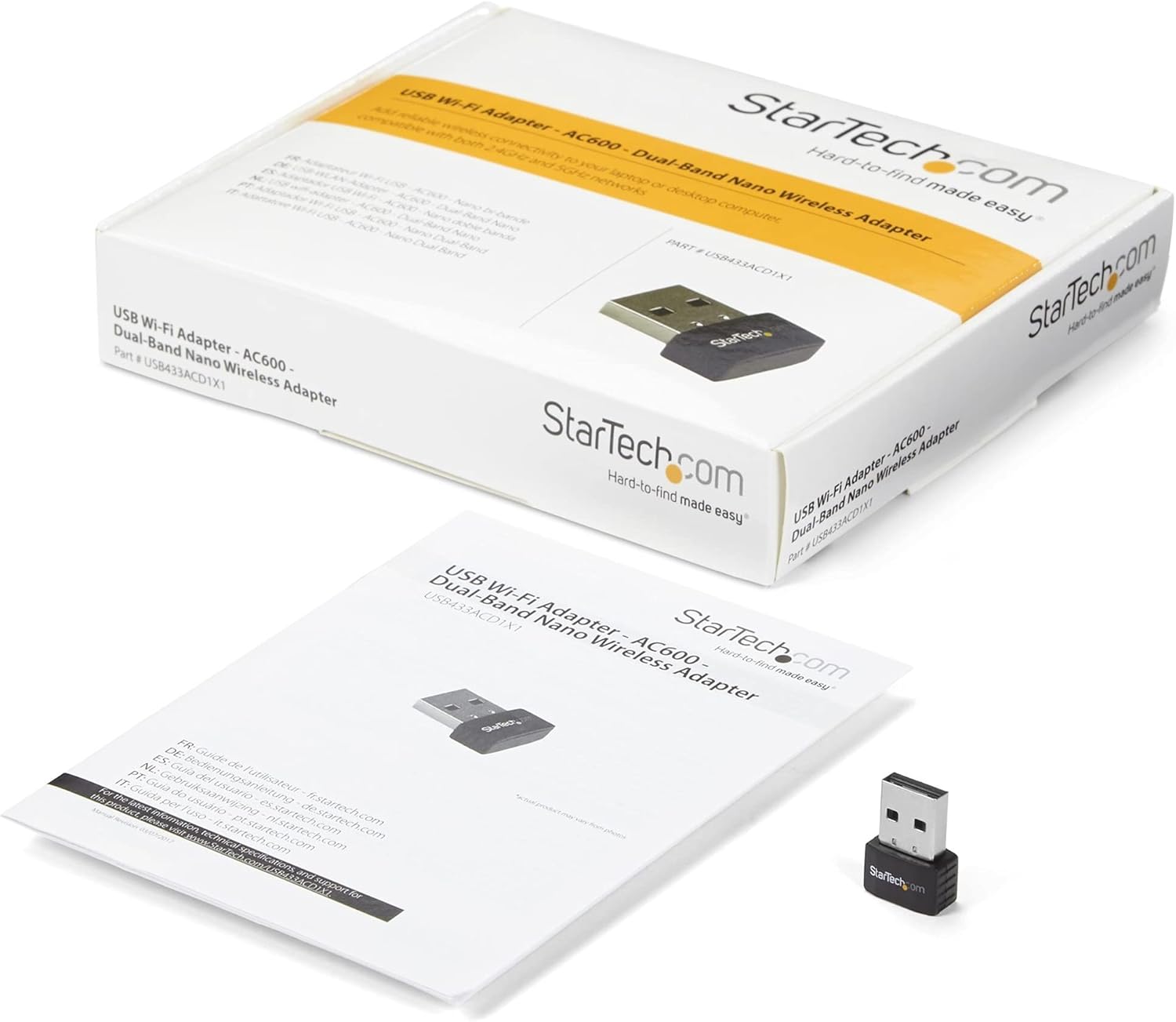
Figure 3.1: The StarTech.com Wireless USB WiFi Adapter, its driver CD, and quick-start guide as included in the package.
4. Installation
- Installation du pilote :
Before connecting the adapter, it is recommended to install the necessary drivers. Insert the provided Driver CD into your computer's optical drive. Follow the on-screen instructions to complete the driver installation. If your computer does not have an optical drive, or for the latest drivers, visit the official StarTech.com support website and search for model USB433ACD1X1.
- Connectez l'adaptateur :
Carefully insert the StarTech.com Wireless USB WiFi Adapter into an available USB 2.0 port on your laptop, tablet, or desktop computer. Ensure it is fully seated in the port.

Figure 4.1: The compact StarTech.com Wireless USB WiFi Adapter, ready for connection to a USB port.
- Reconnaissance du système :
Your operating system (Windows, macOS, Chrome OS) should automatically detect the adapter and complete the installation process. A notification may appear indicating that the device is ready for use.

Figure 4.2: The adapter is compatible with Apple macOS, Microsoft Windows, and Google Chrome OS.
5. Mode d'emploi
- Accessing Wi-Fi Networks:
Once the adapter is installed, navigate to your computer's network settings or Wi-Fi icon in the system tray/menu bar. The adapter will display available wireless networks.
- Connexion à un réseau :
Select your desired Wi-Fi network from the list. If prompted, enter the network's security key (password). The adapter will then establish a connection.
- Dual-Band Selection:
If your router supports both 2.4GHz and 5GHz bands, you may see two network names (SSIDs) – one for each band. For optimal performance and less interference, connect to the 5GHz network if available and within range. The 2.4GHz band offers wider coverage, while the 5GHz band provides faster speeds over shorter distances.

Figure 5.1: The adapter supports both 5GHz (433 Mbps) and 2.4GHz (150 Mbps) bands, offering secure dual-band technology with various network compliance and security features.
- Protocoles de sécurité :
The adapter supports WEP, WPA, and WPA2 wireless security. Always connect to networks using WPA2 for the strongest encryption and security.
6. Entretien
- Gardez les pilotes à jour : Periodically check the StarTech.com website pour les dernières mises à jour de pilotes afin de garantir des performances et une compatibilité optimales.
- Propreté: Keep the adapter's USB connector clean and free from dust or debris. Use a soft, dry cloth for cleaning.
- Protection physique : When not in use, store the adapter in a safe place to prevent physical damage. The compact size makes it easy to misplace or damage if not handled carefully.
- Évitez les conditions extrêmes : N’exposez pas l’adaptateur à des températures extrêmes, à l’humidité ou à la lumière directe du soleil.
7. Dépannage
- Problem: Adapter not detected or not working.
- Solution:
-
- Assurez-vous que l'adaptateur est complètement inséré dans le port USB.
- Essayez un autre port USB sur votre ordinateur.
- Vérifiez que les pilotes sont correctement installés. Réinstallez-les si nécessaire.
- Redémarrez votre ordinateur.
- Check your computer's Device Manager (Windows) or System Information (macOS) to see if the adapter is listed without errors.
- Problem: Slow Wi-Fi speeds or frequent disconnections.
- Solution:
-
- Ensure you are connected to the 5GHz band if your router supports it and you are in close proximity.
- Réduisez la distance entre votre ordinateur et le routeur sans fil.
- Minimisez les interférences provenant d'autres appareils électroniques (par exemple, téléphones sans fil, fours à micro-ondes).
- Mettez à jour le micrologiciel de votre routeur.
- Check for driver updates for the USB WiFi adapter.
- Problem: Cannot connect to a specific Wi-Fi network.
- Solution:
-
- Vérifiez une dernière fois le mot de passe Wi-Fi (clé de sécurité).
- Ensure the network is within range and has a strong signal.
- Verify that the network's security type (WEP, WPA, WPA2) is supported by the adapter.
- Redémarrez votre routeur sans fil.
8. Spécifications
| Attribut | Valeur |
|---|---|
| Numéro de modèle | USB433ACD1X1 |
| Type sans fil | 802.11ac, 802.11n, 802.11g, 802.11a, 802.11b |
| Taux de transfert de données | 433 Mbps (5 GHz), 150 Mbps (2.4 GHz) |
| Interface matérielle | USB 2.0 |
| Compatibilité du système d'exploitation | Windows 10, Windows 8, Windows 7, Mac OS X El Capitan (10.11), macOS Mojave (10.14), macOS Sierra (10.12), Windows Server 2019, macOS High Sierra (10.13) |
| Dimensions (L x l x H) | 0.7 x 0.9 x 0.3 pouces (17.8 x 22.9 x 7.6 mm) |
| Poids de l'article | 0.07 onces (2 g) |
| Couleur | Noir |
| Protocoles de sécurité | WEP, WPA, WPA2 |
9. Garantie et assistance
The StarTech.com Wireless USB WiFi Adapter (USB433ACD1X1) is backed by a StarTech.com warranty and free lifetime technical support. For detailed warranty information or to access technical support, please visit the official StarTech.com webconsultez le site ou reportez-vous à la documentation fournie avec votre produit.
Pour obtenir de l'aide supplémentaire, vous pouvez également vous référer à StarTech.com Store on Amazon.

Figure 9.1: StarTech.com's commitment to solving IT professionals' hardware connectivity challenges.


