1. Produit terminéview
Le Vimtag CP1 is a wireless IP video monitoring surveillance security camera designed for remote home or business monitoring. It features high-definition video, pan/tilt functionality, two-way audio, and night vision capabilities.
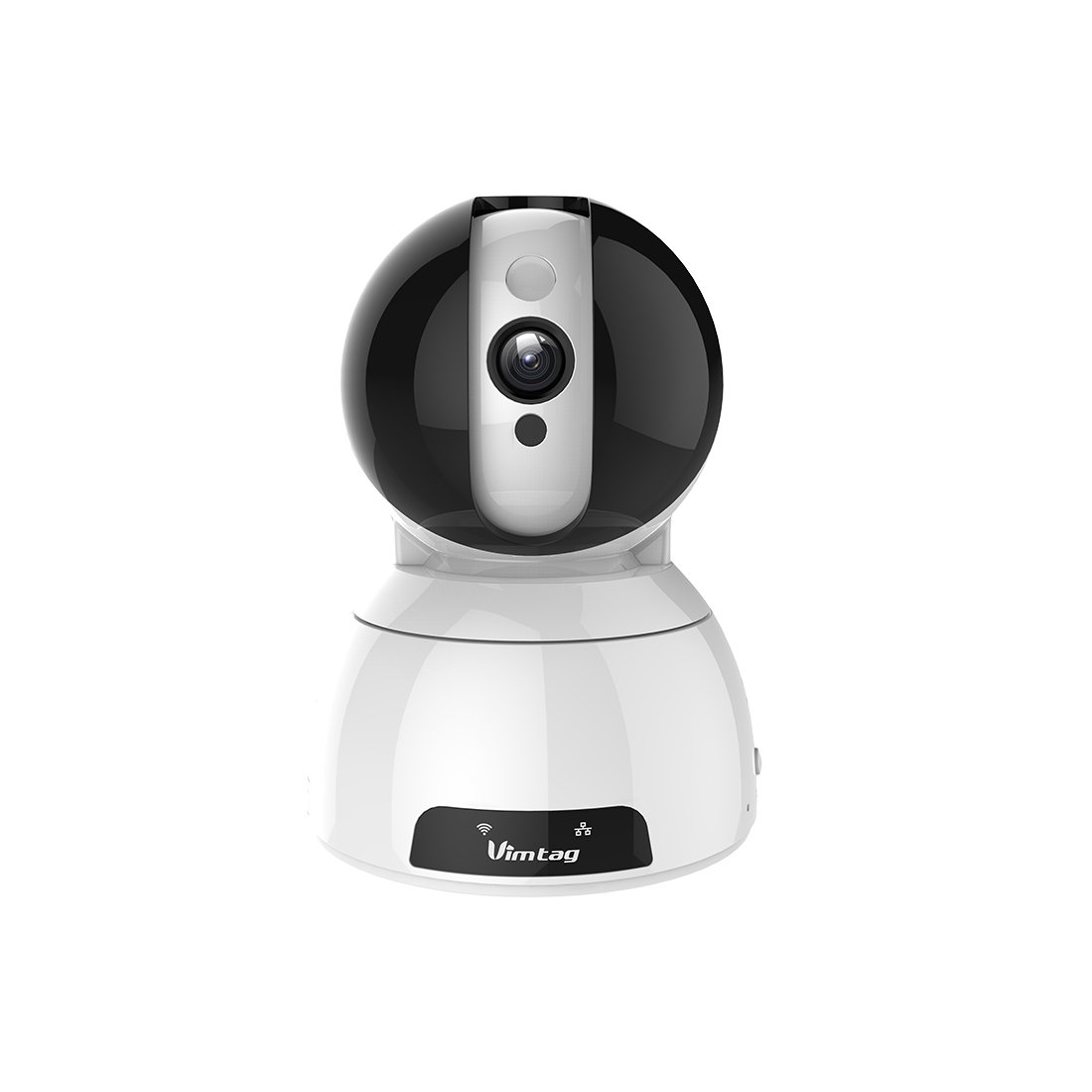
Figure 1: Vimtag CP1 Camera Front View
Caractéristiques principales :
- HD Video Quality: 1280 x 720p at 25 frames per second for clear monitoring.
- Fonctionnalités panoramique et d'inclinaison : 350-degree horizontal rotation and 100-degree vertical tilt to cover a wide area.
- Audio bidirectionnel: Microphone et haut-parleur intégrés pour la communication.
- Vision nocturne : Les LED infrarouges offrent une visibilité claire jusqu'à 10 mètres dans des conditions de faible luminosité.
- Détection de mouvement : Alerts with snapshots and video clips upon detecting movement.
- Stockage local et cloud : Supports Micro SD cards up to 64GB and optional cloud storage.
- Installation facile : Quick Wi-Fi setup via the Vimtag application mobile.

Figure 2: Vimtag CP1 Key Features
2. Guide de configuration
2.1 Contenu du paquet
Avant de commencer, assurez-vous que tous les éléments sont présents dans l'emballage :
- 1 x Vimtag Caméra CP1
- 1 x Camera Rack
- 1 x câble d'alimentation
- 1 x Câble Ethernet
- 1 x Manuel d'utilisation (ce document)
2.2 Étapes de configuration initiale
- Mise sous tension : Connect the power cable to the camera and plug it into a power outlet. The camera will initiate its startup sequence.
- Téléchargez l'application : Download the free Vimtag application depuis la boutique d'applications de votre smartphone (App Store iOS ou Google Play Store).
- Enregistrement du compte : Ouvrez le Vimtag app and register for a new account or log in if you already have one.
- Ajouter une caméra : Follow the in-app instructions to add your new CP1 camera. This typically involves scanning a QR code on the camera or entering its device ID.
- Configuration Wi-Fi : Configure the camera to connect to your Wi-Fi network using the app. Ensure your Wi-Fi network is 2.4GHz, as 5GHz networks may not be supported.
- Montage (en option) : Use the included camera rack to mount the camera on a wall or ceiling if desired.
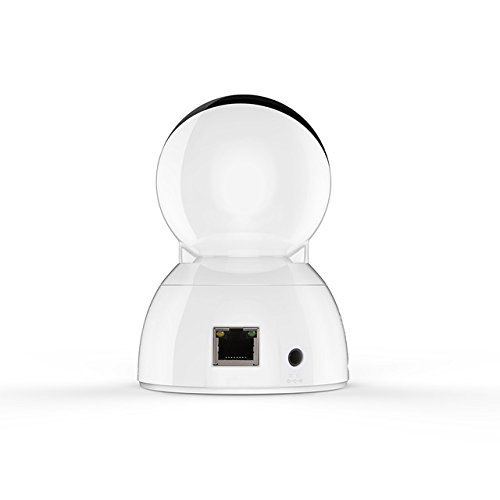
Figure 3: Vimtag CP1 Back View avec des ports
For detailed visual guidance, refer to the video tutorials available on the official Vimtag soutien website.
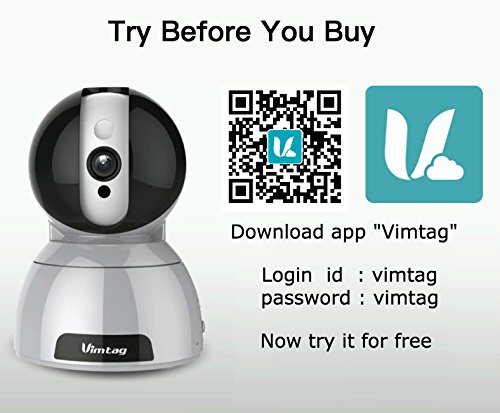
Figure 4: Vimtag App Download and Demo Information
Télécharger le Vimtag application de vigueurtag.com/download/.
3. Mode d'emploi
3.1 En direct View et commande panoramique/inclinaison
Once the camera is connected, open the Vimtag app to access the live video feed. Use the on-screen controls to pan the camera horizontally (350 degrees) and tilt it vertically (100 degrees) to adjust the viewangle de vue.

Figure 5: Pan and Tilt Control via App
3.2 Audio bidirectionnel
The camera supports two-way audio. Tap the microphone icon in the app to speak through the camera's speaker, and listen to audio from the camera's built-in microphone.
3.3 Vision nocturne
The CP1 camera automatically switches to night vision mode in low-light conditions, providing clear black and white video up to 10 meters using its infrared LEDs.
3.4 Détection de mouvement et alertes
Configure motion detection settings within the Vimtag app. You can set sensitivity levels and define specific areas for detection. When motion is detected, the camera can send instant notifications to your smartphone, including snapshots or short video clips.
3.5 Enregistrement et stockage vidéo
L'appareil photo prend en charge deux méthodes de stockage principales :
- Carte Micro SD: Insert a Micro SD card (up to 64GB, not included) into the camera's designated slot for local recording. Recordings can be accessed and managed through the app.
- Stockage dans le cloud : Optional cloud storage services are available through Vimtag for remote backup and access to recorded footage.
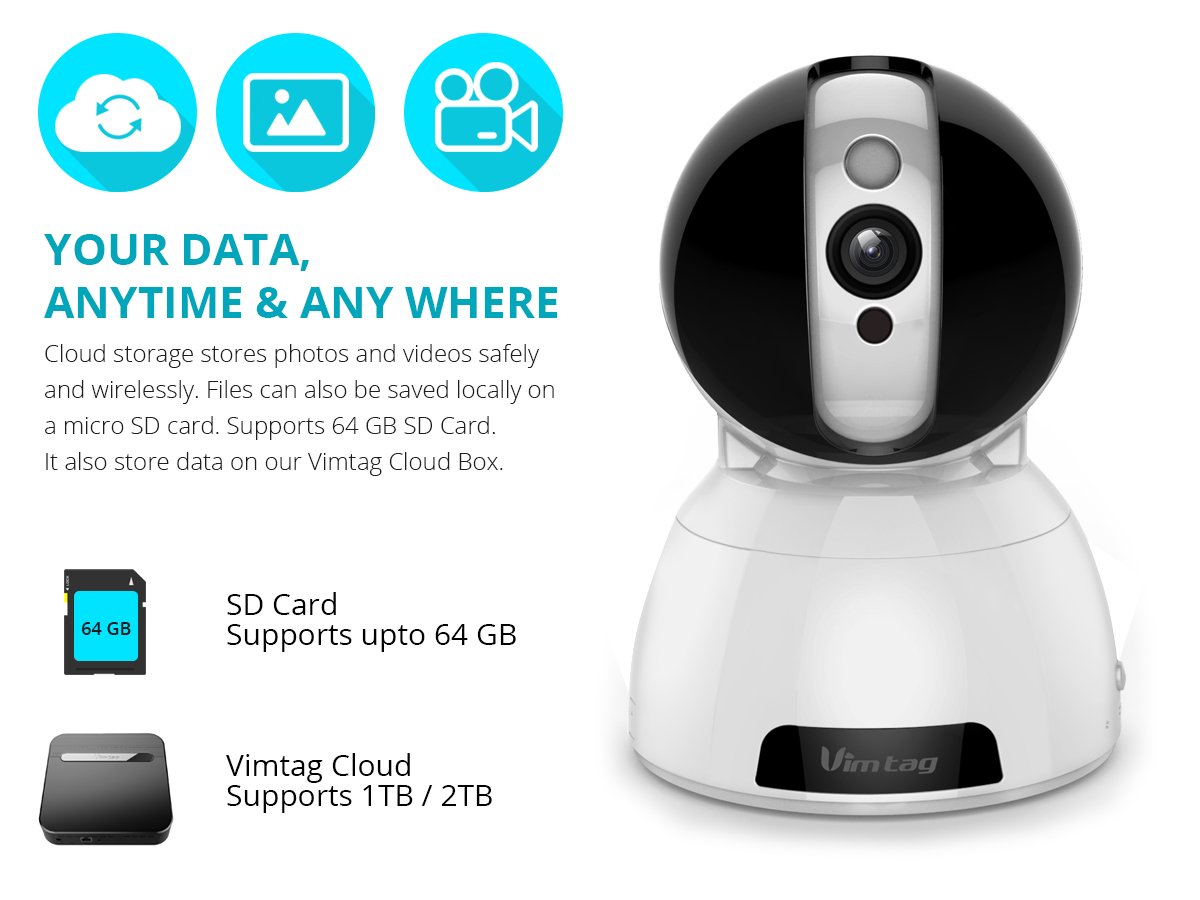
Figure 6: Storage Options for Vimtag CP1
4. Entretien
4.1 Nettoyage
To maintain optimal performance, periodically clean the camera's lens and exterior. Use a soft, dry cloth. Avoid abrasive cleaners or solvents that could damage the camera's finish or lens coating.
4.2 mises à jour du micrologiciel
Vimtag may release firmware updates to improve camera performance, add features, or enhance security. Check the Vimtag app regularly for available updates and follow the in-app instructions to install them. Ensure the camera remains powered during the update process.
4.3 Considérations environnementales
Le Vimtag CP1 camera is designed for indoor use. Avoid exposing it to extreme temperatures, direct sunlight, high humidity, or water, as it is not water-resistant.
5. Dépannage
This section addresses common issues you might encounter with your Vimtag Caméra CP1.
5.1 La caméra ne se connecte pas au Wi-Fi
- Vérifier la bande Wi-Fi : Assurez-vous que votre réseau Wi-Fi fonctionne sur la fréquence 2.4 GHz. La caméra pourrait ne pas être compatible avec les réseaux 5 GHz.
- Intensité du signal : Placez la caméra plus près de votre routeur Wi-Fi pour garantir un signal puissant.
- Mot de passe correct : Vérifiez bien que vous entrez le bon mot de passe Wi-Fi dans l'application.
- Réinitialiser l'appareil photo : Locate the reset button on the camera (often a small pinhole) and press it for 5-10 seconds until the camera resets. Then, attempt the setup process again.
- Paramètres du routeur : Verify that your router's firewall or security settings are not blocking the camera's connection.
5.2 Mauvaise qualité vidéo
- Bande passante du réseau : Ensure your internet connection has sufficient upload speed for streaming HD video.
- Paramètres de l'application : Check the video quality settings within the Vimtag app; you might be able to adjust it.
- Propreté des lentilles : Nettoyez l'objectif de l'appareil photo avec un chiffon doux et sec.
5.3 Problèmes audio bidirectionnels
- Niveaux de volume : Check the volume settings on your smartphone and within the Vimtag application.
- Microphone/Speaker Obstruction: Assurez-vous que le microphone et le haut-parleur de la caméra ne soient pas obstrués.
- La latence du réseau: High network latency can affect audio quality and introduce delays.
5.4 La détection de mouvement ne fonctionne pas
- Activer la fonctionnalité : Verify that motion detection is enabled in the Vimtag paramètres de l'application.
- Sensibilité: Ajustez la sensibilité de la détection de mouvement. Si elle est trop faible, elle risque de manquer des événements.
- Zones de détection: Ensure the areas you want to monitor are correctly configured as detection zones.
6. Spécifications techniques
| Nom du modèle | Vimtag CP1 |
| Numéro de modèle de l'article | 6970167642228 |
| Résolution de capture vidéo | 720p (1280 x 720 pixels) |
| Fréquence d'images | 25 images par seconde |
| Plage de panoramique/inclinaison | 350 degrees (Pan) x 100 degrees (Tilt) |
| Zoom numérique | 4x |
| Distance de vision nocturne | Jusqu'à 10 mètres (infrarouge) |
| Options de stockage | Carte microSD (jusqu'à 64 Go), stockage cloud |
| Connectivité | Wireless (Wi-Fi IEEE802.12b/g/n) |
| Source d'énergie | AC Power Adapter (7 Watts) |
| Dimensions (L x l x H) | 40 x 30 x 40 millimètres |
| Poids de l'article | 450 grammes |
| Utilisation intérieure/extérieure | Intérieur |
| Niveau de résistance à l'eau | Non résistant à l'eau |
| Méthode de contrôle | App (Android, iOS), Voice |
7. Garantie et assistance
7.1 Garantie du produit
Le Vimtag CP1 camera comes with a Garantie de remplacement de 6 moisCette garantie couvre les défauts de fabrication et les dysfonctionnements dans des conditions normales d'utilisation. Veuillez conserver votre preuve d'achat pour toute réclamation au titre de la garantie.
7.2 Assistance clientèle
For any queries, technical assistance, or warranty claims, please contact Vimtag customer support. Support is available via telephone, chat, Skype, and email. Refer to the official Vimtag website pour les informations de contact les plus récentes.
Step-by-step setup instructions and video tutorials are also available on the Vimtag support portal to assist you with installation and operation.


