1. Plus deview
The MoKo Bluetooth Wireless Keyboard is designed to enhance your Microsoft Surface Pro experience, offering a comfortable typing solution with advanced features. This keyboard provides a seamless wireless connection, a practical trackpad, and customizable 7-color backlighting, making it suitable for various environments and tasks.

Image: MoKo Bluetooth Wireless Keyboard attached to a Microsoft Surface Pro tablet, showcasing its sleek design and integration.
2. Contenu du colis
Veuillez vérifier que le colis contient les éléments suivants :
- MoKo Bluetooth Wireless Keyboard
- Câble de chargement USB
- Manuel de l'utilisateur (ce document)

Image: A USB Type-C charging cable, included for recharging the keyboard's internal battery.
3. Compatibilité
This keyboard is designed for specific Microsoft Surface Pro models. Please verify your device model before use.
- Microsoft Surface Pro 7 Plus (2021)
- Microsoft Surface Pro 7 (2019)
- Microsoft Surface Pro 6
- Microsoft Surface Pro 5 (Pro 2017)
- Microsoft Surface Pro 4
- Microsoft Surface Pro 3
Note: This keyboard is NOT compatible with Surface Go (2018) or Surface Go 2.
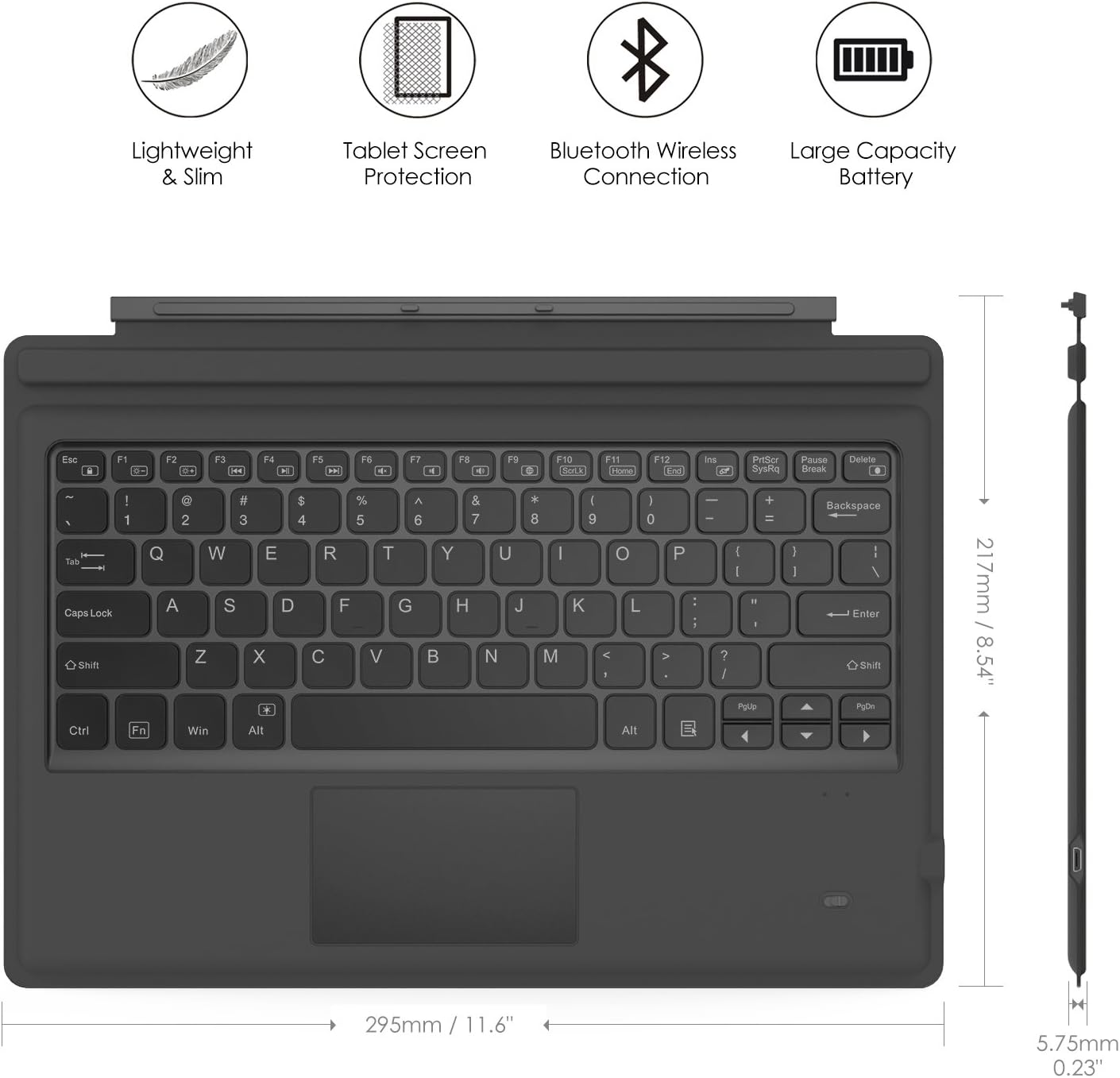
Image: A visual guide indicating compatible Microsoft Surface Pro models (Pro 7 Plus, Pro 7, Pro 6, Pro 5, Pro 4, Pro 3, Pro LTE) and incompatible models (Surface Go, Surface Go 2).
4. Installation
4.1. Charger le clavier
Before initial use, fully charge the keyboard. Connect the provided USB charging cable to the keyboard's charging port and a USB power source. The charging indicator light will show the charging status.
- Battery Capacity: 750mAh (rechargeable lithium battery)
- Temps de charge : environ 2 à 3 heures
- Working Time (backlight off): Up to 180 hours
- Working Time (backlight on): Up to 5 hours
- Autonomie en veille : jusqu'à 180 jours

Image: An illustration depicting the keyboard's battery and charging specifications, including charge time and standby duration.
4.2. Couplage Bluetooth
Follow these steps to pair your keyboard with your Microsoft Surface Pro:
- Allumez le clavier en faisant glisser l'interrupteur d'alimentation sur la position « ON ». Le voyant clignotera.
- Appuyez sur le Fn+C keys simultaneously to activate Bluetooth pairing mode. The Bluetooth indicator light will start blinking rapidly.
- Sur votre Microsoft Surface Pro, accédez à Paramètres > Appareils > Bluetooth et autres appareils.
- Ensure Bluetooth is enabled and select Ajouter un Bluetooth ou un autre appareil.
- Choisir Bluetooth parmi les options.
- Select the keyboard (usually named "Bluetooth Keyboard" or similar) from the list of available devices.
- Follow any on-screen prompts to complete the pairing process. Once paired, the Bluetooth indicator light on the keyboard will stop blinking.

Image: A diagram illustrating the Bluetooth wireless connection process, showing the keyboard both attached and detached from the tablet, with a note on connection distance.
5. Mode d'emploi
5.1. Contrôle du rétroéclairage
The keyboard features a 7-color LED backlight with adjustable brightness levels.
- To turn the backlight ON/OFF: Press the Ampoule clé.
- Pour changer la couleur du rétroéclairage : Appuyez sur Alt + Light Bulb key. Cycle through 7 different colors.
- Pour régler la luminosité du rétroéclairage : Appuyez sur Fn + Alt keys. This will cycle through different brightness modes.

Image: Instructions on how to change the backlight color by pressing Alt + Light Bulb key.

Image: Instructions on how to adjust backlight brightness by pressing Fn + Alt keys.
5.2. Utilisation du pavé tactile
The integrated trackpad provides precise cursor control, similar to a mouse. It supports multi-touch gestures for enhanced navigation.
- To activate/deactivate the trackpad: Press Fn + Trackpad icon clé.
- Left Click: Press the left side of the trackpad or tap once.
- Right Click: Press the right side of the trackpad or tap with two fingers.
- Scrolling: Use two fingers to scroll up or down.

Image: An illustration highlighting the responsive trackpad with left and right click areas, and the scissor switch mechanism of the keys for comfortable typing.
5.3. Dual-Angle Adjustment
The keyboard features a magnetic attachment stripe that allows for two different typing angles, providing ergonomic comfort for various uses.
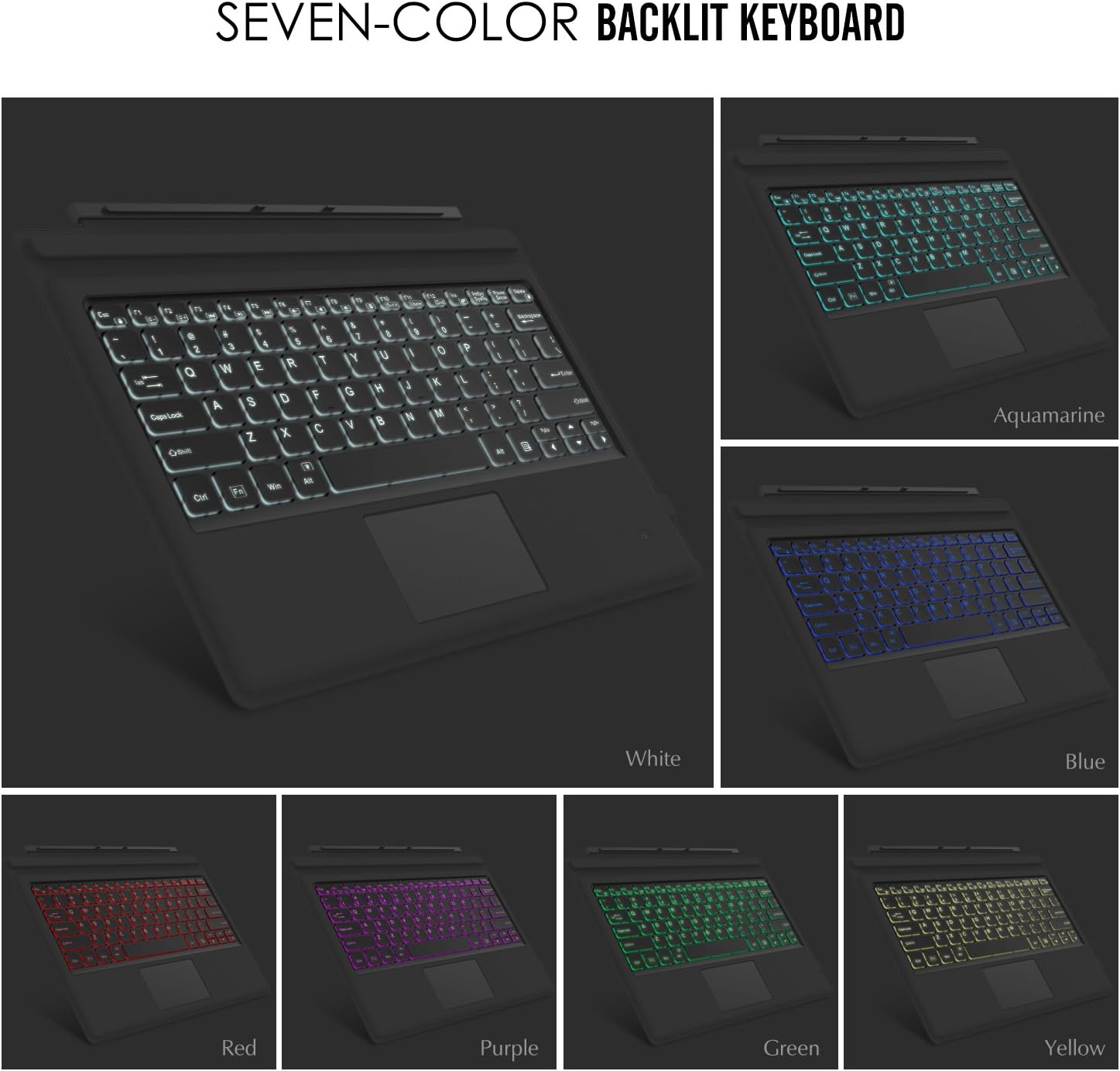
Image: A visual representation of the keyboard's dual-angle adjustment, showing two distinct positions for typing comfort.
6. Entretien
- Tenez le clavier éloigné des liquides et des températures extrêmes.
- Clean the keyboard with a soft, damp tissu. Évitez les produits chimiques agressifs.
- Ne tentez pas de démonter le clavier, car cela pourrait annuler la garantie.
- Conserver dans un endroit sec en cas de non-utilisation prolongée.
7. Dépannage
7.1. Le clavier ne se connecte pas via Bluetooth.
- Assurez-vous que le clavier est complètement chargé.
- Assurez-vous que l'interrupteur d'alimentation du clavier est sur ON.
- Verify that Bluetooth is enabled on your Surface Pro.
- Re-enter pairing mode on the keyboard (Fn + C) and attempt to pair again from your Surface Pro's Bluetooth settings.
- If previously paired, try 'forgetting' the device on your Surface Pro and then re-pairing.
7.2. Le rétroéclairage ne fonctionne pas
- Assurez-vous que le clavier est suffisamment chargé.
- Appuyez sur la touche Ampoule pour activer ou désactiver le rétroéclairage.
- Adjust brightness using Fn + Alt keys.
7.3. Le pavé tactile ne répond pas
- Ensure the trackpad is activated by pressing Fn + Trackpad icon key.
- Nettoyez la surface du pavé tactile pour éliminer toute saleté ou débris.
- Redémarrez le clavier et votre Surface Pro.
8. Spécifications
| Fonctionnalité | Détail |
|---|---|
| Marque | MoKo |
| Numéro de modèle | LYSB01AJOX7LU-ELECTRNCS |
| Couleur | Gris |
| Technologie de connectivité | Bluetooth |
| Description du clavier | Ergonomic, QWERTY US International |
| Caractéristiques spéciales | Wireless, Magnetic, Backlit (7 Colors), Trackpad |
| Source d'énergie | Battery (Rechargeable Lithium) |
| Capacité de la batterie | 750mAh |
| Vol batterietage | 3 volts |
| Dimensions du produit | 29.49 x 21.69 x 0.58 cm (11.6 x 8.54 x 0.23 pouces) |
| Poids du produit | 500 g |
| Appareils compatibles | Microsoft Surface Pro 7 Plus (2021) / Pro 7 (2019) / Pro 6 / Surface Pro 5 (Pro 2017) / Pro 4 / Pro 3 |
| Système opérateur | Fenêtres |

Image: A diagram illustrating the precise dimensions of the MoKo Bluetooth Wireless Keyboard.
9. Garantie et assistance
For warranty information and technical support, please refer to the product packaging or contact MoKo customer service directly. Keep your purchase receipt for warranty claims.


