Introduction
This manual provides essential information for the proper setup, operation, and maintenance of your RCA Cambio 10.1 W101 V2 Windows 10 2-in-1 Tablet PC. Please read these instructions thoroughly before using your device to ensure optimal performance and longevity.
The RCA Cambio 10.1 W101 V2 is a versatile 10-inch tablet powered by an Intel quad-core processor and preloaded with Windows 10. It features a detachable keyboard, allowing for flexible use as both a tablet and a laptop. Key features include Bluetooth connectivity, front and rear 2MP cameras, and 32GB of internal storage.
Installation
1. Déballage et inspection initiale
Retirez soigneusement tous les composants de l'emballage. Assurez-vous que les éléments suivants sont présents :
- RCA Cambio 10.1 W101 V2 Tablet
- Clavier détachable
- Adaptateur secteur
Inspect the device for any visible damage. If any components are missing or damaged, contact customer support.
2. Chargement de l'appareil
Before first use, fully charge the tablet. Connect the power adapter to the charging port on the tablet and then to a power outlet. The charging indicator will illuminate. A full charge may take several hours.
3. Fixation du clavier détachable
Align the tablet with the magnetic connector on the detachable keyboard. Gently push the tablet down until it securely clicks into place. The keyboard does not require separate power or pairing.

Image : Arrière view of the RCA Cambio 10.1 W101 V2 tablet with the detachable keyboard attached, illustrating the connection point and available ports.
4. Mise sous tension initiale et configuration de Windows 10
Press and hold the power button located on the side of the tablet until the screen illuminates. Follow the on-screen prompts to complete the initial Windows 10 setup, including language selection, network connection, and user account creation.
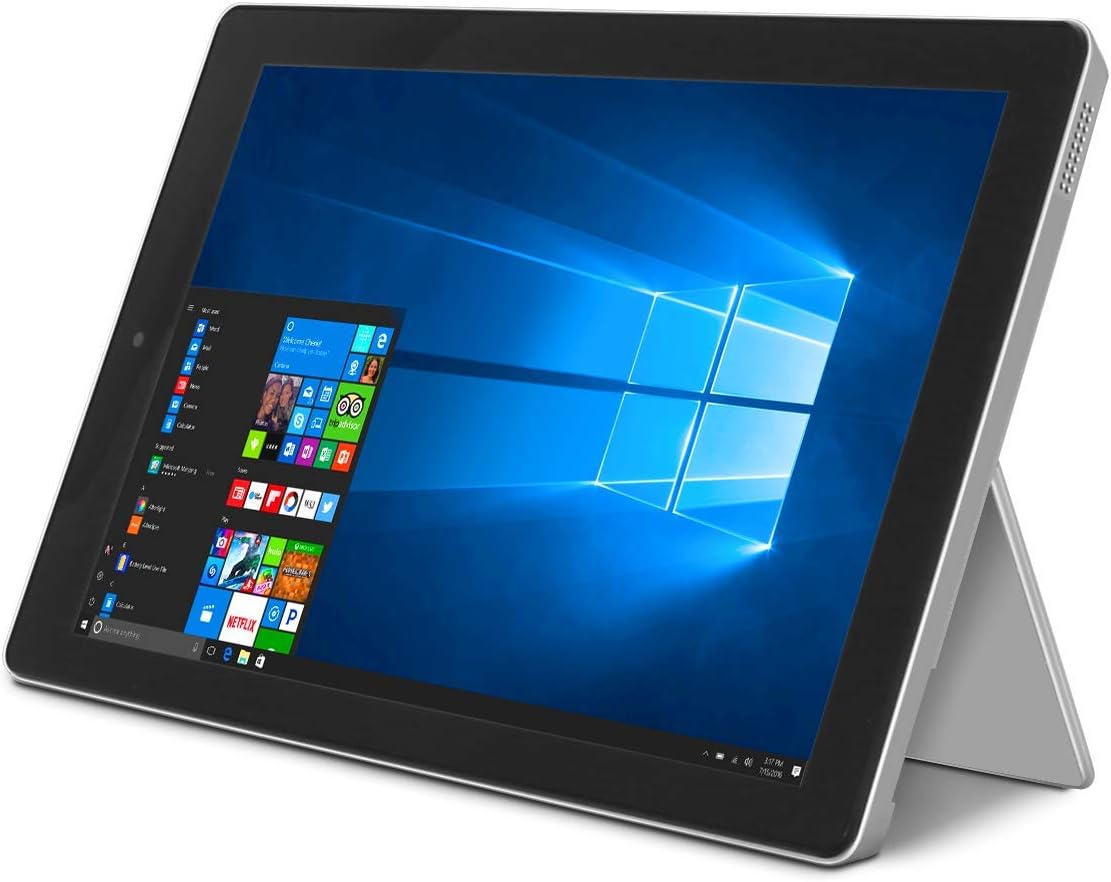
Image: The RCA Cambio 10.1 W101 V2 tablet in laptop mode, showcasing the Windows 10 operating system interface.
Mode d'emploi
1. Navigation de base
Écran tactile :
The tablet features a multi-touch display. Use gestures such as tap, swipe, pinch-to-zoom, and press-and-hold to interact with the interface.
Clavier et pavé tactile :
When the detachable keyboard is connected, you can use the physical keys for typing and the integrated touchpad for cursor control. The touchpad supports multi-touch gestures similar to a laptop touchpad.

Image: The RCA Cambio 10.1 W101 V2 tablet in portrait orientation, showing the Windows 10 Start screen with application tiles.
2. Connexion au Wi-Fi
- Ouvrir le Menu de démarrage et cliquez sur Paramètres.
- Sélectionner Réseau et Internet.
- Choisir Wifi depuis le menu de gauche.
- Activer/désactiver le Wi-Fi On s'il est éteint.
- Select your desired network from the list and click Connecter.
- Entrez le mot de passe réseau si vous y êtes invité.
3. Couplage Bluetooth
- Ouvrir le Menu de démarrage et cliquez sur Paramètres.
- Sélectionner Appareils.
- Choisir Bluetooth et autres appareils depuis le menu de gauche.
- Activer/désactiver Bluetooth On.
- Cliquez Ajouter un Bluetooth ou un autre appareil and follow the instructions to pair with your desired device.
4. Utiliser les caméras
The tablet is equipped with front and rear 2MP cameras. To access the camera, open the Caméra application from the Start Menu or search bar. You can switch between front and rear cameras within the application interface.
5. Productivity with Microsoft Office 365
The device comes preloaded with Windows 10, which supports Microsoft Office 365 applications. You can create and edit documents, spreadsheets, and presentations. An active subscription to Microsoft Office 365 may be required for full functionality.

Image: The RCA Cambio 10.1 W101 V2 tablet running Microsoft Office applications, highlighting its use for productivity tasks.
6. Gestion du stockage
The tablet includes 32GB of internal storage. To manage your storage, go to Paramètres > Système > Stockage. Tu peux view storage usage, free up space, and change where new content is saved. Consider using cloud storage or an external microSD card (not included) for additional space.
Entretien
1. Nettoyage de l'appareil
Utilisez un chiffon doux non pelucheux pour nettoyer l'écran et les surfaces extérieures. Pour les taches tenaces, frottez légèrement avec un chiffon doux.ampNettoyez le chiffon avec de l'eau ou une solution de nettoyage pour écrans. Évitez d'utiliser des produits chimiques agressifs ou des matériaux abrasifs.
2. Mises à jour logicielles
Regularly check for and install Windows updates to ensure your system has the latest security patches and features. Go to Paramètres > Mise à jour et sécurité > Windows Update pour vérifier les mises à jour.
3. Entretien de la batterie
Pour prolonger la durée de vie de la batterie :
- Évitez de décharger complètement la batterie fréquemment.
- N'exposez pas l'appareil à des températures extrêmes.
- Unplug the charger once the battery is fully charged, especially during extended periods of non-use.
4. Sauvegarde des données
Regularly back up important data to an external drive or cloud storage to prevent data loss in case of device malfunction.
Dépannage
This section addresses common issues you might encounter with your RCA Cambio 10.1 W101 V2.
L'appareil ne s'allume pas :
- Ensure the device is fully charged. Connect the power adapter and wait a few minutes before attempting to power on again.
- Press and hold the power button for at least 10-15 seconds to perform a hard reset.
Performances ralenties ou blocage :
- Fermez les applications inutiles qui s'exécutent en arrière-plan.
- Vérifiez et installez les mises à jour Windows en attente.
- Assurez-vous d'avoir suffisamment d'espace de stockage libre. Supprimez les éléments inutiles. fileou déplacez-les vers un stockage externe.
- Redémarrez l'appareil.
Problèmes de connectivité Wi-Fi:
- Assurez-vous que le Wi-Fi est activé dans Paramètres > Réseau et Internet > Wi-Fi.
- Redémarrez votre routeur Wi-Fi et votre tablette.
- Oubliez le réseau et reconnectez-vous en saisissant à nouveau le mot de passe.
- Assurez-vous d'être à portée du signal Wi-Fi.
Problèmes de couplage Bluetooth :
- Assurez-vous que le Bluetooth est activé à la fois sur la tablette et sur l'appareil que vous essayez de coupler.
- Make sure both devices are in pairing mode and within close proximity.
- Remove previously paired devices from the tablet's Bluetooth settings if you are experiencing conflicts.
Le clavier ne répond pas :
- Ensure the keyboard is securely attached to the tablet's magnetic connector.
- Detach and reattach the keyboard.
- Redémarrez la tablette.
La batterie se décharge rapidement :
- Réduisez la luminosité de l'écran.
- Close background applications and disable unnecessary features like Bluetooth or Wi-Fi when not in use.
- Vérifier l'utilisation de la batterie dans Settings > System > Battery to identify power-consuming applications.
Réinitialisation d'usine (dernier recours) :
If issues persist, you may consider performing a factory reset. This will erase all data and reinstall Windows 10. Sauvegardez toutes vos données importantes avant de continuer. Aller à Settings > Update & Security > Recovery > Reset this PC et suivez les instructions à l'écran.
Caractéristiques
| Fonctionnalité | Spécification |
|---|---|
| Numéro de modèle | W101 V2 |
| Système opérateur | Windows 10 |
| Taille de l'écran | 10.1 pouces |
| Résolution de l'écran | 1280 x 800 |
| Processeur | Intel Quad-Core (1.83 GHz) |
| BÉLIER | Mémoire SDRAM DDR2 de 3 Go |
| Stockage interne | 32 Go de mémoire flash |
| Connectivité sans fil | 802.11b Wi-Fi, Bluetooth |
| Caméras | Front and Rear (2 MP) |
| Batterie | 1 batterie lithium-ion (incluse) |
| Dimensions (L x l x H) | 12.2 x 8.5 x 3.15 pouces |
| Poids de l'article | 2.75 livres |
Garantie et assistance
Pour obtenir des informations sur la garantie et une assistance technique, veuillez consulter la documentation fournie avec votre produit ou visiter le site d'assistance officiel de RCA. webConsultez le site. Conservez votre preuve d'achat pour toute réclamation au titre de la garantie.
For further assistance, you may contact RCA customer service. Contact details are typically available on the manufacturer's website.


