Introduction
This manual provides comprehensive instructions for the installation, operation, maintenance, and troubleshooting of your Intel DC S3710 800 GB 2.5" Internal Solid State Drive. Please read this manual thoroughly before using the product to ensure optimal performance and longevity.
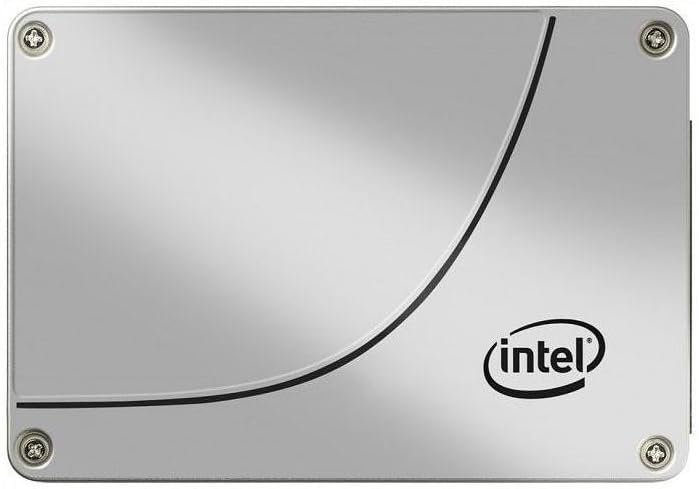
Figure 1 : Face avant view of the Intel DC S3710 800 GB 2.5" Internal Solid State Drive, showcasing its metallic silver casing with the Intel logo and a distinctive curved line design.
Configuration et installation
The Intel DC S3710 SSD is designed for internal installation in desktop computers. Ensure your system is powered off and disconnected from the power source before proceeding.
Exigences:
- Ordinateur de bureau avec une baie de lecteur 2.5 pouces disponible.
- Câble de données SATA.
- SATA power cable from your power supply unit (PSU).
- Tournevis (tête Phillips recommandée).
Étapes d'installation :
- Préparez votre ordinateur : Power down your desktop computer and unplug all cables. Open the computer case.
- Localisez un emplacement de lecteur : Identify an available 2.5-inch drive bay. Some cases may require a 3.5-inch to 2.5-inch adapter bracket (not included).
- Monter le SSD : Secure the SSD into the drive bay using screws. Ensure it is firmly seated to prevent movement.
- Connectez le câble de données : Connect one end of the SATA data cable to the SSD's SATA data port and the other end to an available SATA port on your motherboard.
- Connectez le câble d'alimentation : Connect a SATA power cable from your PSU to the SSD's SATA power port.
- Fermez le boîtier: Once all connections are secure, close your computer case and reconnect all cables.
- Mise sous tension : Allumez votre ordinateur. Le système devrait détecter le nouveau SSD.
Mode d'emploi
After physical installation, the SSD needs to be initialized and formatted before use. If you plan to install an operating system, refer to your operating system's installation guide.
Initializing and Formatting (Windows 10 Example):
- Gestion des disques ouverts : Right-click the Start button and select "Disk Management".
- Initialiser le disque : A pop-up window may appear prompting you to initialize the new disk. Select MBR (Master Boot Record) or GPT (GUID Partition Table) based on your system's requirements (GPT is recommended for modern systems and drives larger than 2TB, though this drive is 800GB). Click OK.
- Créer un nouveau volume simple : Locate the unallocated space on your new SSD. Right-click it and select "New Simple Volume...".
- Suivre le magicien : Follow the New Simple Volume Wizard to specify the volume size, assign a drive letter, and format the partition (NTFS file system is standard for Windows).
- Complet: Once the wizard completes, your SSD will be ready for use.
Transfert de données :
Vous pouvez transférer files to and from the SSD like any other storage drive. For optimal performance, ensure your motherboard's SATA ports are configured for AHCI mode in the BIOS/UEFI settings.
Entretien
Solid State Drives generally require less maintenance than traditional Hard Disk Drives. However, following these practices can help maintain performance and extend lifespan:
- Activer TRIM : Ensure TRIM is enabled in your operating system. TRIM helps the SSD manage data more efficiently, preventing performance degradation over time. Most modern operating systems (Windows 7+, macOS, Linux) enable TRIM by default.
- Évitez la défragmentation : Ne défragmentez pas un SSD. La défragmentation est conçue pour les disques durs et peut réduire la durée de vie d'un SSD en provoquant des cycles d'écriture inutiles.
- Maintenir un espace libre : Essayez de conserver au moins 10 à 15 % de la capacité de votre SSD libre. Cela permet aux algorithmes d'équilibrage d'usure du SSD de fonctionner de manière optimale.
- Mises à jour du micrologiciel : Periodically check Intel's official website for firmware updates for your SSD model. Firmware updates can improve performance, stability, and address known issues.
- Proper Shutdowns: Always shut down your computer properly. Abrupt power loss can potentially lead to data corruption or drive issues.
Dépannage
If you encounter issues with your Intel DC S3710 SSD, refer to the following common problems and solutions:
| Problème | Cause possible | Solution |
|---|---|---|
| SSD not detected by BIOS/OS. | Loose cables, incorrect BIOS settings, faulty port. |
|
| Performances lentes. | TRIM not enabled, nearly full drive, outdated firmware. |
|
| Le système d'exploitation ne démarre pas depuis le SSD. | Incorrect boot order, corrupted OS installation. |
|
Caractéristiques
| Fonctionnalité | Détail |
|---|---|
| Marque | Intel |
| Série de modèles | SSDSC2BA800G4 |
| Capacité de stockage | 800 Go |
| Facteur de forme | 2.5 pouces |
| Interface | SATA 6 Gb/s |
| Type d'installation | Disque dur interne |
| Appareils compatibles | Bureau |
| Poids de l'article | 2.53 onces |
| Dimensions du produit (L x l x H) | 4.1 x 2.7 x 0.3 pouces |
| Fabricant | Société Intel |
| Première date disponible | 16 février 2015 |
Garantie et assistance
Pour obtenir des informations sur la garantie et l'assistance technique, veuillez consulter le site officiel d'Intel. webConsultez leur site web ou contactez leur service client. Conservez votre reçu d'achat comme preuve d'achat pour toute réclamation au titre de la garantie.
Intel may offer various support resources including:
- Base de connaissances en ligne et FAQ.
- Driver and firmware downloads.
- Community forums.
- Direct customer support via phone or email.
Envisagez l'achatasing additional data recovery plans for enhanced protection of your valuable data. Options such as 2-Year or 3-Year Data Recovery Plans may be available from various retailers.


