Introduction
This manual provides detailed instructions for the installation, operation, maintenance, and troubleshooting of your Clarion NX514 Car Navigation System. The NX514 is an advanced AV navigation unit featuring a 6.2-inch VGA display, SmartAccess Link for smartphone integration, Google Voice Search, Mapple Navi 5 for comprehensive navigation, and various media playback options including DVD, USB, SD, and Bluetooth.
Veuillez lire attentivement ce manuel avant d'utiliser le produit afin de garantir une utilisation sûre et optimale.
Installation
Une installation correcte est essentielle au bon fonctionnement et à la sécurité de votre système de navigation. Il est fortement recommandé de faire appel à un professionnel qualifié.
1. Déballage et vérification des composants
Vérifiez que tous les composants sont présents :
- Unité principale Clarion NX514
- Antenne GPS
- Faisceaux de câbles (alimentation, haut-parleurs, etc.)
- Matériel de montage
- Manuel de l'utilisateur (ce document)
2. Connexions de câblage
Connect the wiring harness to your vehicle's power supply, ground, and speaker outputs. Ensure all connections are secure to prevent malfunctions. The GPS antenna should be mounted in a location with a clear view du ciel pour une réception optimale du signal.
For SmartAccess Link functionality, connect your smartphone via the HDMI input. An appropriate adapter may be required for certain iPhone models (e.g., iPhone 5s/5c/5).
3. Insertion de la carte SD
Insert the provided 8GB SD card containing map data into the designated SD card slot on the unit. Ensure it is inserted correctly and securely.

Figure 1 : Face avant view of the Clarion NX514 unit. This image shows the main display and control buttons, illustrating the general appearance of the device during setup.
Mode d'emploi
1. Basic Interface and Touchscreen
The Clarion NX514 features a 6.2-inch VGA touchscreen for intuitive control. Tap icons and menus to navigate through functions. Physical buttons are also available for common operations like volume control and menu access.
2. Google Voice Search
The system integrates Google Voice Rechercher hands-free operation. To activate, press the voice command button (if available on your steering wheel or unit) and speak your command. You can search for destinations, points of interest, or control navigation functions. A smartphone is required for full voice recognition capabilities.
- Example Commandes : "Find a Japanese restaurant," "Navigate to [address]," "Change route."
- Gourmet Search: Access restaurant information from services like Gurunavi, Hot Pepper Gourmet, and Yahoo! JAPAN. You can narrow down destinations, view details, make calls (requires Bluetooth pairing with a smartphone), and set routes via voice.

Figure 2: Clarion NX514 demonstrating Google Voice Search. The image shows the navigation unit displaying a map, with speech bubbles illustrating voice commands for searching for Japanese food and filtering by price.
3. SmartAccess Link (Smartphone Integration)
Connect your iPhone or Android smartphone to the NX514 via the HDMI input to access various popular apps directly on the navigation screen. This allows for playback of music, videos, and other content from your smartphone. Ensure your smartphone is compatible and any necessary adapters are used.
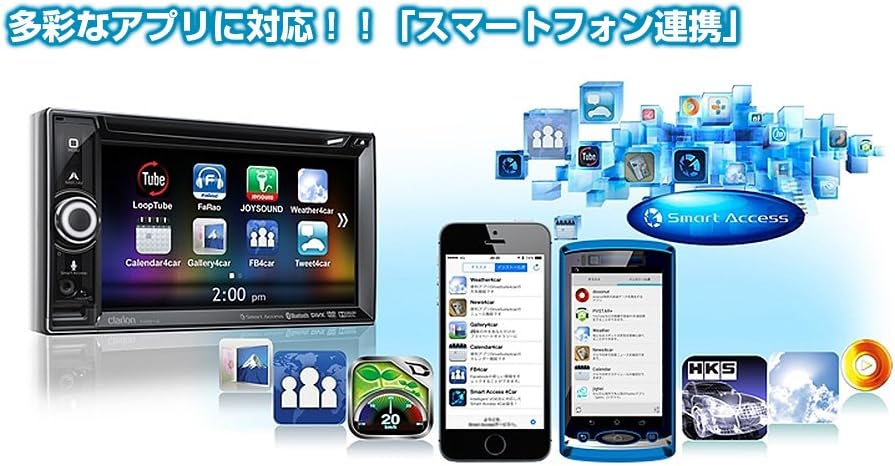
Figure 3: Clarion NX514 displaying various smartphone applications via SmartAccess Link. The image shows the unit's screen mirroring apps like YouTube, Calendar, and Weather, alongside two smartphones.
4. Navigation (Mapple Navi 5)
The Mapple Navi 5 system provides comprehensive navigation features designed to enhance your driving experience.
- Recherche de destination : Rechercher destinations by address, name, or category.
- Tourism Navigation: Access a vast database of tourist spots, including recommended drive courses, seasonal attractions (flowers, seasonal fish, fruit picking), and local gourmet information.
- SA/PA & Roadside Stations: Find information on service areas, parking areas, and roadside stations across Japan.
- Indications d'itinéraire : Follow clear visual and voice prompts for turn-by-turn directions.

Figure 4: Clarion NX514 showcasing Mapple Navi 5 features. This image highlights various tourism-related functions such as recommended drive courses, spot search, and information on SA/PA and local gourmet.
5. Lecture multimédia
The NX514 supports various media formats:
- Lecture de DVD : Insert a DVD into the disc slot for video and audio playback.
- Carte USB/SD : Lire l'audio et la vidéo files stored on USB devices or SD cards.
- Audio Bluetooth: Stream music wirelessly from your Bluetooth-enabled smartphone or other devices.
- Télévision à un segment : Watch digital terrestrial television broadcasts (where available).

Figure 5: Clarion NX514 demonstrating Bluetooth phone and audio functions. The image shows the unit's screen displaying a phone dialer and a music playback interface, along with a smartphone connected via NaviCon and Bluetooth.
6. Steering Wheel Remote Control
If your vehicle is equipped with steering wheel controls, the NX514 can be integrated to allow safe and convenient operation of audio and navigation functions without taking your hands off the wheel. This includes volume adjustment, track skipping, and activating voice commands.
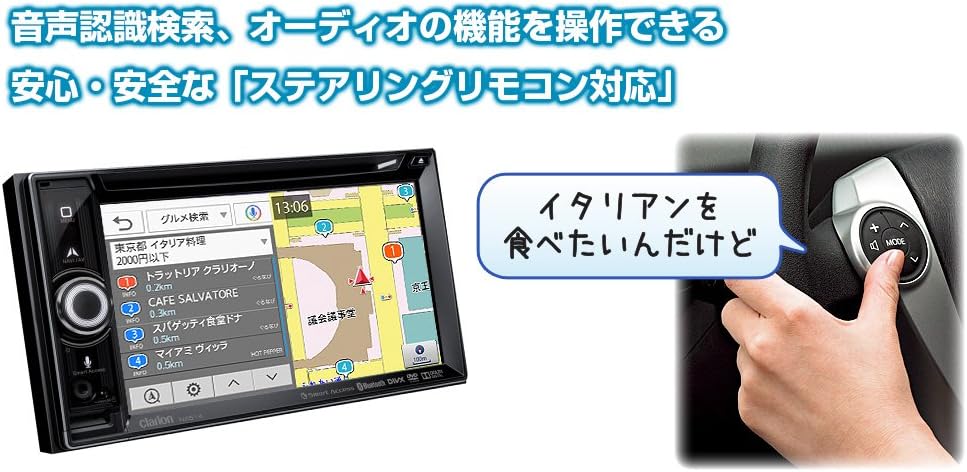
Figure 6: Clarion NX514 unit shown alongside a steering wheel with integrated remote controls. This illustrates the convenience of operating the navigation system using steering wheel buttons, including voice recognition activation.
Entretien
To ensure the longevity and optimal performance of your Clarion NX514, follow these maintenance guidelines:
- Nettoyage de l'écran : Gently wipe the touchscreen with a soft, dry cloth. For stubborn smudges, use a cloth lightly dampened with a screen cleaner specifically designed for electronic displays. Avoid abrasive materials or harsh chemicals.
- Nettoyage général : Veillez à ce que l'appareil reste propre et exempt de poussière et de débris. Utilisez une brosse douce ou de l'air comprimé pour nettoyer autour des boutons et dans les interstices.
- Entretien de la carte SD : Handle the SD card carefully. Avoid exposing it to extreme temperatures, moisture, or static electricity. Always ensure the unit is powered off or in a safe state before inserting or removing the SD card to prevent data corruption.
- Mises à jour du micrologiciel : Periodically check the official Clarion webConsultez ce site pour toute mise à jour du micrologiciel disponible afin de garantir que votre système bénéficie des dernières fonctionnalités et corrections de bugs.
Dépannage
If you encounter issues with your Clarion NX514, refer to the following common problems and solutions:
Pas d'alimentation / L'appareil ne s'allume pas
- Vérifiez que toutes les connexions électriques sont bien fixées.
- Verify the vehicle's fuse related to the car audio system.
- Assurez-vous que le contact du véhicule est en position ACC ou ON.
No GPS Signal / Incorrect Position
- Assurez-vous que l'antenne GPS est montée dans un endroit dégagé. view du ciel.
- Avoid placing objects near the antenna that could block the signal.
- Allow a few minutes for the system to acquire satellites after starting the vehicle.
SD Card Errors / Map Data Not Loading
- Assurez-vous que la carte SD est complètement et correctement insérée dans son emplacement.
- The SD card contains critical map data. Avoid removing it while the unit is operating or during power fluctuations.
- If data corruption is suspected, contact Clarion support for assistance. Do not attempt to modify the SD card contents yourself, as this may void the warranty.
Problèmes de connexion Bluetooth
- Ensure Bluetooth is enabled on both the NX514 and your smartphone.
- Supprimez les appairages précédents sur les deux appareils et tentez de les appairer à nouveau.
- Move your smartphone closer to the NX514 unit.
L'écran tactile ne répond pas
- Effectuez une réinitialisation logicielle de l'appareil (reportez-vous à la procédure de réinitialisation spécifique de l'appareil, généralement un petit bouton de réinitialisation).
- Assurez-vous que l'écran est propre et exempt de débris.
Caractéristiques
| Fonctionnalité | Spécification |
|---|---|
| Marque | Clairon |
| Nom du modèle | NX514 |
| Taille de l'écran | 6.2 pouces |
| Type d'affichage | LCD (VGA with high-brightness LED) |
| Caractéristiques | Voice Operation, Touchscreen |
| Connectivité | Bluetooth, USB, HDMI |
| Type de carte | City Tour (Mapple Navi 5) |
| Type de montage | Support de tableau de bord |
| Stockage de mémoire | 8 Go (carte SD) |
| Poids du produit | 2000 grammes |
| Compatible Satellite System | GPS |
| Type de véhicule compatible | Voiture de tourisme |
Garantie et assistance
Your Clarion NX514 Car Navigation System is covered by a manufacturer's warranty. Please refer to the warranty card included with your product for specific terms and conditions, including the warranty period and coverage details.
For technical support, service, or further inquiries, please contact Clarion customer service or visit the official Clarion website:
Clarion Official Product Page (Japanese)
When contacting support, please have your product model number (NX514) and purchase information readily available.