Introduction
The ZAGG Folio Case with Backlit Bluetooth Keyboard is designed to enhance your iPad Air experience by providing both robust protection and a comfortable, efficient typing solution. This manual provides essential instructions for the proper setup, operation, and maintenance of your device, ensuring optimal performance and longevity.
Ce qui est inclus
- ZAGG Folio Case with Integrated Bluetooth Keyboard
- Câble de chargement USB
Installation
1. Inserting Your iPad Air
Carefully align your iPad Air with the protective shell of the ZAGG Folio case. Gently press the iPad into the case until it is securely seated. Ensure all ports, buttons, and the camera cutout are correctly aligned and accessible.
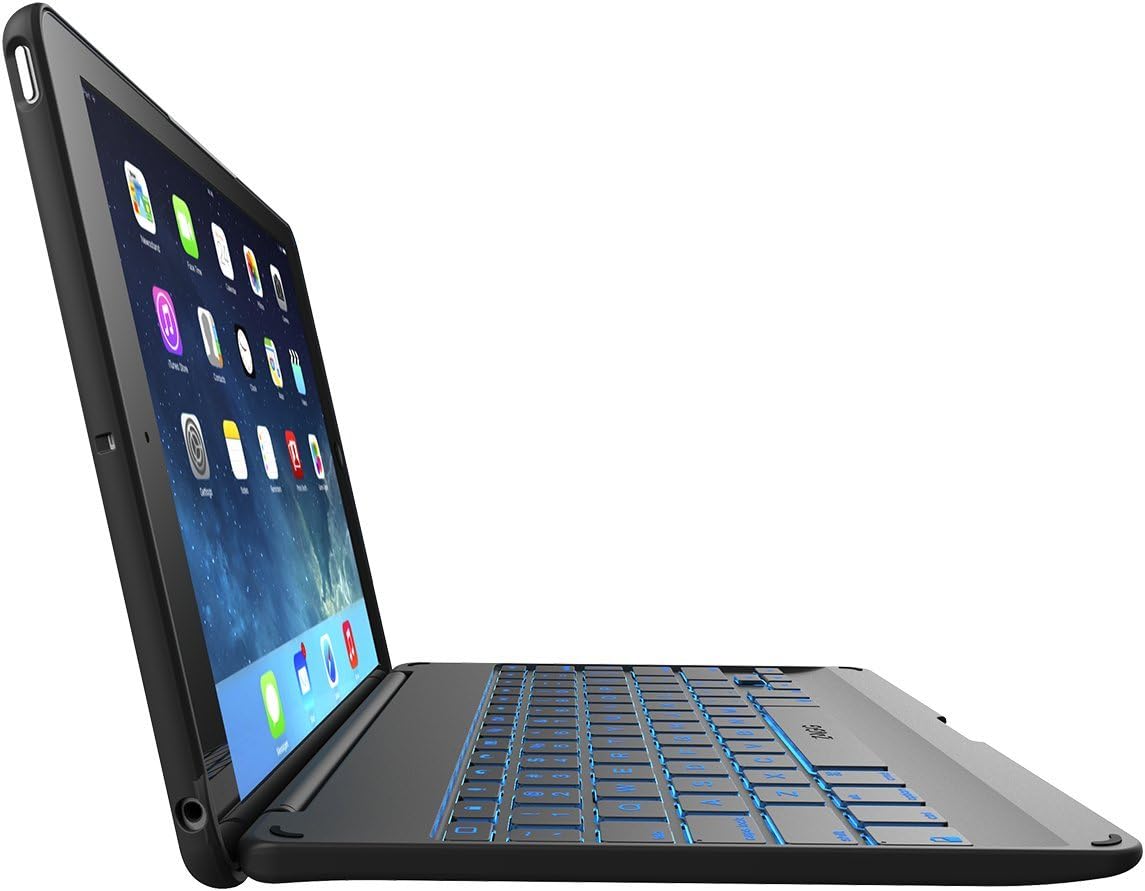
Image : Côté profile of the ZAGG Folio Case with iPad Air, demonstrating its thin design when open.
2. Charger le clavier
Before initial use, fully charge the keyboard. Connect the included USB cable to the keyboard's charging port and to a powered USB port or a wall adapter. The charging indicator light will illuminate. A full charge provides up to three months of regular use (based on two hours per day without backlight activation).

Image : Côté view of the ZAGG Folio Case with iPad Air, showing the charging port and other side controls.
3. Couplage avec Bluetooth
- Allumez le clavier en faisant glisser l’interrupteur d’alimentation sur la position ON.
- On your iPad Air, navigate to Paramètres > Bluetooth et assurez-vous que le Bluetooth est activé.
- Press the Bluetooth pairing button on the keyboard (typically indicated by a Bluetooth icon). The indicator light will flash, signifying that the keyboard is in pairing mode.
- On your iPad Air, select 'ZAGG Folio' from the list of available devices.
- Follow any on-screen prompts to complete the pairing process. Once successfully paired, the indicator light on the keyboard will stop flashing.
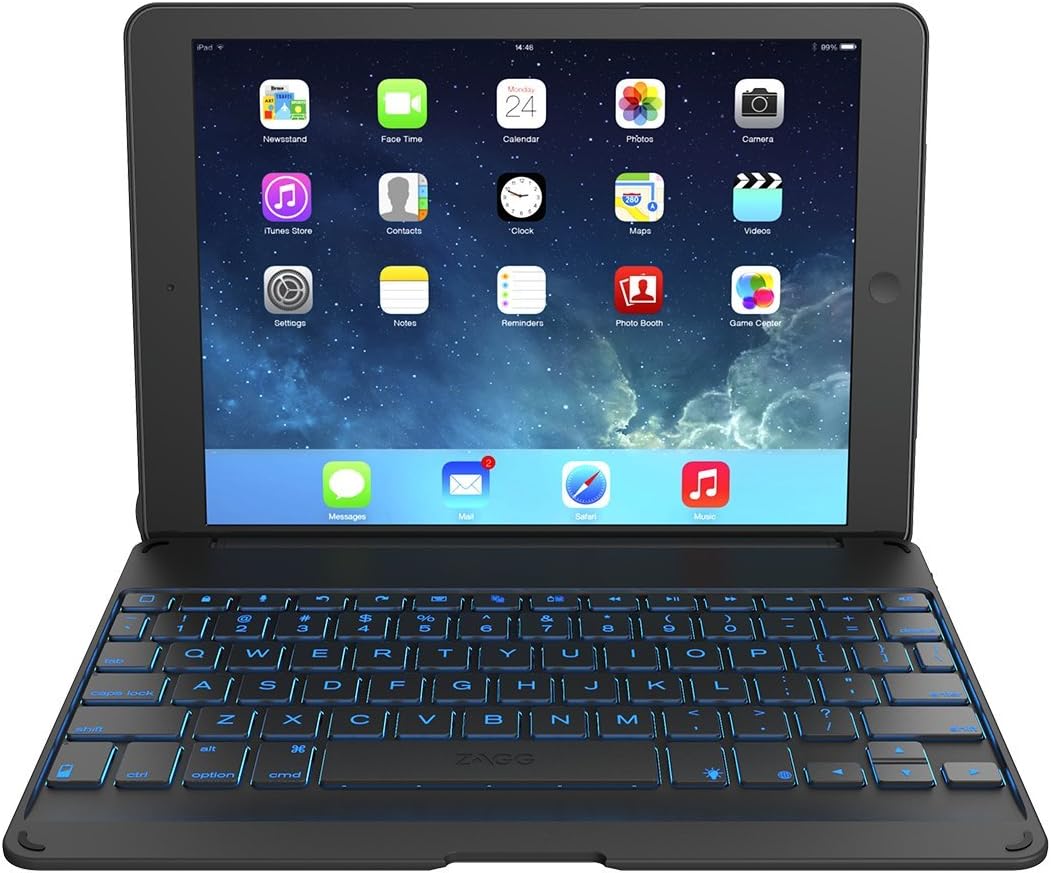
Image: ZAGG Folio Case with Backlit Bluetooth Keyboard for iPad Air, open with iPad screen displaying apps and keyboard illuminated.
Mode d'emploi
1. Réglage ViewAngles
The ZAGG Folio features a unique hinge design that allows you to position your iPad Air at various viewing angles, up to 135 degrees. Gently adjust the screen to your preferred angle for comfortable typing, viewing, or media consumption.

Image: ZAGG Folio Case with iPad Air, shown at an angled view, highlighting the adjustable hinge and backlit keyboard.
2. Backlit Keys
The keyboard is equipped with backlit keys, enabling comfortable typing in low-light environments. Press the backlight key (often marked with a sun or lightbulb icon) to cycle through different brightness levels and color options. Be aware that using the backlight feature will increase battery consumption.
3. Touches de fonction spéciales
The top row of the keyboard includes dedicated function keys for quick access to common iPad features. These include controls for Home, Lock, Siri, volume adjustment, media playback, and more. Refer to the key legends printed on the keyboard for specific functions.
4. Sleep/Wake Function
Cleverly placed magnets within the folio case automatically activate your iPad Air's sleep/wake function when the case is opened or closed. This feature helps conserve your iPad's battery life.

Image: ZAGG Folio Case closed, protecting the iPad Air, displaying its compact and portable form factor.
Entretien
1. Nettoyage
To clean the ZAGG Folio case and keyboard, use a soft, slightly damp, lint-free cloth. Avoid using harsh chemicals, abrasive cleaners, or excessive moisture, as these can damage the device. Ensure no liquid enters the keyboard or iPad ports.
2. Gestion de la batterie
To maximize the keyboard's battery life, turn off the keyboard when it is not in use. The automatic sleep/wake function of the iPad, activated by closing the case, also contributes to battery conservation. Recharge the keyboard promptly when the battery indicator signals low power.
Dépannage
1. Clavier non apparié
- Assurez-vous que le clavier est complètement chargé et allumé.
- Toggle your iPad's Bluetooth off and then back on.
- In your iPad's Bluetooth settings, 'Forget This Device' for the ZAGG Folio and attempt to re-pair.
- Confirm the keyboard is in pairing mode (indicator light flashing).
2. Les touches ne répondent pas
- Verify that the keyboard is properly paired and connected to your iPad.
- Rechargez la batterie du clavier.
- Restart your iPad Air.
3. Le rétroéclairage ne fonctionne pas
- Assurez-vous que le clavier est sous tension.
- Press the backlight key to cycle through brightness levels and confirm it is not set to off.
- Check the keyboard's battery level; low battery may disable backlighting to conserve power.
Caractéristiques
| Numéro de modèle | ID5ZFK-BB0 |
| Appareils compatibles | iPad Air |
| Connectivité | Bluetooth |
| Dimensions du produit (L x l x H) | 10.4 x 1.2 x 7.2 pouces |
| Poids de l'article | 1.15 livres |
| Batterie | 1 Lithium-Ion (inclus) |
| Caractéristiques spéciales | Backlit keys, Multi-angle hinge, Sleep/Wake function |
| Couleur | Noir |
Informations et assistance relatives à la garantie
For detailed warranty information, product registration, and technical support, please visit the official ZAGG webVous pouvez consulter leur site web ou contacter leur service client. Il est recommandé de conserver votre preuve d'achat pour toute réclamation au titre de la garantie.
Official ZAGG Website: zagg.com


