1. Introduction
This user manual provides comprehensive instructions for the setup, operation, and maintenance of your new Microsoft Wired Keyboard, Modèle ANB-00021Veuillez lire attentivement ce manuel avant d'utiliser le produit afin d'en garantir des performances et une durée de vie optimales.

Figure 1: Microsoft Wired Keyboard (Model ANB-00021)
This image displays the Microsoft Wired Keyboard from an angled perspective, showcasing its full layout, including the numeric keypad and special function keys. The keyboard is black with a standard QWERTY layout and a wired USB connection.
2. caractéristiques du produit
The Microsoft Wired Keyboard is designed for efficiency and durability, offering a comfortable typing experience. Key features include:
- Black, English/International Layout: Standard QWERTY layout suitable for various regions.
- Connectivité USB : Simple and reliable wired connection.
- Ultra-Flat Design: Mince profile for a modern aesthetic and comfortable wrist position.
- Short Key Travel: Responsive keys with a short actuation distance for efficient typing.
- Résistant aux éclaboussures : Designed to withstand minor spills, protecting internal components.
- Raccourcis clavier dédiés : Includes 5 special keys for quick access to common functions.
- Touche de la calculatrice : Instant access to the calculator application.
- Gently Inclined Key Block: Ergonomic design for reduced strain during extended use.
- Classic Keyboard Layout: Familiar and intuitive key arrangement.
- Prêt à l'emploi : No software installation required; simply connect and use.
3. Installation
Setting up your Microsoft Wired Keyboard is a straightforward process due to its Plug and Play functionality.
- Déballer le clavier : Retirez délicatement le clavier de son emballage.
- Se connecter à un port USB : Locate an available USB port on your computer (desktop PC, laptop, or compatible device). Insert the USB connector of the keyboard firmly into the USB port.
- Reconnaissance du système : Your operating system (Windows, macOS, Linux, etc.) will automatically detect and install the necessary drivers. This process usually takes a few seconds.
- Prêt à l'emploi : Once the drivers are installed, the keyboard is ready for immediate use. No additional software or configuration is typically required.
For optimal performance, ensure the USB cable is not kinked or strained.
4. Mode d'emploi
The Microsoft Wired Keyboard operates like any standard QWERTY keyboard, with additional convenience features.
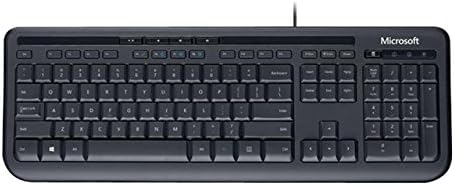
Figure 2 : Vue de dessus view of the keyboard layout
Cette image offre une vue claire de dessus. view of the Microsoft Wired Keyboard, highlighting the full QWERTY key layout, function keys, numeric keypad, and the row of special hotkeys located above the function keys.
Fonctions clés standard
- Clés alphanumériques : Utilisé pour saisir des lettres, des chiffres et des symboles.
- Touches de fonction (F1-F12) : Perform various tasks depending on the active application or operating system.
- Clavier numérique: Located on the right, for efficient data entry.
- Touches de navigation : Arrow keys, Home, End, Page Up, Page Down for cursor movement and scrolling.
- Touches de modification : Shift, Ctrl, Alt, Windows key for combination shortcuts.
Special Keys (Hotkeys)
The keyboard features a row of dedicated hotkeys above the function keys for quick access to multimedia and system functions:
- Touches de contrôle multimédia : Lecture/Pause, Arrêt, Piste précédente, Piste suivante.
- Touches de contrôle du volume : Couper le son, baisser le volume, augmenter le volume.
- Touche de la calculatrice : Instantly launches the system's calculator application.
- Other Programmable Keys: Some models may include additional keys that can be customized through operating system settings or Microsoft keyboard software (if available).
Familiarize yourself with these keys to enhance your productivity.
5. Entretien
Proper care and maintenance will extend the life of your Microsoft Wired Keyboard.
- Nettoyage:
- Débranchez le clavier de votre ordinateur avant de le nettoyer.
- Utilisez légèrement un chiffon doux et non pelucheux.ampse termine à l'eau ou avec une solution nettoyante douce et non abrasive.
- Wipe the surface of the keys and the keyboard casing.
- Pour la poussière et les débris entre les touches, utilisez de l'air comprimé.
- Ne pas N’immergez pas le clavier dans l’eau et n’utilisez pas de produits chimiques agressifs.
- Résistance aux éclaboussures : While the keyboard is splash-resistant, it is not waterproof. Avoid exposing it to excessive liquids. In case of a spill, disconnect immediately, wipe dry, and allow to air dry completely before reconnecting.
- Stockage: Lorsqu'il n'est pas utilisé pendant une période prolongée, rangez le clavier dans un endroit propre et sec, à l'abri des températures extrêmes.
- Entretien des câbles : Évitez les coudes ou les torsions brusques du câble USB afin de prévenir tout dommage.
6. Dépannage
Si vous rencontrez des problèmes avec votre clavier, consultez les problèmes et solutions courants suivants :
| Problème | Cause possible | Solution |
|---|---|---|
| Le clavier ne répond pas | Connexion USB défectueuse, port USB incorrect, problème de pilote. | Ensure the USB cable is securely plugged into a working USB port. Try a different USB port. Restart your computer. |
| Certaines touches ne fonctionnent pas | Debris under the key, key mechanism damage. | Use compressed air to clear debris. If the key is physically damaged, contact support. |
| Hotkeys not functioning | Software conflict, operating system settings. | Ensure your operating system is up to date. Check keyboard settings in your OS control panel. |
| Unexpected behavior after liquid exposure | Internal components affected by liquid. | Immediately disconnect the keyboard. Allow it to dry completely for at least 24-48 hours in a well-ventilated area before attempting to reconnect. If issues persist, the keyboard may be damaged. |
If the problem persists after trying these solutions, please refer to the Support section.
7. Spécifications
Detailed technical specifications for the Microsoft Wired Keyboard (Model ANB-00021):
| Attribut | Détail |
|---|---|
| Numéro de modèle | ANB-00021 |
| Marque | Microsoft |
| Technologie de connectivité | USB (filaire) |
| Description du clavier | Standard QWERTY, USB |
| Dossier spécial | Résistant aux éclaboussures |
| Couleur | Noir |
| Nombre de clés | 600 (Note: This number is as per product specifications and may refer to total keypresses lifespan or a specific internal metric, not physical keys.) |
| Rétro-éclairage du clavier | None (Single Color support listed, but typically implies no backlighting for this model) |
| Style | Moderne |
| Matériel | Plastique |
| Dimensions du produit (L x l x H) | 8.66 x 3.15 x 1.18 pouces (environ 22 x 8 x 3 cm) |
| Poids de l'article | 1.31 livres (0.59 kg environ) |
| Appareils compatibles | Laptop, PC, Tablet, Smartphone (via appropriate adapters if needed) |
| Fabricant | Microsoft |
| Date de première disponibilité | 9er mars 2011 |
8. Garantie et assistance
For warranty information and technical support regarding your Microsoft Wired Keyboard, please refer to the official Microsoft support channels.
- Support en ligne: Consultez le support officiel de Microsoft webSite regroupant les FAQ, les guides de dépannage et les téléchargements de pilotes.
- Contacter le support : For direct assistance, contact Microsoft customer service through their provided contact methods (phone, chat, email).
- Preuve d'achat : Conservez toujours votre preuve d'achat pour toute réclamation au titre de la garantie.
Specific warranty terms and conditions may vary by region and purchase date. Please consult the documentation included with your product or the Microsoft website pour obtenir les détails de garantie les plus précis et les plus récents.