
Antec Vortex View 360
Antec Vortex View 360 AIO Liquid CPU Cooler Instruction Manual
Modèle : Vortex View 360
Introduction
Thank you for choosing the Antec Vortex View 360 AIO Liquid CPU Cooler. This manual provides essential information for the proper installation, operation, and maintenance of your new cooling system. Please read this manual thoroughly before installation to ensure optimal performance and longevity of your product.

Un plusview of the Antec Vortex View 360 AIO Liquid CPU Cooler, showcasing the 360mm radiator with three 120mm fans and the pump block with its integrated 5-inch IPS display.
Consignes de sécurité
Veuillez respecter les consignes de sécurité suivantes afin d'éviter d'endommager le produit ou de vous blesser :
- Assurez-vous que l'alimentation de votre ordinateur est complètement coupée avant toute installation ou opération de maintenance.
- Manipulez les composants avec précaution pour éviter tout dommage.
- Do not open the pump or radiator, as this may void the warranty and cause liquid leakage.
- Keep the product away from extreme temperatures, humidity, and direct sunlight.
- Utilisez uniquement les accessoires et le matériel de montage fournis.
Contenu du colis
Vérifiez que tous les composants sont présents dans votre colis :
- Antec Vortex View 360 AIO Cooler (Radiator, Pump, Fans)
- Mounting Hardware for Intel (LGA 115X/1200/1700/1851)
- Matériel de montage pour AMD (AM4/AM5)
- USB 3.0 Hub with Passthrough Cable
- Câbles pour ventilateur et RGB
- Manuel d'utilisation

A visual representation of the components included in the Antec Vortex View 360 AIO cooler package, alongside a list of supported CPU sockets: Intel LGA115X/1200/1700/1851 and AMD AM4/AM5.
Guide d'installation
1. Préparation
- Identifiez le type de socket de votre processeur (Intel LGA ou AMD AM).
- Assurez-vous que votre boîtier PC dispose d'un espace suffisant pour un radiateur de 360 mm.
- Gather necessary tools (screwdriver, etc.).
2. Mounting the Radiator and Fans
- Attach the three 120mm fans to the radiator using the provided screws. Ensure the fan airflow direction is appropriate for your case's cooling strategy.
- Mount the radiator assembly to the designated location in your PC case (e.g., top, front).
3. Installing the Pump Block
The pump block comes with pre-applied thermal paste. If you prefer to use your own, carefully clean off the pre-applied paste before applying a new layer.
- Install the appropriate mounting brackets for your CPU socket onto the pump block.
- Carefully place the pump block onto your CPU, aligning it with the mounting holes.
- Secure the pump block using the provided thumb screws or nuts, tightening them in a cross pattern until snug.
- For optimal thermal contact, orient the cold plate as follows: Intel CPUs at 6 o'clock, AMD CPUs at 3 o'clock.

Illustrations detailing the recommended cold plate orientation for Intel (6 o'clock) and AMD (3 o'clock) processors to ensure optimal thermal contact and efficient heat transfer.
The integrated 5-inch IPS display on the pump block features a 360° Rotatable Ball Joint. This allows you to freely adjust and lock the display angle after installation using the built-in twist dial, ensuring optimal viewing from any angle without needing tools.
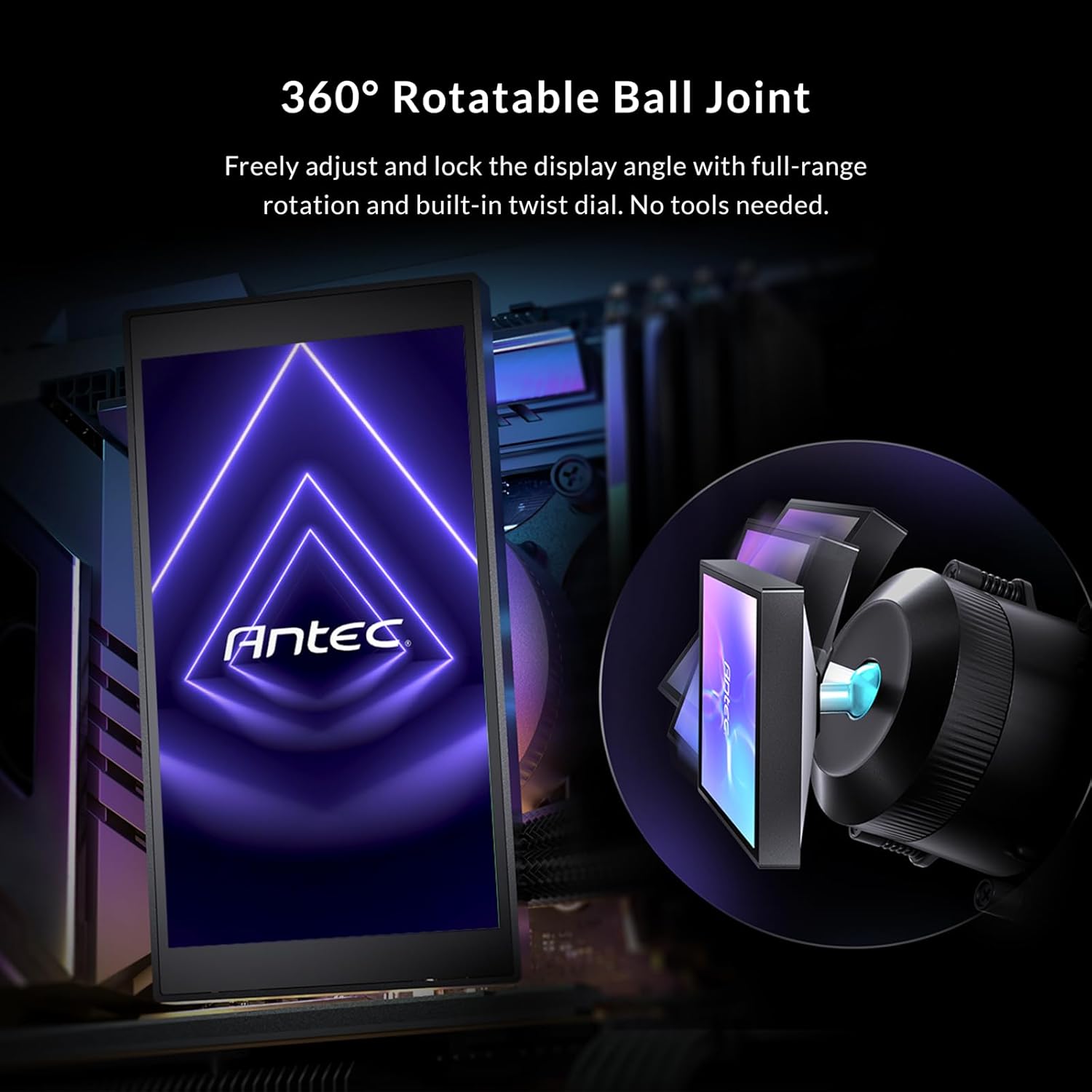
This image illustrates the 360° rotatable ball joint on the pump block, allowing users to freely adjust and lock the display angle for optimal viewing without tools.
4. Câbles de connexion
- Connect the fan PWM cables to the CPU_FAN or AIO_PUMP headers on your motherboard, or to a fan hub if applicable.
- Connect the pump power cable to the dedicated AIO_PUMP header or a suitable fan header on your motherboard.
- Connect the USB cable from the pump to the provided USB 3.0 Hub with Passthrough. Then, connect the USB hub to an available USB 2.0 or 3.0 header on your motherboard. This allows the pump to communicate with the Antec iUnity software while keeping front-panel USB ports accessible.
- Connect the RGB cables from the fans and pump to your motherboard's ARGB header or a compatible RGB controller.

This diagram explains the USB 3.0 Hub with Passthrough feature, allowing the pump to connect to the motherboard while maintaining accessibility for front-panel USB ports.
Mode d'emploi
IPS Display Customization
The Antec Vortex View 360 features a vivid Écran IPS 5-inch with 1280x720 resolution and 300 nits brightness. This display is fully customizable via the Antec iUnity software to show real-time CPU/GPU temperatures, system statistics, animated GIFs, or personalized images.
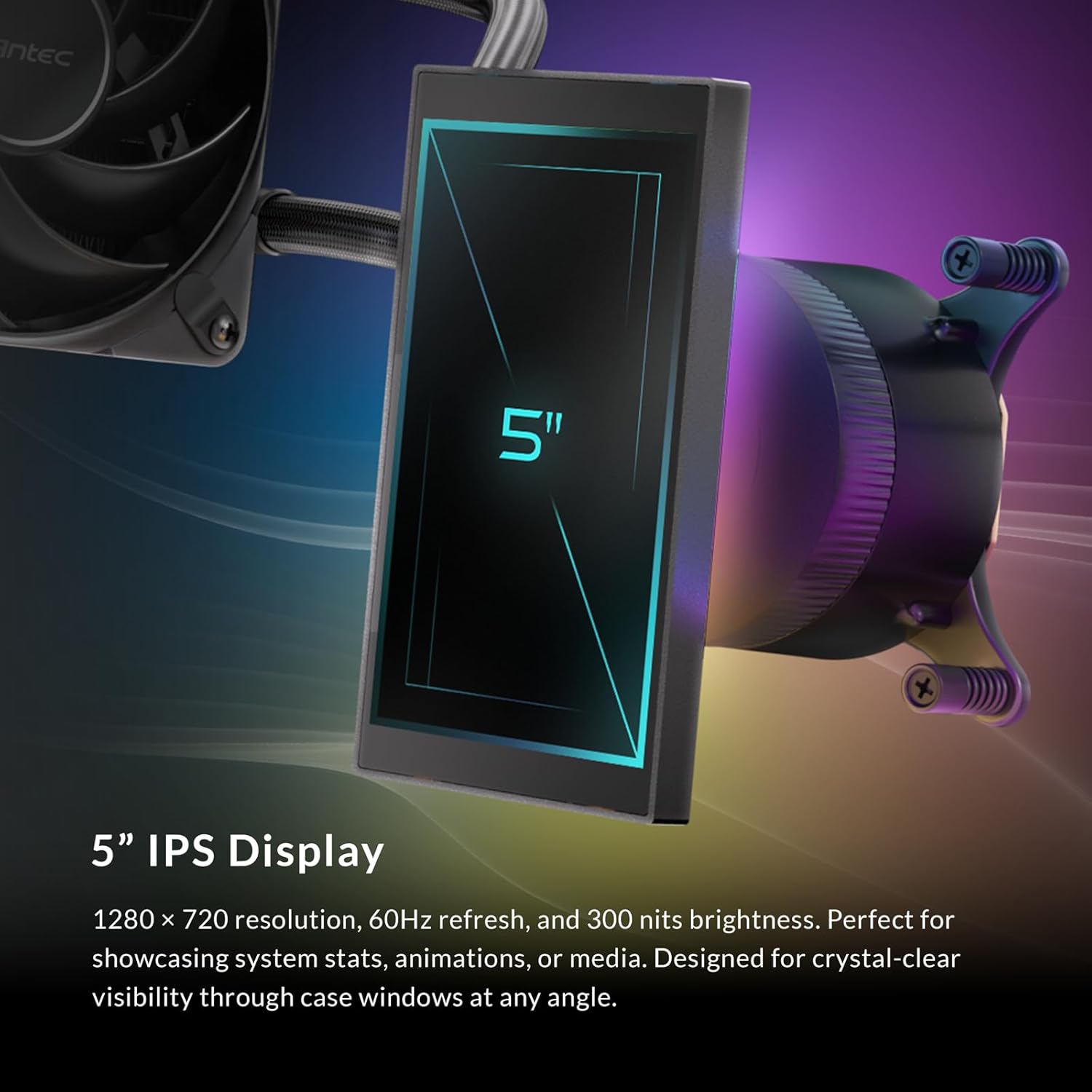
Un détail view of the 5-inch IPS display, highlighting its 1280x720 resolution, 60Hz refresh rate, and 300 nits brightness, designed for clear visibility of system stats, animations, or custom media.
Antec iUnity 2.0 Software
Download and install the Antec iUnity 2.0 software from the official Antec website. This software provides comprehensive control over your cooling system:
- Fan and Pump Curves: Adjust fan speeds and pump performance based on temperature thresholds.
- Éclairage RVB : Customize the addressable RGB backglow system with various effects and colors.
- Display Personalization: Upload custom images, GIFs, or select from pre-set monitoring displays for the IPS screen.

A screenshot of the iUnity 2.0 software dashboard, demonstrating its capabilities for adjusting fan and pump curves, customizing per-zone RGB lighting on the Vortex View, and personalizing the display content.
RGB Backglow System
The pump block features an addressable RGB panel behind the display, delivering customizable ambient lighting. This system can be synchronized with other RGB components in your PC via the Antec iUnity software, allowing you to set custom lighting zones and effects.

This image demonstrates the addressable RGB panel located behind the display, providing customizable ambient lighting across the pump block and adjacent components, controllable via Antec iUnity software.
Entretien
Un entretien régulier contribue à assurer la longévité et les performances optimales de votre système de refroidissement AIO :
- Nettoyage de la poussière : Nettoyez régulièrement les ailettes du radiateur et les pales du ventilateur à l'air comprimé afin d'éviter l'accumulation de poussière, qui peut entraver la circulation de l'air et les performances de refroidissement.
- Gestion des câbles: Assurez-vous que tous les câbles sont bien connectés et n'obstruent pas la circulation de l'air.
- Mises à jour logicielles : Keep the Antec iUnity software updated to the latest version for new features and performance improvements.
- Inspection des fuites : While rare, periodically check for any signs of liquid leakage around the pump block and tubing. If a leak is detected, immediately power off your system and contact Antec support.

Un interne view of the Vortex View pump, illustrating its engineering for low-resonance operation and sub-14 dBA acoustics at 2800 RPM, ensuring quiet performance.
Dépannage
En cas de problème, reportez-vous aux étapes de dépannage courantes suivantes :
- Pas d'alimentation/Ventilateurs ne tournant pas :
- Vérifiez tous les branchements électriques de la pompe et des ventilateurs.
- Ensure the pump is connected to the correct motherboard header (AIO_PUMP or CPU_FAN).
- Verify fan cables are properly connected to the motherboard or fan hub.
- Températures élevées du processeur :
- Vérifiez que le bloc de la pompe est bien fixé au processeur et qu'il assure un bon contact.
- Check if thermal paste is properly applied.
- Assurez-vous que les ventilateurs tournent et sont correctement orientés pour une circulation d'air optimale.
- Nettoyez toute accumulation de poussière sur les ailettes du radiateur.
- Verify pump and fan speeds in Antec iUnity software.
- Display Not Working/Showing Incorrect Info:
- Ensure the USB cable from the pump to the USB hub, and from the hub to the motherboard, is securely connected.
- Restart the Antec iUnity software.
- Check for software updates for Antec iUnity.
- RGB Not Functioning:
- Verify all RGB cables are correctly connected to the motherboard's ARGB header or controller.
- Check RGB settings in Antec iUnity software or your motherboard's RGB software.
Caractéristiques
| Fonctionnalité | Détail |
|---|---|
| Dimensions du produit | 15.51"L x 4.72"l x 1.06"H |
| Marque | Antec |
| Type de connecteur d'alimentation | 4 broches |
| Voltage | 12 volts |
| Quoitage | 400 watts (TDP support) |
| Méthode de refroidissement | Eau |
| Appareils compatibles | Bureau |
| Niveau de bruit | 28.6 Decibels (Fans), Sub-14 dBA (Pump at 2800 RPM) |
| Vitesse de rotation maximale | 2000 tr/min (Ventilateurs) |
| Capacité de débit d'air | 59.23 pieds cubes par minute |
| Poids de l'article | 4 livres |
| Modèle | Vortex View 360 |
| Compatibilité des sockets de processeur | Intel LGA 115X/1200/1700/1851 & AMD AM4/AM5 |
| Écran IPS | 5" IPS, 1280x720 resolution, 300 nits brightness |
Garantie
The Antec Vortex View 360 AIO Liquid CPU Cooler comes with a Garantie de 6 ans from the date of purchase. This warranty covers defects in materials and workmanship under normal use. Please retain your proof of purchase for warranty claims. For detailed warranty terms and conditions, please refer to the official Antec website.
Soutien
For technical assistance, troubleshooting beyond this manual, or warranty inquiries, please visit the official Antec support website or contact their customer service. You can typically find contact information on the Antec website ou sur l'emballage du produit.
Antec Official Website: www.antec.com
Ask a question about this manual
Ask about setup, troubleshooting, compatibility, parts, safety, or missing instructions. Manuals+ will review the question and use this page’s manual context to help answer it.