
1. Installation
This section guides you through the initial setup of your CHUWI CoreBook X laptop.
1.1 Déballage et mise sous tension initiale
- Retirez soigneusement l'ordinateur portable et tous ses accessoires de leur emballage.
- Connect the provided USB-C power adapter to the laptop's USB-C port (PD Charging/USB 2.0) and then to a power outlet.
- Open the laptop lid. The laptop may power on automatically or you may need to press the power button located on the keyboard.
- Suivez les instructions à l'écran pour terminer la configuration initiale de Windows 11 Pro, notamment la sélection de la langue, la connexion réseau et la création du compte utilisateur.
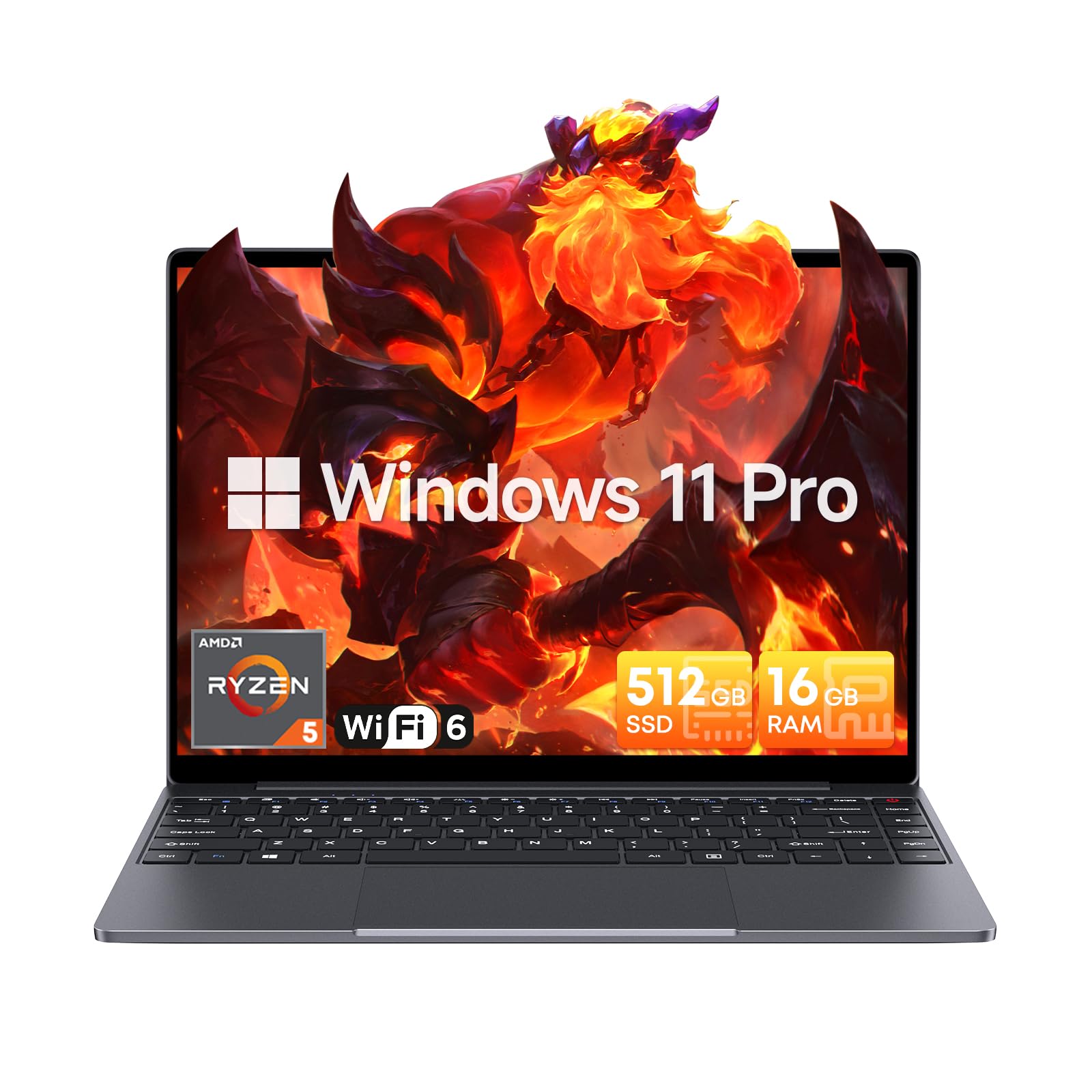
Image: The CHUWI CoreBook X laptop open on a desk, ready for use.
1.2 Connexion de périphériques
- Périphériques USB : Connect USB mice, keyboards, or external storage devices to the available USB 3.0 ports.
- Affichage externe : Use the HDMI 1.4 port or the full-featured USB Type-C port to connect an external monitor.
- Périphériques audio : Branchez des écouteurs ou des haut-parleurs externes à la prise audio 3.5 mm.
- Carte TF : Insert a TF card into the TF card slot for additional storage.

Image : détaillée view of the laptop's ports, including TF Card Slot, 3.5mm Headphone Jack, USB 3.0 Port, Lock Slot, USB Type-C (PD Charging/USB 2.0), HDMI 1.4, and Full-featured USB Type-C Port.
1.3 Connexion réseau et Bluetooth
- Wi-Fi 6 : Pour vous connecter à un réseau sans fil, cliquez sur l'icône Wi-Fi dans la barre des tâches, sélectionnez votre réseau et saisissez le mot de passe.
- Bluetooth 5.2: To pair Bluetooth devices, go to Windows Settings > Bluetooth & devices, turn on Bluetooth, and select your device to pair.
2. Fonctionnement
This section covers the basic operation of your CHUWI CoreBook X laptop.
2.1 Gestion de l'alimentation
- Mise sous tension : Appuyez sur le bouton d'alimentation.
- Mode veille: Fermez le couvercle ou sélectionnez « Veille » dans le menu Démarrer.
- Fermer: Sélectionnez « Arrêter » dans le menu Démarrer.
- Redémarrage: Sélectionnez « Redémarrer » dans le menu Démarrer.
2.2 Clavier et pavé tactile
- The laptop features a full-sized backlit keyboard with white illumination. Use the function keys (Fn) in combination with other keys for shortcuts like adjusting brightness, volume, or toggling the backlight.
- The large touchpad supports multi-touch gestures for navigation. Refer to Windows settings for customizing touchpad gestures.

Image : Un gros plan view of the laptop's backlit keyboard and large touchpad, highlighting its navigation features.
2.3 Affichage et audio
- The 14-inch IPS display offers a 2160*1440 resolution. Adjust display settings (brightness, resolution, scaling) through Windows Display Settings.
- The laptop is equipped with stereo speakers. Volume can be controlled via the keyboard function keys or the Windows sound settings.
- An HD webcam is integrated for video conferencing.

Image: The laptop's 14-inch 2K IPS display showcasing vibrant colors and a comparison of 3:2 and 16:9 aspect ratios.
2.4 Vidéo Overview
Video: An official product video demonstrating various features and usage scenarios of the CHUWI CoreBook X laptop, including its performance, display, and connectivity options.
3. Entretien
Un entretien régulier garantit la longévité et les performances optimales de votre ordinateur portable.
3.1 Nettoyage
- Utilisez un chiffon doux non pelucheux pour nettoyer l'écran. Pour les taches tenaces,ampNettoyez légèrement le chiffon avec de l'eau ou un nettoyant adapté aux écrans.
- Wipe the chassis and keyboard with a soft, dry cloth. Avoid using harsh chemicals or abrasive materials.
- Periodically use compressed air to clear dust from the vents to maintain efficient cooling.
3.2 Entretien de la batterie
- Avoid fully discharging the battery frequently. Charge the laptop when the battery level is low.
- Si vous n'utilisez pas votre ordinateur portable pendant une période prolongée, rangez-le dans un endroit frais et sec, avec la batterie chargée à environ 50-70 %.
- Use only the original or certified compatible USB-C PD charger.
3.3 Mises à niveau du stockage et de la mémoire
The laptop supports RAM and SSD upgrades.
- The 16GB DDR4 RAM can be expanded up to 64GB via 2 SODIMM slots.
- The 512GB PCIe SSD can be expanded up to 2TB using the M.2 2280 PCIe slot.
- A convenient detachable bottom cover allows for easier access to upgrade components without removing the entire back panel.

Image: The underside of the laptop with the detachable cover removed, revealing the dual-channel SO-DIMM slot for RAM upgrades.
4. Dépannage
Cette section propose des solutions aux problèmes courants que vous pourriez rencontrer.
4.1 Problèmes courants et solutions
- L'ordinateur portable ne s'allume pas :
- Assurez-vous que l'adaptateur secteur est correctement connecté à la fois à l'ordinateur portable et à une prise de courant fonctionnelle.
- Vérifiez que la prise de courant est fonctionnelle.
- Pour effectuer une réinitialisation matérielle, maintenez le bouton d'alimentation enfoncé pendant 10 à 15 secondes.
- Problèmes d'affichage (absence d'image, scintillement) :
- Réglez la luminosité de l'écran à l'aide des touches de fonction.
- Si un moniteur externe est connecté, essayez de le déconnecter.
- Redémarrez l'ordinateur portable.
- Problèmes de connectivité Wi-Fi ou Bluetooth :
- Assurez-vous que le Wi-Fi/Bluetooth est activé dans les paramètres Windows.
- Redémarrez votre routeur/modem en cas de problème de Wi-Fi.
- Remove and re-pair Bluetooth devices.
- Update network and Bluetooth drivers through Device Manager.
- Performances lentes :
- Fermez les applications inutiles qui s'exécutent en arrière-plan.
- Check for Windows updates and driver updates.
- Assurez-vous d'avoir suffisamment d'espace libre sur le SSD.
- Effectuez une analyse antivirus.
If you encounter issues not covered here or require further assistance, please refer to the Support section.
5. Spécifications
Detailed technical specifications for the CHUWI CoreBook X laptop.

Image: An illustration of the AMD Ryzen 5 processor, highlighting its core count, threads, and clock speed.
| Fonctionnalité | Spécification |
|---|---|
| Nom du modèle | Corebook X |
| Processeur | AMD Ryzen 5 (6 Cores, 12 Threads, up to 4.3 GHz) |
| Graphique | AMD Radeon Graphics (1800MHz, Max 2GB Memory) |
| BÉLIER | 16GB DDR4 (Expandable up to 64GB via 2 SODIMM slots) |
| Stockage | 512GB PCIe SSD (Expandable up to 2TB via M.2 2280 PCIe slot) |
| Afficher | 14-inch IPS, 2160*1440 Resolution, 100% sRGB Color Gamut |
| Système opérateur | Windows 11 Pro |
| Connectivité | Wi-Fi 6 (802.11ax), Bluetooth 5.2 |
| Ports | USB Type-C (PD Charging/USB 2.0), USB 3.0, HDMI 1.4, Full-featured USB Type-C, 3.5mm Audio Jack, TF Card Slot, Lock Slot |
| Batterie | 46.2Wh Lithium-Ion Battery, 65W USB-C PD Fast Charging |
| Clavier | Full-sized Backlit Keyboard with White Illumination |
| Pavé tactile | Large Touchpad, Multi-touch |
| Webcame | HD Webcame |
| Dimensions | 12.2"L x 9"W x 0.67"Th (17mm thin) |
| Poids | 2.2 livres (1.4 kg) |
6. Garantie
The CHUWI CoreBook X laptop comes with a Garantie constructeur d'un an.
This warranty covers defects in materials and workmanship under normal use. It does not cover damage caused by accidents, misuse, unauthorized repairs, or modifications. Please retain your proof of purchase for warranty claims.
7. Assistance
For technical assistance, warranty claims, or further inquiries, please contact CHUWI customer support.
- Assistance du fabricant : Visit the official CHUWI webSite regroupant les ressources d'assistance, la FAQ et les informations de contact.
- Assistance aux vendeurs : If purchased through a retailer, you may also contact the seller for assistance.