
1. Introduction
This manual provides essential information for setting up, operating, maintaining, and troubleshooting your HP 14-em 14-inch HD Laptop. Please read this guide thoroughly to ensure optimal performance and longevity of your device.
The HP 14-em laptop features an AMD Athlon Silver 7120U processor, 4GB RAM, 512GB eMMC storage, and runs on Windows 11 Pro. It is designed for everyday tasks, offering a balance of performance and portability.
2. Installation
2.1 Déballage et inspection initiale
Retirez soigneusement l'ordinateur portable et tous ses accessoires de l'emballage. Vérifiez que tous les composants sont présents :
- Ordinateur portable HP 14 pouces
- Adaptateur secteur
- Mytrix 2.4GHz Wireless Gaming Headset
- Documentation
Vérifiez que l'ordinateur portable ne présente aucun dommage physique. Si vous constatez des dommages, contactez immédiatement votre revendeur.
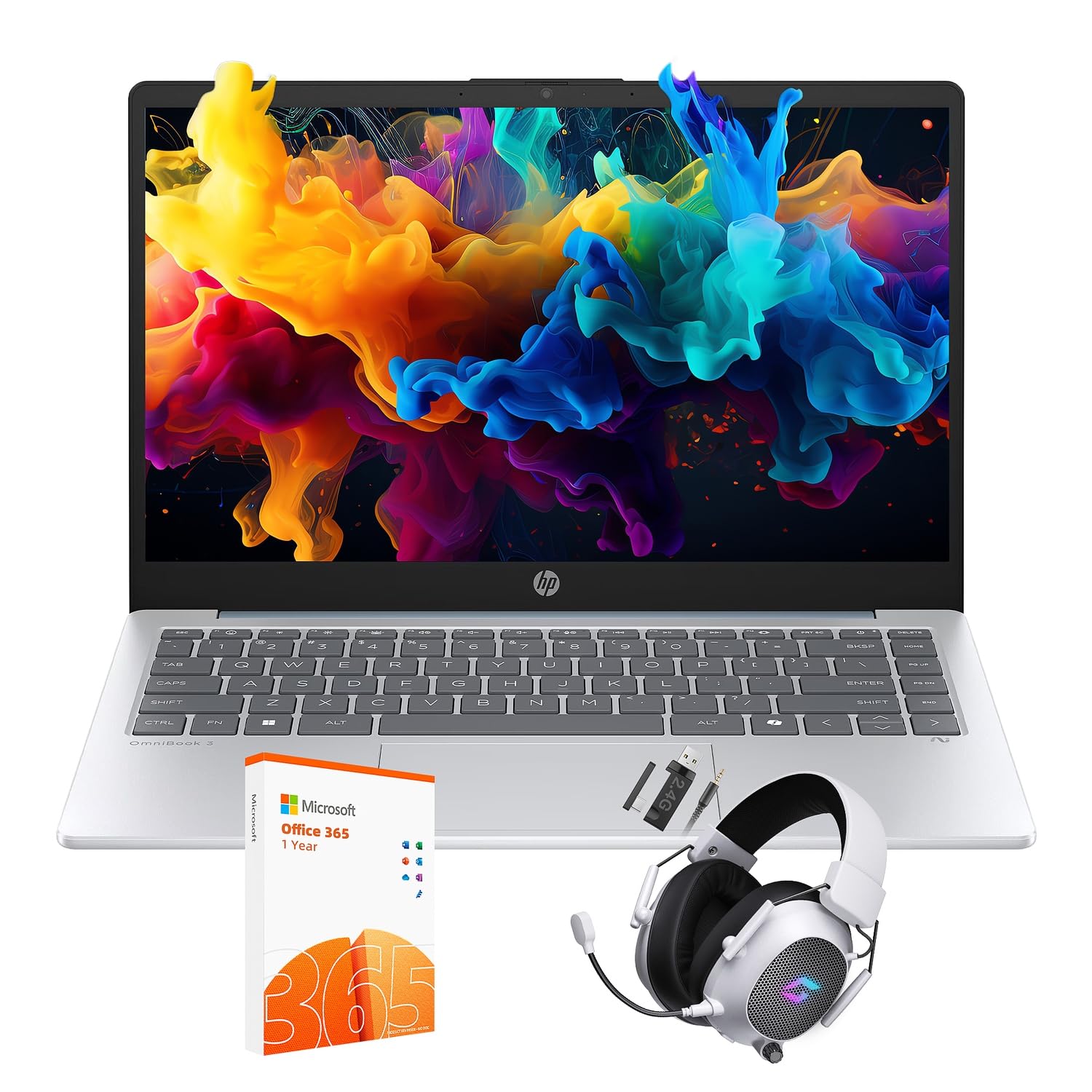
Figure 2.1: The HP 14-inch HD Laptop in Moonlight Blue, showcasinson design élégant.
2.2 Branchement de l'adaptateur secteur
Branchez l'adaptateur secteur au port d'alimentation de l'ordinateur portable, puis branchez-le à une prise murale. Il est recommandé de charger complètement la batterie avant la première utilisation.
2.3 Mise sous tension initiale et configuration de Windows 11 Pro
Press the power button located on the keyboard deck. The laptop will boot up and guide you through the Windows 11 Pro setup process. Follow the on-screen instructions to:
- Sélectionnez votre région et votre langue.
- Connectez-vous à un réseau Wi-Fi.
- Acceptez les termes de la licence.
- Créez un compte utilisateur ou connectez-vous avec un compte Microsoft.
- Configurer les paramètres de confidentialité.
2.4 Setting up the Mytrix Wireless Gaming Headset
Refer to the separate instructions provided with the Mytrix 2.4GHz Wireless Gaming Headset for detailed setup. Generally, this involves:
- Chargement du casque.
- Connecting the wireless dongle to an available USB port on the laptop.
- Powering on the headset and ensuring it pairs with the dongle.
- Configuring audio input/output settings in Windows 11 Pro.
3. Utilisation de l'ordinateur portable
3.1 Gestion de l'alimentation
- Mise sous tension : Appuyez sur le bouton d'alimentation.
- Mode veille: Fermez le couvercle ou sélectionnez « Veille » dans le menu Démarrer.
- Fermer: Sélectionnez « Arrêter » dans le menu Démarrer.
- Redémarrage: Sélectionnez « Redémarrer » dans le menu Démarrer.
3.2 Utilisation du pavé tactile
The touchpad supports multi-touch gestures for navigation. Common gestures include:
- Robinet: Appuyer avec un seul doigt pour cliquer avec le doigt.
- Tapotement à deux doigts : Clic-droit.
- Défilement à deux doigts : Faites défiler vers le haut ou vers le bas.
- Pincer pour zoomer : Effectuez un zoom avant ou arrière.
3.3 Connecting to Networks (Wi-Fi 6 and Bluetooth 5.4)
Pour vous connecter à un réseau Wi-Fi :
- Cliquez sur l'icône Wi-Fi dans la barre des tâches.
- Sélectionnez le réseau souhaité dans la liste.
- Entrez le mot de passe réseau si vous y êtes invité.
Pour connecter un appareil Bluetooth :
- Aller à Paramètres > Bluetooth et appareils.
- Assurez-vous que Bluetooth est activé.
- Select "Add device" and follow the pairing instructions for your device.
3.4 External Port Usage
Votre ordinateur portable est équipé de différents ports permettant de connecter des périphériques externes :

Figure 3.1: Available ports on the HP 14-inch HD Laptop.
- USB de type A : For connecting standard USB devices like mice, keyboards, and external storage.
- USB Type-C : Pour le transfert de données.
- HDMI: Pour la connexion à des écrans ou projecteurs externes.
- Casque/microphone combinés : Pour connecter un casque audio ou des haut-parleurs/microphones externes.
3.5 Fonctionnalités de Windows 11 Pro
Windows 11 Pro offers advanced security, management tools, and productivity features. Explore the Start Menu, Taskbar, and Settings app to customize your experience. The laptop also supports a 180-degree hinge for flexible viewangles d'inclinaison.
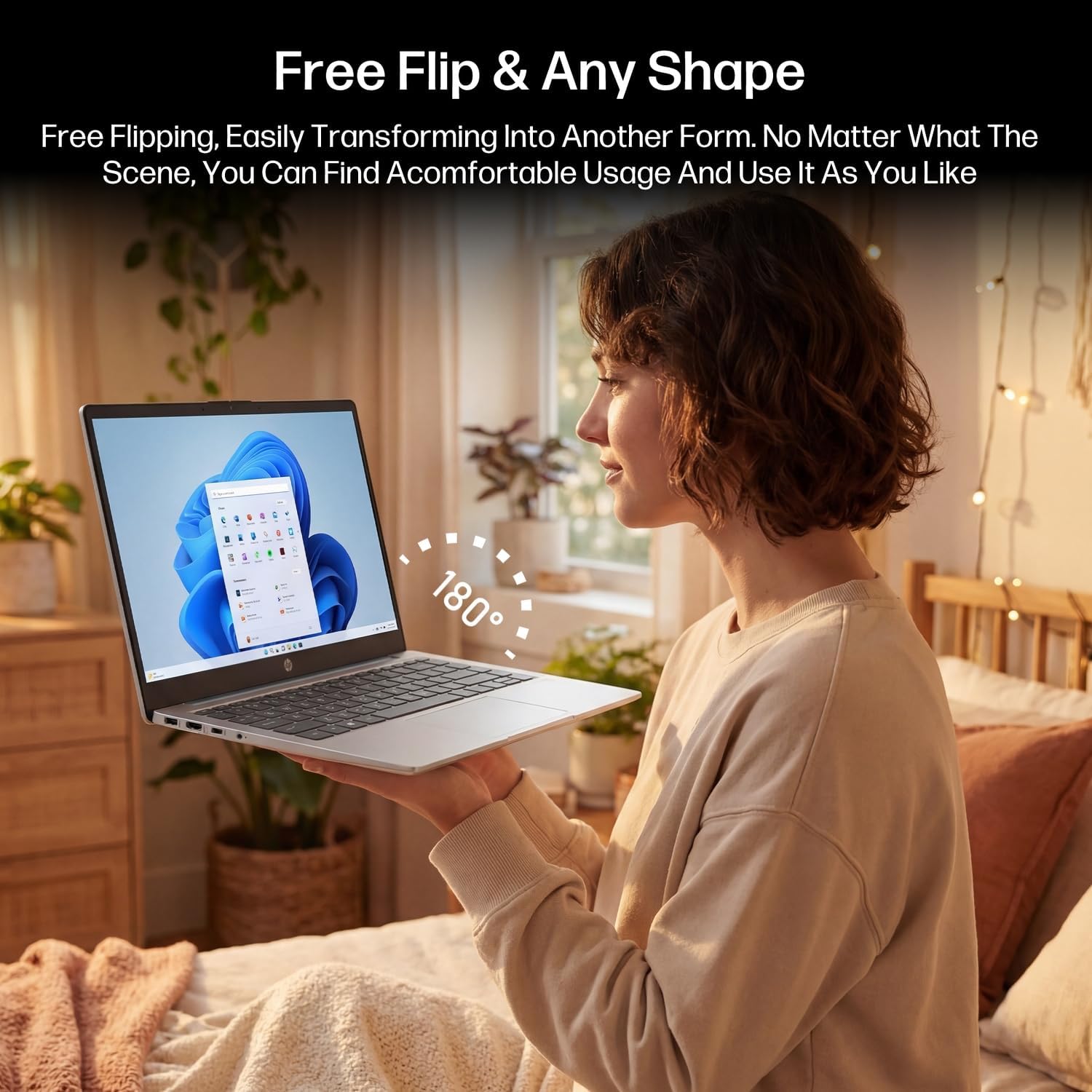
Figure 3.2: The laptop's 180-degree hinge for versatile use.

Figure 3.3: The HP laptop efficiently handles daily tasks.
4. Entretien
4.1 Nettoyage de l'ordinateur portable
- Écran: Utilisez légèrement un chiffon doux et non pelucheux.ampTerminer avec de l'eau ou un nettoyant pour écran. Ne pas vaporiser le nettoyant directement sur l'écran.
- Châssis et clavier : Utilisez un chiffon doux et sec. Pour les taches tenaces, un chiffon légèrement plus sec peut être utile.amp Un chiffon peut être utilisé. Évitez l'humidité excessive.
- Ports: Utilisez de l'air comprimé pour dépoussiérer délicatement les ports.
4.2 Entretien de la batterie
Pour optimiser la durée de vie de la batterie :
- Évitez les températures extrêmes.
- Ne laissez pas la batterie se décharger complètement fréquemment.
- Utilize HP Fast Charge technology for quick recharging when needed.
4.3 Mises à jour logicielles
Vérifiez et installez régulièrement les mises à jour Windows pour garantir que votre système bénéficie des derniers correctifs de sécurité et améliorations de performances. Rendez-vous sur Paramètres > Mise à jour Windows.
4.4 Gestion du stockage
The 512GB eMMC storage provides fast boot-ups and file access. To maintain performance, periodically:
- Supprimer inutile files.
- Désinstallez les applications inutilisées.
- Utilisez l'outil Nettoyage de disque intégré à Windows.
5. Dépannage
Cette section aborde les problèmes courants que vous pourriez rencontrer. Pour les problèmes plus complexes, consultez les ressources d'assistance officielles de HP.
5.1 L'ordinateur portable ne s'allume pas
- Assurez-vous que l'adaptateur secteur est correctement connecté à la fois à l'ordinateur portable et à une prise de courant fonctionnelle.
- Vérifiez le bon fonctionnement de la prise de courant en y branchant un autre appareil.
- Si la batterie est complètement déchargée, laissez-la se recharger pendant au moins 30 minutes avant de tenter de la rallumer.
5.2 Problèmes de connectivité Wi-Fi
- Vérifiez si le Wi-Fi est activé dans les paramètres Windows.
- Redémarrez votre routeur et votre modem.
- Oubliez le réseau et reconnectez-vous en saisissant à nouveau le mot de passe.
- Assurez-vous que votre ordinateur portable se trouve à portée du signal Wi-Fi.
5.3 External Display Not Detected
- Ensure the HDMI cable is securely connected to both the laptop and the external display.
- Check the input source on your external display (e.g., HDMI 1, HDMI 2).
- Presse Touche Windows + P and select a display option (Duplicate, Extend, Second screen only).
5.4 Problèmes audio
- Check volume levels in Windows and on any connected external audio devices.
- Ensure the correct audio output device is selected in Windows sound settings.
- If using the Mytrix headset, ensure it is powered on and properly paired.
6. Spécifications
Detailed technical specifications for your HP 14-em 14-inch HD Laptop:
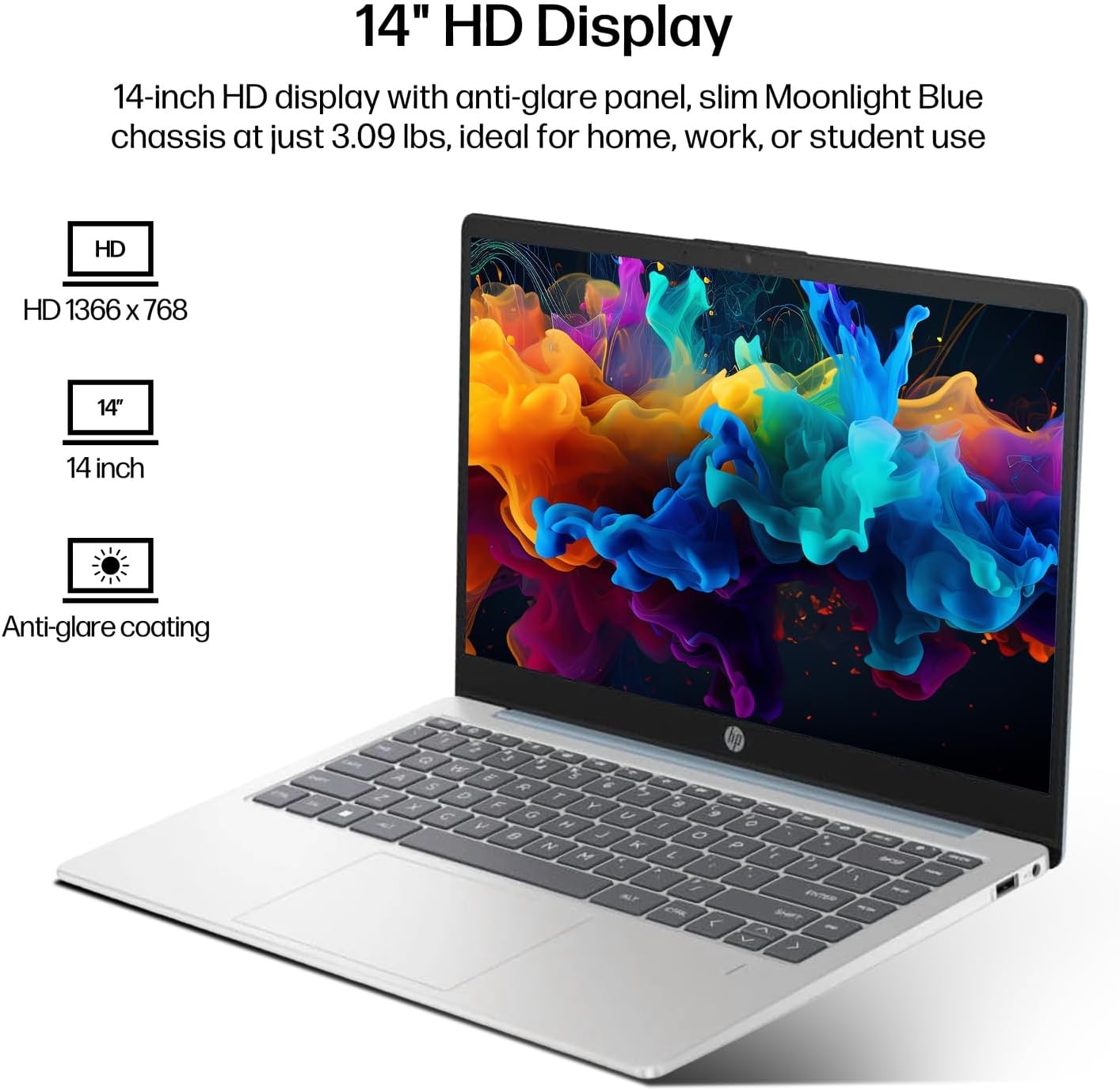
Figure 6.1: The 14-inch HD display features a resolution of 1366 x 768 pixels and an anti-glare coating.

Figure 6.2: The laptop is powered by an AMD Athlon Silver 7120U Processor with integrated AMD Radeon Graphics.
| Fonctionnalité | Spécification |
|---|---|
| Marque | HP |
| Nom du modèle | 14-em |
| Processeur | AMD Athlon Silver 7120U (2 Cores, 2 Threads, up to 3.5 GHz Boost Clock) |
| Graphique | Carte graphique AMD Radeon (intégrée) |
| BÉLIER | 4 GB DDR4 SODIMM |
| Stockage | 512 GB eMMC (Solid State) |
| Afficher | 14-inch HD (1366 x 768) LED, Anti-Glare |
| Système opérateur | Windows 11 Pro |
| Connectivité sans fil | Wi-Fi 6 (802.11ax), Bluetooth 5.4 |
| Ports | 2x USB Type-A, 1x USB Type-C (Data Transfer), 1x HDMI, 1x Headphone/Microphone Combo |
| Caméra | Orienté vers l'avant |
| Audio | Audio HD |
| Dimensions (L x l x H) | 12.74" x 8.46" x 0.7" |
| Poids | Environ 3.09 livres |
| Accessoires inclus | Mytrix 2.4GHz Wireless Gaming Headset |

Figure 6.3: Physical dimensions of the HP 14-inch HD Laptop.
7. Garantie et assistance
7.1 Garantie du produit
Your HP 14-em laptop comes with a 12-month manufacturer's warranty. This warranty covers defects in materials and workmanship under normal use. For specific terms and conditions, please refer to the warranty documentation included with your product or visit the official HP support website.
7.2 Assistance technique
For technical assistance, troubleshooting beyond this manual, or warranty claims, please contact HP Customer Support. You can find contact information on the official HP website or through the support application pre-installed on your laptop.
Additional protection plans are available for purchase, including 2-Year and 4-Year Protection Plans, and a monthly Complete Protect plan. Details can be found where you purchased the product.