
1. Introduction
This manual provides essential information for setting up, operating, and maintaining your Plimpton Kids Tablet 10 Inch, Model Kids 20. This device is designed to offer a secure and engaging digital experience for children, featuring the Android 15 operating system, an octa-core processor, and integrated Google Kids Space.
2. Contenu de la boîte
- 1 x PlimPad Kids Android 15 Tablet
- 1 adaptateur USB
- 1 x câble de charge USB
- Manuel d'utilisation

3. caractéristiques du produit
- Performances avancées : Equipped with an enhanced Android 15 system, a 2.0GHz 8-core processor, 4GB RAM, and 64GB storage (expandable to 1TB).
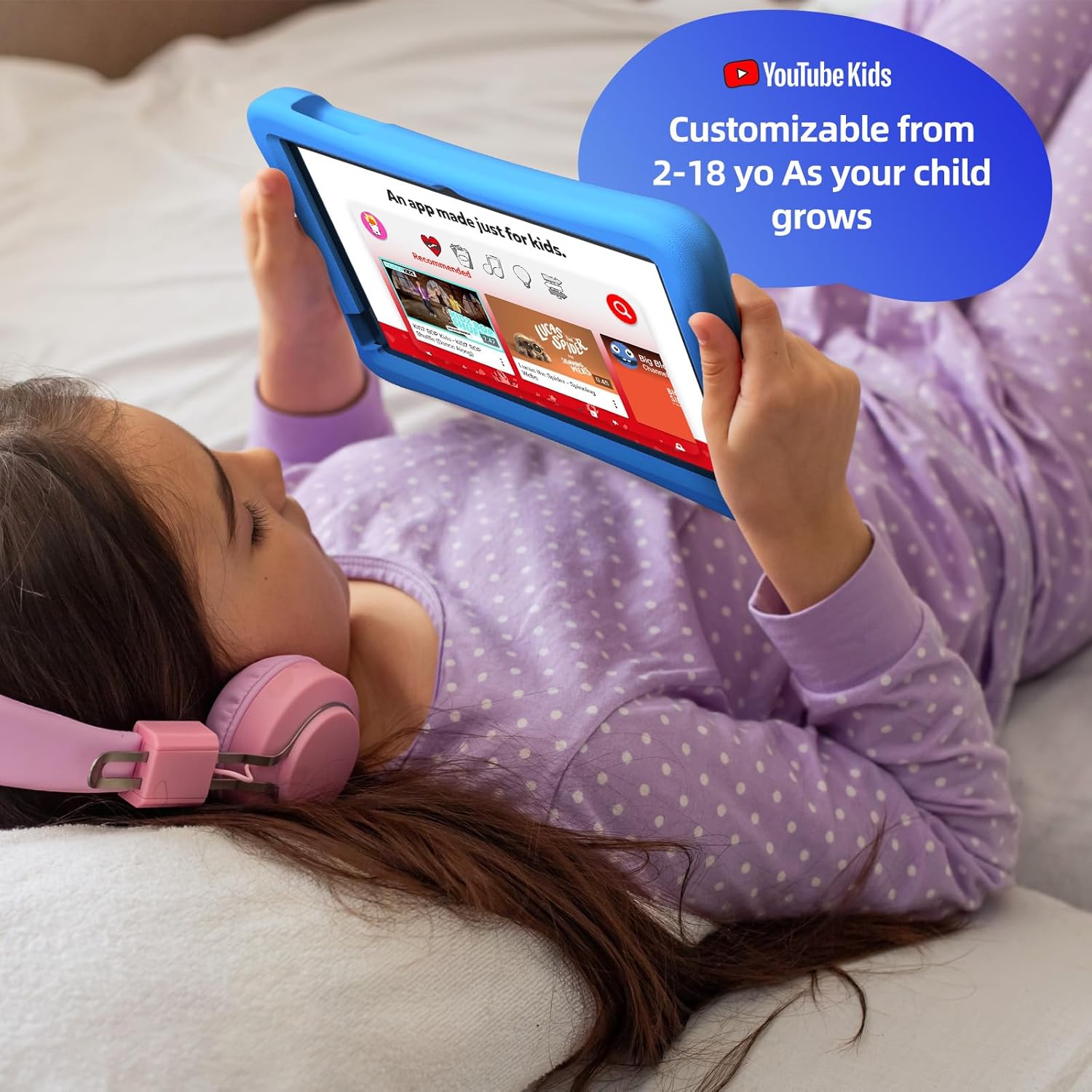
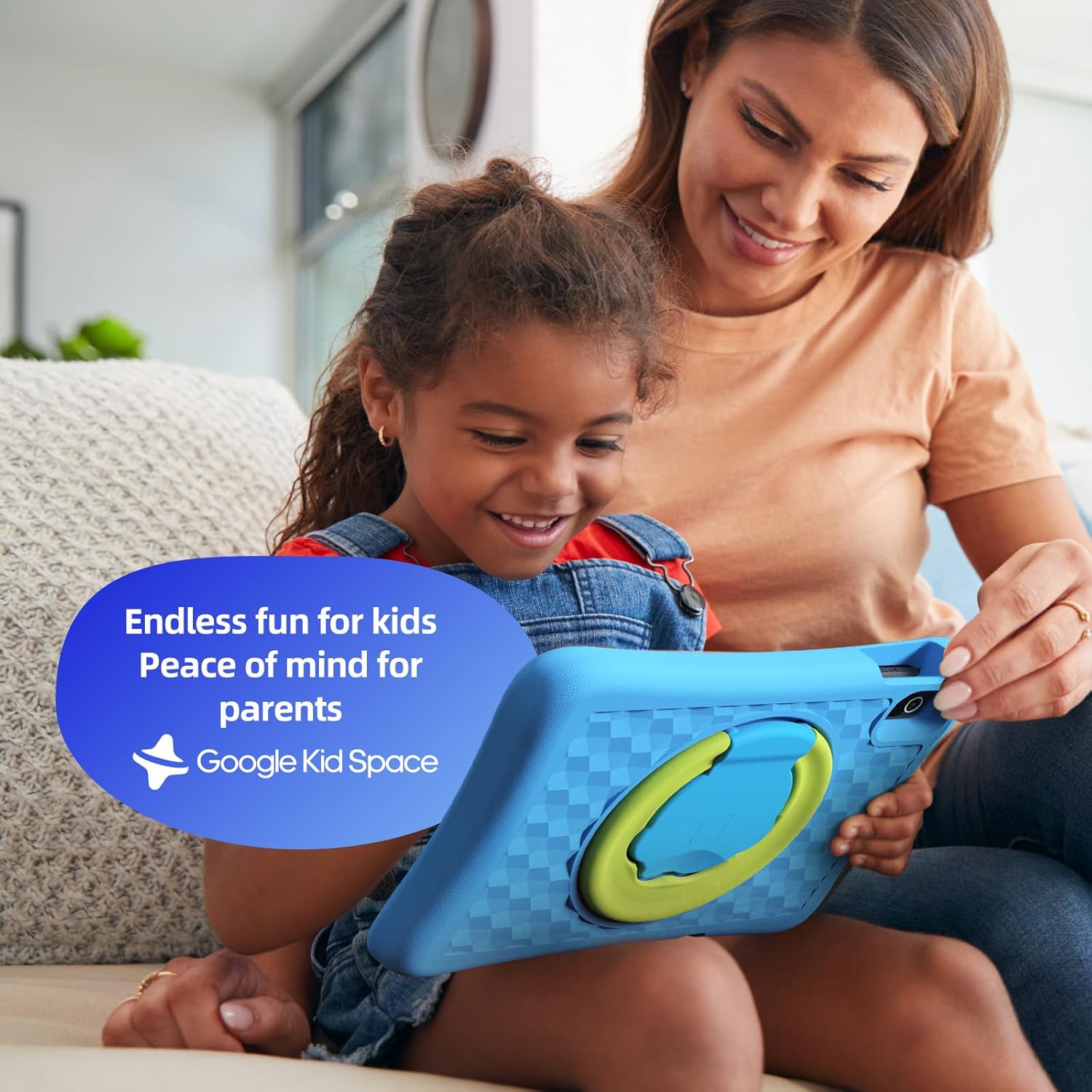
- Google Kids Space & Parental Control: Pre-installed with Google Kids Space and educator-endorsed apps. User-friendly parental controls allow content filtering, educational targets, and time restrictions.
- Eye Protection Display: 10.1" HD IPS glass screen (1280 x 800 resolution) with low blue light technology and automatic brightness adjustment to reduce eye fatigue.
- Conception durable : Rugged, anti-drop EVA protective case, odorless and resistant to deformation, with a 360° rotatable bracket.
- Batterie optimisée : Upgraded power system for extended daily use, leveraging Android 15's efficiency for smarter power management.

4. Installation
4.1 Mise sous tension initiale
- Maintenez enfoncé le bouton d'alimentation situé sur le côté de la tablette jusqu'à ce que l'écran s'allume.
- Suivez les instructions à l'écran pour sélectionner votre langue et votre région préférées.
4.2 Connexion Wi-Fi
- From the initial setup screen or Settings menu, select 'Wi-Fi'.
- Choisissez votre réseau Wi-Fi domestique dans la liste.
- Saisissez votre mot de passe Wi-Fi et appuyez sur « Se connecter ».
4.3 Configuration du compte Google
- Sign in with an existing Google account or create a new one. This account will be used for parental controls and app downloads.
- Follow the instructions to link your child's profile to your Google Family Link account for parental management.
4.4 Google Kids Space Configuration
- Once your Google account is set up, the tablet will guide you through configuring Google Kids Space.
- Select your child's age and interests to personalize content recommendations.
- Review and adjust parental control settings within Google Kids Space or via the Google Family Link app on your own device.
5. Utilisation de la tablette
5.1 Navigating Google Kids Space
Google Kids Space provides a child-friendly interface with curated content. Children can navigate through different categories like 'Play', 'Read', and 'Watch' to discover apps, books, and videos tailored to their age and interests.
5.2 Contrôle parental avec Google Family Link
Manage your child's digital experience remotely using the Google Family Link app on your smartphone. This allows you to:
- Set daily screen time limits.
- Approve or block apps from the Google Play Store.
- Track app usage and activity.
- Set device bedtime.
- Manage content restrictions for websites and searches.

5.3 Consommation des médias
The tablet supports various media types:
- Vidéos: Access YouTube Kids for age-appropriate video content. Parental controls can further refine available videos.
- Livres: Explore a library of digital books within Google Kids Space, promoting reading and literacy.
- Jeux: A wide selection of educational and entertaining games are available, with new content regularly updated.

6. Entretien
6.1 Entretien de la batterie
- Charge the tablet fully before first use.
- Évitez de décharger complètement la batterie régulièrement afin de prolonger sa durée de vie.
- Use only the provided USB Adaptor and Charge Cable.
6.2 Nettoyage
- Turn off the tablet before cleaning.
- Utilisez un chiffon doux non pelucheux pour essuyer l'écran et l'extérieur.
- Évitez d’utiliser des produits chimiques agressifs ou des matériaux abrasifs.
6.3 Mises à jour logicielles
Ensure the tablet's software is up-to-date for optimal performance and security. Connect to Wi-Fi and check for updates periodically in the Settings menu.
7. Dépannage
7.1 La tablette ne s'allume pas
- Assurez-vous que la batterie est chargée. Branchez la tablette au chargeur et attendez quelques minutes avant de tenter de la rallumer.
- Maintenez le bouton d'alimentation enfoncé pendant 10 à 15 secondes pour effectuer une réinitialisation matérielle.
7.2 Performances lentes
- Fermez les applications inutilisées qui s'exécutent en arrière-plan.
- Vider le cache des applications fréquemment utilisées dans Paramètres > Applications.
- Assurez-vous de disposer d'un espace de stockage suffisant. Supprimez les éléments inutiles. files ou applications.
7.3 Problèmes de connectivité Wi-Fi
- Redémarrez votre routeur Wi-Fi et votre tablette.
- Oubliez le réseau dans les paramètres Wi-Fi et reconnectez-vous.
- Assurez-vous que la tablette se trouve à portée du signal Wi-Fi.
8. Spécifications
| Fonctionnalité | Spécification |
|---|---|
| Taille de l'écran permanent | 10.1 pouces |
| Résolution de l'écran | 1280 x 800 pixels |
| Processeur | Octa-Core 2 GHz |
| Système opérateur | Android 15 |
| Taille de la mémoire flash | 64 Go |
| BÉLIER | 4 Go |
| Stockage extensible | Up to 1 TB (SD card not included) |
| Durée de vie moyenne de la batterie | 8 heures |
| Poids de l'article | 1.76 livres |
| Dimensions du produit | 10.86 x 7.83 x 1.22 pouces |
| Couleur | Bleu |
9. Garantie et assistance
The Plimpton Kids Tablet comes with a Garantie de 2 ansDe plus, un 30-day worry-free return and replacement policy is provided. For any questions or concerns, please contact Plimpton customer support. Our team is dedicated to resolving any issues you may encounter.
For detailed support, refer to the customer support card included in your product packaging or visit the official Plimpton website.