
Introduction
Thank you for choosing the KAMRUI Hyper H2 Mini PC. This compact and powerful desktop computer is designed for a wide range of applications, from demanding office tasks and creative projects to home entertainment and light gaming. Equipped with an Intel Core i5-14450HX processor, 16GB DDR4 RAM, and a 512GB NVMe SSD, it offers robust performance and seamless multitasking capabilities. Its versatile connectivity options and triple 4K display support ensure a flexible and immersive user experience.
This manual provides essential information on setting up, operating, maintaining, and troubleshooting your KAMRUI Hyper H2 Mini PC. Please read it thoroughly to ensure optimal performance and longevity of your device.
Qu'y a-t-il dans la boîte
Upon opening your KAMRUI Hyper H2 Mini PC package, please verify that all the following items are included:
- 1 x KAMRUI Hyper H2 Mini PC
- 1 x câble HDMI
- 1 support VESA avec vis
- 1 x adaptateur secteur
- 1 x Manuel d'utilisation

Produit terminéview
The KAMRUI Hyper H2 Mini PC is engineered for efficiency and connectivity. Its compact chassis houses a powerful Intel Core i5-14450HX processor, supported by a robust cooling system to ensure stable performance even under heavy workloads.
Ports du panneau avant
- 1 x USB 3.2 Gen2 Type-C port (10Gbps data transfer, DisplayPort Alt Mode, 15W power delivery)
- 2 ports USB 3.2 Gen2 Type-A (10 Gbit/s)
- 1 x Audio Jack (3.5mm for headphones/microphone)
- 1 x bouton d'alimentation
Ports du panneau arrière
- 1 port HDMI 2.0
- 1 x DisplayPort 1.4b
- 1 port Ethernet Gigabit RJ45
- 4 ports USB 3.2 Gen1 Type-A (5 Gbit/s)
- 1 entrée d'alimentation CC

Guide d'installation
Follow these steps for initial setup of your KAMRUI Hyper H2 Mini PC:
- Connecter l'écran : Connect your monitor(s) to the Mini PC using the HDMI, DisplayPort, or USB-C port. For triple display setup, utilize all three available video outputs.
- Connectez les périphériques : Branchez votre clavier, votre souris et tout autre périphérique USB sur les ports USB disponibles.
- Se connecter au réseau : For wired internet, connect an Ethernet cable to the RJ45 Gigabit Ethernet port. For wireless, ensure your Wi-Fi 6 network is available after initial boot.
- Connecter l'alimentation : Branchez l'adaptateur secteur au port d'entrée CC du Mini PC, puis connectez l'adaptateur à une prise de courant.
- Mise sous tension : Press the power button on the front panel to turn on your Mini PC.
- Configuration initiale : Follow the on-screen instructions to complete the Windows 11 Pro setup, including language, network, and user account settings.
Installation du support VESA
The included VESA mount allows you to attach the Mini PC to the back of a compatible monitor or TV, saving desk space and creating a clean setup.
- Fixez le support de montage VESA à l'arrière de votre moniteur à l'aide des vis fournies.
- Slide the KAMRUI Hyper H2 Mini PC onto the mounted bracket until it clicks securely into place.
Mode d'emploi
Fonctionnement de base
- Marche/Arrêt : Press the power button once to turn the device on or off. For a forced shutdown, press and hold the power button for 5-7 seconds.
- Redémarrage: Use the operating system's restart option for proper system reboots.
- Mode veille: The system will enter sleep mode after a period of inactivity or by selecting the sleep option in the OS.
Configuration multi-écrans
The KAMRUI Hyper H2 supports up to three 4K@60Hz displays simultaneously, enhancing productivity and entertainment. Connect your displays to the HDMI, DisplayPort, and full-featured USB-C ports. Once connected, configure your display settings within the operating system (e.g., Extend, Duplicate, or Second screen only).

Maintenance et mises à jour
Circuit de refroidissement
The KAMRUI Hyper H2 features a premium thermal design with a dual-fan cooling system, full copper heat pipes, and a dedicated aluminum SSD heatsink. This ensures the CPU and storage remain cool, even under sustained heavy workloads. To maintain optimal cooling performance:
- Ensure proper airflow by keeping the vents clear of obstructions.
- Nettoyez régulièrement la poussière des conduits d'aération à l'aide d'air comprimé.

Mises à niveau de la RAM et du SSD
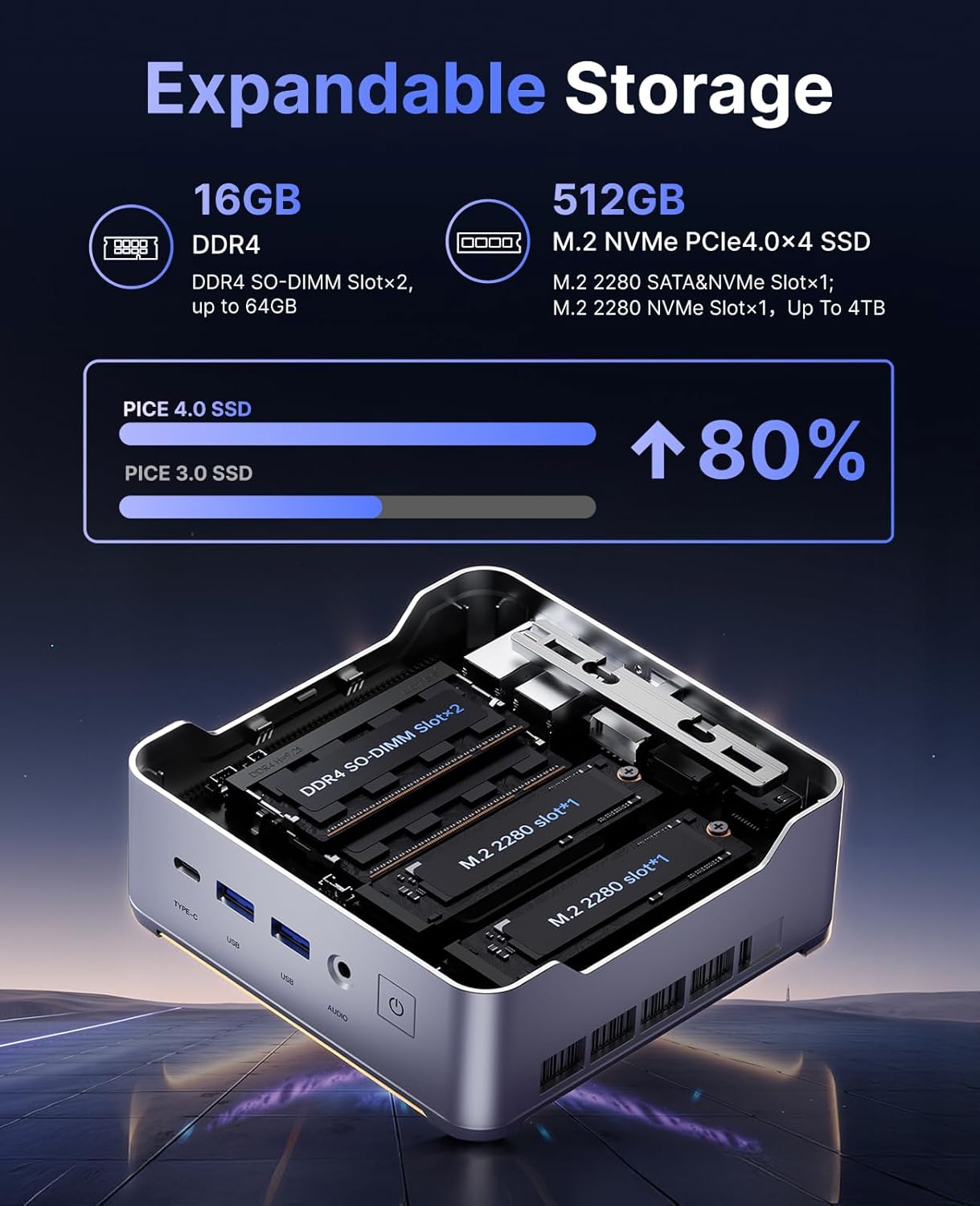
The KAMRUI Hyper H2 is designed for easy upgrades, allowing you to expand its memory and storage capacity. The Mini PC supports:
- BÉLIER: Up to 2x 32GB DDR4 3200MHz/s SO-DIMM (total 64GB).
- Disque SSD: Up to 2x 2TB NVMe SSD (M.2 2280 PCIe Gen4x4).
To access the RAM and SSD slots:
- Assurez-vous que le mini PC est éteint et débranché de tous les câbles.
- Locate the small Phillips screw on the rear panel next to the lock/unlock switch. Remove this screw.
- Slide the lock switch to the unlock position. The top cover will lift slightly.
- Retirez délicatement le capot supérieur.
- Unscrew the four Phillips screws holding the metal plate/cover.
- Gently lift the metal plate to reveal the RAM and NVMe SSD slots.
- Install or replace your RAM modules or NVMe SSDs as needed.
- Reassemble the Mini PC by reversing these steps, ensuring all screws are tightened and the cover is securely locked.
Dépannage
If you encounter any issues with your KAMRUI Hyper H2 Mini PC, please refer to the following common solutions:
- Pas d'alimentation :
- Assurez-vous que l'adaptateur secteur est correctement connecté à la fois au mini PC et à une prise de courant fonctionnelle.
- Vérifiez le bon fonctionnement de la prise de courant en y branchant un autre appareil.
- Pas d'affichage :
- Check all video cable connections (HDMI, DP, USB-C) between the Mini PC and your monitor(s).
- Assurez-vous que votre moniteur est allumé et réglé sur la source d'entrée appropriée.
- Essayez de vous connecter à un autre écran ou d'utiliser un autre câble vidéo.
- Pas de connexion Internet:
- Pour une connexion filaire, assurez-vous que le câble Ethernet est correctement branché et que votre routeur/modem fonctionne.
- For Wi-Fi, check if Wi-Fi is enabled in Windows settings and ensure you are connected to the correct network with the right password.
- Redémarrez votre routeur/modem et le Mini PC.
- Performances lentes :
- Fermez les applications inutiles qui s'exécutent en arrière-plan.
- Assurez-vous que votre système d'exploitation et vos pilotes sont à jour.
- Vérifiez la présence de logiciels malveillants ou de virus à l'aide d'un logiciel antivirus réputé.
- Consider upgrading RAM or SSD if performance issues persist, especially with demanding tasks.
Caractéristiques
| Fonctionnalité | Spécification |
|---|---|
| Processeur | Intel Core i5-14450HX (10 Cores/16 Threads, up to 4.8GHz) |
| Graphique | Integrated UHD Graphics for 14th Gen Processors (max frequency 1.5GHz) |
| BÉLIER | 16GB DDR4 (Expandable up to 64GB, 2x SO-DIMM slots) |
| Stockage | 512GB NVMe PCIe 4.0 SSD (Expandable up to 2x 2TB NVMe SSD) |
| Sortie vidéo | Triple 4K@60Hz (HDMI 2.0, DP 1.4b, USB-C with DisplayPort Alt Mode) |
| Connectivité sans fil | Wi-Fi 6 (802.11ax), Bluetooth 5.2 |
| Connectivité filaire | 1 port Ethernet Gigabit RJ45 |
| Ports USB | 1 x USB 3.2 Gen2 Type-C (10Gbps, DP Alt Mode, 15W PD) 2 x USB 3.2 Gen2 Type-A (10 Gbit/s) 4 x USB 3.2 Gen1 Type-A (5 Gbit/s) |
| Audio | 1 prise audio 3.5 mm |
| Système opérateur | OS PRO |
| Dimensions | 6.46 x 6.42 x 4.53 pouces (Emballage) |
| Poids de l'article | 2.99 livres |
Garantie et assistance
Your KAMRUI Hyper H2 Mini PC comes with a Garantie de 12 mois from the date of purchase, covering manufacturing defects and hardware malfunctions under normal use. For any technical assistance, troubleshooting, or warranty claims, please contact KAMRUI customer support.
KAMRUI offers Assistance clientèle 24h/XNUMX to assist you with any queries or issues you may encounter. Please refer to the contact information provided in your product packaging or visit the official KAMRUI website pour les détails de l'assistance.
Pour plus de ressources et d'informations sur les produits, consultez le site web. KAMRUI Store on Amazon.