
1. Introduction
This manual provides essential information for setting up, operating, and maintaining your HP OmniDesk Slim Desktop PC, Model S03-0006. This desktop PC is designed for daily tasks, offering an Intel Core i3-14100 processor, ample memory, and various connectivity options for productivity and entertainment.
2. Contenu du colis
Vérifiez que tous les éléments sont présents dans le colis :
- HP S03-000 OmniDesk Slim Desktop PC
- Alimentation électrique
- USB Black Wired Keyboard (if included with specific bundle)
- USB Wired Mouse (if included with specific bundle)
Remarque : Des accessoires supplémentaires peuvent être vendus séparément.
3. Produit terminéview
The HP OmniDesk Slim Desktop PC features a compact design with essential components for efficient computing.

Figure 3.1 : HP OmniDesk Slim Desktop PC showcasing son slim profile, Intel Core i3-14100 processor, 8GB DDR5 RAM, 256GB SSD, Intel UHD Graphics 710, Wi-Fi 6, Bluetooth 5.4, Windows 11, and dual display support.
3.1. Ports et connecteurs
Familiarize yourself with the various ports on your desktop PC for connecting peripherals and displays.
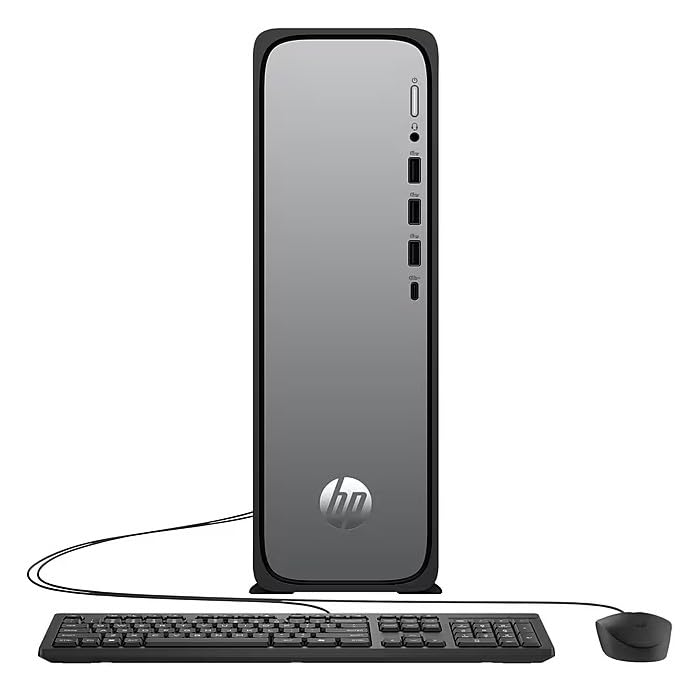
Figure 3.2 : Front and rear port layout of the HP OmniDesk Slim Desktop PC. Front ports include a headphone/microphone combo jack, USB Type-A 5Gbps ports, and a USB Type-C 10Gbps port. Additional ports (typically rear) include 4 USB 2.0 Type-A, 1 RJ-45 (Ethernet), 1 HDMI Out, and 1 DisplayPort 1.4.
- Ports avant :
- Combinaison casque/microphone
- USB Type-A 5Gbps signaling rate (3 ports)
- USB Type-C 10Gbps signaling rate (1 port)
- Ports arrière :
- USB 2.0 Type-A (4 ports)
- RJ-45 (Ethernet)
- HDMI 1.4b (1 port)
- DisplayPort 1.4a (1 port)
4. Guide de configuration
Follow these steps to set up your HP OmniDesk Slim Desktop PC:
- Connecter le moniteur : Connect your monitor to the PC using an HDMI or DisplayPort cable. Ensure the cable is securely plugged into both the PC and the monitor.
- Connectez les périphériques : Plug in your USB keyboard and mouse into the available USB ports on the PC.
- Connecter l'alimentation : Connect the power supply cable to the PC's power input, then plug the other end into a wall outlet or surge protector.
- Mise sous tension : Press the power button on the front of the PC. The system will boot up, and you will see the Windows 11 setup screen.
- Configuration initiale de Windows : Suivez les instructions à l'écran pour terminer l'installation de Windows 11, notamment la langue, la région, la connexion réseau et la création du compte utilisateur.
5. Mode d'emploi
5.1. Fonctionnement de base
- Marche/Arrêt : Press the power button to turn on the PC. To shut down, click the Start button, then Power > Shut down.
- Redémarrage: Cliquez sur le bouton Démarrer, puis sur Alimentation > Redémarrer.
- Mode veille: Cliquez sur le bouton Démarrer, puis sur Marche/Arrêt > Veille.
5.2. Connexion à un réseau
Your PC supports both wired (Ethernet) and wireless (Wi-Fi) network connections.
- Connexion filaire : Connect an Ethernet cable from your router or modem to the RJ-45 port on the back of the PC.
- Connexion sans fil (Wi-Fi 6) :
- Cliquez sur l'icône Wi-Fi dans la barre des tâches.
- Sélectionnez le réseau Wi-Fi souhaité dans la liste.
- Saisissez la clé de sécurité réseau (mot de passe) si vous y êtes invité, puis cliquez Connecter.
5.3. Dual Display Support
To extend your desktop to a second monitor:
- Connect the second monitor to an available video output port (HDMI or DisplayPort) on your PC.
- Faites un clic droit sur le bureau et sélectionnez Paramètres d'affichage.
- Under "Multiple displays," select how you want the displays to behave (e.g., Extend these displays, Duplicate these displays).
6. Entretien
- Mises à jour logicielles : Vérifiez et installez régulièrement les mises à jour Windows pour garantir la stabilité et la sécurité du système. Accédez à Paramètres > Mise à jour Windows.
- Mises à jour du pilote: Keep your device drivers updated. HP Support Assistant (MyHP) can help manage these updates.
- Nettoyage: Use a soft, dry cloth to clean the exterior of the PC. Avoid liquid cleaners directly on components. Ensure ventilation openings are clear of dust.
- Données de sauvegarde : Sauvegardez régulièrement les éléments importants files'enregistrent sur un disque dur externe ou un stockage cloud afin d'éviter toute perte de données.
7. Dépannage
| Problème | Solution possible |
|---|---|
| L'ordinateur ne s'allume pas. |
|
| Aucun affichage sur le moniteur. |
|
| Pas de connexion internet. |
|
| Les périphériques (clavier/souris) ne fonctionnent pas. |
|
8. Spécifications
| Nom du modèle | HP OmniDesk Desktop HP S03-000 PC |
| Numéro de modèle | OmniDesk Slim S03-0006 |
| Processeur | Intel Core i3-14100 (3.5 GHz, 6 MB Cache) |
| Graphique | Intel UHD Graphics 710 (intégré) |
| BÉLIER | 8 GB DDR5 (4800 MT/s), Max 64 GB |
| Stockage | Disque SSD (Solid State Drive) de 256 Go |
| Système opérateur | Windows 11 Famille |
| Connectivité | Realtek Wi-Fi 6 (2x2), Bluetooth 5.4, Gigabit Ethernet (RJ-45) |
| Ports |
|
| Dimensions (H x L x P) | 11.61 x 3.94 x 11.97 pouces |
| Poids | 8.38 livres |
| Certifications | ENERGY STAR certified, EPEAT Gold with Climate+ |
9. Garantie et assistance
9.1. Informations sur la garantie
This HP OmniDesk Slim Desktop PC comes with a Garantie limitée de 90 joursVeuillez vous référer à la documentation de garantie fournie avec votre produit pour connaître les conditions générales spécifiques.
9.2. Assistance technique
Pour obtenir une assistance technique, télécharger des pilotes ou obtenir des informations supplémentaires, veuillez consulter le support officiel HP. website. You can also utilize the pre-installed MyHP application for device customization, optimization, and access to helpful messages and settings.
Always provide your product model number (S03-0006) and serial number when contacting support.