
Introduction
Thank you for choosing the JOMAA Ergonomic Folding Bluetooth Keyboard. This manual provides detailed instructions for setting up, operating, and maintaining your keyboard to ensure optimal performance and longevity. Please read this manual thoroughly before use.
Contenu du colis
- JOMAA Ergonomic Folding Bluetooth Keyboard (Model DF047)
- Câble de chargement USB-C
- Manuel d'utilisation
Installation
1. Charger le clavier
Before first use, fully charge the keyboard. Connect the provided USB-C cable to the charging port on the keyboard and to a USB power source. The charging indicator light will illuminate during charging and turn off when fully charged.

Image: The keyboard connected to a USB-C charging cable, with LED indicators showing charging status.
2. Mise sous/hors tension
Locate the power switch on the side of the keyboard. Slide the switch to the 'ON' position to power on the keyboard. Slide it to the 'OFF' position to power off.

Video: This video demonstrates the initial power-on sequence and connection methods for the keyboard.
3. Modes de connectivité
The keyboard supports both Bluetooth and Wired USB connections.
Bluetooth Pairing (BT1/BT2/BT3)
- Assurez-vous que le clavier est sous tension.
- Appuyez et maintenez enfoncé le Fn clé et l'une des clés du canal Bluetooth (BT1, BT2, ou BT3) for 3-5 seconds until the corresponding Bluetooth indicator light flashes rapidly. This indicates pairing mode.
- On your device (PC, tablet, phone), enable Bluetooth and search for "Jomaa Keyboard" in the list of available devices.
- Select "Jomaa Keyboard" to connect. The indicator light will stop flashing and remain solid for a few seconds, then turn off, indicating a successful connection.
- Pour basculer entre les appareils appairés, appuyez simplement sur Fn + BT1/BT2/BT3.
Mode USB filaire
The keyboard can also be used in wired mode. Connect the USB-C cable to the keyboard and the other end to your computer's USB port. The keyboard will automatically switch to wired mode.
Video: This video illustrates the process of connecting the keyboard using a wired USB connection.
Mode d'emploi
1. Conception et utilisation ergonomiques
The keyboard features a split, ergonomic design to promote a more natural hand and wrist posture, reducing strain during extended typing sessions. When unfolded, ensure the keyboard is placed on a flat, stable surface.
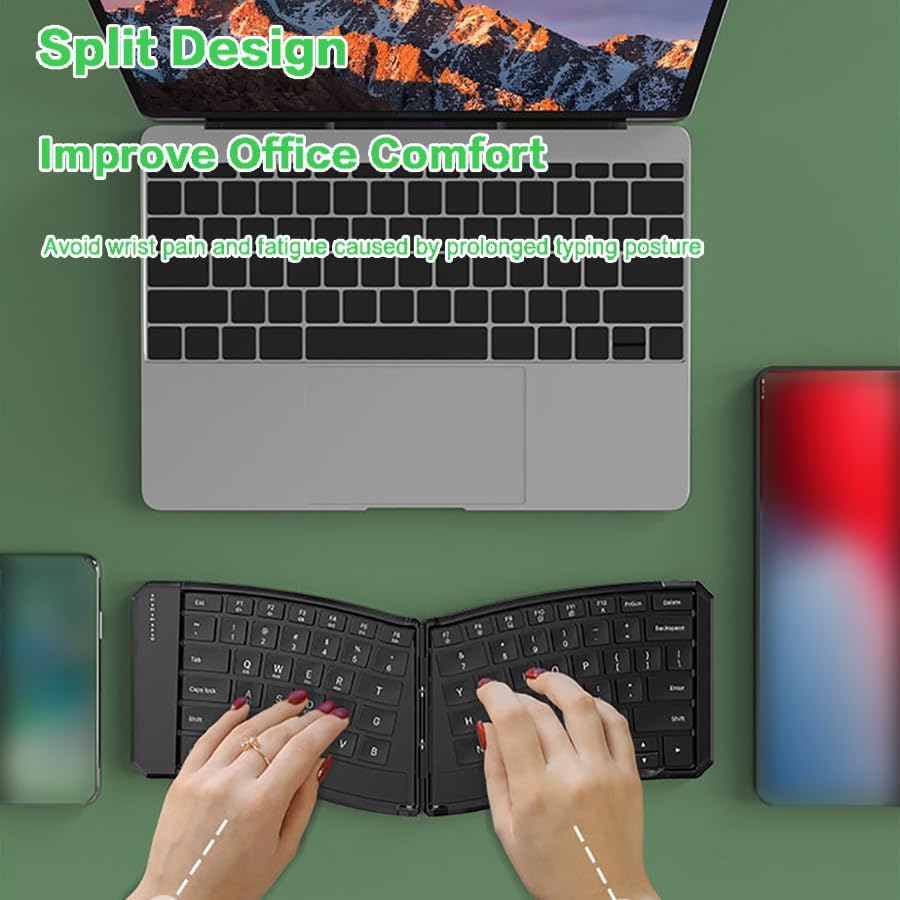
Image: A user typing on the split ergonomic keyboard, demonstrating comfortable hand placement.
2. Commutation multi-appareils
The keyboard allows seamless switching between up to three paired Bluetooth devices. Simply press Fn + BT1, Fn + BT2, ou Fn + BT3 to switch to the corresponding device.
Video: This video shows how to switch between multiple devices connected to the keyboard via Bluetooth.
3. Touches de fonction et raccourcis
The top row of keys (F1-F12) includes multimedia and system control functions. These functions are accessed by pressing the Fn touche en combinaison avec la touche F souhaitée.
- Fn+F1-F12: Multimedia controls (e.g., volume, play/pause, brightness).
- Indicateur de verrouillage des majuscules: An LED indicator above the Caps Lock key illuminates when Caps Lock is active.
- Changement de méthode d'entrée: Utiliser Ctrl+Espace or Alt+Maj for seamless input method switching on compatible operating systems.
4. Compatibilité
The JOMAA keyboard is compatible with a wide range of operating systems:
- Fenêtres
- iOS
- Androïde
- Mac
Entretien
1. Nettoyage
Pour nettoyer le clavier, éteignez-le et débranchez tous les câbles. Utilisez un chiffon doux non pelucheux légèrement humidifié.ampened with water or a mild cleaning solution. Avoid excessive moisture and abrasive cleaners. Do not spray cleaners directly onto the keyboard.
2. Stockage et portabilité
The keyboard's folding design makes it highly portable. When not in use, fold the keyboard to protect the keys and reduce its footprint. The keyboard includes a locking mechanism to keep it flat when unfolded for stable use.

Image: The folded keyboard being stored in a backpack, highlighting its compact size for travel.
3. Entretien de la batterie
The keyboard features a built-in rechargeable battery and an auto-sleep mode (after 10 minutes of inactivity) to conserve power. For optimal battery life, avoid fully discharging the battery frequently and store the keyboard in a cool, dry place.
Dépannage
| Problème | Solution |
|---|---|
| Le clavier ne s'allume pas. | Ensure the power switch is in the 'ON' position. Charge the keyboard for at least 2 hours. |
| Impossible de se connecter via Bluetooth. | Ensure the keyboard is in pairing mode (flashing BT indicator). Check your device's Bluetooth settings. Forget and re-pair the keyboard if necessary. Ensure no other devices are actively connected to the selected BT channel. |
| Les touches ne répondent pas. | Check battery level. Reconnect the keyboard (Bluetooth or wired). Restart your device. |
| Le clavier se déconnecte fréquemment. | Ensure the keyboard is within range of your device. Check for interference from other wireless devices. Charge the keyboard. |
Caractéristiques
- Modèle: DF047
- Connectivité : Bluetooth (BT1, BT2, BT3), Wired USB
- Compatibilité: Windows, iOS, Android, Mac
- Batterie: 140mAh Rechargeable (1 9V battery included)
- Courant de fonctionnement : <3.5 mA
- Mode veille automatique : Après 10 minutes d'inactivité
- Dimensions du produit (déplié) : Environ 14.05 x 4.80 x 0.73 pouces (35.7 x 12.2 x 1.85 cm)
- Poids de l'article : 9.2 onces (256 g)
- Matériel: Plastique

Image: A diagram illustrating the physical dimensions of the keyboard when unfolded.
Garantie et assistance
JOMAA products come with a standard manufacturer's warranty. For detailed warranty information, technical support, or service inquiries, please refer to the warranty card included with your product or visit the official JOMAA webVeuillez conserver votre preuve d'achat pour toute réclamation au titre de la garantie.