
1. Introduction
This manual provides essential information for setting up, operating, maintaining, and troubleshooting your NIMO 15.6-inch Laptop N152. Please read this manual thoroughly before using your device to ensure proper functionality and longevity.

Image 1.1: NIMO 15.6-inch Laptop, top-down view.
2. Installation
2.1 Déballage et inspection initiale
Carefully remove all components from the packaging. Verify that all items listed in the 'What's in the Box' section (Section 6) are present and undamaged. If any items are missing or damaged, contact customer support.
2.2 Chargement de l'ordinateur portable
Before first use, fully charge your NIMO laptop. Connect the provided 65W USB-C PD Fast Charger to the laptop's USB-C port and then to a power outlet. The charging indicator light will illuminate. A 15-minute charge provides approximately 2 hours of use.

Image 2.1: The 65W USB-C PD Fast Charger can charge multiple devices.
2.3 Mise sous tension et configuration initiale
Press the power button to turn on the laptop. Follow the on-screen instructions to complete the Windows 11 Home setup, including language selection, network connection, and user account creation. You can set up the fingerprint reader during this process for secure login.
3. Mode d'emploi
3.1 Clavier et pavé tactile
The NIMO N152 features an ergonomic backlit keyboard. To adjust the backlight brightness or toggle it on/off, use the dedicated function keys (Fn + F-key combination, refer to keyboard legends). The touchpad supports multi-touch gestures for enhanced navigation.
3.2 Lecteur d'empreintes digitales
The fingerprint reader is integrated into the touchpad for secure and instant login. Once configured, simply place your registered finger on the sensor to unlock your device.
3.3 Fonctions d'affichage
The 15.6-inch Full HD (1920x1080) IPS anti-glare display offers clear visuals. The 180° hinge allows the screen to lay completely flat, useful for sharing content or collaborating.

Image 3.1: The 180° lay-flat hinge for versatile viewing.
3.4 Connectivité
The laptop is equipped with various ports for external devices:
- Ports USB 3.0: Pour le transfert de données à haut débit.
- Port USB 2.0: Pour les périphériques USB standard.
- HDMI: Se connecter à des écrans ou projecteurs externes.
- Ports de type C : Pour le chargement et le transfert de données.
- Lecteur de carte micro SD : Pour étendre le stockage ou transférer files à partir de cartes mémoire.
- Prise audio: Pour des écouteurs ou des haut-parleurs externes.
- Verrou Kensington : Pour des raisons de sécurité physique.
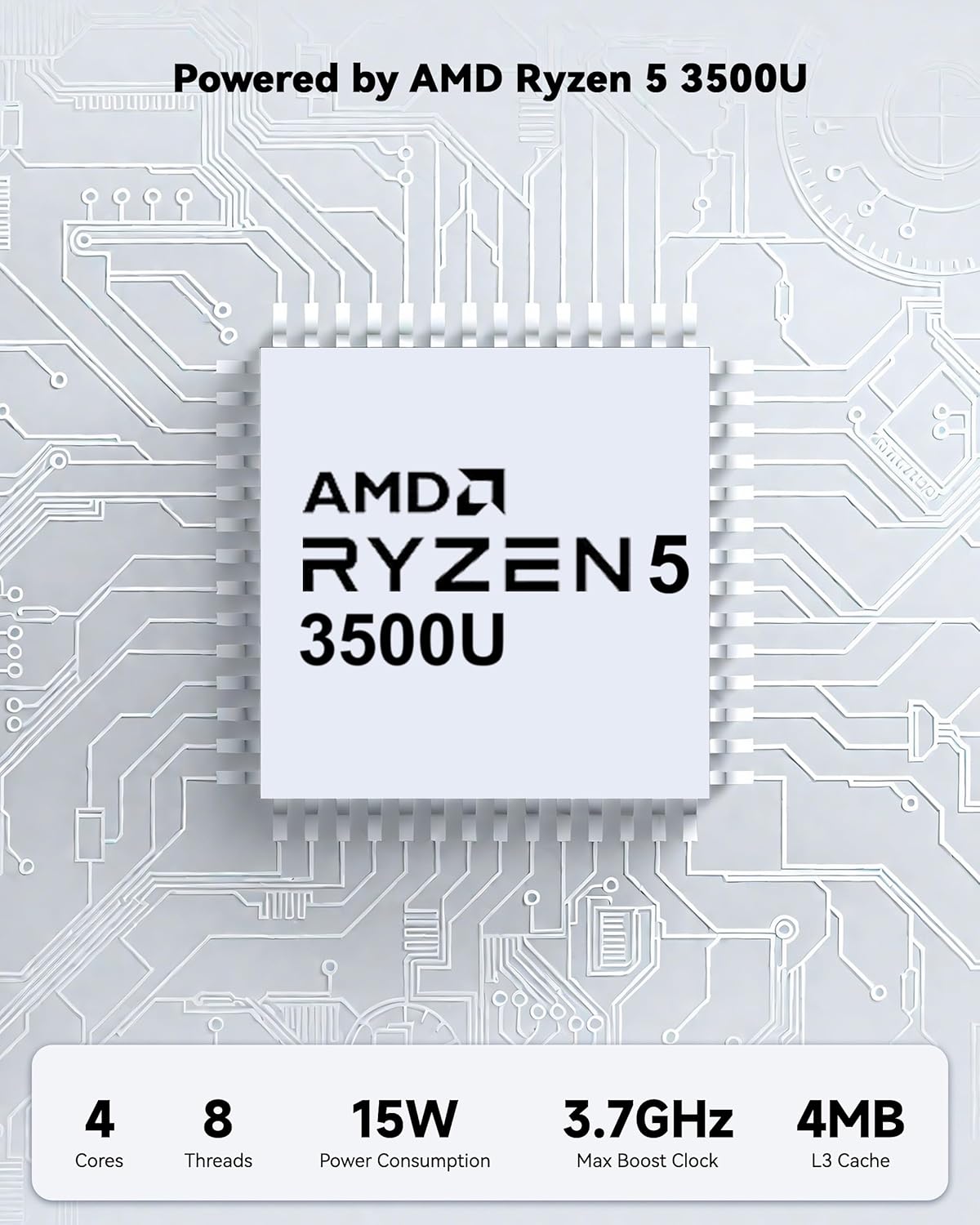
Image 3.2 : Côté view of the NIMO laptop showing available ports.
For wireless connectivity, the laptop supports Wi-Fi 6 for stable, high-speed internet and Bluetooth 5.2 for connecting wireless peripherals.
4. Principales caractéristiques
4.1 Performance
Powered by an AMD Ryzen 5 processor with 4 cores up to 3.7GHz and 16GB DDR4 RAM, the NIMO N152 is designed for efficient multitasking. The 512GB PCIe SSD ensures fast boot-ups and quick file transfers. The RAM is upgradable for future needs.

Image 4.1: AMD Ryzen 5 processor details.
4.2 Visuals and Audio
The 15.6-inch Full HD (1920x1080) IPS anti-glare display provides vibrant visuals with an 85% screen-to-body ratio. The integrated 2MP webcam allows for clear video calls.
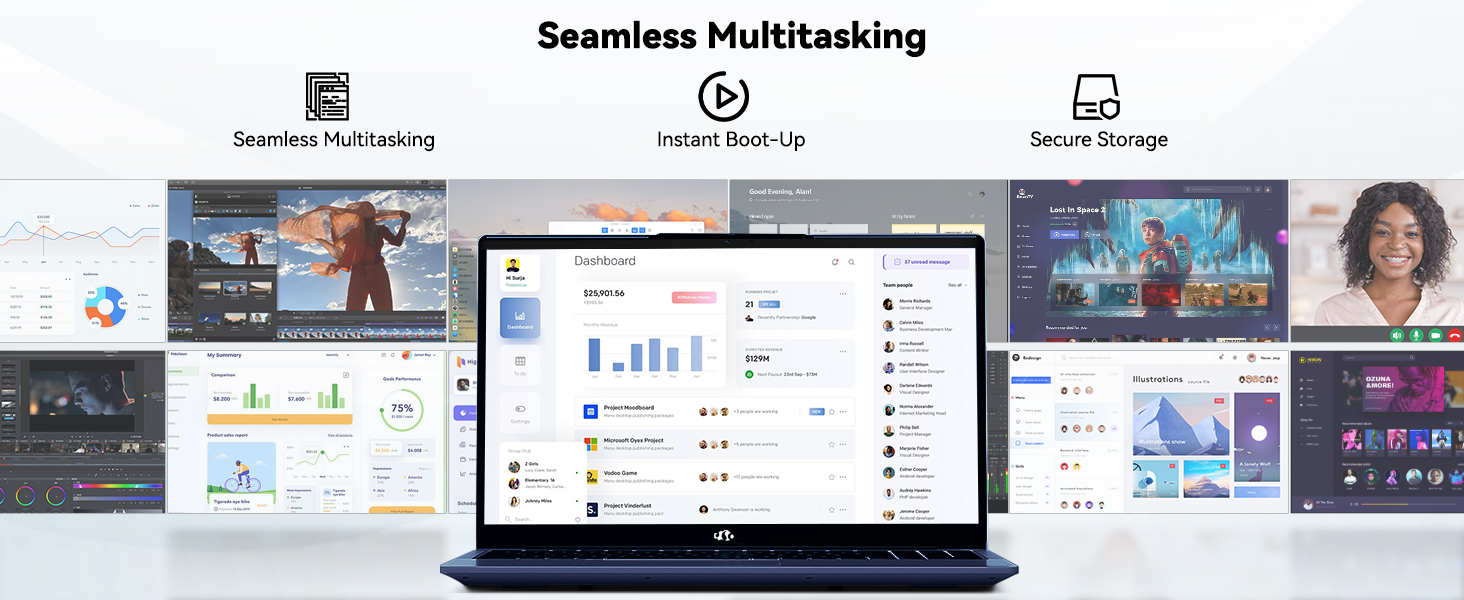
Image 4.2: The laptop's stunning Full HD display.

Image 4.3: The 1080p FHD camera for clear video conferencing.
4.3 Autonomie de la batterie
The laptop features a 54WH battery with smart battery optimization for extended lifespan and efficient power control, providing approximately 9 hours of average battery life.

Image 4.4: Smart Battery Optimization features.
4.4 Conception et portabilité
The NIMO N152 has a durable metal A-shell and a slim, lightweight design, weighing approximately 3.75 pounds.

Image 4.5: The NIMO laptop's lightweight and slim profile.
4.5 Produit terminéview Vidéo
Vidéo 4.1 : Un survol généralview of the NIMO 15.6-inch laptop, highlighting its features and design.
4.6 Power and Portability Video
Video 4.2: This video demonstrates the power and portability aspects of the NIMO 15.6-inch laptop.
5. Entretien
5.1 Nettoyage
- Utilisez un chiffon doux non pelucheux pour nettoyer l'écran et l'extérieur.
- Pour les taches tenaces, frottez légèrementampNettoyez le chiffon avec de l'eau ou un nettoyant adapté aux écrans.
- Évitez les produits chimiques agressifs, les abrasifs et les solvants.
- Veillez à ce que les conduits d'aération soient dégagés de poussière et de débris afin d'assurer une bonne circulation de l'air.
5.2 Entretien de la batterie
- Évitez de décharger complètement la batterie fréquemment.
- Rangez l'ordinateur portable dans un endroit frais et sec lorsqu'il n'est pas utilisé pendant une période prolongée.
- Use only the provided NIMO charger.
5.3 Mises à jour logicielles
Regularly update your operating system and drivers to ensure optimal performance and security. Windows 11 Home will prompt you for updates.
6. Dépannage
6.1 L'ordinateur portable ne s'allume pas
- Assurez-vous que le chargeur est correctement connecté à la fois à l'ordinateur portable et à une prise de courant fonctionnelle.
- Vérifiez le bon fonctionnement de la prise de courant en y branchant un autre appareil.
- Laissez l'ordinateur portable se charger pendant au moins 30 minutes avant de tenter de le rallumer.
6.2 Problèmes d'écran
- Si l'écran reste noir, essayez de connecter un moniteur externe pour vérifier si l'affichage fonctionne.
- Réglez la luminosité de l'écran à l'aide des touches de fonction.
- Redémarrez l'ordinateur portable.
6.3 Problèmes de connectivité
- Wifi: Check your router and internet connection. Ensure Wi-Fi is enabled on the laptop.
- Bluetooth : Verify Bluetooth is enabled and devices are in pairing mode.
- Périphériques USB : Try connecting the device to a different USB port or another computer to rule out device issues.
6.4 Performances lentes
- Fermez les applications inutiles qui s'exécutent en arrière-plan.
- Vérifiez et installez les mises à jour Windows en attente.
- Assurez-vous d'avoir suffisamment d'espace libre sur le SSD.
- Effectuez une analyse antivirus.
7. Spécifications
| Fonctionnalité | Spécification |
|---|---|
| Nom du modèle | NIMO N152 |
| Taille de l'écran | 15.6 pouces |
| Résolution de l'écran | 1920 x 1080 pixels (Full HD IPS) |
| Processeur | AMD Ryzen 5 (4 cœurs, jusqu'à 3.7 GHz) |
| BÉLIER | 16 Go de mémoire DDR4 (extensible) |
| Vitesse de la mémoire | 3200 MHz |
| Disque dur | SSD de 512 Go (PCIe) |
| Coprocesseur graphique | Carte graphique intégrée AMD |
| Système opérateur | Windows 11 Famille |
| Type sans fil | Wi-Fi 6 (802.11a/b/g/n/ac), Bluetooth 5.2 |
| Ports USB 2.0 | 1 |
| Ports USB 3.0 | 3 |
| Durée de vie moyenne de la batterie | 9 heures |
| Poids de l'article | 3.75 livres |
| Dimensions du produit | 14.07 x 8.98 x 0.76 pouces |
| Couleur | Bleu |
| Arrière WebRésolution de came | 2 MP |
| Caractéristiques spéciales | Clavier rétroéclairé, lecteur d'empreintes digitales, audio HD, pavé numérique |
7.1 Contenu de la boîte
- 1 x ordinateur portable NIMO N152
- 1 chargeur rapide USB-C 65 W PD
- 1 x Manuel d'utilisation
- Windows 11 Famille (préinstallé)
8. Garantie et assistance
Votre ordinateur portable NIMO N152 est livré avec un Garantie constructeur d'un anDe plus, NIMO propose un Politique de retour et d'échange sans tracas de 90 jours. For any product-related questions, technical assistance, or warranty claims, please contact NIMO customer service.
Coordonnées de 8.1
For support, you can reach out to the professional after-sales team via email or phone. Please refer to the official NIMO website or product page for the most current contact details.

Image 8.1: NIMO products are covered by a 2-year support.

Image 8.2: 90-Day Return policy.