
1. Introduction
This manual provides essential information for setting up, operating, and maintaining your NIMO 15.6-inch Light-Gaming Laptop, Model N15A. Designed for productivity, content creation, and light gaming, this laptop features an 8-core AMD Ryzen 7 Pro 6850U processor, AMD Radeon 680M integrated GPU, 16GB LPDDR5 RAM, and a 1TB PCIe 4.0 SSD. Enjoy vibrant visuals on its 15.6-inch Full HD IPS anti-glare display, secure login with an integrated fingerprint touchpad, and convenient typing with a backlit keyboard. The device also supports 100W USB-C fast charging for quick power-ups.
2. Contenu de la boîte
- 1 x ordinateur portable NIMO N15A
- 1 chargeur rapide USB-C 100 W PD
- 1 x Manuel d'utilisation
- Windows 11 Famille (préinstallé)
- Garantie de 2 ans, informations de retour sous 90 jours
3. Installation
3.1 Mise sous tension et charge initiales
Before first use, ensure your NIMO laptop is fully charged. Connect the provided 100W Type-C PD fast charger to the laptop's USB-C port and a power outlet. The charging indicator light will illuminate.
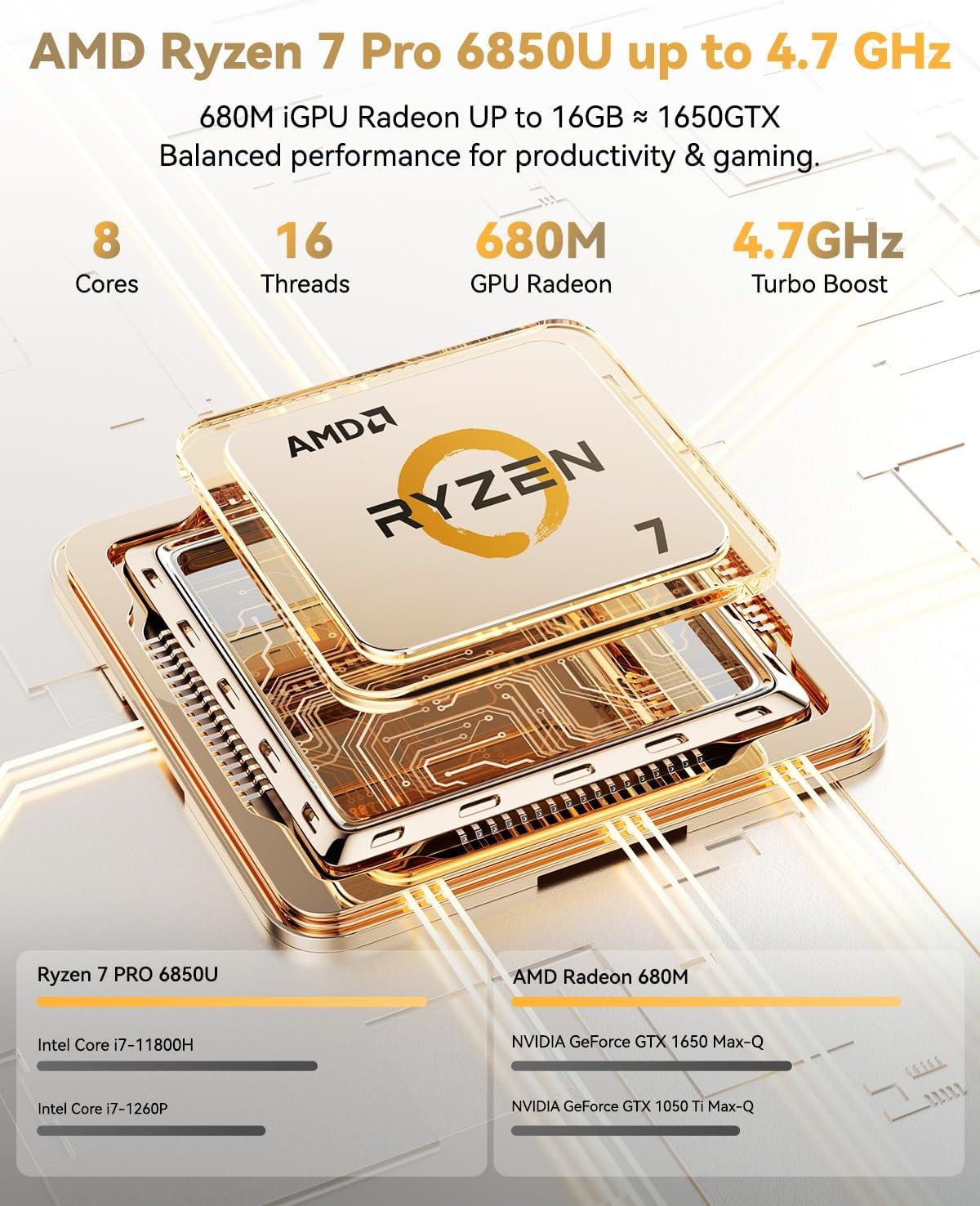
Image: NIMO 15.6-inch laptop displaying the Windows 11 setup screen.
Press the power button located on the top-right of the keyboard to turn on the laptop. Follow the on-screen instructions to complete the initial Windows 11 Home setup, including language selection, network connection, and user account creation.
3.2 Configuration des empreintes digitales
During the Windows setup, you will have the option to set up the integrated fingerprint reader for secure and instant login. Follow the prompts to register your fingerprint. This feature allows you to bypass password entry for quick access.
3.3 Connexion à un réseau
During setup, select your Wi-Fi network from the list and enter the password. The laptop supports Wi-Fi 6 for fast and stable wireless connectivity.
3.4 Déballage et première impressionview
Vidéo : Un overview of the NIMO 15.6-inch laptop, demonstrating its physical features, ports, and initial setup process, including the backlit keyboard and fingerprint reader.
4. Utilisation de votre ordinateur portable NIMO
4.1 Mise sous/hors tension
- Pour allumer : Appuyez sur le bouton d'alimentation.
- Pour éteindre : Click the Start menu, then Power, and select 'Shut down'. Alternatively, press and hold the power button for a few seconds.
Affichage 4.2
The NIMO N15A features a 15.6-inch Full HD (1920x1080) IPS anti-glare display. This screen provides clear, vibrant visuals with an 85% screen-to-body ratio, ideal for work, streaming, and light gaming.

Image: The NIMO laptop's 15.6-inch Full HD IPS display showcasing vivid colors and sharp details.
4.3 Clavier et pavé tactile
The laptop is equipped with a backlit keyboard and a numeric keypad for enhanced productivity in various lighting conditions. The precision gesture touchpad allows for smooth navigation, and the integrated fingerprint touchpad provides secure, instant login.

Image: Close-up of the NIMO laptop's backlit keyboard and the fingerprint sensor on the touchpad.
4.4 Connectivité et ports
Le NIMO N15A offre une variété de ports pour une connectivité polyvalente :
- USB-C (Multi-function): Supports 100W Power Delivery (PD) fast charging and data transfer.
- USB 3.2 : Transfert de données à haut débit.
- USB 2.0 : Connectivité USB standard.
- HDMI: Pour connecter des écrans externes.
- Lecteur de carte micro SD : Pour étendre le stockage ou transférer files.
- Prise casque: Pour la sortie audio.
- Verrou Kensington : Pour des raisons de sécurité physique.
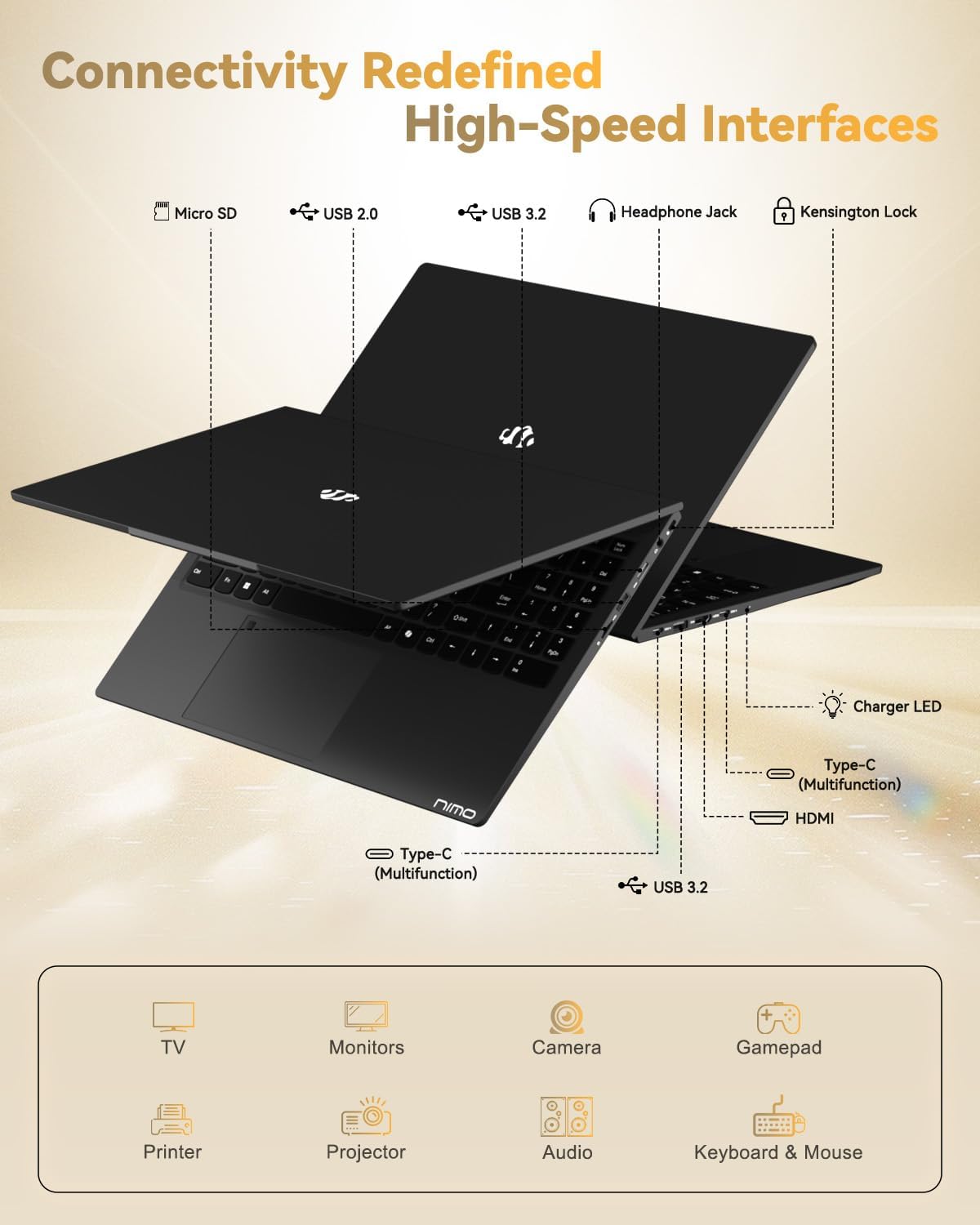
Image: The left and right sides of the NIMO laptop, highlighting the available ports for external devices.
4.5 Webcame
The laptop includes a 2.0 MP front-facing webcam with a physical privacy shutter, ensuring your privacy during video calls and online meetings.

Image: The NIMO laptop's integrated webcam, demonstrating the physical privacy shutter mechanism.
4.6 Performancesview
Powered by the AMD Ryzen 7 Pro 6850U processor with 8 cores and 16 threads (up to 4.7GHz), and an AMD Radeon 680M GPU, this laptop delivers smooth multitasking and responsive performance for professional workloads, content creation, and light gaming. It comes with 16GB LPDDR5 RAM and a 1TB PCIe 4.0 SSD for rapid data access and storage.
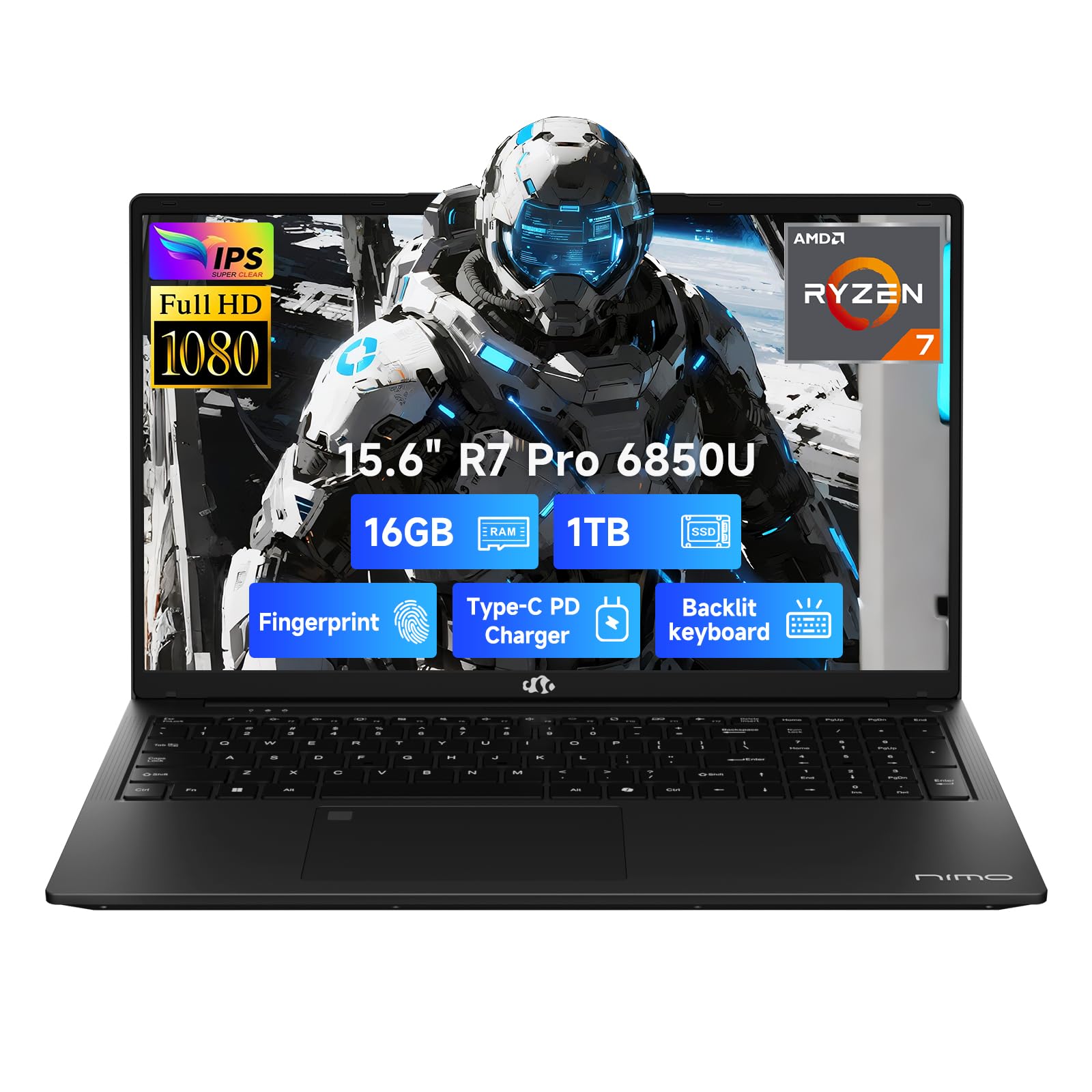
Image: Visual representation of the AMD Ryzen 7 Pro 6850U processor's core specifications.
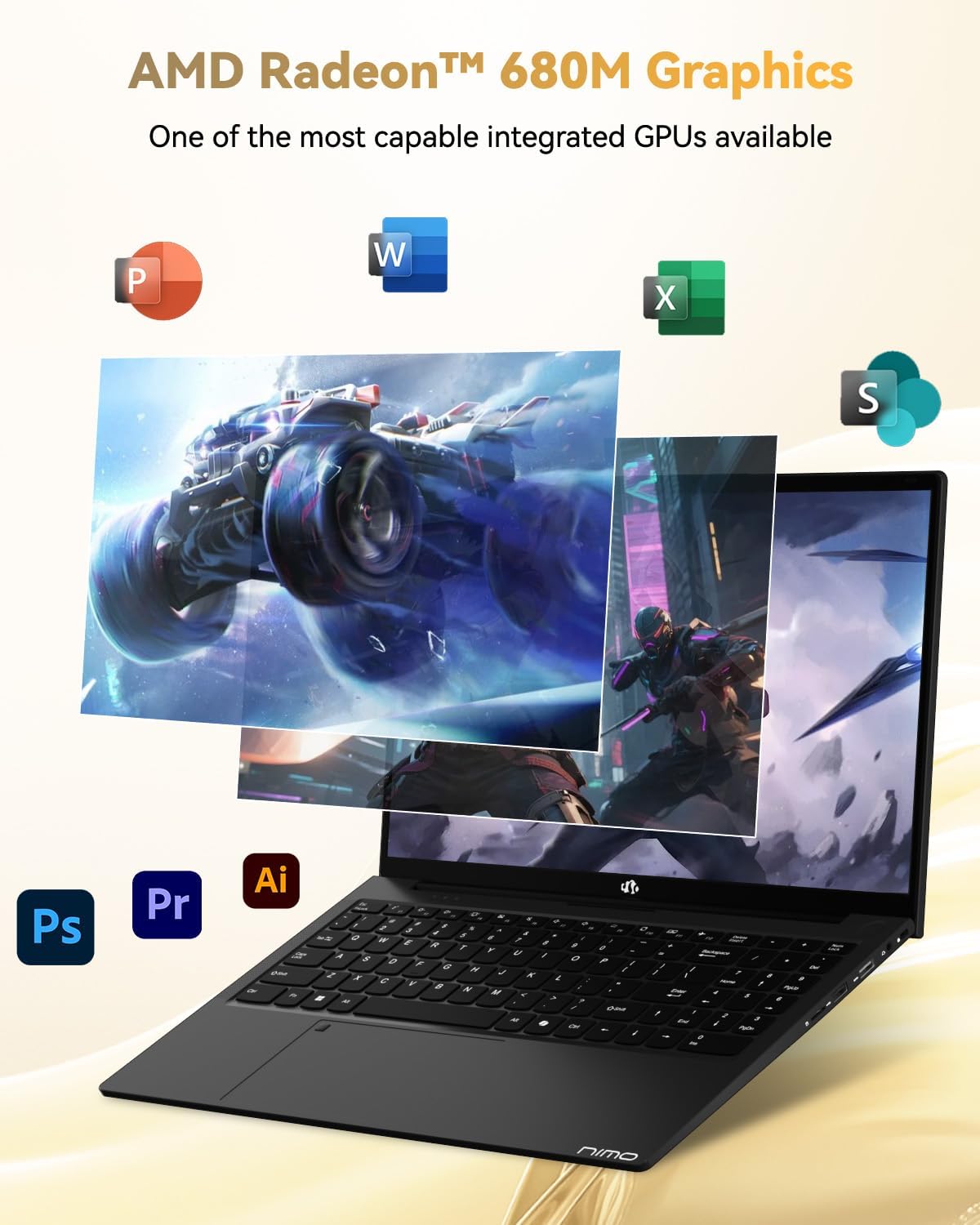
Image: The NIMO laptop showcasing its AMD Radeon 680M graphics performance with various applications.

Image: The NIMO laptop illustrating its capability for seamless multitasking and ample stockage.
4.7 Batterie et charge
The laptop is powered by a 53.58 Watt-hour Lithium Polymer battery, offering up to 9 hours of battery life. The included 100W USB-C PD fast charger can provide up to 2 hours of use with just a 15-minute charge, making it ideal for users on the go.

Image: The NIMO laptop connected to its 100W Type-C fast charger.
4.8 General Usage and Features
Vidéo : Une vidéo promotionnelle présentantasing the NIMO 15.6-inch FHD laptop's various features and use cases, including its display, performance, and portability.
Video: A video highlighting the Nimo Student Laptop's features, including its suitability for students and general use, emphasizing its design and functionality.
5. Maintenance et entretien
Pour garantir la longévité et les performances optimales de votre ordinateur portable NIMO, suivez ces consignes d'entretien :
- Utilisation du chargeur : Always use the original 100W Type-C PD fast charger and regularly inspect cables for damage.
- Manutention physique : Hold the laptop by its base, use a protective case, and avoid placing heavy items on it.
- Ventilation: Place the laptop on a hard, flat surface to ensure proper airflow and prevent overheating. Avoid using it on soft surfaces like beds or couches.
- Conditions environnementales : Keep the laptop away from extreme temperatures, direct sunlight, and moisture.
- Entretien de la batterie: Avoid overcharging the battery. If the battery shows signs of swelling, discontinue use immediately and contact support.
- Sécurité: Set strong passwords, keep your operating system and software updated, and use antivirus software. Regularly back up your data to prevent loss.
- Déversements de liquide : In case of a liquid spill, immediately unplug the laptop and allow it to dry completely before attempting to power it on.
- Réparations: For any issues or repairs, consult qualified professionals. Do not attempt to disassemble the laptop yourself, as this may void your warranty.
6. Dépannage
If you encounter any issues with your NIMO laptop, consider the following basic troubleshooting steps:
- Pas d'alimentation : Ensure the charger is securely connected and the power outlet is functional. Try a different outlet or charger if available.
- Problèmes d'affichage : If the screen is blank, try connecting an external monitor to check if the display output is working. Adjust brightness settings.
- Performances lentes : Fermez les applications inutiles, vérifiez les mises à jour en arrière-plan ou redémarrez l'ordinateur portable. Assurez-vous qu'il y a suffisamment d'espace libre sur le SSD.
- Problèmes de connectivité : En cas de problème de Wi-Fi, redémarrez votre routeur et votre ordinateur portable. Pour le Bluetooth, assurez-vous que l'appareil est détectable et à portée.
- Lecteur d'empreintes digitales non fonctionnel : Assurez-vous que votre doigt est propre et sec. Si le problème persiste, réenregistrez votre empreinte digitale dans les paramètres Windows.
- Problèmes audio : Check volume levels, ensure headphones are properly connected, and verify audio drivers are up to date.
For persistent problems or issues not covered here, please refer to the Warranty and Support section for contact information.
7. Spécifications
| Fonctionnalité | Spécification |
|---|---|
| Marque | NIMO |
| Nom du modèle | NIMO N15A |
| Taille de l'écran | 15.6 pouces |
| Résolution d'affichage | 1920 x 1080 pixels (FHD) |
| Technologie d'affichage | IPS |
| Modèle de processeur | AMD Ryzen 7 Pro 6850U |
| Vitesse du processeur | Jusqu'à 4.7 GHz |
| Cœurs de Processeur | 8 |
| Taille de la mémoire RAM installée | 16 Go LPDDR5 |
| Vitesse d'horloge de la mémoire | 6400 MHz |
| Taille du disque dur | 1024 GB (1TB PCIe 4.0 SSD) |
| Coprocesseur graphique | Carte graphique AMD Radeon 680M |
| Système opérateur | Windows 11 Famille |
| Caractéristiques spéciales | Clavier rétroéclairé, lecteur d'empreintes digitales, audio HD, pavé numérique |
| Technologie de connectivité | Bluetooth, Wi-Fi (802.11a/b/g/n/ac) |
| Nombre total de ports USB | 5 |
| Sortie vidéo | HDMI |
| Autonomie de la batterie | 9 Hours (Average) |
| Poids de l'article | 3.75 livres |
| Dimensions de l'article (L x l x épaisseur) | 14.07 po L x 8.98 po l x 0.76 po ép. |
8. Garantie et assistance
NIMO stands by the quality of its products. Your NIMO N15A laptop comes with a Garantie constructeur d'un an et un Politique de retour sans tracas de 90 jours. Our laptops undergo rigorous testing to ensure top-tier quality and reliability.

Image: NIMO's commitment to after-sales services, including support and returns.
Contacter le support
Our dedicated support team is ready to provide quick, effective assistance for a worry-free experience. For any product-related questions or warranty claims, please contact us:
- E-mail: service@nimopc.com
- En ligne: Visitez le site officiel de NIMO website or product page for chat support during business hours.

Image: Professional customer assistance available to help with product inquiries.