
Introduction
This manual provides essential information for the NIMO 15.6-inch Light Gaming Laptop N15A. It covers setup, operation, maintenance, troubleshooting, and product specifications. Please read this manual thoroughly before using your new laptop to ensure proper function and longevity.

Image: NIMO 15.6-inch Light Gaming Laptop N15A, showcasing son écran et son clavier complets.
Contenu du colis
Verify that all items listed below are present in your product packaging. If any items are missing or damaged, please contact NIMO customer support.
- 1 x ordinateur portable NIMO N15A
- 1 chargeur rapide USB-C 100 W PD
- 1 x Manuel d'utilisation
- Système d'exploitation Windows 11 Famille (préinstallé)
Produit terminéview
The NIMO N15A laptop is designed for balanced performance, featuring an AMD Ryzen 7 Pro 6850U processor, 32GB LPDDR5 RAM, and a 1TB PCIe 4.0 SSD. It includes a 15.6-inch Full HD IPS display, a backlit keyboard, and an integrated fingerprint reader for secure access.
Caractéristiques principales :
- Processeur: AMD Ryzen 7 Pro 6850U with 8 Cores and 16 Threads, up to 4.7GHz.
- Graphique: Carte graphique intégrée AMD Radeon 680M.
- Mémoire: 32GB LPDDR5 RAM for efficient multitasking.
- Stockage: Disque SSD PCIe 4.0 de 1 To pour des temps de démarrage et d'accès aux données rapides.
- Afficher: Écran IPS antireflet Full HD (1920x1080) de 15.6 pouces.
- Chargement : 100W USB-C Power Delivery fast charging.
- Sécurité: Integrated fingerprint reader for secure login.
- Clavier: Backlit keyboard for use in various lighting conditions.
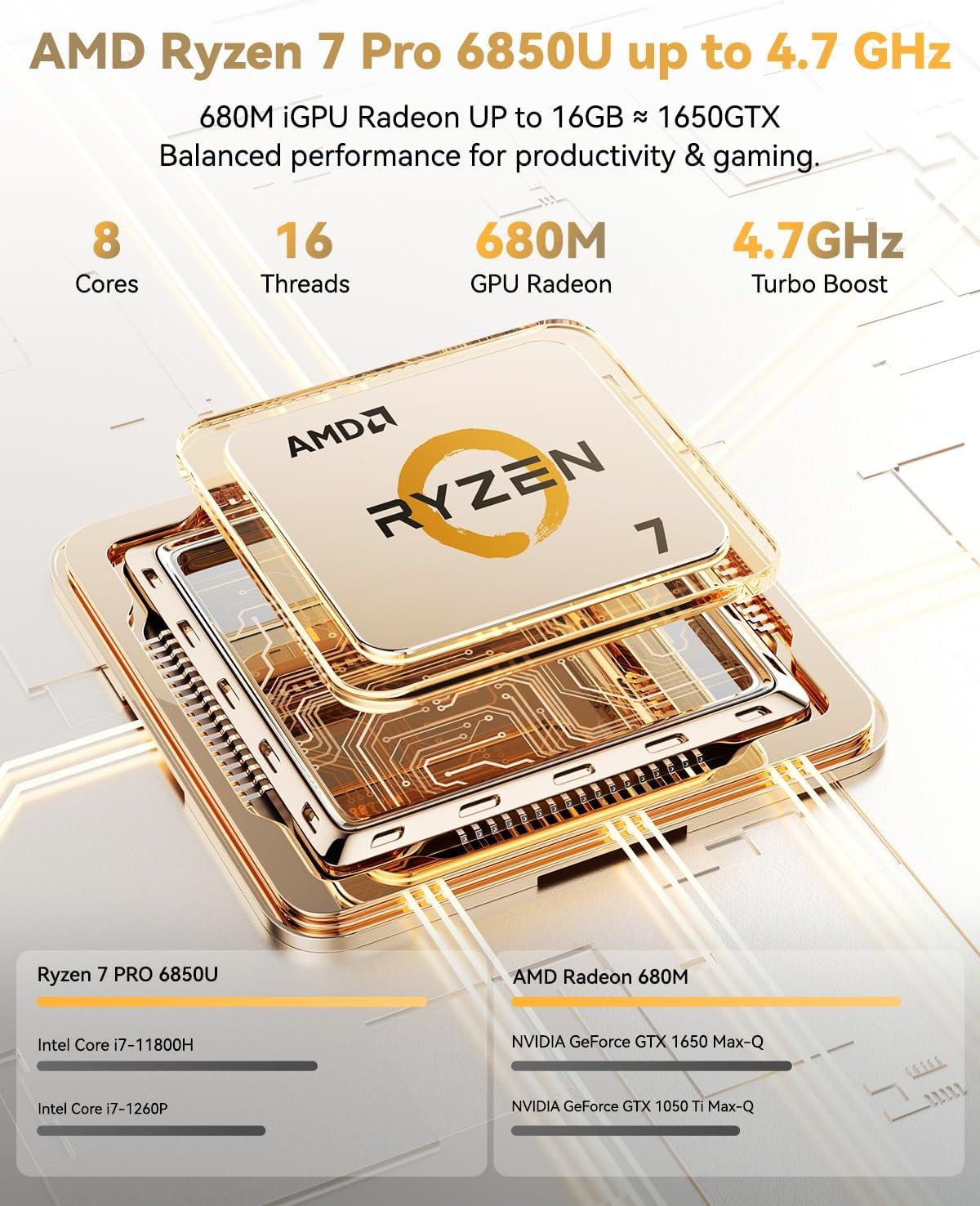
Image: Visual representation of the AMD Ryzen 7 Pro 6850U processor's core and thread count, and turbo boost speed.
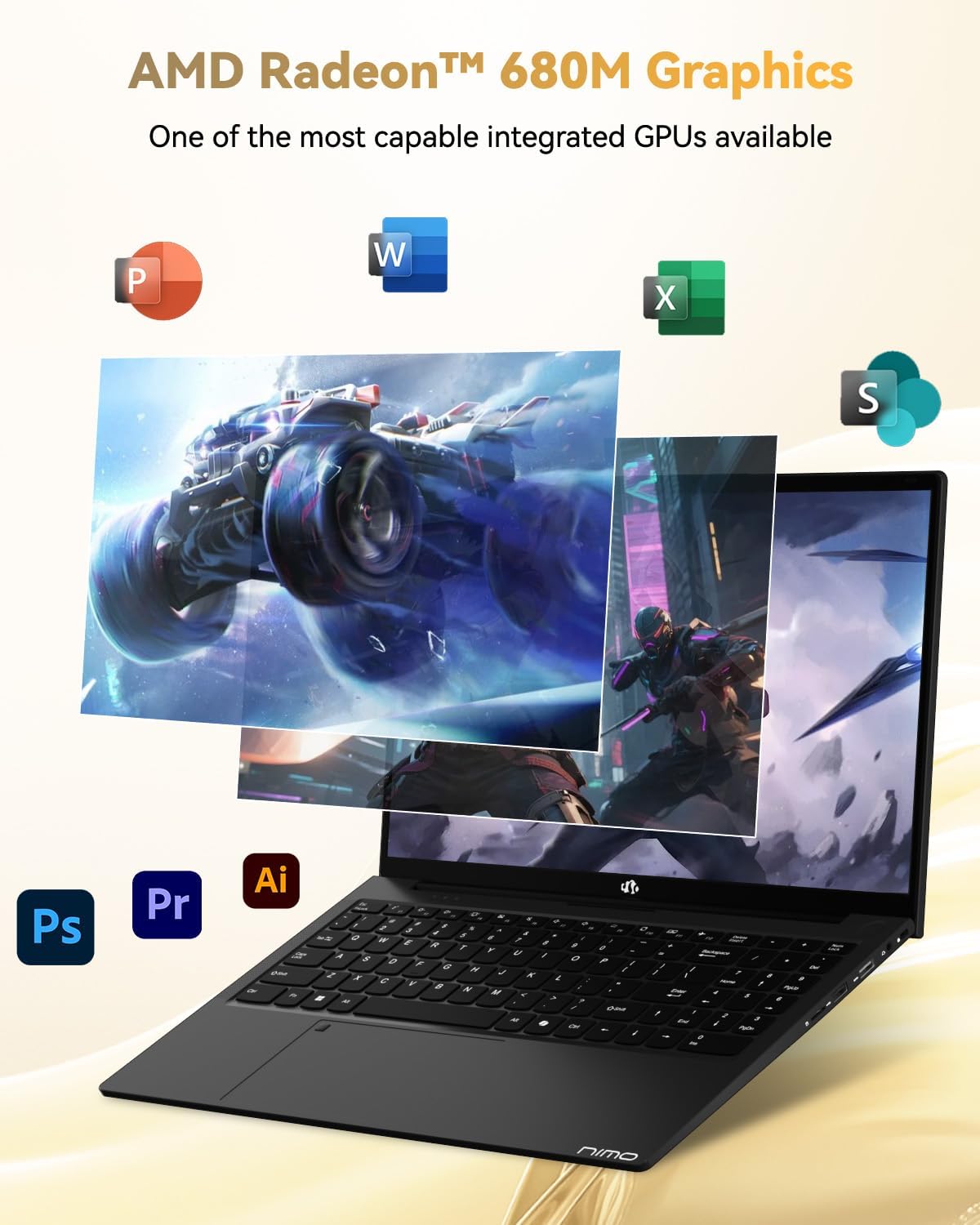
Image: Illustration highlighting the capabilities of the AMD Radeon 680M integrated graphics for various applications.

Image: Diagram showing the 32GB LPDDR5 RAM and 1TB PCIe 4.0 SSD for seamless multitasking and ample stockage.
Image: The NIMO N15A laptop displaying a vibrant image on its 15.6-inch Full HD IPS screen.
Ports et connectivité :

Image: Diagram illustrating the various ports on the NIMO N15A laptop, including USB, HDMI, and Type-C.
- Lecteur Micro SD
- Port USB 2.0
- Ports USB 3.2 (plusieurs)
- Prise casque
- Slot pour verrou Kensington
- Type-C (Multifunction) Ports (supporting charging and data transfer)
- Port HDMI
Installation
1. Initial Charging and Power On:
- Connect the provided 100W Type-C PD Fast Charger to the laptop's Type-C charging port and a power outlet.
- Allow the laptop to charge for at least 30 minutes before initial use, or until the charging indicator shows sufficient battery.
- Appuyez sur le bouton d'alimentation situé sur le clavier pour allumer l'ordinateur portable.

Image: Illustration of the NIMO N15A laptop being charged with the 100W Type-C PD Fast Charger.
2. Windows 11 Initial Setup:
Suivez les instructions à l'écran pour terminer le processus d'installation de Windows 11. Cela comprend généralement :
- Sélectionnez votre région et votre disposition de clavier.
- Connexion à un réseau Wi-Fi.
- Se connecter avec un compte Microsoft ou créer un compte local.
- Configurer un code PIN ou un mot de passe.
- Configuration des paramètres de confidentialité.
Mode d'emploi
Gestion de l'alimentation:
- Mise sous tension : Appuyez sur le bouton d'alimentation.
- Mode veille: Fermez le couvercle ou appuyez brièvement sur le bouton d'alimentation.
- Fermer: Cliquez sur le bouton Démarrer, puis sur Marche/Arrêt, puis sur Arrêter.
- Redémarrage: Cliquez sur le bouton Démarrer, puis sur Marche/Arrêt, puis sur Redémarrer.
Clavier et pavé tactile :

Image : Gros plan view of the NIMO N15A laptop's backlit keyboard and the integrated fingerprint reader on the touchpad.
- Clavier rétroéclairé : Use the dedicated function key (usually Fn + Fx) to toggle the keyboard backlight on/off and adjust brightness levels.
- Lecteur d'empreintes digitales: The fingerprint reader is integrated into the touchpad. During Windows setup, you can configure your fingerprint for secure, quick login.
- Pavé tactile de précision : Compatible avec les gestes multitouch pour la navigation. Consultez les paramètres Windows pour plus de détails.
Connexion de périphériques :
Utilize the various ports to connect external devices such as monitors, printers, external storage, and audio devices.
- Périphériques USB : Plug USB devices into the available USB 2.0 or USB 3.2 ports.
- Affichage externe : Connect an external monitor or TV using the HDMI port or a compatible Type-C adapter.
- Audio: Utilisez la prise casque 3.5 mm pour brancher un casque ou des haut-parleurs externes.
Confidentialité de la caméra :
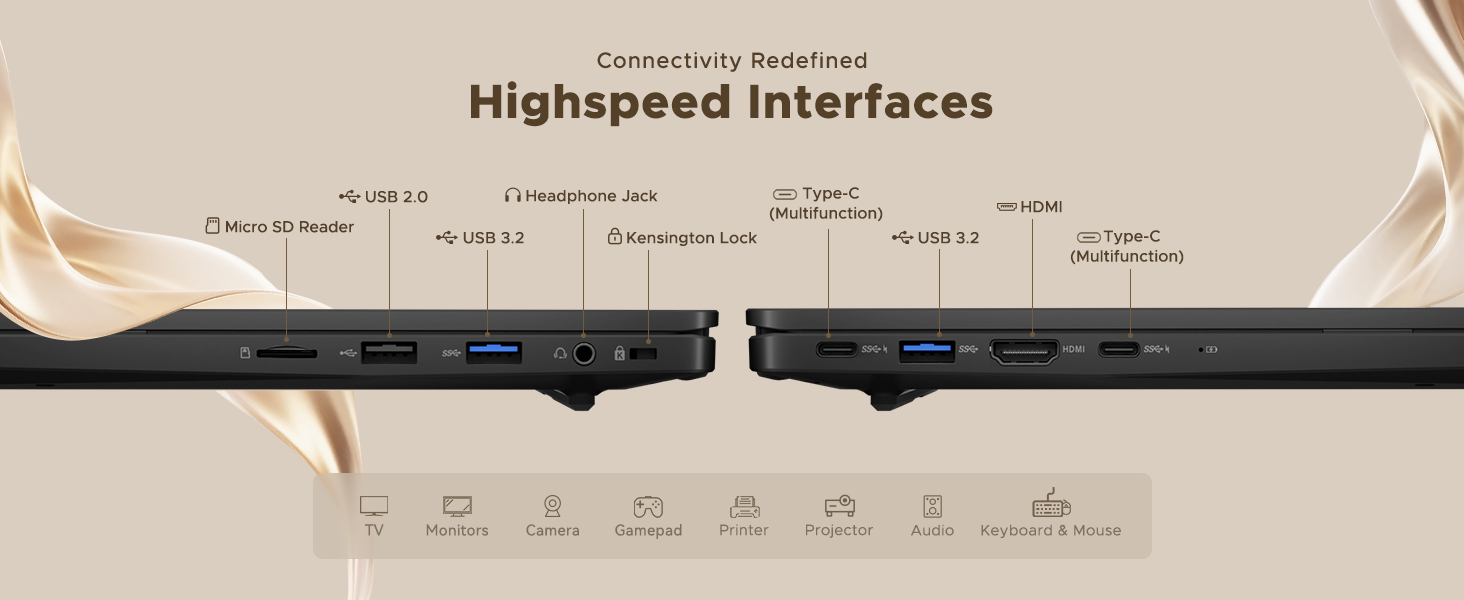
Image: Illustration of the NIMO N15A laptop's built-in privacy camera switch, allowing users to easily disable the webcame.
The NIMO N15A laptop features a built-in privacy camera switch. This allows you to physically disable the 2.0MP webLa caméra se désactive lorsqu'elle n'est pas utilisée, garantissant ainsi votre confidentialité.
Entretien
Nettoyage de l'ordinateur portable :
- Éteignez l'ordinateur portable et débranchez le chargeur avant de le nettoyer.
- Utilisez un chiffon doux et non pelucheux légèrement dampTerminé avec de l'eau ou un nettoyant pour écran.
- Pour le clavier et le châssis, utilisez un chiffon doux. Évitez les produits chimiques agressifs et les matériaux abrasifs.
- Utilisez de l'air comprimé pour dépoussiérer les touches du clavier et les aérations.
Entretien de la batterie:
- Évitez de décharger complètement la batterie fréquemment.
- Si vous n'utilisez pas votre ordinateur portable pendant une période prolongée, rangez-le dans un endroit frais et sec, avec la batterie chargée à environ 50-70 %.
- Use only the original NIMO 100W Type-C PD Fast Charger.
Mises à jour logicielles :
- Vérifiez et installez régulièrement les mises à jour Windows pour garantir la stabilité et la sécurité du système.
- Keep device drivers updated, especially for graphics and chipset, by checking the NIMO support website ou Windows Update.
Dépannage
| Problème | Solution possible |
|---|---|
| L'ordinateur portable ne s'allume pas. | Ensure the charger is properly connected and the power outlet is functional. Allow the battery to charge for at least 30 minutes. If the issue persists, contact support. |
| L'écran est noir ou clignote. | Try connecting an external monitor to check if the issue is with the laptop's display. Adjust display brightness. Restart the laptop. |
| Performances lentes. | Close unnecessary applications. Check for background processes consuming high resources. Ensure sufficient free storage space. Run a system scan for malware. |
| Le rétroéclairage du clavier ne fonctionne pas. | Press the dedicated function key combination (e.g., Fn + Fx) to toggle or adjust the backlight. Check keyboard settings in Windows. |
| Le lecteur d'empreintes digitales ne répond pas. | Ensure your finger is clean and dry. Re-register your fingerprint in Windows settings. Restart the laptop. |
For issues not listed here or if solutions do not resolve the problem, please refer to the Warranty and Support section for assistance.
Caractéristiques
| Fonctionnalité | Détail |
|---|---|
| Marque | NIMO |
| Nom du modèle | NIMO N15AL (N15A) |
| Taille de l'écran | 15.6 pouces |
| Résolution de l'écran | 1920 x 1080 pixels (Full HD) |
| Processeur | AMD Ryzen 7 Pro 6850U (8 Cores, up to 4.7 GHz) |
| BÉLIER | 32 Go LPDDR5 (6400 MHz) |
| Disque dur | 1024 GB SSD (PCIe 4.0, Solid State) |
| Coprocesseur graphique | AMD Radeon 680M (intégrée) |
| Système opérateur | Windows 11 |
| Type sans fil | Normes 802.11a/b/g/n/ac |
| Ports USB 2.0 | 1 |
| Ports USB 3.0/3.2 | 4 |
| Durée de vie moyenne de la batterie | 9 heures |
| Poids de l'article | 3.75 livres |
| Dimensions du produit | 14.07 x 8.98 x 0.76 pouces |
| Couleur | Noir |
| Arrière WebRésolution de came | 2 MP |
| Caractéristiques spéciales | Clavier rétroéclairé, lecteur d'empreintes digitales, audio HD, pavé numérique |
Garantie et assistance
NIMO provides comprehensive support for your laptop.
- Garantie: Your NIMO N15A laptop comes with a 2-year manufacturer's warranty.
- Politique de retour: A 90-day hassle-free return policy is offered from the date of purchase.
- Assistance clientèle : For technical assistance, warranty claims, or product-related inquiries, please contact NIMO customer support.
Contact information for support is typically available on the official NIMO website or through the product's packaging.
Consignes de sécurité
Important: Read and follow these safety guidelines to prevent damage to your device or personal injury.
- Utilisez uniquement des chargeurs d'origine et inspectez régulièrement les câbles pour détecter tout dommage.
- Manipulez l'ordinateur portable par sa base et envisagez l'utilisation d'une housse de protection. Évitez de poser des objets lourds dessus.
- Placez l'ordinateur portable sur une surface plane et dure pour assurer une bonne ventilation et éviter la surchauffe. Protégez-le des températures extrêmes et de l'humidité.
- Do not overcharge the battery. Discontinue use if the battery shows signs of swelling or damage.
- Set strong passwords, keep software updated, use antivirus software, and regularly back up your data.
- En cas de déversement de liquide, débranchez immédiatement l'ordinateur portable et laissez-le sécher complètement avant de tenter de le rallumer.
- For any issues, consult qualified professionals. Do not attempt to disassemble or repair the device yourself.
Mentions légales
This NIMO laptop is provided "as is," without express or implied warranties, except for any applicable manufacturer's limited warranty. Implied warranties of merchantability or fitness for a specific purpose are disclaimed. NIMO is not liable for damages resulting from misuse (e.g., non-approved chargers, unauthorized repairs), physical damage, or failure to adhere to safety guidelines, including data loss or business interruption. Users are responsible for regularly backing up their data. This disclaimer does not exclude liability for manufacturing defects or violations of mandatory local laws. By using this laptop, you accept these terms, which are governed by the laws of the applicable jurisdiction.