
Introduction
Thank you for choosing the SOLAKAKA A75 75% Wireless Mechanical Keyboard. This manual provides detailed instructions for setting up, operating, and maintaining your keyboard to ensure optimal performance and longevity. The A75 keyboard is designed for versatility and performance, featuring tri-mode connectivity, hot-swappable switches, customizable RGB lighting, and a compact 75% layout with a multifunctional knob.
Qu'y a-t-il dans la boîte
- SOLAKAKA A75 Wireless Mechanical Keyboard
- Câble USB-C
- Extracteur de capuchon
- Manuel d'utilisation
Configuration et connectivité
The SOLAKAKA A75 keyboard offers three versatile connection modes: 2.4GHz wireless, Bluetooth 5.0, and USB-C wired. It is compatible with Windows, Mac, and iOS systems, allowing connection to up to five devices simultaneously.
Modes de connexion:
- Sans fil 2.4 GHz : Insert the USB receiver into your device's USB port. Toggle the switch on the keyboard to "2.4G" mode.
- Bluetooth 5.0: Toggle the switch on the keyboard to "BT" mode. Rechercher "SOLAKAKA A75" on your device's Bluetooth settings and pair. The keyboard supports older Bluetooth versions down to 3.0 and newer ones up to 5.0.
- Câble USB-C : Connect the keyboard to your device using the provided USB-C cable. Toggle the switch on the keyboard to "Wired" mode.
The keyboard can remember up to three Bluetooth devices, allowing for instant switching between them.
Compatibilité du système :
- Fenêtres : Presse Fn + W pour passer en mode Windows.
- Mac: Presse Fn + E to switch to Mac mode. In Mac mode, function keys switch to typical macOS behavior.
- Androïde: Presse Fn + Q to switch to Android mode.
The keyboard also supports locking the WIN key and full N-key rollover to prevent accidental presses during intense gaming sessions.
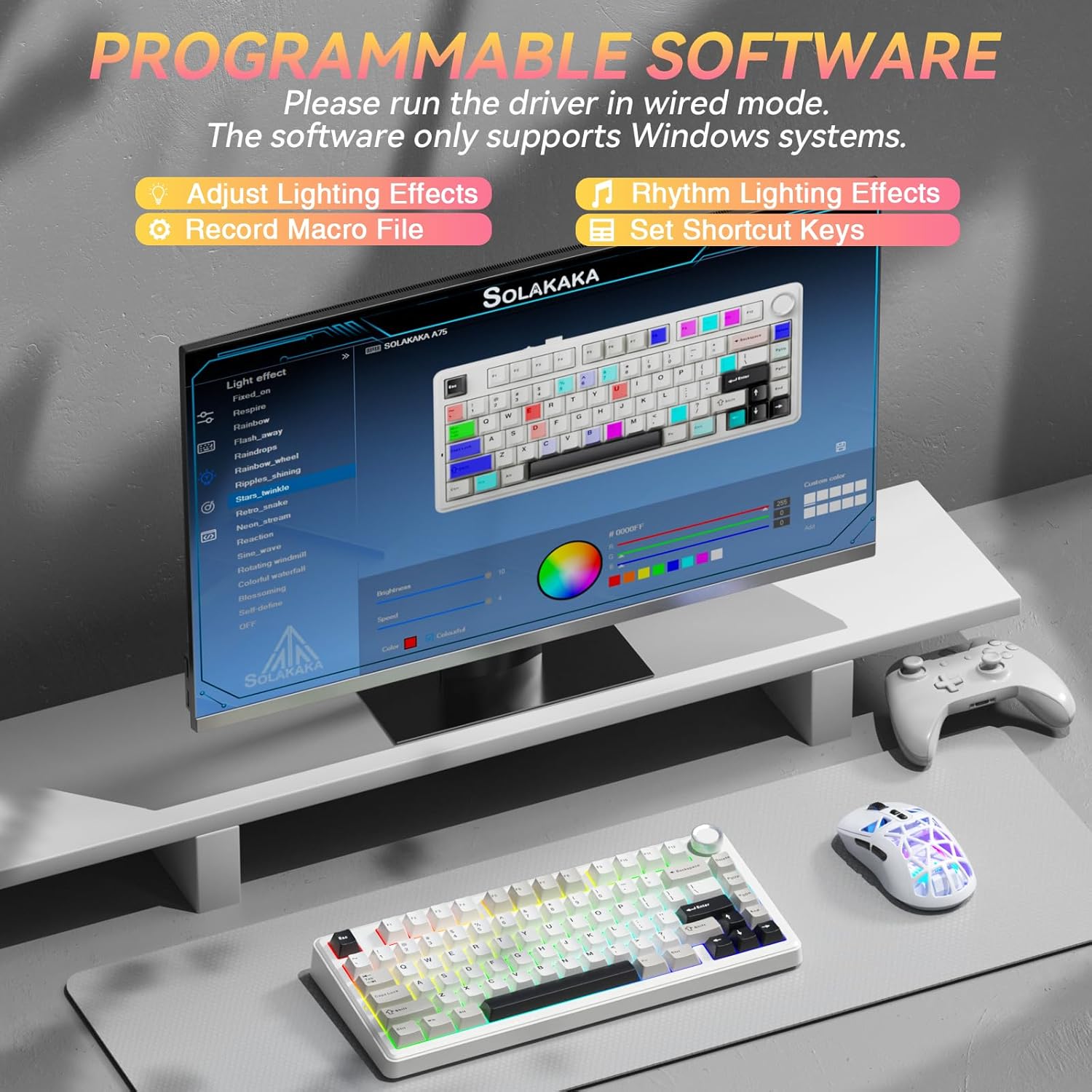
Image : Arrière view of the SOLAKAKA A75 keyboard highlighting the USB receiver slot, connection mode switch (BT, Wired, 2.4G), and Type-C port.
Mode d'emploi
Bouton multifonction :
The rotary knob on the keyboard allows for quick adjustments based on the active mode:
- Mode de jeu: A short press selects different lighting patterns. Rotating the knob adjusts the lighting brightness.
- Mode bureautique : A short press mutes or unmutes the device. Rotating the knob adjusts the volume.
Long press the knob to switch between Gaming and Office modes.
Video: Demonstration of the multifunction knob on the SOLAKAKA A75 keyboard, showing how to switch between office and gaming modes and adjust settings like volume and lighting brightness.
Modes d'éclairage RVB :
The keyboard features 17 distinct RGB lighting modes to enhance your experience. You can adjust these settings using shortcut keys:
- Fn + V: Changer le mode d'éclairage
- Fn + Tab : Changer les couleurs de la lumière
- Fn + ↑ : Augmenter la luminosité de l'éclairage
- Fn + ↓ : Reduce Lighting Brightness
- Fn + → : Augmenter la vitesse de la lumière
- Fn + ← : Reduce Light Speed

Image: The SOLAKAKA A75 keyboard displaying multiple RGB lighting effects and illustrating the shortcut keys for controlling them.
Battery Life Check:
To check the remaining battery life, press Fn+B. The keyboard will indicate the battery level from 1 to 10, with lower numbers indicating less charge. The 4000mAh battery provides up to 17 hours of use with lighting on, and up to 11 days with lighting off.
Personnalisation
Commutateurs remplaçables à chaud :
The A75 keyboard supports 3-pin/5-pin full hot-swap functionality, allowing you to easily change switches without soldering. This enables quick and easy customization of your typing experience.

Image: The SOLAKAKA A75 keyboard with several keycaps and switches detached, illustrating its full hot-swappable capability for 3-pin and 5-pin switches.
Logiciel programmable :
For advanced customization, download the programmable software from solakakadriver.com. Note that this software only supports Windows systems and must be run in wired mode.
With the software, you can:
- Adjust lighting effects and sync with music (10 effects available).
- Customize keyboard shortcuts.
- Set sleep time.
- Adjust key sensitivity.
- Optimize key bounce.
- Enregistrer une macro files.
- Modify lighting modes, colors, brightness, and speed.

Image: The SOLAKAKA A75 keyboard displayed with a monitor showing its programmable software interface, which allows for advanced customization of lighting, macros, and key settings.
Entretien
Retrait des touches et des interrupteurs :
Use the provided keycap puller to carefully remove keycaps for cleaning or switch replacement. Gently pull the keycap straight up. For switch removal, use a switch puller (not included, but compatible with the hot-swappable design) to carefully extract the switch.
The PBT keycaps are sweat-resistant, durable, and fade-proof, ensuring long-lasting quality.

Image : Une image détaillée view of the SOLAKAKA A75 keyboard's LEOBOG Gray Wood Switch V3, showing its components and specifications for key travel and actuation force.
Dépannage
- Le clavier ne se connecte pas : Ensure the correct connection mode (2.4G, BT, Wired) is selected via the switch. For 2.4G, check the USB receiver. For Bluetooth, ensure pairing mode is active on the keyboard and device. For wired, ensure the USB-C cable is securely connected.
- L'éclairage ne fonctionne pas : Check battery level (Fn+B). Adjust brightness using Fn + ↑/↓. Cycle through modes with Fn + V.
- Les touches ne répondent pas : Ensure the keyboard is charged and connected. If using wireless, check battery. If a specific key is not responding, it may be a faulty switch; utilize the hot-swappable feature to replace it.
- Problèmes logiciels : Ensure the keyboard is connected in wired mode and your system is Windows when using the programmable software.
Caractéristiques
| Marque | SOLAKAKA |
| Modèle | A75 |
| Mise en page | 75 % (81 touches) |
| Technologie de connectivité | Sans fil 2.4 GHz, BT5.0, filaire USB-C |
| Appareils compatibles | Laptop, PC, Tablet (Windows, Mac, iOS, Android) |
| Description du clavier | Mechanical, Gasket Mounted |
| Interrupteurs | LEOBOG Reaper Switches (Pre-lubricated), Full Hot-Swappable (3-pin/5-pin) |
| Keycaps | Premium PBT Keycaps (Double Injection Molding) |
| Rétroéclairage | RGB (17 Lighting Modes) |
| Capacité de la batterie | 4000mAh |
| Dimensions du produit | 12.79"L x 5.51"l x 1.73"H |
| Matériel | Boîtier en plastique |
| Caractéristiques spéciales | Multifunction Metal Knob, Programmable Software, Gasket Mount Structure, N-key Rollover |
Garantie et assistance
The SOLAKAKA A75 keyboard comes with a 1-year warranty. For technical support, troubleshooting assistance, or warranty claims, please contact SOLAKAKA customer service through the retailer where the product was purchased or visit the official SOLAKAKA webPour nous contacter, veuillez consulter notre site web. Conservez votre preuve d'achat pour faire valoir la garantie.
Return Policy: This product is subject to a 30-day refund/replacement policy from the date of purchase, as per retailer terms.