1. Introduction
This manual provides essential information for the safe and efficient operation of your CHiQ 40QA10 QLED 40 Inch Full HD Google TV. Please read it thoroughly before using the television and retain it for future reference.
1.1 Consignes de sécurité
- Ensure the television is placed on a stable surface to prevent tipping.
- Do not block ventilation openings. Maintain adequate space around the television for proper airflow.
- Avoid exposing the television to rain or moisture to prevent electric shock or fire.
- N'ouvrez pas le téléviseur casing. Confiez toutes les interventions de maintenance à un personnel qualifié.
- Débranchez le cordon d'alimentation en cas d'orage ou lorsque l'appareil n'est pas utilisé pendant une période prolongée.
2. Produit terminéview
The CHiQ 40QA10 is a 40-inch Full HD QLED Google TV, offering vibrant visuals and smart functionalities.
2.1 Principales caractéristiques
- Quantum Dot Color Technology: Delivers a wide color gamut for vibrant and realistic images.
- Full HD with HDR10: Provides sharp, detailed resolution with enhanced brightness and contrast.
- Google TV Smart Experience: Access streaming apps, integrated WiFi and Bluetooth, and Google Assistant for voice control.
- Dolby Audio and DBX-TV: Offers immersive sound with clear dialogues and rich effects.
- Chromecast intégré : Allows content casting from compatible devices.
2.2 Contenu du paquet
Vérifiez que tous les articles sont présents dans l'emballage :
- CHiQ 40QA10 QLED TV
- Télécommande
- Adaptateur secteur
- Manuel de l'utilisateur (ce document)
- Supports de télévision et vis

Figure 2.2.1: TV dimensions, remote control, and included accessories.
2.3 TV Ports and Connections
Familiarize yourself with the available ports on your television:

Figure 2.3.1 : Connexions du panneau arrière.
- UN V: For multimedia players or small projectors.
- INTERFACE COMMUNE: For digital multimedia players.
- HDMI 1.4 * 3: For Blu-ray players, game consoles, or AV receivers.
- ANT1 : Entrée antenne.
- ANT2 SATELLITE: Satellite input.
- USB 2.0 * 2: Pour la lecture multimédia à partir de clés USB.
- LAN: Pour les connexions réseau filaires.
- CUFFIE (Headphones): For headphones and external speakers.
- SORTIE AUDIO NUMÉRIQUE : Pour la sortie audio numérique.
3. Installation
3.1 Installation des supports de télévision
- Placez délicatement le téléviseur face contre une surface douce et plane afin d'éviter d'endommager l'écran.
- Alignez les supports avec les fentes correspondantes situées sous le téléviseur.
- Fixez les supports à l'aide des vis fournies.

Figure 3.1.1 : Views of the TV, including stand installation area.
3.2 Montage mural (en option)
The TV supports VESA 200x200mm wall mounts. Ensure you use a compatible wall mount and follow the instructions provided with the mount. Professional installation is recommended.

Figure 3.2.1 : Example of wall-mounted TV.
3.3 Mise sous tension initiale et configuration de Google TV
- Connect the power adapter to the TV and a power outlet.
- Appuyez sur le bouton marche/arrêt de la télécommande ou du téléviseur.
- Follow the on-screen instructions to complete the initial Google TV setup, including language selection, network connection (Wi-Fi or Ethernet), and Google account sign-in.
4. Fonctionnement
4.1 Fonctions de base du téléviseur
- Marche/Arrêt : Utilisez le bouton d’alimentation de la télécommande.
- Contrôle du volume : Utilisez les boutons Volume +/-.
- Sélection des chaînes : Use the Channel +/- buttons or number pad.
- La source d'entrée: Press the 'Source' button to select HDMI, AV, Tuner, etc.
4.2 Interface Google TV
Navigate the Google TV home screen to access apps, streaming services, and settings.

Figure 4.2.1 : Écran d'accueil de Google TV.
4.3 Assistant Google
Use the built-in Google Assistant for voice commands. Press the Google Assistant button on your remote and speak into the microphone.

Figure 4.3.1: Using Google Assistant with the remote control.
4.4 Paramètres audio
The TV features Dolby Audio and dbx-tv for enhanced sound. Adjust audio settings in the TV menu to optimize your listening experience.

Figure 4.4.1 : Expérience Dolby Audio.

Figure 4.4.2: dbx-tv audio customization.
5. Connectivité
5.1 Wi-Fi et Bluetooth
The TV supports dual-band Wi-Fi for internet access and Bluetooth 5.0 for connecting wireless accessories like headphones or game controllers.
5.2 Chromecast intégré
Cast content directly from your Android, iOS, or Mac devices to the TV using Chromecast. Ensure your device and TV are on the same Wi-Fi network.
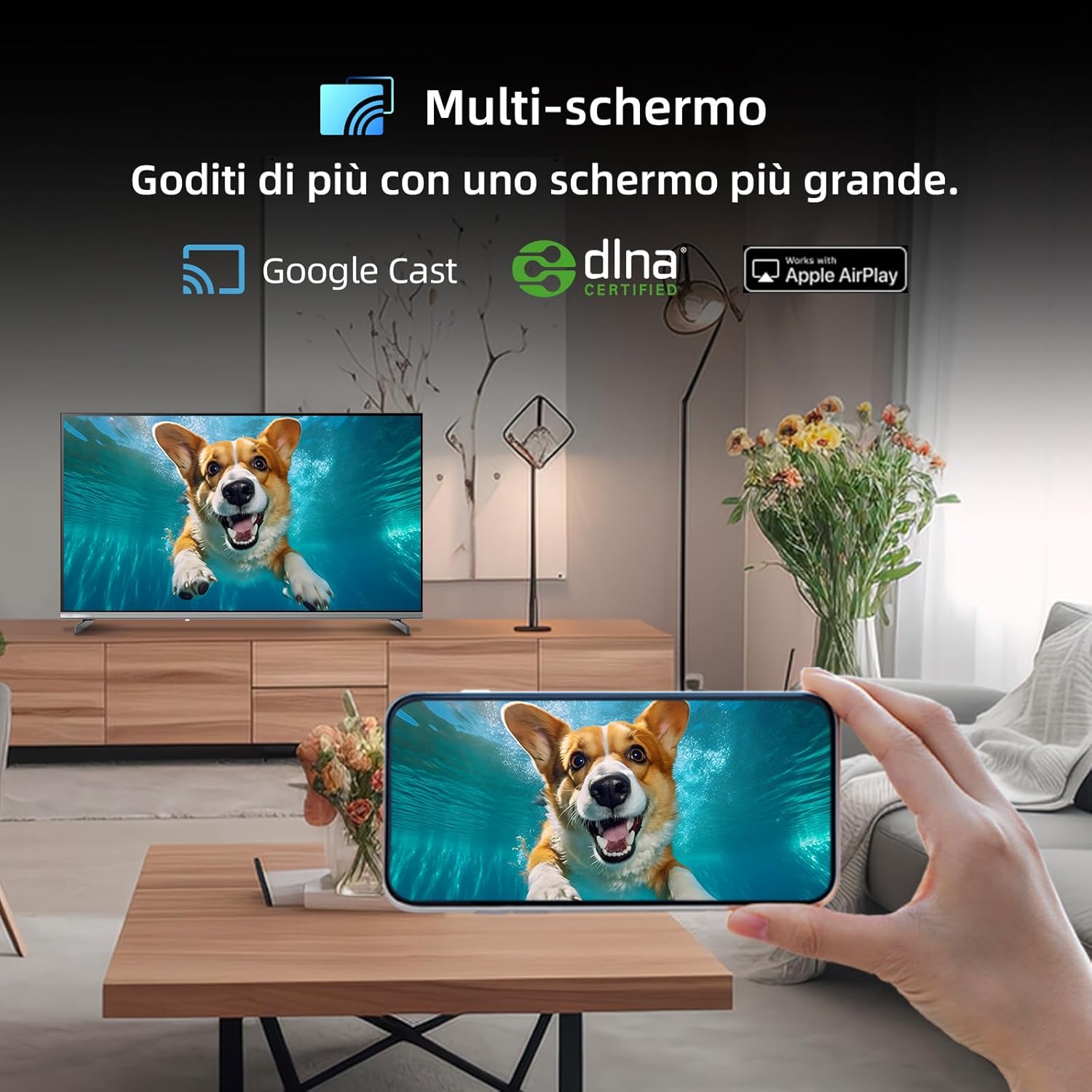
Figure 5.2.1: Multi-screen functionality with Google Cast.
6. Entretien
6.1 Nettoyage de l'écran
- Éteignez le téléviseur et débranchez le cordon d'alimentation.
- Essuyez délicatement l'écran avec un chiffon doux et non pelucheux.
- Pour les marques tenaces, frottez légèrementampNettoyez le chiffon avec de l'eau ou un nettoyant spécial écrans. Ne vaporisez pas de liquide directement sur l'écran.
6.2 Nettoyage du Casing
Essuyez le téléviseur casinNettoyez avec un chiffon doux et sec. Évitez d'utiliser des nettoyants abrasifs ou des solvants.
7. Dépannage
Si vous rencontrez des problèmes avec votre téléviseur, consultez les problèmes courants et leurs solutions ci-dessous :
| Problème | Cause possible | Solution |
|---|---|---|
| Pas de courant | Cordon d'alimentation débranché, problème de prise électrique | Vérifiez le branchement du cordon d'alimentation, essayez une autre prise. |
| Pas d'image, mais le son est présent. | Source d'entrée incorrecte, câble défectueux | Verify input source, check HDMI/AV cable connections. |
| Pas de son, mais l'image est présente. | Volume coupé, problème avec le système audio externe | Unmute volume, check external audio connections. |
| La télécommande ne fonctionne pas | Batteries déchargées, obstruction | Replace batteries, remove obstructions between remote and TV. |
| Smart features slow or unresponsive | Network issue, temporary software glitch | Restart TV, check Wi-Fi connection, update software. |
8. Spécifications
Detailed technical specifications for the CHiQ 40QA10 QLED TV:
| Fonctionnalité | Spécification |
|---|---|
| Modèle | 40QA10 |
| Taille de l'écran | 40 pouces |
| Technologie d'affichage | QLED, IPS |
| Résolution | Full HD 1080p (1920 x 1080) |
| Taux de rafraîchissement | 60 Hz |
| Prise en charge HDR | HDR10 |
| Système opérateur | Google TV |
| Technologie audio | Dolby Audio, dbx-tv |
| Connectivité | Wi-Fi (Dual Band), Bluetooth 5.0, Ethernet, HDMI (x3), USB (x2) |
| Technologie d'accordeur | DVB-C/T/T2/S/S2 |
| Fonctionnalités supplémentaires | Chromecast Built-in, DLNA |
| Consommation d'énergie | 55 watts |
| Classe d'efficacité énergétique | E |
| Dimensions du produit (LxPxH) | 89.18 x 7.07 x 50.86 cm (sans support) |
| Poids | 5 kg |

Figure 8.1 : Étiquette d’efficacité énergétique. Pour plus de détails, consultez Base de données EPREL.

Figure 8.2: Detailed Product Information Sheet. For more details, visit Base de données EPREL.
9. Garantie et assistance
9.1 Informations sur la garantie
The CHiQ 40QA10 TV typically comes with a manufacturer's warranty. Please refer to the warranty card included with your product for specific terms and conditions, including warranty duration and coverage details. Keep your proof of purchase for warranty claims.
9.2 Assistance clientèle
For technical assistance, troubleshooting beyond this manual, or warranty service, please contact CHiQ customer support. Contact information can usually be found on the official CHiQ websur votre site ou dans la documentation de votre produit.
- Fabricant: Changhong Europe Electric sro
- Adresse: Dělnická 213/12, 17000 Praha 7, Czech Republic
- Website: www.chiq.com
- E-mail: info@chiq.com
- Téléphone: +420233325611