
1. Introduction
Welcome to the user manual for your NIMO N152S 15.6-inch Laptop. This guide provides essential information on setting up, operating, maintaining, and troubleshooting your new device. Please read this manual thoroughly to ensure optimal performance and longevity of your laptop.
2. Produit terminéview
2.1 Principales caractéristiques
- Performances puissantes : Equipped with an AMD Ryzen 5 3500U processor and integrated Radeon graphics for smooth multitasking and efficient performance.
- Écran Full HD immersif : A 15.6-inch Full HD (1920x1080) IPS display with a 180° wide hinge for vibrant visuals and wide viewangles d'inclinaison.
- Conception mince et légère : Crafted with a sleek metal top cover, weighing under 3.7 lbs and measuring just 19.2 mm thin.
- Connectivité améliorée : Features 2 USB-A, 2 USB-C (full function PD/DP/Data), HDMI, MicroSD, and a 3.5mm audio jack.
- Mémoire et stockage extensibles : Supports up to 32GB DDR4 RAM and M.2 PCIe 3.0 x4 SSD for future-proof upgrades.
- Smart Security & Comfort: Includes a fingerprint reader on the touchpad, a backlit keyboard for low-light use, and dual microphones.
2.2 Identification des composants
Familiarize yourself with the various components of your NIMO N152S laptop as illustrated below.

Figure 2.1 : Face avant view of the NIMO N152S laptop, showcasing its sleek design and key features like Windows 11, 32GB RAM, 1TB SSD, Full HD display, AMD Ryzen 5, Type-C PD Charger, Backlit Keyboard, and Fingerprint Reader.

Figure 2.2: Illustration of the AMD Ryzen 5 processor, detailing its specifications including 4 Cores, 8 Threads, 15W Power Consumption, and 3.7 GHz Turbo Boost, indicating its capability for daily tasks and light gaming.

Figure 2.3: The NIMO laptop screen showcasing a vivid Full HD (1920x1080) IPS display, highlighting features like bright view and eye protection, with an 85% screen-to-body ratio.

Figure 2.4 : Détaillé view of the NIMO laptop's expanded connectivity options, labeling ports such as Type-C (Charge Only), USB 3.0, HDMI, Type-C (Full Function), Charge LED, Micro SD Reader, USB 2.0, USB 3.0, Headphone Combo, and Kensington Lock.
3. Configuration initiale
3.1 Chargement de l'ordinateur portable
Before first use, fully charge your NIMO laptop. Connect the provided 65W Type-C PD charger to the USB-C charging port on the laptop and then to a power outlet. The charge LED indicator will illuminate to confirm charging.

Figure 3.1: The 65W Type-C PD Charger, designed for universal compatibility with laptops, tablets, and smartphones, simplifying your charging needs compared to multiple chargers.
3.2 Première mise sous tension
- Ouvrez le couvercle de l'ordinateur portable.
- Appuyez sur le bouton d'alimentation situé sur le clavier.
- Suivez les instructions à l'écran pour terminer la configuration initiale de Windows 11, notamment la sélection de la langue, la connexion réseau et la création du compte utilisateur.
4. Utilisation de votre ordinateur portable NIMO
4.1 Mode marche/arrêt et veille
- Mise sous tension : Appuyez sur le bouton d'alimentation.
- Fermer: Cliquez sur le bouton Démarrer, puis sur Marche/Arrêt.
- Mode veille: Fermez le couvercle ou cliquez sur le bouton Démarrer, puis sur Marche/Arrêt > Veille.
4.2 Utilisation du clavier et du pavé tactile
Your NIMO laptop features a full-sized keyboard with a numeric keypad and a responsive touchpad.
- Clavier rétroéclairé : Presse Fn + F10 (or the key with the backlight icon) to toggle the keyboard backlight on/off or adjust brightness levels.
- Pavé tactile : Compatible avec les gestes multitouch pour la navigation. Consultez les paramètres Windows pour plus de détails.
- Clavier numérique: Utilisez le clavier numérique dédié pour une saisie de données efficace.

Figure 4.1: The NIMO laptop keyboard, emphasizing its backlit keys, integrated touchpad, fingerprint reader, and numeric keypad, designed for comfortable typing in various lighting conditions.
4.3 Lecteur d'empreintes digitales
The integrated fingerprint reader on the touchpad provides quick and secure access to your laptop.
- Accédez à Paramètres Windows > Comptes > Options de connexion.
- Configurer l'empreinte digitale Windows Hello.
- Suivez les instructions à l'écran pour enregistrer vos empreintes digitales.
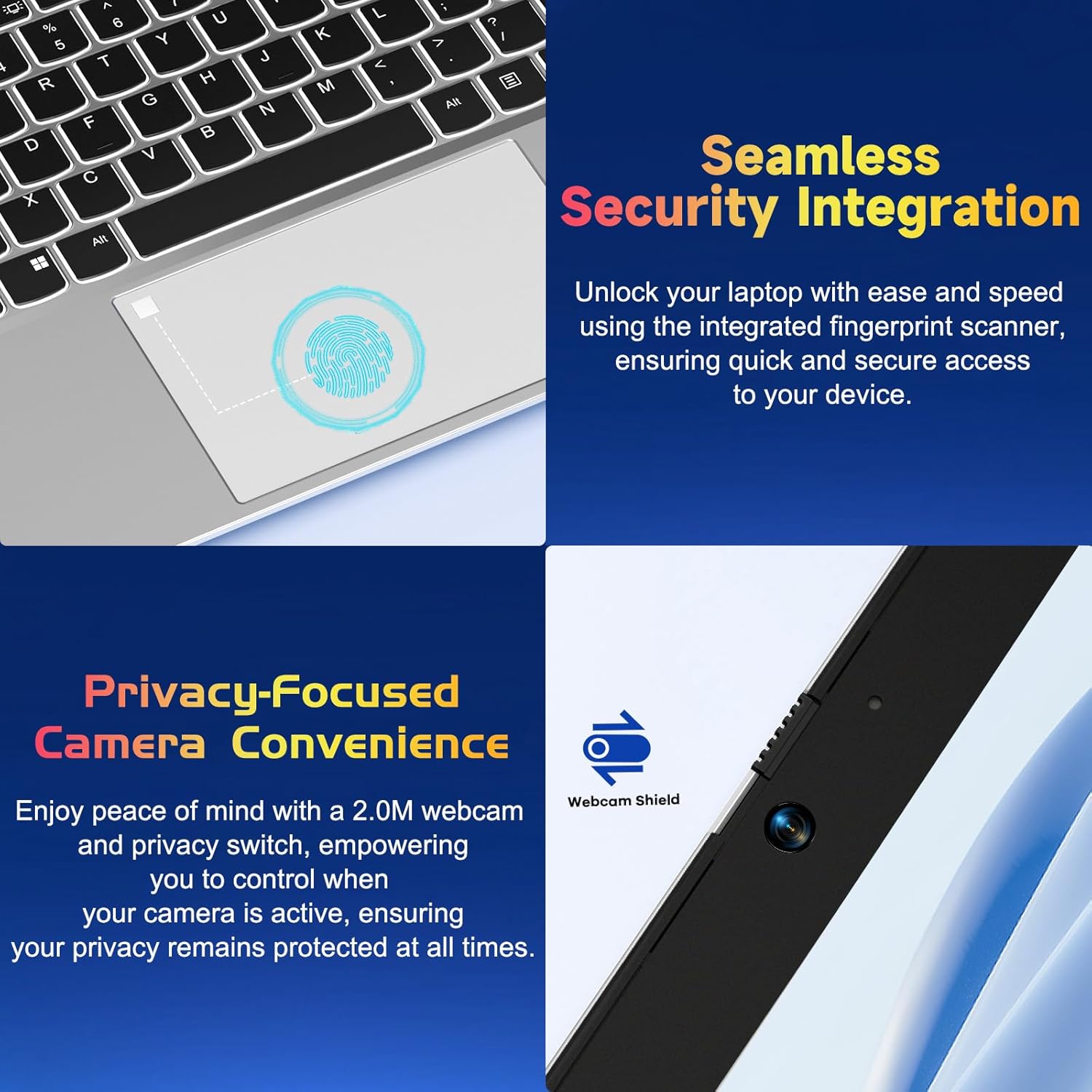
Figure 4.2 : Gros plan view of the NIMO laptop's touchpad, highlighting the integrated fingerprint scanner for seamless security integration, alongside the privacy-focused webcam with a physical shield.
4.4 Connexion de périphériques
Votre ordinateur portable offre différents ports pour connecter des périphériques externes :
- Ports USB-A : Pour connecter des périphériques USB standard tels que des souris, des claviers ou des disques durs externes.
- Ports USB-C : Two full-function USB-C ports support Power Delivery (PD), DisplayPort (DP), and data transfer. One is dedicated for charging.
- Port HDMI: Se connecter à des moniteurs ou projecteurs externes.
- Lecteur de carte microSD : Insert a MicroSD card for additional storage or data transfer.
- Prise audio 3.5 mm : Pour des écouteurs ou des haut-parleurs externes.
4.5 WebConfidentialité de la caméra
The laptop includes a 2.0MP webcam with a physical privacy shield. Slide the shield to cover the camera lens when not in use to ensure your privacy.
5. Maintenance et entretien
- Nettoyage: Utilisez un chiffon doux et non pelucheux légèrement dampRincez à l'eau ou utilisez un nettoyant pour écrans pour nettoyer l'écran et l'extérieur. Évitez les produits chimiques agressifs.
- Mises à jour logicielles : Mettez régulièrement à jour votre système d'exploitation Windows et vos pilotes pour garantir des performances et une sécurité optimales.
- Entretien de la batterie: Pour prolonger la durée de vie de la batterie, évitez les températures extrêmes et essayez de maintenir la charge de la batterie entre 20 % et 80 % lorsque cela est possible.
- Stockage: Rangez l'ordinateur portable dans un endroit frais et sec, à l'abri de la lumière directe du soleil et des températures extrêmes.
6. Dépannage
Cette section aborde les problèmes courants que vous pourriez rencontrer avec votre ordinateur portable NIMO.
| Problème | Solution possible |
|---|---|
| L'ordinateur portable ne s'allume pas. | Ensure the laptop is charged. Connect the charger and wait a few minutes before attempting to power on again. If unresponsive, perform a hard reset by holding the power button for 15 seconds. |
| L'écran est noir ou clignote. | Try adjusting the screen brightness (Fn + F5/F6). If connected to an external monitor, ensure the cable is secure. Restart the laptop. |
| Le rétroéclairage du clavier ne fonctionne pas. | Press Fn + F10 (or the key with the backlight icon) to cycle through backlight settings. Ensure the function keys are enabled. |
| Lecteur d'empreintes digitales non reconnu. | Assurez-vous que votre doigt est propre et sec. Si le problème persiste, réenregistrez votre empreinte digitale dans les paramètres de Windows Hello. |
| Problèmes de connexion Wi-Fi. | Check if Wi-Fi is enabled (Fn + F12 or Windows settings). Restart your router and laptop. Update Wi-Fi drivers if necessary. |
| L'ordinateur portable fonctionne lentement. | Close unnecessary applications. Check Task Manager for resource-intensive processes. Ensure Windows and drivers are up to date. Consider running a disk cleanup. |
7. Spécifications techniques
| Fonctionnalité | Spécification |
|---|---|
| Marque | NIMO |
| Nom du modèle | NIMO N152S |
| Numéro de modèle de l'article | NIMO N152 |
| Taille de l'écran | 15.6 pouces |
| Résolution d'écran maximale | 1920 x 1080 pixels (Full HD) |
| Processeur | AMD Ryzen 5 3500U (3.7 GHz) |
| BÉLIER | 32 Go DDR4 (3200 MHz) |
| Disque dur | SSD de 1024 Go (Solid State) |
| Coprocesseur graphique | Carte graphique intégrée AMD |
| Système opérateur | Windows 11 |
| Type sans fil | 802.11abg |
| Nombre de ports USB 2.0 | 1 |
| Durée de vie moyenne de la batterie | 5 heures |
| Poids de l'article | 3.8 livres |
| Dimensions du produit | 14.07 x 8.98 x 0.76 pouces |
| Couleur | Argent classique |
| Arrière WebRésolution de came | 2 MP |
| Source d'énergie | Alimenté par batterie |
| Piles | 1 piles Lithium Polymère requises (incluses) |
8. Garantie et support client
8.1 Informations sur la garantie
Your NIMO N152S laptop comes with a comprehensive warranty:
- 90-Day Free Return Policy: You may return your NIMO laptop for any reason within 90 days of purchase.
- Garantie de 2 ans : All NIMO products are covered by a 2-year warranty for after-sales support.

Figure 8.1: NIMO's commitment to customer satisfaction, featuring a 90-day free return policy and a 2-year warranty for reliable support.
8.2 Assistance clientèle
For any product-related questions, technical assistance, or warranty claims, please contact our U.S.-based support team:
- Visitez le site officiel de NIMO webSite regroupant les ressources d'assistance et les options de contact.
- Veuillez consulter votre documentation d'achat pour obtenir les coordonnées spécifiques.
Our team is dedicated to providing professional and high-quality customer service to resolve any issues you may encounter.